
Receipt Printer Printing Blank? Isolate the Cause
Compare a standalone self-test with a POS receipt to isolate thermal paper, print-engine, driver, and receipt-layout faults safely.
- Written by
- Clayton Wingfield
- Reviewed by
- Clayton Wingfield
- Originally published
- Aug 5, 2026
- Last reviewed
- Aug 5, 2026
Quick verdict
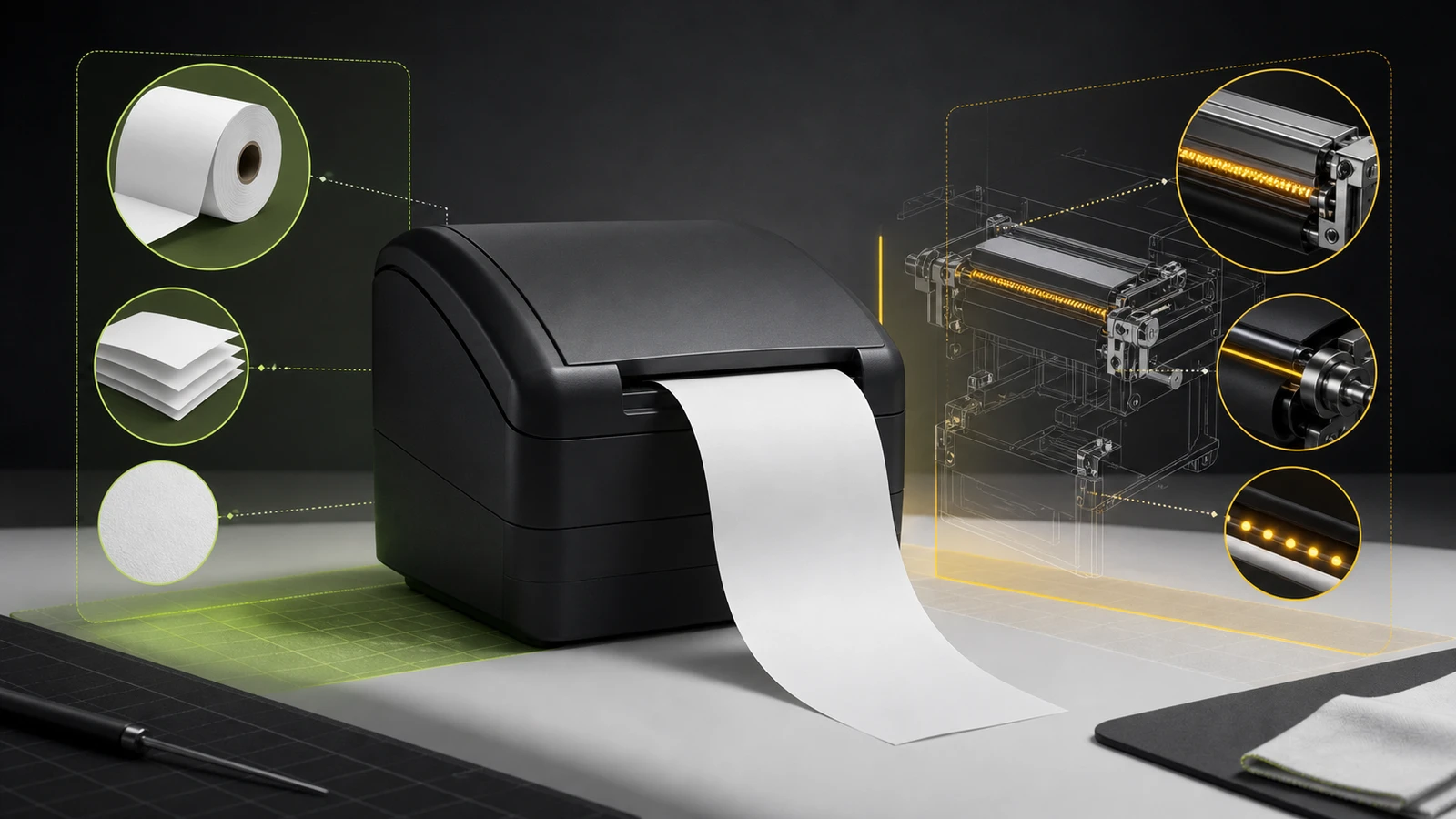
Run a model-supported self-test, verify a known-good thermal roll and its coated-side orientation, then compare the result with a POS test receipt before resetting anything.
- Best for
- Retail, restaurant, and service operators whose receipt printer feeds or cuts paper but produces no visible receipt content.
- Avoid if
- The printer smells hot, has liquid or physical damage, persistent error lights, or requires opening the chassis to inspect or repair.
When a receipt printer feeds and cuts paper but the receipt is completely blank, start with the paper path—not the POS connection. First determine whether the print engine can make a visible mark on the media.
Do not factory-reset the printer or reinstall every driver first. Print a model-supported self-test, check the paper type and orientation, then compare the self-test with a receipt from the POS. Those two outputs separate a paper or print-engine fault from an application or layout fault with fewer disruptive changes.
Confirm the printer type and symptom
This guide focuses on direct-thermal receipt printers. They make marks by heating coated paper and do not use ink or toner. Impact receipt or kitchen printers are different: they normally use bond paper and an ink ribbon. Loading thermal paper into an impact printer, or bond paper into a direct-thermal printer, can produce blank output even when the mechanism runs.
Identify the model, then check its manual before opening or cleaning it. Separate a fully blank receipt from nearby symptoms:
- If no paper moves, use the receipt-printer paper-feed diagnostic.
- If marks are present but pale or uneven, use the faded-receipt troubleshooting guide.
- If the self-test is readable but a POS job contains random symbols, follow the gibberish and data-path guide.
- If nothing prints from one POS platform, even though the printer self-test works, use the platform-specific Shopify POS or Square workflow.
Run the printer's standalone self-test
A standalone self-test bypasses the POS app, network, Bluetooth connection, operating-system queue, driver, and receipt template. Use the exact procedure in the printer manual. Many desktop thermal models start a self-test by holding Feed while powering on, but button timing and continuation steps vary.
Epson's TM-T88VII technical guide documents a self-test that prints the printer's current status and a built-in character pattern. Star also publishes model-family self-test instructions. Use those examples only when they match your model.
Interpret the result before changing anything:
| Self-test result | POS receipt result | Strongest fault boundary | | --- | --- | --- | | Completely blank | Completely blank | Paper type, paper orientation, head contact, obstruction, or print-engine service | | Readable | Completely blank | POS receipt content, driver, queue, printer selection, paper size, or application configuration | | Readable | Long blank tail after content | Receipt page size, margins, headers, or application layout | | Faint, streaked, or partial | Similar defect | Paper condition, contamination, platen contact, density, or worn hardware | | No self-test starts | No useful comparison | Model procedure, controls, power state, cover, error condition, or service issue |
If the self-test is readable, do not clean or replace the thermal head to fix a blank POS-only job. The print engine can mark the paper.
Test the paper before the printer
For a blank self-test on a direct-thermal printer, remove the roll and check three things.
Confirm it is thermal receipt paper
Gently scratch each side of a loose sample with a fingernail or another non-sharp object. A gray or black mark identifies a thermally coated side. Star's blank-printing guidance uses this check to distinguish thermal receipt paper from uncoated stock.
No mark on either side suggests the roll is not direct-thermal paper or its coating is no longer responding normally. Test a sealed, known-good roll that meets the manual's paper specification.
Load the coated side toward the thermal head
Reverse the roll only after checking the loading diagram inside the paper bay or in the manual. The paper path differs by printer design; rules such as “glossy side up” are not universal. Toast's current blank-ticket support note likewise directs operators to the model's paper-bay diagram because incorrect orientation is a common cause.
Close the cover firmly without forcing it. A partially latched cover can reduce contact between the paper and print mechanism on some models.
Retest with one known-good roll
Run the standalone self-test again. Change only the roll and its orientation so the result remains useful.
- If the self-test now prints, record the failed roll lot or supplier and remove the suspect stock from nearby stations.
- If the coated side marks but correct loading remains blank, move to model-approved inspection and cleaning.
- If several printers fail after the same supply delivery, quarantine that paper before replacing hardware.
Inspect and clean only the operator-serviceable path
Turn the printer off and let the thermal head cool. Follow the exact maintenance instructions for the model; cleaning fluid, access points, and power precautions are not interchangeable.
Look for loose paper dust, a folded scrap, adhesive contamination, or debris that prevents even contact. Do not scrape the head, touch its thermal elements with a hard object, or dismantle the printer. Star's blank-printing article recommends clearing obstructions and, for its covered models, cleaning with 70% isopropyl alcohol only after the head has cooled. Epson's TM-T88VII guide specifies a cotton swab moistened with ethanol or isopropyl alcohol for the thermal head and warns that the head may be hot after printing. Your model's manual controls.
Allow cleaned parts to dry fully before restoring power. Then install the known-good roll and repeat the self-test once.
If the self-test prints but the POS receipt is blank
Now the paper and print engine are lower-probability suspects. Keep the known-good self-test and move outward through the job path.
- Print a POS hardware test receipt. A readable test but blank completed-sale receipt points to routing or template content.
- Confirm the selected printer. Check the default and the printer assigned to that register or receipt station.
- Inspect the preview or queued document. A blank preview points to the application. A normal preview that prints blank points to the driver, language, or queue boundary.
- Confirm the exact model and paper size. Preserve existing settings before changing them.
- Compare another terminal. One failing terminal points to its local app, driver, queue, or profile; every terminal failing the same receipt type points to shared configuration.
Do not confuse a completely blank receipt with a receipt that prints correctly and then feeds a long blank section. Star's browser paper-size guidance treats paper size, margins, and headers or footers as layout controls for web-based POS printing. Fix that page-length symptom in the application or print settings rather than replacing paper that already prints visible content.
Avoid fixes that erase evidence
- Do not buy ink for a direct-thermal printer. It does not use an ink cartridge or toner.
- Do not raise density first. Density may help light output, but it does not correct uncoated paper, reversed media, or a blank application job.
- Do not factory-reset before recording settings. A reset can erase interface, network, drawer, paper-width, and application-specific configuration.
- Do not copy another model's cleaning method. Use the manual for the exact printer and revision.
- Do not keep printing full transactions as tests. Use the built-in self-test and the POS hardware test so staff can distinguish diagnostics from customer receipts.
Prevent another blank-receipt outage
Standardize paper by printer model and store a sealed known-good roll at each location. Keep impact-printer supplies separate from thermal rolls. Test one roll from a new shipment before distributing the case.
Add the self-test procedure, loading diagram, current connection method, and normal printer assignment to the location's hardware notes. Record cleaning dates and paper-lot changes. After maintenance, confirm both a standalone self-test and a POS test receipt; either test alone leaves part of the path unverified.
When to call support or replace the printer
Escalate when a known-good, correctly oriented roll remains blank during the model's standalone self-test after the permitted paper-path inspection and cleaning. Also stop when the cover will not latch, the platen or head is visibly damaged, error lights persist, there is a burning smell, liquid entered the unit, or service would require opening the chassis.
Give support the exact model, interface, error-light pattern, paper specification, self-test result, known-good roll result, maintenance performed, and last known change. Replace only after the failure remains inside the printer or repair is uneconomical.
Limitations of this guide
This is researched troubleshooting guidance. Devicefield did not test a printer, paper roll, driver, POS platform, cleaning method, or print job for this article. Self-test procedures, approved media, cleaning agents, cover sensors, density controls, and service boundaries vary by model and firmware. Verify the current manual before maintenance or persistent configuration changes.
Frequently asked questions
Why is my thermal receipt printer printing blank paper?
The strongest first suspects are non-thermal paper, the coated side facing away from the thermal head, poor head-to-paper contact, contamination, or a print-engine fault. A standalone self-test separates those causes from a POS or driver problem.
Which side of thermal paper should face the print head?
The coated side must contact the thermal head, but its visible up-or-down orientation depends on the printer's paper path. Scratch both sides to find the coating, then follow the loading diagram for the exact model.
Does a thermal receipt printer need ink?
A direct-thermal receipt printer does not use ink or toner. An impact receipt or kitchen printer may use an ink ribbon, so identify the printer technology before buying supplies.
Why does the self-test print but sales receipts come out blank?
That result moves the likely fault beyond the print engine. Check the POS hardware test, selected printer, receipt assignment, preview, queue, exact driver, printer language, and paper-size configuration.
Should I factory-reset a receipt printer that prints blank?
Not first. Record the current configuration, test known-good paper, and compare a standalone self-test with a POS test receipt. A reset can erase working settings without correcting the paper or application layer.
Compatibility notes
Systems, accessories, and constraints
The isolation sequence applies broadly to direct-thermal receipt printers, but paper dimensions, loading direction, self-test controls, cleaning agents, cover sensors, drivers, printer languages, and supported POS workflows vary by model. Impact printers use different paper and ribbon paths.
Testing methodology
How this article was evaluated
Reviewed every local package and all 32 database inventory records; searched current troubleshooting, setup, comparison, compatibility, and adjacent operational queries; reviewed the selected primary phrase and close variants; synthesized current Star Micronics, Epson, Toast, and Shopify documentation into a self-test-first fault-isolation sequence.
Known limitations
What this guide could not verify
Research-only. No receipt printer, paper roll, POS application, driver, queue, cleaning method, or print job was tested. Verify the exact model manual, media specification, maintenance method, and service boundary.
Sources
Documentation and references
- How to Troubleshoot Blank Printing on Thermal Printers - Supports thermal-paper verification, model-dependent roll orientation, obstruction checks, cleaning precautions, and escalation.
- How to Print a Self-Test on Star Printers - Supports using a model-family standalone self-test to print configuration and isolate the printer from the POS path.
- TM-T88VII Technical Reference Guide - Supports the TM-T88VII self-test procedure and model-specific thermal-head and platen cleaning precautions.
- Get Help With Blank Tickets Printing - Supports incorrect paper installation as a common blank-output cause and following the paper-bay loading diagram.
- Get Help: My Printer Isn't Working - Supports separating thermal from impact printers, paper/ribbon differences, and printing a standalone test slip.
- How to Configure Margins and Paper Size on a Web Browser - Supports paper size, margins, headers, and footers as controls for long blank output in browser-based POS printing.
Devicefield checklist
Make the next hardware decision with fewer surprises.
Get practical buying notes, compatibility checks, and new troubleshooting guides.
Frequently asked questions
Why is my thermal receipt printer printing blank paper?
The strongest first suspects are non-thermal paper, the coated side facing away from the thermal head, poor head-to-paper contact, contamination, or a print-engine fault. A standalone self-test separates those causes from a POS or driver problem.
Which side of thermal paper should face the print head?
The coated side must contact the thermal head, but its visible up-or-down orientation depends on the printer’s paper path. Scratch both sides to find the coating, then follow the loading diagram for the exact model.
Does a thermal receipt printer need ink?
A direct-thermal receipt printer does not use ink or toner. An impact receipt or kitchen printer may use an ink ribbon, so identify the printer technology before buying supplies.
Why does the self-test print but sales receipts come out blank?
That result moves the likely fault beyond the print engine. Check the POS hardware test, selected printer, receipt assignment, preview, queue, exact driver, printer language, and paper-size configuration.
Should I factory-reset a receipt printer that prints blank?
Not first. Record the current configuration, test known-good paper, and compare a standalone self-test with a POS test receipt. A reset can erase working settings without correcting the paper or application layer.


