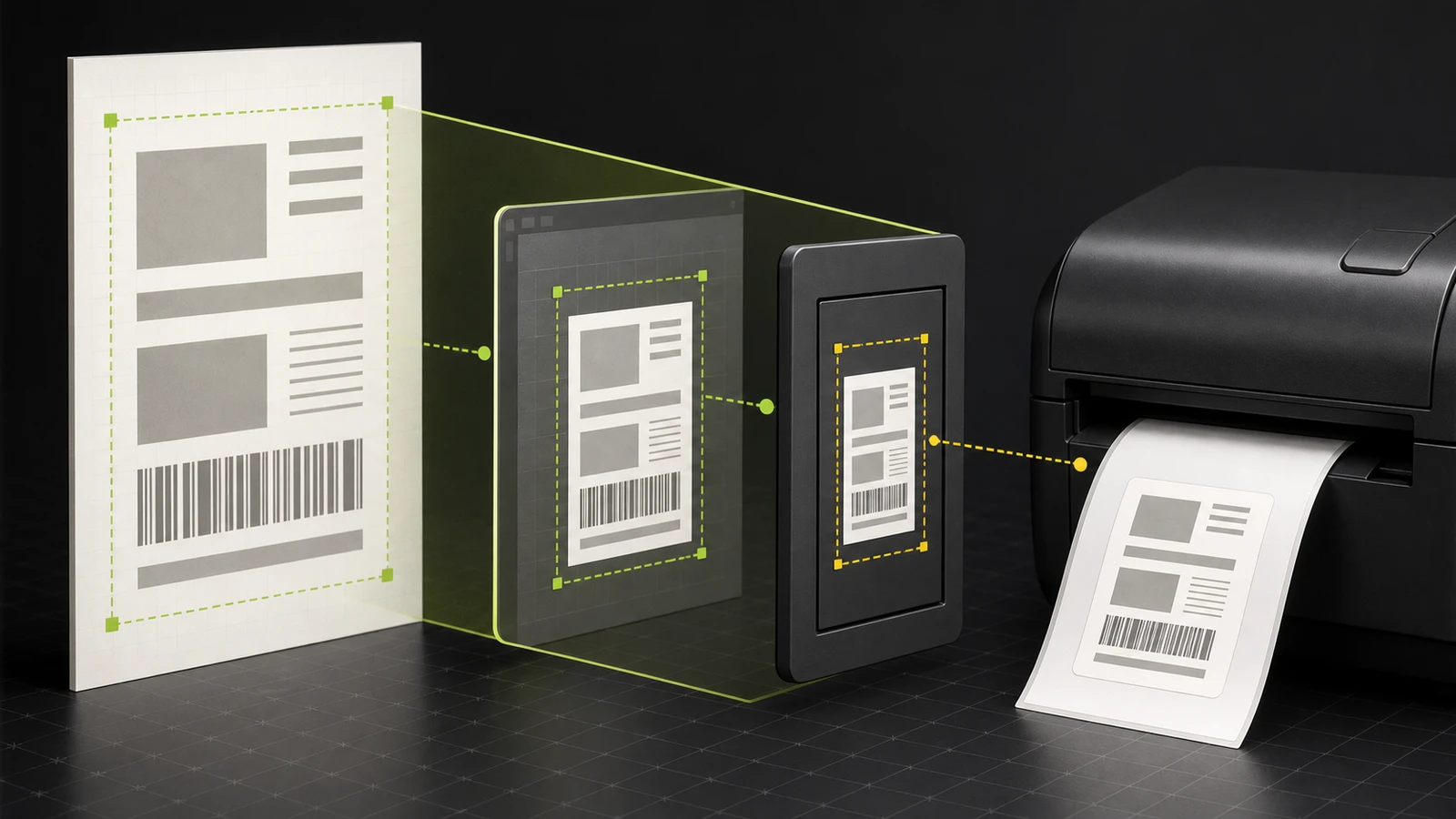
Receipt Printer Printing Duplicate Receipts? Fix the Route
Trace duplicate receipts through copy counts, printer registrations, profiles, and POS senders before resetting or replacing working hardware.
- Written by
- Clayton Wingfield
- Reviewed by
- Clayton Wingfield
- Originally published
- Aug 7, 2026
- Last reviewed
- Aug 7, 2026

Quick verdict
Reduce the path to one requested copy, one printer registration or profile, and one sending device before restarting or replacing hardware.
- Best for
- Retail and hospitality operators whose receipt printer produces two or more copies from a single sale, online order, or POS action.
- Avoid if
- The papers are intentionally different job types, the printer shows a hardware error, or the model's documented self-test itself behaves abnormally.
When a receipt printer prints duplicate receipts, do not replace the printer first. Most repeat output begins upstream: a copy-count setting, a duplicate printer registration, overlapping printer profiles, or two POS devices sending the same job.
Keep one duplicate pair and trace who asked for each copy. The safest target is simple: one requested copy, one print route, and one sending device.
Identify what printed twice
Compare the two papers before changing settings.
| Duplicate pattern | Strong first suspect | | --- | --- | | Two identical customer receipts print back to back after every sale | Receipt copy count or duplicate printer registration | | One copy prints immediately and another arrives seconds later | A second POS sender, overlapping route, or delayed queued job | | Only online orders create duplicates | Multiple devices or profiles own the same online-order route | | A customer receipt and an order ticket both print | Two enabled job types, not necessarily one duplicated job | | Only one register causes duplicates | That register's local printer list, profile assignment, or print setting | | Every register causes duplicates at one printer | Shared profile or central routing configuration |
Check whether both papers have the same order or transaction identifier, timestamp, total, and document type. A customer receipt, kitchen ticket, declined-payment receipt, gift receipt, or reprint may look similar while coming from a different rule.
This distinction matters. Removing a printer because two valid document types printed can break kitchen or fulfillment routing without fixing the actual policy.
If nothing prints, use the platform-specific Square receipt-printer diagnostic or Shopify POS receipt-printer diagnostic. If the duplicate paper contains corrupted characters rather than a second valid copy, follow the gibberish-output data-path guide.
Preserve the evidence before restarting
Write down:
- the POS device and employee action that triggered the output;
- whether the order was in person, online, reopened, refunded, or manually reprinted;
- the exact printer name and connection method;
- the active printer profile or station name;
- the configured receipt-copy count;
- the number of POS devices that can reach the printer;
- the gap in seconds between the two copies.
Photograph the pair if it contains no sensitive customer or payment data. Otherwise record only non-sensitive identifiers needed by your administrator or vendor. Do not share full card data, customer contact details, or authentication information.
A restart may stop the immediate symptom, but it also makes a delayed or queued second job harder to trace. Capture the pattern first.
Run the one-copy, one-route, one-sender test
Change one layer at a time. Use the platform's training mode, test order, or supported reprint flow when available; do not create a live charge only to test printing.
Set the receipt count to one
Start in the POS application. Shopify documents a Copies printed after a transaction control for eligible POS Pro locations, and changes can be applied at a location or from an assigned POS device. Confirm the effective value where the duplicate occurs, not only in a different store or register. See Shopify's current printed-receipt options.
Lightspeed Retail also lists an incorrect receipt count as one cause of multiple copies. If the application asks for two copies, the printer is doing what it was told.
Keep one registration for the physical printer
Next, inspect the printer list on the affected device. The same physical printer can appear more than once after a USB-to-network change, a reinstall, or a discovery pass. Lightspeed's current troubleshooting guidance specifically tells operators to check for duplicate printer entries and remove extras when an iPad receipt printer produces multiple copies. Review the Lightspeed receipt-printer checklist.
Before removing anything, note which entry has the working connection, assigned job types, and current settings. Disable or remove only the confirmed stale registration.
Keep one profile for each job route
A printer may be registered once but assigned through two profiles. Square documents that duplicate online order tickets can occur when two printer profiles both have the same job type and item categories enabled. Each profile produces its own copy even when both point to one printer.
List every profile assigned to the physical printer. For the duplicated document type, keep one intentional owner. Separate profiles are valid when they route different categories or job types; the fault is overlapping responsibility. Use Square's duplicate-order troubleshooting and printer-profile setup guide for the current controls.
Keep one sending device for shared online jobs
Some shared profiles are active on multiple POS devices. Square explains that connected devices can each process the same online-order ticket, causing every active sender to deliver a copy to the printer. Its supported fix is to dedicate that online-order route to one reliable POS device.
For other platforms, use the same diagnostic question without assuming the same menu: How many devices are authorized to send this job type to this printer? If the answer is uncertain, map the devices before deleting profiles.
Use a hardware self-test only as a boundary check
After the application routes are reduced to one, run the printer manufacturer's documented self-test. A hardware self-test does not reproduce a POS transaction; it prints printer configuration or built-in test content. Star Micronics documents the model-specific button sequence and notes that some network models produce multiple self-test pages, so compare the output with the manual instead of treating any second page as a duplicate. See Star's self-test instructions.
If the documented self-test completes normally once but a POS event still prints twice, the stronger suspect remains upstream. If the self-test itself repeats outside the documented sequence, stop changing POS routes and contact the printer vendor with the model, firmware, and self-test output.
Apply fixes from least to most disruptive
- Set the receipt or ticket quantity to one for the affected transaction type.
- Disable the confirmed duplicate printer registration on the affected device.
- Remove overlapping job types or categories from extra printer profiles.
- Assign a shared online-order route to one intended POS sender.
- After recording the evidence, clear only confirmed stale jobs and restart the affected app or device using vendor guidance.
- Update the POS app, printer integration, or supported driver when current documentation identifies a fixed version.
- Rebuild the printer profile only after the existing assignments are documented.
- Reserve a factory reset for a model-specific vendor procedure or support instruction.
Do not make all eight changes at once. A one-layer change followed by one controlled print proves more than a broad reset that happens to hide the symptom.
Verify the corrected route
Use one known document and record the result:
- one action created one expected print job;
- one intended device sent it;
- one profile or station owned the route;
- one printer registration received it;
- the requested number of physical copies printed;
- required kitchen, fulfillment, or declined-payment documents still work.
Then test the other transaction paths that matter to the business. In-person sales, online orders, refunds, reprints, and kitchen tickets may use different rules. A fix for customer receipts should not silently disable operational tickets.
Prevent duplicate receipts from returning
Name printer profiles by location, job type, and owner, such as `Front counter receipts` or `Online orders — register 1`. Keep a short map of each physical printer, its connection, assigned profiles, enabled job types, and sending devices.
After adding a register, replacing a printer, changing USB to Ethernet, restoring a tablet, or cloning a profile, run a one-copy check for every important job type. Remove stale entries only after the replacement route is verified.
Limitations of this guide
This is researched troubleshooting guidance. Devicefield did not test a POS platform, printer, driver, queue, transaction, or network for this article. Receipt controls, profile names, routing behavior, self-tests, and safe queue-recovery steps vary by platform and printer model. Follow the current documentation for the exact POS, device, printer, and transaction type before making persistent changes.
Frequently asked questions
Why does my receipt printer print exactly two copies?
The most common documented causes are a copy count set to two, the same printer registered twice, two profiles owning the same job type, or two POS devices sending the same shared job. Compare the pair and reduce the path to one copy, one route, and one sender.
Why do only online orders print twice?
Check which printer profiles have online-order printing enabled and how many POS devices share them. Square specifically documents duplicate online tickets when multiple profiles or devices process the same route.
Should I clear the print queue first?
Record the timing, sending device, profile, and printer registration first. Then clear only jobs confirmed as stale using the operating system or vendor's supported procedure. A queue clear cannot correct a copy-count or overlapping-profile rule.
Does printing twice mean the receipt printer is failing?
Usually not when a documented hardware self-test behaves normally. Duplicate transaction output is often created by upstream settings or routing. Escalate the printer itself when its self-test repeats outside the model's documented sequence or shows another hardware error.
Compatibility notes
Systems, accessories, and constraints
The diagnostic applies to POS receipt and order-ticket workflows, but copy controls, printer registrations, profile ownership, online-order routing, queues, drivers, and hardware self-tests vary by platform, operating system, connection type, printer model, and transaction type.
Testing methodology
How this article was evaluated
Reviewed every local package and all 35 database inventory records; searched eight materially different discovery queries; reviewed the selected primary query and three close variants; synthesized current Shopify, Square, Lightspeed, and Star Micronics documentation into a one-copy, one-route, one-sender diagnostic.
Known limitations
What this guide could not verify
Research-only. No POS platform, transaction, printer, driver, queue, network, profile, or device was tested. Current platform and printer documentation controls.
Sources
Documentation and references
- Printing options for printed receipts in your Shopify POS - Documents automatic receipt printing and the number-of-copies control for eligible Shopify POS Pro locations.
- Troubleshoot printing duplicate orders - Explains duplicate online tickets caused by multiple POS devices sharing a profile or multiple overlapping printer profiles.
- Set up printer profiles - Documents Square printer-profile job types, assignments, and shared configuration behavior.
- Troubleshooting receipt printers - Identifies receipt copy settings and duplicate printer registrations as causes of multiple printed copies.
- How to Print a Self-Test on Star Printers - Provides model-specific hardware self-test steps and notes expected multi-page output for some network models.
Devicefield checklist
Make the next hardware decision with fewer surprises.
Get practical buying notes, compatibility checks, and new troubleshooting guides.
Frequently asked questions
Why does my receipt printer print exactly two copies?
The most common documented causes are a copy count set to two, the same printer registered twice, two profiles owning the same job type, or two POS devices sending the same shared job. Compare the pair and reduce the path to one copy, one route, and one sender.
Why do only online orders print twice?
Check which printer profiles have online-order printing enabled and how many POS devices share them. Square specifically documents duplicate online tickets when multiple profiles or devices process the same route.
Should I clear the print queue first?
Record the timing, sending device, profile, and printer registration first. Then clear only jobs confirmed as stale using the operating system or vendor's supported procedure. A queue clear cannot correct a copy-count or overlapping-profile rule.
Does printing twice mean the receipt printer is failing?
Usually not when a documented hardware self-test behaves normally. Duplicate transaction output is often created by upstream settings or routing. Escalate the printer itself when its self-test repeats outside the model's documented sequence or shows another hardware error.