
Square Receipt Printer Not Printing: Diagnose the Fault
Use three controlled print checks to isolate a Square receipt-printer fault without resetting working hardware or risking pending payments.
- Written by
- Clayton Wingfield
- Reviewed by
- Clayton Wingfield
- Originally published
- Jul 23, 2026
- Last reviewed
- Jul 23, 2026
Quick verdict
Prove the printer engine, Square connection, and receipt-routing profile in that order; protect pending offline payments before destructive recovery.
- Best for
- Square sellers troubleshooting supported USB, Bluetooth, Wi-Fi, or Ethernet receipt printers on a live checkout system.
- Avoid if
- The issue is a Square Terminal internal-printer hardware failure or an unsupported printer that requires model-specific service.
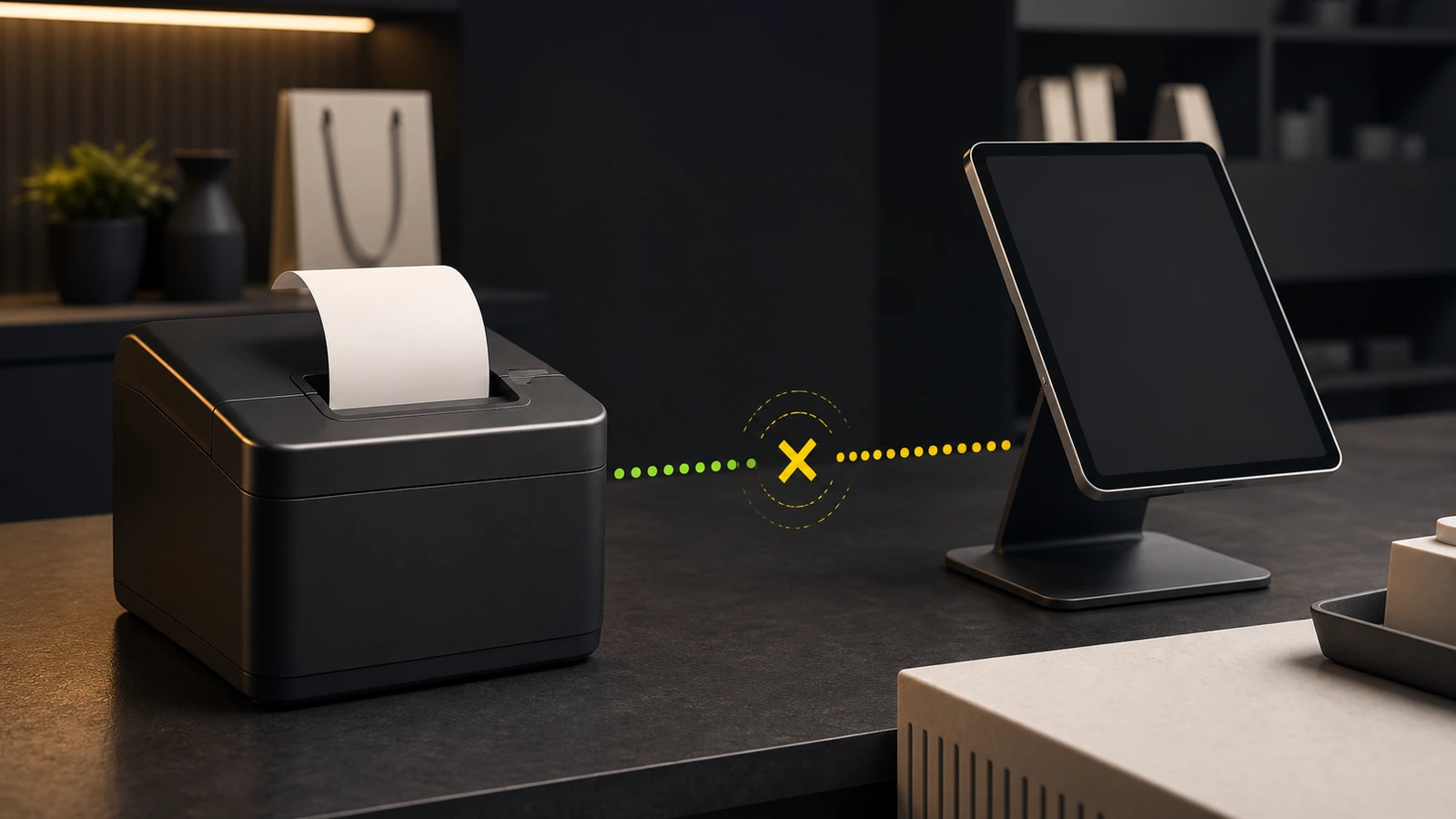
When a Square receipt printer stops printing, first prove which boundary failed: the printer itself, its USB/Bluetooth/network connection, or the Square printer profile that routes receipts. Resetting everything at once destroys that evidence and can create a second problem.
Start with a printer test, then a Square test print, then a real receipt. Those three checks narrow the fault faster than repeatedly reconnecting hardware.
Protect pending offline payments before troubleshooting
Before signing out, deleting the Square POS app, switching modes or locations, or factory-resetting Square hardware, check Transactions for pending offline payments. Square warns that those actions can permanently remove payments that have not uploaded.
A normal restart is less disruptive, but the device must come back online so pending payments can upload before they expire. If the register is operating through an outage, follow Devicefield’s Square offline mode guide and Square’s current offline-payment instructions before changing the POS configuration.
This safeguard matters even when the receipt printer appears to be the only failed device. Printer troubleshooting can lead to app deletion or a hardware reset if the early checks are skipped.
Identify which printing boundary failed
Use the smallest test that separates one layer from the next.
The printer cannot produce its own test
If the printer will not feed paper or produce a manufacturer test print, Square is not the first suspect. Check power, the cover latch, paper loading, error lights, a jam, and the model-specific self-test procedure. A failed self-test points to the printer, paper path, power supply, or consumables.
Do not guess a button sequence across Epson, Star, or another model. Use the exact manual for the model number printed on the device.
The printer test works, but Square cannot print a test receipt
The print engine is functioning. Move outward to the connection: cable and hub for USB, pairing ownership and permission for Bluetooth, or network membership and local-network permission for Wi-Fi or Ethernet.
Square places its test control under More > Settings > Hardware > Printers. Select the printer row and run Print test. Square’s current printer connection guide also explains when a connected printer is still marked Not configured.
Square prints a test, but sales receipts do not print
The printer and connection are working. The likely fault is routing: the wrong printer profile, no profile assigned to that device, Receipts disabled, or the receipt behavior set to manual when the operator expects automatic printing.
The printer feeds paper, but the receipt is blank or damaged
A blank or faint manufacturer test is a printer, paper, or maintenance problem. A clean manufacturer test followed by bad Square output points back to configuration or a model-specific integration issue. Keep those results separate when contacting support.
Run the safest diagnostic sequence
Work through these checks in order and stop when the failed boundary is clear.
- Record the symptom. Note whether the printer appears in Square, whether its status changes, and whether the failure affects one register or every register.
- Protect pending payments. Upload them before any sign-out, app deletion, location or mode change, or factory reset.
- Identify the exact printer and connection. Record the model number and whether it uses USB, Bluetooth, Wi-Fi, or Ethernet. Confirm it appears on Square’s current printer compatibility list.
- Check the physical printer. Confirm power, paper, cover closure, cable seating, error indicators, and the manufacturer self-test.
- Run Square’s test print. If the manufacturer test passes but Square’s test fails, troubleshoot only the connection path.
- Inspect the assigned printer profile. Confirm the intended printer is linked on this POS device and that Receipts is enabled.
- Reprint a completed transaction. Square documents receipt reprinting from Transactions. This distinguishes receipt routing from a failed payment or checkout screen.
- Restart one layer at a time. Restart the printer, retest, then restart the POS device and retest. Changing one boundary at a time preserves useful evidence.
- Escalate before a factory reset. Send a diagnostic report on supported Square hardware and record the time, device, printer model, connection type, and test results.
Square’s printer troubleshooting page is the final authority for current menu paths and reset steps. A factory reset belongs at the end because it removes local settings and assigned printer profiles, and it can erase pending offline payments.
Check the connection type
The correct recovery depends on how the printer connects.
USB
Square supports USB printers on compatible Square Stand, Square Register, Square Terminal, and supported Android setups. A direct USB connection from a printer to an iPhone or iPad through Lightning or USB-C is not supported.
Check the powered hub, power adapter, data cable, and the specific POS device that owns the printer. A USB printer is hardwired to one POS device; another register cannot automatically use that same USB path.
Bluetooth
A Bluetooth printer can be claimed by only one POS device at a time. If another tablet or phone has paired with it, the intended register may see the printer but fail to use it.
Confirm Bluetooth permission for Square, remove stale ownership only after pending payments are safe, and reconnect from the Square hardware menu. Square recommends a network printer when multiple POS devices need the same printer and warns that Bluetooth printer performance is less reliable for this use.
Wi-Fi or Ethernet
The POS device and printer must be on the same network. On iOS, Square also needs Local Network permission. Guest Wi-Fi, client isolation, separate VLANs, or a printer that received a new address can make both devices appear online while preventing local printing.
If the printer repeatedly disappears after router restarts or lease changes, Square provides a static IP setup guide. Document the current network first; do not make router changes during a busy checkout period without a rollback plan.
If several POS devices and peripherals fail together, investigate network and power continuity instead of treating each accessory as a separate defect. Devicefield’s UPS sizing guide for POS systems explains how to keep the smallest complete checkout path powered.
Fix a printer profile that does not route receipts
Square separates the physical printer from the profile that controls what it prints. A profile may exist in the account but still need to be assigned to the printer on a specific device.
Open More > Settings > Hardware > Printers, inspect both Printers and Profiles, then verify:
- The intended printer is connected and assigned.
- The profile is available at the correct location.
- Receipts is enabled.
- Receipt printing is set to manual or automatic as the business intends.
- The correct paper size is selected.
- Multiple profiles are not routing duplicate jobs to the same printer.
Square’s printer profile documentation notes that profiles can be shared while the printer-to-profile connection is made on the device. That distinction explains why one register can print correctly while another register at the same location cannot.
For a store that also operates Shopify counters, Devicefield’s Shopify POS receipt-printer troubleshooting guide uses the same boundary-first method while accounting for Shopify’s different connection and routing rules.
Square Terminal’s internal printer is different: Square says it does not require a printer profile to manage regular receipt printing. Use the Terminal’s own printer settings instead of trying to repair an external-profile assignment.
After changing a profile, run a Square test print, reprint one completed transaction, and then verify the next controlled sale. One successful test print proves connectivity, not every receipt-routing rule.
When to contact support or replace the printer
Contact the printer manufacturer when its own self-test fails, it reports a persistent hardware error, the feed or cutter mechanism is damaged, or clean output cannot be restored with the model-specific maintenance procedure.
Contact Square when the manufacturer test passes but the printer will not appear in Square on a supported connection, a Square test fails after the documented connection checks, or the assigned profile refuses to route receipts on more than one compatible device.
Prepare the printer model, connection type, Square hardware or mobile-device model, Square app version, operating-system version, network name when relevant, exact error, and results of both test prints. That evidence prevents the case from collapsing into another full reset.
Replace hardware only after compatibility and printer-side failure are established. A connection or profile problem will usually follow a new printer if the underlying USB hub, Bluetooth ownership, network isolation, or routing configuration remains unchanged.
Prevent the next printing outage
- Label each printer with its model, connection type, assigned register, and profile.
- Keep one known-good paper roll and cable available for controlled substitution.
- Save the manufacturer self-test procedure with the opening checklist.
- Test receipt printing after POS app, operating-system, router, or profile changes.
- Reserve network-printer addresses when Square and the network design support it.
- Train staff to check pending offline payments before destructive recovery steps.
- Record which register owns each USB or Bluetooth printer.
This is a researched troubleshooting guide based on current Square documentation and public search results. Devicefield did not reproduce every printer model, Square hardware generation, POS mode, network design, firmware state, or paper fault. Verify the exact model and current Square instructions before resetting hardware or changing a production network.
Compatibility notes
Systems, accessories, and constraints
Covers supported external receipt printers connected through USB, Bluetooth, Wi-Fi, or Ethernet. Connection support varies by Square hardware, mobile operating system, printer model, and POS mode; verify Square's current compatibility list.
Testing methodology
How this article was evaluated
Reviewed current Square printer connection, troubleshooting, profile, receipt, compatibility, static-IP, and offline-payment documentation; compared current exact-match and close-variant search results.
Known limitations
What this guide could not verify
Research-only. Devicefield did not reproduce the fault across every printer model, Square hardware generation, POS mode, network design, firmware version, paper type, or profile state.
Sources
Documentation and references
- Troubleshoot connection issues on printers - Supports connection checks, printer status, restart order, diagnostics, reset cautions, and pending offline-payment safeguards.
- Connect a printer to your point of sale - Supports connection-type constraints, device ownership, permissions, profile assignment, and Square test printing.
- Set up printer profiles - Supports profile creation, device-local printer assignment, receipt routing, shared settings, and duplicate-job risks.
- Print and send receipts - Supports regular receipt printing, transaction reprints, automatic settings, and Square Terminal internal-printer behavior.
- Square printer compatibility - Supports the need to verify printer model, connection type, and Square hardware compatibility.
- Create a static IP address for printer connections - Supports fixed-address planning for Square network printer connections.
- Process offline payments - Supports pending-payment handling, destructive-action warnings, and restart guidance.
- Factory reset your Square hardware - Supports final-step reset guidance, profile removal, diagnostics, and pending offline-payment risk.
Devicefield checklist
Make the next hardware decision with fewer surprises.
Get practical buying notes, compatibility checks, and new troubleshooting guides.
Frequently asked questions
Why does my Square printer test successfully but not print receipts?
The printer and connection are working, so inspect the assigned printer profile. Confirm the intended printer is linked on that POS device, Receipts is enabled, and manual or automatic printing matches the business workflow.
Can several Square registers use one Bluetooth receipt printer?
No. Square documents that one Bluetooth printer can be connected to only one POS device at a time. Use a compatible network printer when several POS devices must share a printer.
Should I factory-reset Square hardware to fix a receipt printer?
Only after safer checks and diagnostics. A factory reset removes local settings and assigned printer profiles and can permanently erase pending offline payments.
Why is my Square receipt printer online but not found?
For a network printer, confirm the POS and printer share the same network, iOS Local Network permission is enabled, and guest isolation, VLAN separation, or an address change is not blocking local discovery.


