
Shopify POS Receipt Printer Not Printing: Fixes
Use a least-disruptive diagnostic sequence to isolate Shopify POS receipt printer failures across hardware, connections, and receipt settings.
- Written by
- Clayton Wingfield
- Reviewed by
- Clayton Wingfield
- Originally published
- Jul 19, 2026
- Last reviewed
- Jul 19, 2026
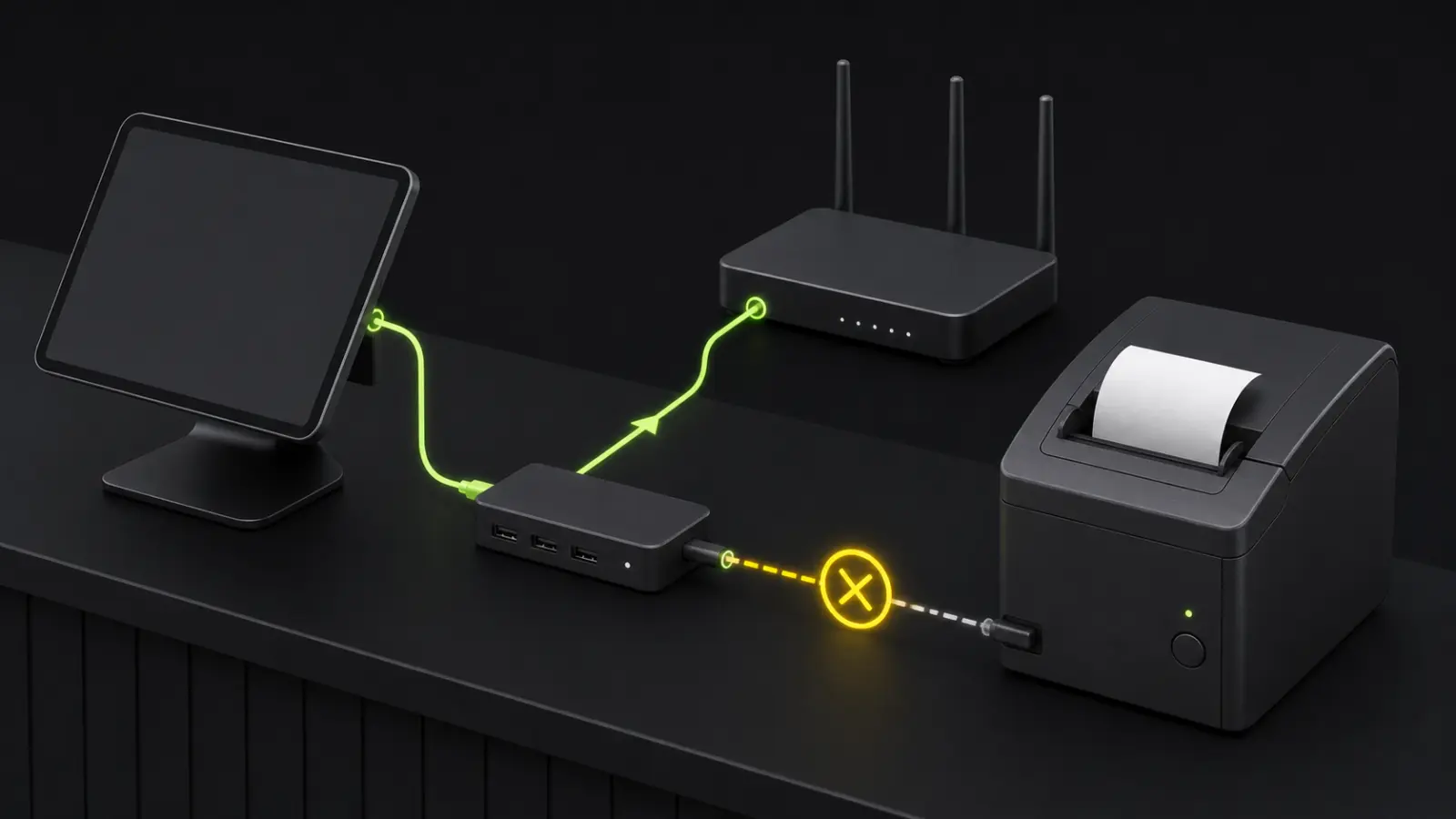
Quick verdict
Start with a printer self-test, then print a Shopify test receipt, then test a completed sale. Those results separate hardware, connection, and receipt-setting failures before a disruptive reset.
- Best for
- Shopify POS operators restoring a supported receipt printer at a retail counter.
- Avoid if
- The printer shows a documented unrecoverable hardware error or cannot self-test after correct power and paper checks; contact the manufacturer instead.
When a Shopify POS receipt printer stops printing, first separate a printer problem from a Shopify connection or settings problem. Hold the printer's FEED button while powering it on to run the model's self-test. If the printer can't produce its own diagnostic sheet, inspect power, paper, the cover, jams, and error lights. If the self-test works, move to Shopify POS, the default-printer setting, and the active USB, LAN, Wi-Fi, or Bluetooth path.
Don't start with a factory reset. It can erase a known configuration and create a second problem. The sequence below moves from checks that are fast and reversible to changes that require re-pairing or reconfiguration.
This is a researched troubleshooting guide based on current Shopify, Epson, and Star Micronics documentation. Devicefield didn't reproduce these failures on a live counter, so record the exact model, interface, lights, and error message before changing anything.
Quick diagnostic: find the failed layer
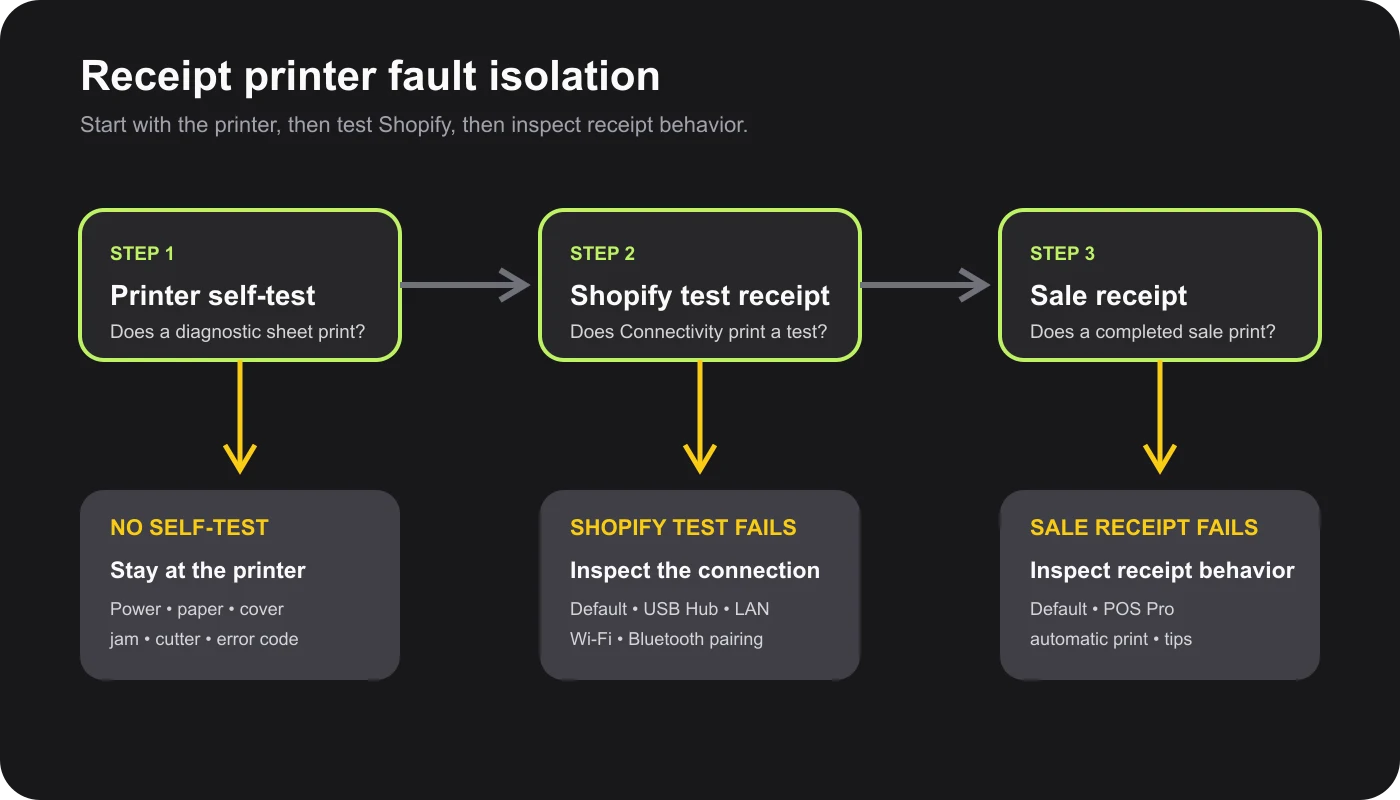
Run these three tests in order:
- Press FEED with the printer already on. If paper doesn't advance, solve the power, paper, cover, cutter, or jam problem first.
- Run the printer's self-test. For common Epson and Star models, turn the printer off, hold FEED, then power it on. A successful diagnostic sheet proves the print mechanism can work without Shopify.
- Print a Shopify test receipt. In Shopify POS, open Connectivity, select the receipt printer under Hardware, and tap Test receipt printer.
The result identifies the next branch:
- No self-test: stay at the printer.
- Self-test works, but Shopify's test fails: inspect the connection and default printer.
- Shopify's test works, but sale receipts don't: inspect receipt settings, automatic printing, and the checkout flow.
Fix the printer before changing Shopify
Confirm the printer has power and the cover closes fully. Reload the thermal roll so paper feeds from the bottom of the roll, not over the top. Remove any angled or folded paper and clear visible scraps around the cutter. A red blinking error light on Shopify's Epson TM-m30III and Star mC-Print3 troubleshooting pages indicates that no paper is present; on other models, use the manufacturer's light code rather than assuming every red light means the same thing.
Press FEED again. If the printer advances paper, run its self-test and keep the printed sheet. It may include firmware, interface, network, or Bluetooth details that are useful later.
If the printer still can't feed or self-print after correct paper loading, the problem is below Shopify. Don't reset network settings yet. Check the model's manual for its exact LED pattern, allow an overheated unit to cool, and contact the manufacturer if the error indicates a cutter or unrecoverable hardware fault.
Confirm the default printer in Shopify POS
Shopify sets a connected printer as the default, but a store with more than one configured printer can retain the wrong default. Shopify states that receipts can't print when the default printer is unavailable.
Open Connectivity, select the intended printer under Hardware, and turn on Default receipt printer. Then run Test receipt printer. If a backup printer appears during checkout, select a currently reachable unit and make the intended permanent default after the rush.
Also update the Shopify POS app and the tablet's operating system before investigating a failure that began after an app or device change. If the printer isn't listed under Connectivity, continue with the matching connection branch below.
If the printer uses USB and Shopify POS Hub
Start at the printer and follow the cable toward the tablet. Shopify's current POS Hub guidance recommends this recovery sequence:
- Disconnect and reconnect the printer at the POS Hub.
- Try another USB peripheral port.
- Disconnect and reconnect the POS Hub from the tablet.
- Unplug POS Hub power for 10 seconds, then reconnect it.
- Turn the powered printer off for 10 seconds, then turn it back on.
- Try a known-good printer cable.
- Connect the POS Hub directly to the tablet, not through another USB hub.
The tablet cable belongs in the dedicated port on the bottom of the Shopify POS Hub. The Hub's Ethernet port supplies wired networking to the tablet; it isn't where a LAN receipt printer connects. A LAN printer connects to the router or network switch.
For a Lightning iPad, Shopify recommends its dedicated POS Hub Lightning cable instead of a USB-C-to-Lightning adapter because an adapter can cause intermittent pairing. Current Shopify documentation also requires iPadOS 18 or later for the POS Hub and recommends a newer compatible version, so verify the live device list before replacing the printer.
If the printer uses Ethernet or Wi-Fi
A network printer and the tablet running Shopify POS must be on the same local network. A guest SSID, client isolation, VLAN boundary, or network segmentation can allow both devices onto the internet while preventing local discovery.
Check the physical link light and print the printer's network status sheet. Compare its network name and address with the POS tablet's connection. Move both devices to the intended staff network, not a guest network, then rerun Shopify's test receipt.
If the printer disappeared after a router or access-point change, confirm that the replacement network still supports the printer's radio. Shopify specifically tells operators to retain 2.4 GHz support for Wi-Fi peripherals that require it. Avoid changing firewall ports at random: first verify that the devices share a network and that the printer has a valid local address.
The related Devicefield comparison of Epson TM-m30III and Star mC-Print3 for Shopify POS maps the supported connection paths and model-variant risks before a counter is rebuilt.
If the printer uses Bluetooth
Bluetooth printers commonly bind to one POS device at a time. Shopify's current troubleshooting pages say both the Epson TM-m30III and Star mC-Print3 must be unpaired from the first device before pairing to another.
On the active tablet, turn Bluetooth off and on. If the printer was previously assigned elsewhere, forget it on that device first. Then remove the stale pairing on the intended tablet, restart both devices, and pair again through the model's documented Shopify setup flow.
Reset Bluetooth or communication settings only after those steps fail. A factory or communication reset removes configuration, and the exact button sequence differs by model. Print the self-test sheet and record the current device name and interface settings before a reset.
If test receipts print but sale receipts don't
When Shopify's test receipt succeeds, the printer, connection, and core Shopify integration are working. Focus on receipt behavior:
- Confirm the correct printer remains the default.
- Try Print receipt manually from the payment-success screen or reprint from the completed order.
- Check Settings > Printed receipts if automatic printing is expected.
- Confirm the location has Shopify POS Pro; Shopify documents automatic receipt printing as a POS Pro feature.
- If tips are enabled, Shopify says card transactions don't automatically print receipts. Manual printing remains the practical verification step.
Don't confuse emailed or texted receipts with printer behavior. Those delivery paths can depend on internet connectivity, while a supported receipt printer can use a local Bluetooth or LAN connection.
Model-specific checks that prevent wasted resets
For the Epson TM-m30III, Shopify POS supports 80 mm paper output, even though the printer family can support 58 mm paper. Shopify tells operators to configure 80 mm / 48 columns in Epson Utility when a width setting causes printing trouble. Shopify also documents a Secure Printing issue on affected Radio Equipment Directive models; use Epson's current utility guidance for the exact unit rather than disabling a security control on an unrelated model.
For the Star mC-Print3, keep the self-test sheet before changing communication settings. It identifies firmware, memory-switch, interface, and model-dependent network or Bluetooth information. Don't power the printer off while its communication settings are initializing.
For other supported models, use Shopify's receipt-printer setup index to open the exact model page. Similar enclosures can contain different interfaces, so the family name alone isn't enough.
When to reset, replace, or contact support
Reset the connection only after the self-test passes, the default printer is correct, cables or network placement are verified, and a normal restart fails. Save a photo of the diagnostic sheet and note every changed setting.
Contact Shopify Support when the printer self-tests but the supported model still won't appear or print from Shopify POS after its documented connection recovery. Provide the printer model and part number, tablet model and OS, Shopify POS version, connection type, indicator state, self-test result, and the steps already attempted.
Contact the printer manufacturer when the unit can't self-test, reports a documented hardware error, or jams again with correctly loaded paper. Replacement becomes reasonable when a known-good power supply and paper path don't restore self-printing, or repair cost and downtime exceed the cost of a supported replacement. Verify the replacement against Shopify's current regional list before ordering.
Prevent the next checkout interruption
Create a one-page counter record with the exact printer model, interface, assigned tablet, cable type, router or switch port, default-printer name, and self-test instructions. Label spare power and data cables. For network printers, reserve the address at the router and avoid guest or isolated Wi-Fi. For Bluetooth, assign one printer to one primary tablet.
Print a Shopify test receipt after app, operating-system, router, or counter-cabling changes. Multi-register stores should also document a backup printer and train staff to select it without factory-resetting the primary during business hours.
See Devicefield's receipt and label printing coverage for related deployment guidance and the review methodology for how documentation-based compatibility and limitations are evaluated.
FAQ
Why does the printer self-test work but Shopify POS won't print?
The print mechanism is working, so the likely fault is the connection, the selected default printer, or Shopify's device configuration. Run Shopify's test receipt, then follow the USB, network, or Bluetooth branch that matches the actual interface.
Can Shopify POS print when the internet is down?
Shopify says receipt printers don't require an internet connection in every case; Bluetooth and LAN printing can use local connections. Other POS functions, emailed receipts, payment capture, and syncing can still require internet access.
Why did automatic receipt printing stop after enabling tips?
Shopify documents that receipts don't automatically print for card transactions when tips are enabled. Confirm the sale manually prints, then train staff on the intended receipt step instead of treating the printer as disconnected.
Should I factory-reset a Shopify POS receipt printer?
Only after the printer self-tests, basic cable or network checks pass, the default printer is correct, and model-specific recovery fails. Record the current interface settings first because a reset can remove a usable configuration.
Compatibility notes
Systems, accessories, and constraints
Applies to supported Shopify POS receipt printers on compatible iOS or Android devices. Follow the branch for the actual USB Hub, Ethernet, Wi-Fi, or Bluetooth interface; model variants and connection rules differ. Shopify POS Hub device and operating-system support can change.
Testing methodology
How this article was evaluated
Reviewed current Shopify receipt-printer setup, POS Hub, network, automatic-printing, offline, Epson TM-m30III, and Star mC-Print3 documentation; cross-checked model-specific self-test and error guidance against Epson's technical reference. Organized the evidence into a least-disruptive three-test fault-isolation sequence.
Known limitations
What this guide could not verify
This is documentation-based troubleshooting. Devicefield did not reproduce a printer, POS Hub, network, Bluetooth, automatic-printing, paper-width, or Secure Printing failure. LED meanings and reset procedures are model-specific, and Shopify can change app, plan, hardware, and operating-system requirements.
Sources
Documentation and references
- Overview of setting up a receipt printer - Supports current supported-printer setup, cable paths, default-printer behavior, FEED test, and Shopify test-receipt steps.
- Shopify POS Hub - Supports POS Hub port roles, current device requirements, cable guidance, and the least-disruptive Hub troubleshooting sequence.
- Setting up your network for Shopify POS - Supports same-network requirements, guest-network and segmentation risk, and 2.4 GHz support for some Wi-Fi peripherals.
- Setting up automatic receipt printing - Supports default-printer, POS Pro, automatic-printing, and tips behavior.
- Troubleshooting the Epson TM-m30III receipt printer - Supports self-test, one-device Bluetooth behavior, paper and error-light guidance, 80 mm Shopify configuration, and affected RED-model limitations.
- Troubleshooting the Star Micronics mC-Print3 Receipt Printer - Supports self-printing, one-device connection behavior, paper and error-light guidance, communication initialization, and support escalation.
- Shopify POS offline features - Supports the distinction between receipt-printer local connections and POS features that require internet access.
- TM-m30III Technical Reference Guide - Manufacturer reference for TM-m30III status indicators, self-test, interface information, and unrecoverable error handling.
Devicefield checklist
Make the next hardware decision with fewer surprises.
Get practical buying notes, compatibility checks, and new troubleshooting guides.
Frequently asked questions
Why does the printer self-test work but Shopify POS won't print?
The print mechanism is working, so the likely fault is the connection, selected default printer, or Shopify device configuration. Run Shopify's test receipt and follow the matching interface branch.
Can Shopify POS print when the internet is down?
Shopify says receipt printers don't always require internet access because Bluetooth and LAN can provide local connections. Other POS functions, emailed receipts, payments, and syncing can still require internet.
Why did automatic receipt printing stop after enabling tips?
Shopify documents that card-transaction receipts don't print automatically when tips are enabled. Verify manual printing, then train staff on the intended receipt step.
Should I factory-reset a Shopify POS receipt printer?
Only after the printer self-tests, cable or network checks pass, the default printer is correct, and model-specific recovery fails. Record current interface settings first.


