Receipt Printer Printing Slowly? Find the Bottleneck
Separate printer-side slowdown from POS, queue, network, and template delays with a safe self-test and timing comparison.
- Written by
- Clayton Wingfield
- Reviewed by
- Clayton Wingfield
- Originally published
- Aug 8, 2026
- Last reviewed
- Aug 8, 2026

Quick verdict
Compare a model-supported self-test with one simple POS receipt, then trace whether the delay occurs before paper moves, during printing, or only on complex jobs.
- Best for
- Retail and hospitality operators whose receipt or ticket printer still works but starts late, crawls, or pauses during output.
- Avoid if
- The printer shows heat, smoke, odor, liquid damage, grinding, a hardware error, or a managed-service condition that requires vendor support.
When a receipt printer is printing slowly, first identify where the delay happens. A printer that waits before the paper moves has a different fault path from one that starts immediately but crawls, pauses mid-receipt, or slows only on receipts with logos and graphics.
The safest first comparison is a model-supported printer self-test against one normal POS receipt. A fast self-test and a slow POS receipt point upstream toward the application, driver, queue, connection, or job complexity. A slow or interrupted self-test keeps the investigation on the printer, its supported settings, power, media, temperature, or hardware condition.
Classify the slow printing before changing anything
Time one ordinary receipt from the print command to the final cut. Observe the result rather than relying on “slow” as one symptom.
| Timing pattern | Most useful first boundary | What to compare next | | --- | --- | --- | | Long delay before paper moves | Sender, queue, network, or POS workflow | Printer self-test, POS test receipt, and queue state | | Paper moves slowly from the first line | Printer-side speed or quality setting, power, media, or model condition | Self-test speed and the model's documented settings | | Printer pauses between blocks | Data delivery, complex graphics, temperature, power, or flow control | Plain-text receipt versus logo-heavy receipt | | Only one register or app is slow | Device-local queue, driver, route, or application | Same printer from another approved sender | | Every sender is slow | Printer, shared connection, print server, or network path | Local self-test and a direct supported test path |
Record the printer model, interface, POS device, operating system, driver or print service, receipt type, start delay, print duration, and whether the problem began after an update or configuration change. Do not clear the queue yet; its state may show where jobs are waiting.
Run a local printer self-test
Use only the self-test procedure documented for the exact model. Many receipt printers use a power-and-Feed sequence, but the buttons, timing, and printed configuration vary. The goal is to make the printer produce its own page without the POS application, network, or operating-system queue.
Interpret the result:
- Self-test prints at normal speed: the print engine can move paper normally under that local test. Continue upstream.
- Self-test is also slow: check the model's supported speed, density, media, power-supply, and error guidance before changing the POS.
- Self-test pauses, fades, or shows an error: stop treating this as only a speed problem. Follow the model's error procedure.
Epson's TM-L90 technical reference documents that print data, head temperature, and the printer's energization mode can affect speed on that family. It also notes that slow data transmission can cause intermittent output. Those are useful fault boundaries, not universal settings for every printer.
If the output is pale or uneven, use the separate faded receipt diagnostic before increasing speed or density. A setting that makes one symptom less visible can worsen print quality or heat behavior.
Compare a simple receipt with the slow receipt
If the self-test is normal, print the smallest supported test receipt from the POS. Then compare it with the transaction or ticket that feels slow.
Look for differences such as:
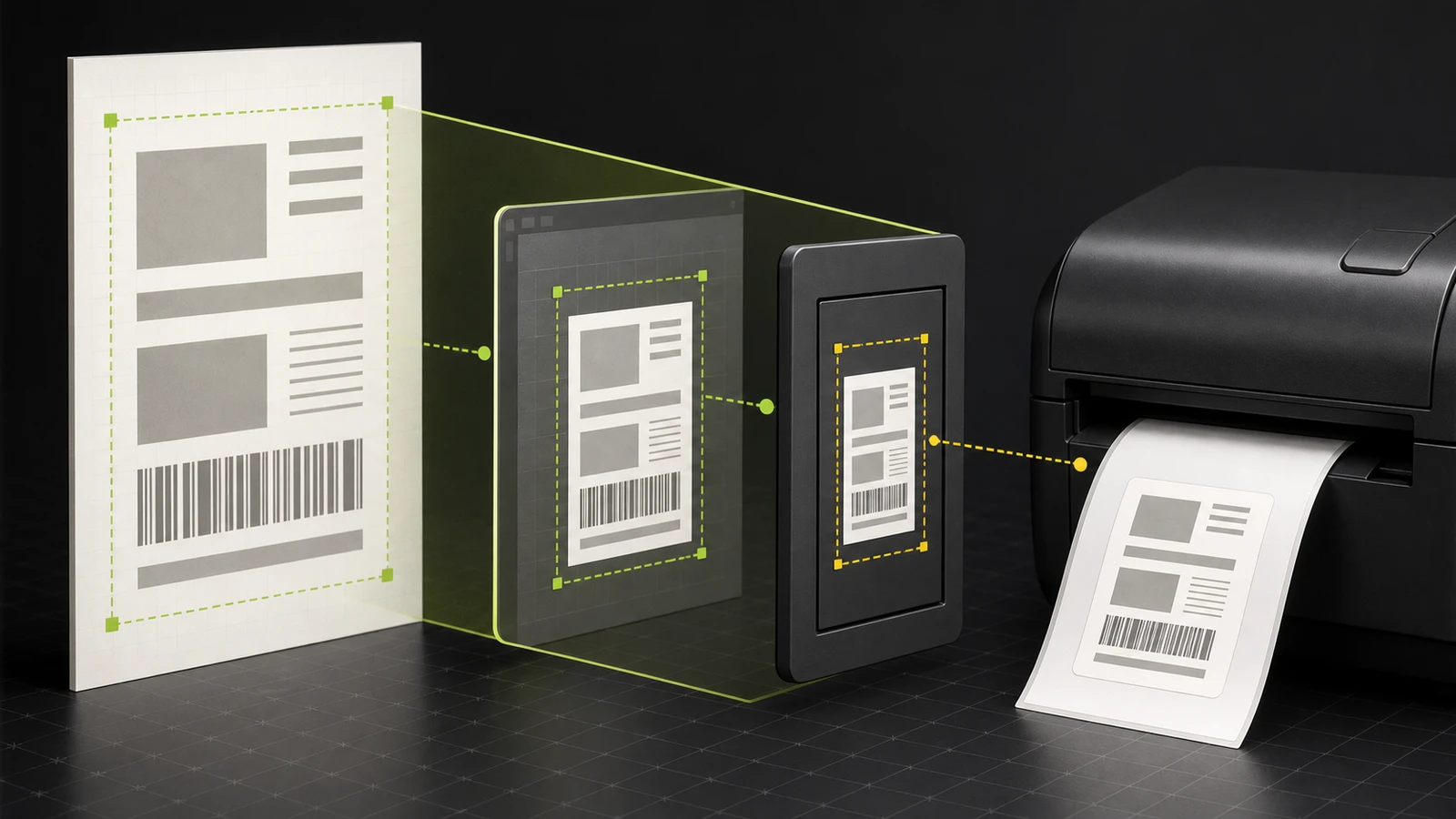
- a large logo, QR code, coupon, or other raster graphic;
- an unusually long item list;
- a remote or cloud print service;
- a cash-drawer command before printing;
- a different printer profile, template, or route;
- a delay that occurs only for online orders or kitchen tickets.
Microsoft's current slow-printing guidance identifies job complexity, network delay, driver state, quality settings, and spool behavior as separate causes in Windows. For receipt printing, use those checks as comparison points and keep the POS vendor's supported configuration in control.
Star's CUPS driver manual shows that supported Star models can expose print-speed, density, and variable-versus-fixed page settings, with a quality tradeoff. Do not copy those settings to another model or change a managed POS printer without a rollback record.
If a clean self-test is followed by random symbols or unreadable text rather than only slow output, use the receipt-printer data-path diagnostic to check the driver, printer language, port, and queue.
Check where the job waits
A delay before the first paper movement usually means the printer has not received a complete, printable job yet. Watch the sequence on one safe test:
- note the time the operator completes the action;
- watch when the job appears in the queue or print service;
- note when the printer begins moving paper;
- note whether the job leaves the queue before or after output finishes.
Windows provides a supported way to view pending jobs in the print queue. A job that waits there directs attention to the sender, driver, spooler, connection, or printer status. A job that appears late may be waiting inside the POS workflow or a cloud print service instead.
Do not repeatedly resubmit a delayed receipt. Restoring the route can release every queued copy at once. This is especially risky for kitchen tickets, fulfillment slips, and cash-drawer events. If duplicate copies appear after recovery, document the copy count, profiles, registrations, and sending devices before clearing or resubmitting jobs.
Isolate the sender and connection
When the deployment supports it, compare the same simple test from a second approved POS device to the same printer.
- One device is slow and another is normal: compare their profiles, drivers, queues, operating systems, and recent updates.
- Every device is slow only over the network: investigate the shared printer route, switch, wireless path, print server, or cloud service.
- A direct supported test is normal while the production route is slow: keep the printer settings unchanged and trace the production path.
- The delay follows one receipt template across devices: simplify a copy of that template through the POS vendor's supported tools.
If the whole register loses connectivity rather than only printing slowly, switch to the broader POS network-path diagnostic. Speed troubleshooting should not become an undocumented network redesign.
Change one supported setting at a time
After the boundary is clear, make the smallest reversible change supported by the exact printer and POS:
- update or restore the vendor-approved driver or print service;
- reduce an unnecessarily complex logo or image in the supported receipt editor;
- correct a documented print-speed, density, or page setting;
- repair the approved network or queue path;
- replace an incorrect or under-specified power supply only with the manufacturer-approved unit.
Save the original value, test one ordinary receipt and one complex receipt, and confirm the cut and cash-drawer behavior before applying the change to other registers. Avoid factory resets during business hours. A reset can erase interface, network, print, and drawer settings without proving why the printer was slow.
When to escalate or replace the printer
Stop and contact the POS vendor, printer manufacturer, or administrator when the self-test is abnormally slow, the printer reports a hardware or temperature error, the approved power supply is unavailable, the queue belongs to a managed service, or changing the route could release production tickets. Escalate unusual heat, odor, smoke, liquid damage, grinding, or visible cable damage immediately.
Replacement is reasonable only after the slowdown follows the printer across supported senders and connections, or the manufacturer identifies a hardware fault. A normal self-test is evidence against replacing the printer first.
Prevent slow printing from returning
Keep one known-good simple receipt for comparison. Document the printer model, interface, approved power supply, driver or print service, profile, template, network route, and last working configuration. After POS, operating-system, router, or template changes, run the same simple and complex receipt tests before peak hours.
Limitations of this guide
This is researched troubleshooting guidance. Devicefield did not test a receipt printer, POS platform, driver, spooler, print server, cloud print service, power supply, or thermal head for this article. Print-speed controls, self-test procedures, supported drivers, queue behavior, heat protection, power requirements, and reset risks vary by manufacturer, model, interface, firmware, operating system, and POS platform.
Frequently asked questions
Why does my receipt printer wait before it starts printing?
The job may be waiting inside the POS workflow, operating-system queue, driver, network route, print server, or cloud service. Compare when the job enters the queue with when paper begins moving, then test the printer's model-supported self-test.
Why does a logo make my receipt print slowly?
A logo or QR code can add raster data and processing work compared with plain text. Confirm the difference using two otherwise similar supported templates, then simplify the image through the POS vendor's receipt editor rather than changing raw printer commands.
Can overheating make a thermal receipt printer slow down?
Some models adjust printing according to head temperature or other operating conditions. Follow the exact model's documentation and stop if it reports a temperature or hardware error. Do not bypass a protective behavior.
Should I reset a slow receipt printer?
Not as a first step. A factory reset can remove working network, interface, density, cutter, and cash-drawer settings. Use a self-test and sender comparison to identify the fault boundary before considering any model-specific reset.
Compatibility notes
Systems, accessories, and constraints
Applies to thermal receipt and order printers used through POS devices, operating-system queues, print servers, or supported cloud print services. Exact self-tests, speed and density controls, drivers, page modes, power requirements, queue behavior, and reset procedures vary by printer model, interface, firmware, operating system, and POS platform.
Testing methodology
How this article was evaluated
Reviewed all 36 local packages and 37 database inventory records across workflow states; searched twelve current discovery and close-variant queries across slow printing, delayed printing, scanner power, and cash-drawer access; reviewed leading results and synthesized current Microsoft, Epson, and Star documentation into a timing-boundary diagnostic.
Known limitations
What this guide could not verify
Research-only. No receipt printer, POS platform, driver, spooler, network, print server, cloud service, power supply, thermal head, or recovery sequence was tested. Model and platform documentation controls.
Sources
Documentation and references
- Troubleshoot slow printing issues in Windows - Documents Windows checks for print quality, network latency, firmware, job complexity, and spooling behavior.
- View a printer's print queue in Windows - Documents the supported Windows path for inspecting pending print jobs.
- TM-L90 Technical Reference Guide - Documents model-specific print-speed controls and speed effects from print data, head temperature, energization, and data transmission.
- Star Micronics CUPS Driver Software Manual - Documents supported print-speed, density, and variable-versus-fixed page options for listed Star printer families.
- TM-H6000V Technical Reference Guide - Provides additional manufacturer context for model-specific receipt print quality, speed, and mid-job behavior.
Devicefield checklist
Make the next hardware decision with fewer surprises.
Get practical buying notes, compatibility checks, and new troubleshooting guides.
Frequently asked questions
Why does my receipt printer wait before it starts printing?
The job may be waiting inside the POS workflow, operating-system queue, driver, network route, print server, or cloud service. Compare when the job enters the queue with when paper begins moving, then test the printer's model-supported self-test.
Why does a logo make my receipt print slowly?
A logo or QR code can add raster data and processing work compared with plain text. Confirm the difference using two otherwise similar supported templates, then simplify the image through the POS vendor's receipt editor rather than changing raw printer commands.
Can overheating make a thermal receipt printer slow down?
Some models adjust printing according to head temperature or other operating conditions. Follow the exact model's documentation and stop if it reports a temperature or hardware error. Do not bypass a protective behavior.
Should I reset a slow receipt printer?
Not as a first step. A factory reset can remove working network, interface, density, cutter, and cash-drawer settings. Use a self-test and sender comparison to identify the fault boundary before considering any model-specific reset.