
Receipt Printer Printing Gibberish? Diagnose the Data Path
Use a self-test-first sequence to isolate random receipt output across the printer, driver, POS profile, connection, and encoding.
- Written by
- Clayton Wingfield
- Reviewed by
- Clayton Wingfield
- Originally published
- Jul 27, 2026
- Last reviewed
- Jul 27, 2026
Quick verdict
Print a model-supported self-test first; a clean result moves the fault boundary to the POS, driver, printer language, port, queue, or connection.
- Best for
- Retail and hospitality operators whose receipt printer produces random symbols, blocks, unreadable text, or isolated wrong characters.
- Avoid if
- The printer has a corrupted self-test, a nonrecoverable hardware error, unstable power, or a model-specific service requirement.
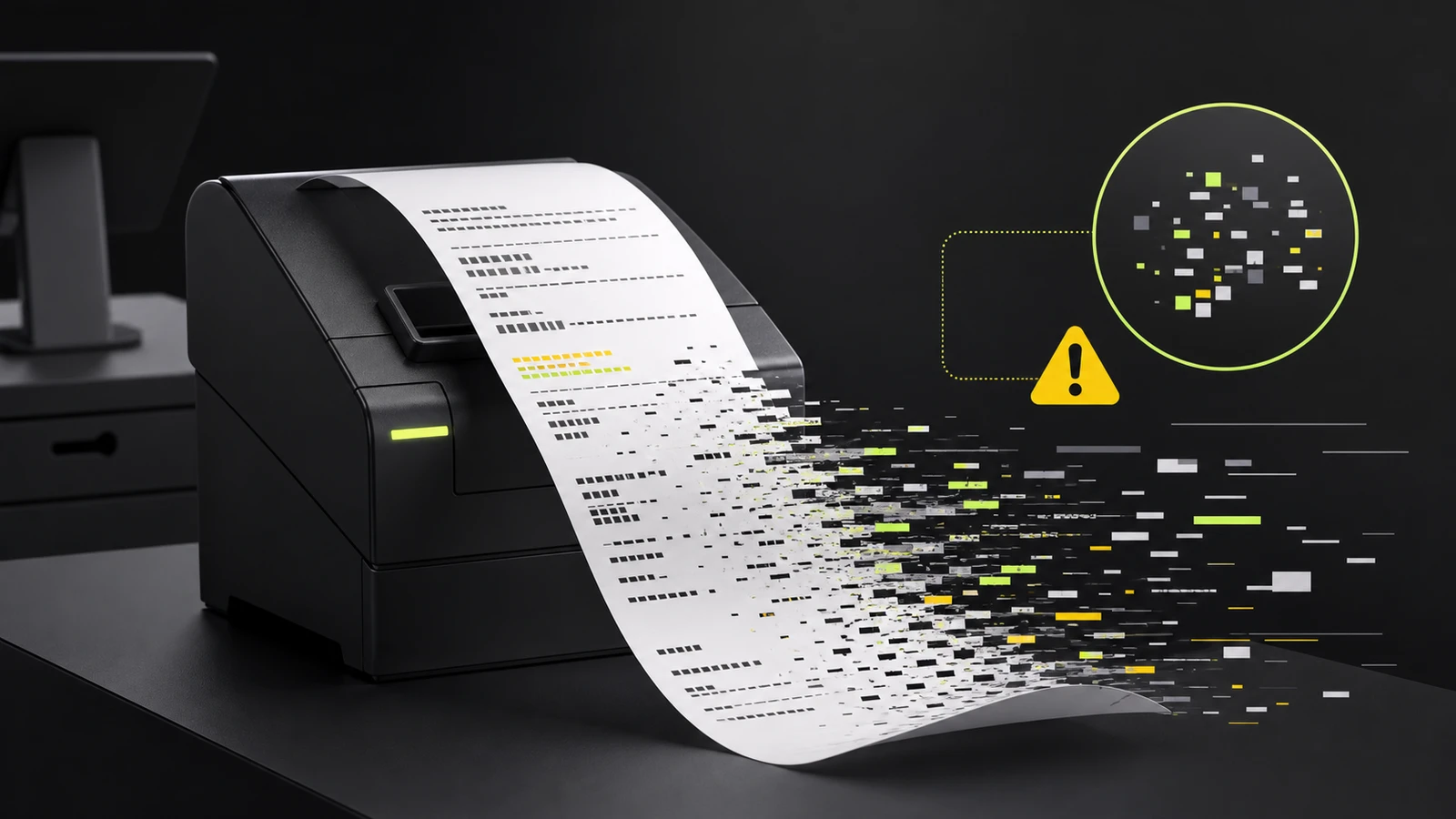
If a receipt printer is producing random symbols, blocks, or lines of unreadable text, stop sending jobs and keep one bad receipt as evidence. Don’t factory-reset the printer yet. The fastest useful test is a model-supported self-test: it separates the printer’s own mechanism and stored settings from the POS, driver, queue, cable, and network path.
The practical rule is simple:
- A clean self-test means the corruption is probably being introduced after the printer: by the application, driver, printer language, port settings, queue, or connection.
- A corrupted self-test points back toward the printer’s internal configuration, firmware, or hardware and calls for model-specific support.
- Clean text with only a few wrong symbols usually indicates a character table or encoding mismatch, not a failed printhead.
Stop the paper waste without losing the clue
If the printer keeps feeding paper, cancel the active print job from the POS and operating-system queue. If that doesn’t stop it, disconnect the data connection or network cable, then power the printer off. Leave the cash-drawer cable and any unfamiliar powered connections alone until you’ve identified them.
Before clearing everything, photograph one bad receipt and record:
- Printer brand, exact model, and interface variant.
- USB, Ethernet, Wi-Fi, Bluetooth, or serial connection.
- POS application and the device that sent the job.
- Whether the problem affects every receipt, one workstation, or one application.
- Whether the output is entirely unreadable or only certain characters are wrong.
- Any recent driver, POS, operating-system, cable, printer, or network change.
That record matters. “Random characters” can describe several different faults that need different fixes.
Use three test prints to locate the fault
Run only the tests supported by the printer manufacturer. Button combinations and configuration modes differ by model.
| Test result | Most likely fault boundary | Next move | | --- | --- | --- | | Self-test is corrupted | Printer configuration, firmware, or hardware | Stop changing the POS; use the exact model manual or vendor support | | Self-test is clean, but the operating-system test page is corrupted | Driver, emulation, port, cable, or network path | Verify the exact driver, printer language, interface, and port | | Self-test and operating-system test page are clean, but POS receipts are corrupted | POS printer profile, application output, encoding, or selected queue | Recheck the POS profile and compare it with a working station | | Only accents, currency signs, or a few symbols are wrong | Character table, locale, or encoding mismatch | Match the application’s encoding to a character table the printer supports | | Output changes from job to job | Connection quality, serial settings, damaged jobs, or competing senders | Isolate one sender and one known-good connection |
Epson’s TM-T88V documentation, for example, says its self-test prints printer status and a pattern from the built-in character set. Its hexadecimal dump mode can show the data received from the host, but that is a model-specific diagnostic and can interfere with applications that check printer status. Use the manual for the exact printer, not a button sequence copied from a different model.
Fix receipt printer gibberish from least to most disruptive
1. Clear the bad job, then send one controlled test
Cancel every job for that printer, restart the POS application, and send one short test receipt. A corrupted job can remain in a queue and resume after the printer is powered back on.
If the printer begins printing by itself after its data cable or network connection is restored, another device or queued job is still sending data. Epson’s general garbage-character troubleshooting recommends clearing queued jobs and isolating connected devices when repeated random output continues.
2. Confirm the POS is using the intended printer
Check the printer selected in the POS profile, receipt routing, and operating-system queue. A similarly named old queue can point to the wrong driver or port. If one register works, compare its settings rather than copying files or changing the working station.
Also separate application scope:
- If every application produces bad output, focus on the shared driver, port, language, or connection.
- If only the POS produces bad output, focus on its printer profile, integration, and output format.
- If only one register fails, compare that register’s queue, driver version, connection, and local POS settings with a working register.
3. Verify the exact manufacturer driver
On Windows, Microsoft says a document that appears garbled can be caused by an incorrect or corrupted printer driver. Its guidance is to verify or reinstall the correct driver on the client computer. Use the printer manufacturer’s current package for the exact model, operating system, interface, and architecture; don’t assume a generic receipt-printer driver is interchangeable.
After installation, print the operating-system test page before testing the POS again. If the test page is clean but the POS receipt is not, the driver can communicate with the printer and the remaining fault is more likely in the application profile or data format.
4. Match the printer language or emulation
Receipt printers don’t all interpret the same command language. Even one product family can support different modes. Star Micronics documents switching certain portable models between ESC/POS and StarPRNT, and its Windows driver page says those supported models must be in StarPRNT mode for that driver.
Don’t change emulation just because a search result mentions ESC/POS. First confirm what the POS expects and what the exact printer variant supports. Then print a configuration page, save the current setting, and follow the manufacturer’s instructions. A language mismatch can turn control data into visible blocks or symbols.
5. Match serial settings exactly
For a serial or virtual-COM printer, the POS and printer must agree on communication settings. That includes baud rate, data bits, parity, stop bits, and flow control. A mismatch can produce inconsistent or unreadable characters even when the printer itself is healthy.
Print the printer configuration, record the serial settings, and compare them with the POS port. Change only the mismatched value. If the printer uses USB or Ethernet rather than a COM port, don’t apply serial instructions to it.
6. Test the physical or network path
For USB, remove an unpowered hub, reseat the cable, and test a known-good supported cable or port. For Ethernet, verify that the POS queue points to the intended printer address and that two printers aren’t sharing one address. Change one part at a time so the successful fix remains identifiable.
Intermittent corruption that changes on identical jobs deserves more attention here than a consistent block pattern. Consistent output often points to a repeatable driver, language, or encoding mismatch; changing output can point to transport errors, a damaged job, or multiple senders.
7. Treat firmware updates and factory resets as last steps
A factory reset can erase interface, network, cash-drawer, character-table, and memory-switch settings that the store needs. Back up or photograph the configuration first. Apply firmware only when the manufacturer identifies it for the exact model and the printer has stable power.
If a clean self-test becomes corrupted, the printer reports a nonrecoverable error, or output stays inconsistent with the host disconnected, stop and contact the manufacturer or a qualified POS technician.
Prevent the next corrupted-print incident
Keep a small printer record for every counter:
- Exact printer model and interface.
- Approved driver package and version.
- Printer language or emulation.
- Network address or USB/serial port.
- Serial communication settings when applicable.
- POS printer-profile name.
- A dated photo or scan of the known-good configuration page.
After a POS, operating-system, driver, or network change, print a self-test, operating-system test page, and POS receipt before the counter returns to service. This three-print baseline makes the next failure much easier to isolate.
For symptoms outside corrupted text, use the dedicated guides for a receipt printer that is not printing in Square, a Shopify POS receipt printer that is not printing, faded thermal receipts, or an auto-cutter that will not cut.
What this guide cannot verify
This is a researched diagnostic sequence, not a model-specific repair procedure. It cannot determine the correct driver, printer language, code page, serial values, firmware, or reset process without the exact printer model, interface, POS platform, host operating system, and a sample of the bad output. Confirm those details in the manufacturer’s current documentation before changing stored printer settings.
Frequently asked questions
Why does a receipt printer print symbols instead of a receipt?
The printer is receiving data it cannot interpret as the intended receipt. Common boundaries include an incorrect or corrupted driver, the wrong printer language, mismatched serial settings, a damaged queued job, a connection problem, or an encoding mismatch.
Why is only the pound, euro, or accented text wrong?
If ordinary letters and numbers print correctly, the printer language and connection may be working. Check the POS locale, text encoding, and the printer’s supported character table before reinstalling hardware or changing network settings.
Should I use a generic text driver for a thermal receipt printer?
Only when the POS vendor and printer manufacturer explicitly support that path. A generic driver can be correct for one raw-text workflow and wrong for another that expects a model-specific driver or command language.
Will a factory reset fix random characters?
It may remove a bad setting, but it can also erase working network, interface, drawer, and character configuration. Capture the current configuration and exhaust reversible checks first. Use the exact model’s reset instructions only when the evidence points to stored printer settings.
Compatibility notes
Systems, accessories, and constraints
The correct recovery depends on the exact printer model, interface, POS application, host operating system, manufacturer driver, printer language, character table, and any serial port settings.
Testing methodology
How this article was evaluated
Compared current search results with Microsoft printing guidance, Epson support and technical documentation, Star Micronics emulation and driver documentation, and a current POS-provider support article; organized the evidence into a reversible self-test-first diagnostic sequence.
Known limitations
What this guide could not verify
Research-only. No physical printer, receipt sample, POS configuration, driver package, interface, serial link, or firmware was tested. Model-specific button sequences and reset procedures were intentionally excluded.
Sources
Documentation and references
- Troubleshoot known issues for printing - Supports the Windows test-page isolation sequence and the incorrect-or-corrupted-driver cause for garbled output.
- TM-T88V Technical Reference Guide - Supports the model-specific self-test, built-in character pattern, stored-status output, and hexadecimal-dump cautions.
- My printout contains garbage characters when I print - Supports queue, communication, cable, driver, data-file, and connected-device troubleshooting boundaries.
- How to Change the Emulation on Star Portable Printers - Supports model-specific ESC/POS and StarPRNT emulation checks and self-test verification.
- StarPRNT for Portable Software Full - Supports matching the documented StarPRNT Windows driver to the required emulation on listed portable printer models.
- Why has my POS Receipt Printer started printing random characters, symbols and gibberish? - Current POS-provider evidence for COM-port and baud-rate mismatch as interface-specific causes in its supported environment.
Devicefield checklist
Make the next hardware decision with fewer surprises.
Get practical buying notes, compatibility checks, and new troubleshooting guides.
Frequently asked questions
Why does a receipt printer print symbols instead of a receipt?
The printer is receiving data it cannot interpret as the intended receipt. Common boundaries include an incorrect or corrupted driver, the wrong printer language, mismatched serial settings, a damaged queued job, a connection problem, or an encoding mismatch.
Why is only the pound, euro, or accented text wrong?
If ordinary letters and numbers print correctly, the printer language and connection may be working. Check the POS locale, text encoding, and the printer’s supported character table before reinstalling hardware or changing network settings.
Should I use a generic text driver for a thermal receipt printer?
Only when the POS vendor and printer manufacturer explicitly support that path. A generic driver can be correct for one raw-text workflow and wrong for another that expects a model-specific driver or command language.
Will a factory reset fix random characters?
It may remove a bad setting, but it can also erase working network, interface, drawer, and character configuration. Capture the current configuration and exhaust reversible checks first. Use the exact model’s reset instructions only when the evidence points to stored printer settings.


