
POS Keeps Going Offline? Diagnose the Network Path
Trace recurring POS dropouts across the device, local network, internet edge, and provider service before resetting hardware.
- Written by
- Clayton Wingfield
- Reviewed by
- Clayton Wingfield
- Originally published
- Jul 30, 2026
- Last reviewed
- Jul 30, 2026

Quick verdict
Compare another device, another POS terminal, and one approved alternative connection to identify whether the failure is the device, local network, internet edge, or POS service.
- Best for
- Retail, restaurant, and service operators diagnosing recurring POS connectivity failures without risking pending offline transactions.
- Avoid if
- The deployment is processor-managed, has active pending-payment recovery, or requires network changes that only the vendor or administrator is authorized to make.
When a POS keeps going offline, do not begin by resetting the terminal or replacing the router. First identify which connection boundary is failing: the POS device, the local Wi-Fi or wired network, the internet connection, or the POS provider’s service.
The fastest safe test is comparative. Check another device beside the register, another POS device on the same network, and the same POS device on a known-good alternative connection when the vendor supports that test. Those comparisons turn “the internet looks fine” into evidence you can act on.
Protect pending offline transactions before signing out, deleting an app, forgetting a network, changing locations, or factory-resetting hardware. Some platforms store offline payment or order data on the device until it reconnects.
Quick checks before changing the network
Record the failure while it is happening:
- Exact terminal and physical location
- Time the failure began and ended
- Wi-Fi network name or wired connection
- Signal indicator and any error message
- Whether the POS app, payments, syncing, and local printers all failed
- Whether another nearby device could reach the internet
- Whether other registers stayed online
- Whether pending offline transactions are present
Square warns that signing out, deleting the POS app, switching modes or locations, or factory-resetting a device with pending offline payments can permanently lose those payments. Shopify likewise cautions against turning off the POS device or signing out while it holds offline orders. Review the platform’s current recovery instructions before any destructive step.
If the outage is active, check the provider’s official service-status page before changing local equipment. A service incident can make a healthy local network look broken.
Find the failed boundary
Use the smallest test that separates one layer from the next.
| What fails | Likely boundary | Best next test | | --- | --- | --- | | One POS device; nearby devices work | Device, saved network, OS, or POS app | Test that POS device on another supported network | | Every device in one checkout area | Wi-Fi coverage, interference, or access point | Test beside the access point and at the counter | | POS devices work online but cannot find printers or readers | Local LAN, VLAN, guest isolation, or peripheral addressing | Confirm the POS and networked peripheral are on the same permitted local network | | All devices lose internet across the site | Modem, router, ISP, power, or upstream outage | Test the wired edge and contact the ISP | | General websites work but the POS cannot sync or take online payments | POS service, DNS, firewall, required ports, or application state | Check service status, then test an approved unrestricted connection |
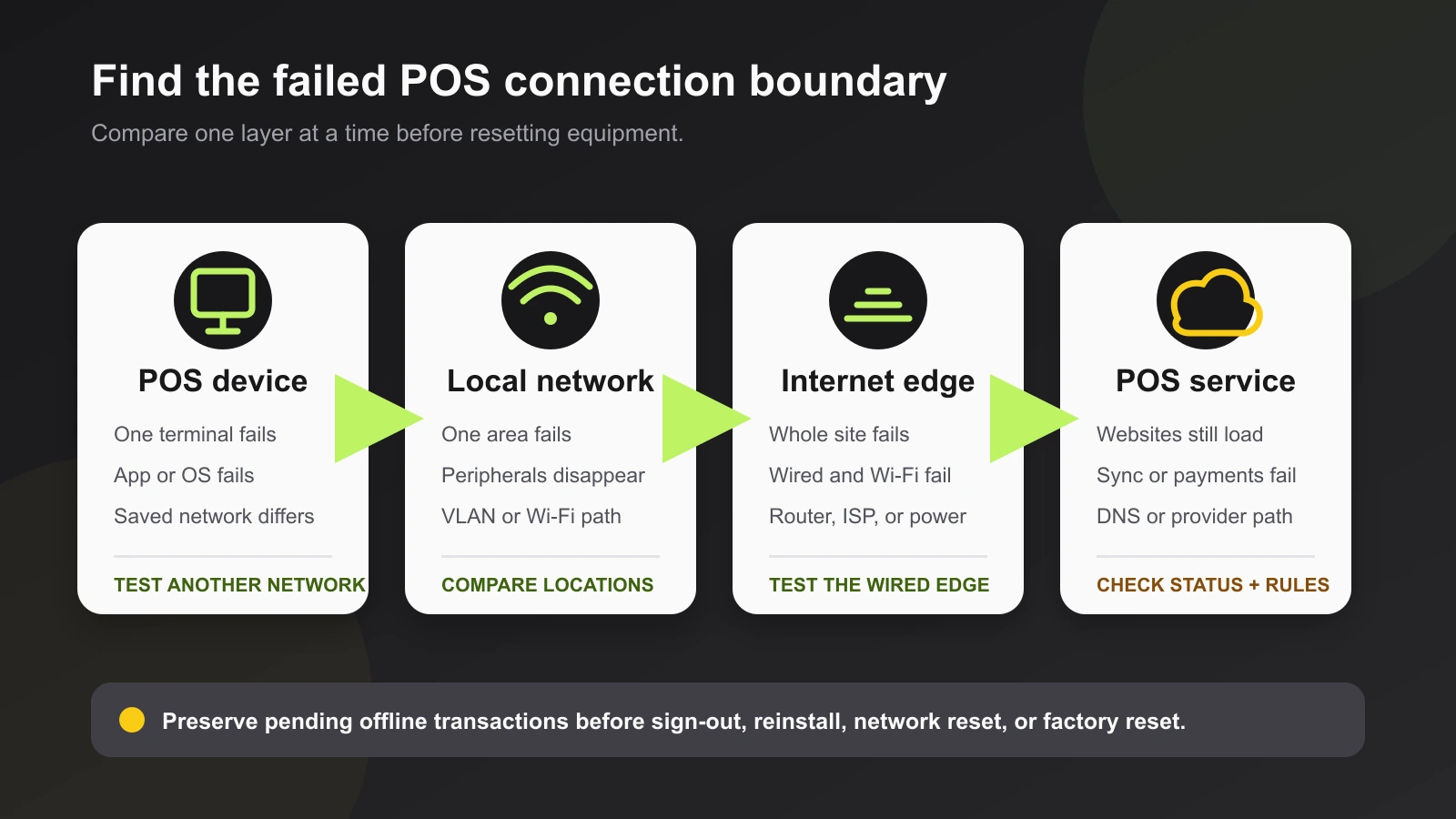
Boundary 1: the POS device
Confirm that Wi-Fi is enabled, airplane mode is off, the expected network is selected, and the operating system and POS app meet current support requirements. Do not update or restart during a live transaction or while the platform warns that unsynced data is at risk.
Apple’s iPhone and iPad Wi-Fi troubleshooting recommends comparing other devices on the same network and testing the affected device on another network. That pair of tests is more useful than repeatedly toggling Wi-Fi: it distinguishes a device-specific fault from a site-network fault.
If only the POS app fails while other apps on the same device work, check the provider’s status page, app version, sync state, and diagnostics. Shopify’s POS troubleshooting guide recommends updating supported software, checking the network setup, inspecting data synchronization, and sending an in-app report when the issue persists.
Boundary 2: local Wi-Fi and LAN
A device can show Wi-Fi bars and still lack a usable path to a printer, payment terminal, DNS resolver, or the internet. Test from the exact checkout position, not from the office beside the router.
Compare:
- The affected register at the counter
- A second device at the same counter
- The affected register closer to the access point
- A fixed terminal over Ethernet, if the exact hardware supports it
If failures follow one physical area, investigate access-point placement, walls, metal fixtures, refrigeration equipment, crowded channels, and roaming between access points. Toast’s current network requirements tell self-managed deployments to use centrally located access points, avoid electromagnetic-interference sources, and keep Toast wireless devices on the intended POS VLAN. Those values and settings are Toast-specific, but the larger lesson applies broadly: validate coverage where staff actually carry or use the terminal.
Networked peripherals add another boundary. Shopify states that its POS device and supported Wi-Fi or Ethernet peripherals must share the same network; guest networks, VLANs, or segmentation can prevent discovery. Square documents separate local ports for supported network printers. Do not flatten a secure network or disable its firewall just to make discovery work. Have the POS vendor and network administrator confirm the required local traffic.
Boundary 3: the internet edge
If every device at the site loses connectivity, move outward: switch, router, modem or gateway, ISP, and upstream service. Check power first. A modem on backup power does not help if the router, switch, or access point lost power.
A supported wired test helps separate Wi-Fi from the internet connection. If Ethernet also fails, stop tuning wireless settings. If Ethernet is stable while Wi-Fi fails, the ISP plan is less likely to be the immediate cause.
For recurring primary-internet outages, use the internet failover for POS systems guide to design and test a secondary path. Backup connectivity does not repair poor Wi-Fi inside the store; it only helps when the primary internet path fails.
Boundary 4: DNS, firewall, or POS service
When ordinary sites load but the POS cannot sync, process online payments, or reach a networked peripheral, test the provider-specific path.
Square’s hardware network requirements document required protocols, domains, and local printer ports for managed networks. Shopify’s POS network setup documents bandwidth, same-network peripheral requirements, firewall access, and POS Terminal DNS and port requirements.
Use those current vendor lists rather than copying a generic allowlist. Do not broadly disable filtering, TLS inspection, geographic controls, or segmentation without understanding the security impact. A short test on an approved hotspot or unrestricted network can prove that the managed network is involved; it is not a permanent production design.
Fixes from least to most disruptive
Use this order:
- Confirm the provider service status and preserve pending offline data.
- Record the device, location, network, time, and exact failed functions.
- Compare another device at the same location and the same device elsewhere.
- Confirm the correct Wi-Fi network, power state, date and time, and supported software versions.
- Test the exact checkout location, then test closer to the access point.
- Test a supported Ethernet or approved hotspot path.
- Correct access-point coverage, local-network membership, DNS, or vendor-required firewall rules.
- Restart one documented component at a time during a safe window.
- Forget and rejoin the network only after preserving credentials and pending data.
- Reset or reinstall only when the vendor recommends it and recovery requirements are understood.
After each change, verify more than the login screen. Run the platform’s supported diagnostics, confirm catalog or order sync, test a networked peripheral, and complete the vendor-approved transaction test.
Keep intermittent outages from returning
Create a simple incident log. For each dropout, record time, duration, terminal, access point, signal, internet state, provider status, pending-payment state, and the action that restored service. Patterns by location point toward coverage; patterns across the whole site point toward power, ISP, or gateway issues; patterns isolated to one platform point toward service or managed-network requirements.
Give fixed terminals a supported wired path where practical. Keep guest traffic separate without blocking required POS-to-peripheral communication. Put the modem, router, switches, access points, and essential POS equipment on correctly sized backup power; the UPS sizing guide for POS systems explains how to back up the smallest complete checkout path.
Also maintain the platform’s offline-payment plan. Devicefield’s Square offline mode guide and Shopify POS offline mode guide cover platform-specific preparation and recovery risks.
When to involve support
Contact the POS provider when the device and local network pass comparative tests but the app, payment path, or sync still fails; include timestamps, device identifiers, software versions, diagnostics, and the tests already completed.
Contact a network professional when dropouts follow a physical area, several access points, VLAN or firewall changes, duplicate addressing, or a managed network you cannot safely modify. Contact the ISP when wired and wireless devices lose internet at the site edge.
Replace hardware only after the failure follows that component to a known-good supported path. Recurring outages are often caused by coverage, power, configuration, or upstream service rather than the terminal itself.
What this guide cannot verify
This is a researched, cross-platform troubleshooting framework. No POS terminal, payment reader, app, router, switch, access point, firewall, ISP, or offline-payment flow was tested. Exact menus, required domains and ports, supported connection types, data-retention behavior, and reset risks vary by platform, hardware, region, and software version. Confirm current instructions for the exact deployment before making changes.
Frequently asked questions
Why does my POS keep going offline when other devices work?
The affected terminal can have a saved-network, operating-system, app, DNS, or provider-path problem even when another device reaches ordinary websites. Compare the POS on another supported network and check the provider’s diagnostics and status.
Can strong Wi-Fi bars still mean the POS has a network problem?
Yes. The bars describe the radio connection, not whether DNS, internet access, firewall rules, POS services, or local peripherals are reachable. Test each boundary separately.
Should I reset a POS terminal that keeps disconnecting?
Not first. Preserve pending offline transactions, record the failure, compare devices and locations, and check service status. Reset only with model-specific vendor instructions and a clear recovery plan.
Will internet failover fix unstable POS Wi-Fi?
Only if the primary internet connection is the failed boundary. Cellular or secondary-WAN failover does not repair weak coverage, interference, roaming, or local-network segmentation inside the store.
Compatibility notes
Systems, accessories, and constraints
Diagnosis depends on the POS platform, terminal or tablet, app and OS version, offline-payment state, Wi-Fi or Ethernet support, access-point design, VLANs, DNS, firewall rules, networked peripherals, ISP, and provider service. Required domains, ports, and reset procedures are vendor-specific.
Testing methodology
How this article was evaluated
Compared current exact and close query results with Square, Shopify, Toast, and Apple support documentation; organized the evidence into device, local network, internet edge, and provider-service fault boundaries.
Known limitations
What this guide could not verify
Research-only. No POS terminal, payment reader, app, router, switch, access point, firewall, ISP, or offline-payment flow was tested. Exact menus, connection types, service dependencies, data-retention behavior, and recovery risks vary by platform, hardware, region, and software version.
Sources
Documentation and references
- Troubleshoot network connection on Square Terminal - Supports comparative network tests and the warning against destructive actions while pending offline payments exist.
- Set up network requirements for Square hardware - Supports Square-specific protocols, domains, and local printer port requirements on managed networks.
- Setting up your network for Shopify POS - Supports Shopify POS network, same-network peripheral, firewall, DNS, and POS Terminal requirements.
- Troubleshooting the Shopify POS app - Supports checking supported software, network setup, data synchronization, and in-app reporting.
- Shopify POS offline features - Supports preserving the device and session while offline orders remain unsynced.
- Toast Network Requirements Overview - Supports Toast-specific access-point placement, interference, coverage, band, and VLAN guidance.
- If you can't connect to Wi-Fi on your iPhone or iPad - Supports comparing other devices and another network to isolate an iPhone or iPad Wi-Fi failure.
Devicefield checklist
Make the next hardware decision with fewer surprises.
Get practical buying notes, compatibility checks, and new troubleshooting guides.
Frequently asked questions
Why does my POS keep going offline when other devices work?
The affected terminal can have a saved-network, operating-system, app, DNS, or provider-path problem even when another device reaches ordinary websites. Compare the POS on another supported network and check the provider's diagnostics and status.
Can strong Wi-Fi bars still mean the POS has a network problem?
Yes. The bars describe the radio connection, not whether DNS, internet access, firewall rules, POS services, or local peripherals are reachable. Test each boundary separately.
Should I reset a POS terminal that keeps disconnecting?
Not first. Preserve pending offline transactions, record the failure, compare devices and locations, and check service status. Reset only with model-specific vendor instructions and a clear recovery plan.
Will internet failover fix unstable POS Wi-Fi?
Only if the primary internet connection is the failed boundary. Cellular or secondary-WAN failover does not repair weak coverage, interference, roaming, or local-network segmentation inside the store.


