Shopify POS Offline Mode: Set It Up Before an Outage
Prepare Shopify POS for an internet outage with compatible hardware, safe payment limits, staff permissions, and a controlled recovery plan.
- Written by
- Clayton Wingfield
- Reviewed by
- Clayton Wingfield
- Originally published
- Jul 22, 2026
- Last reviewed
- Jul 22, 2026
Quick verdict
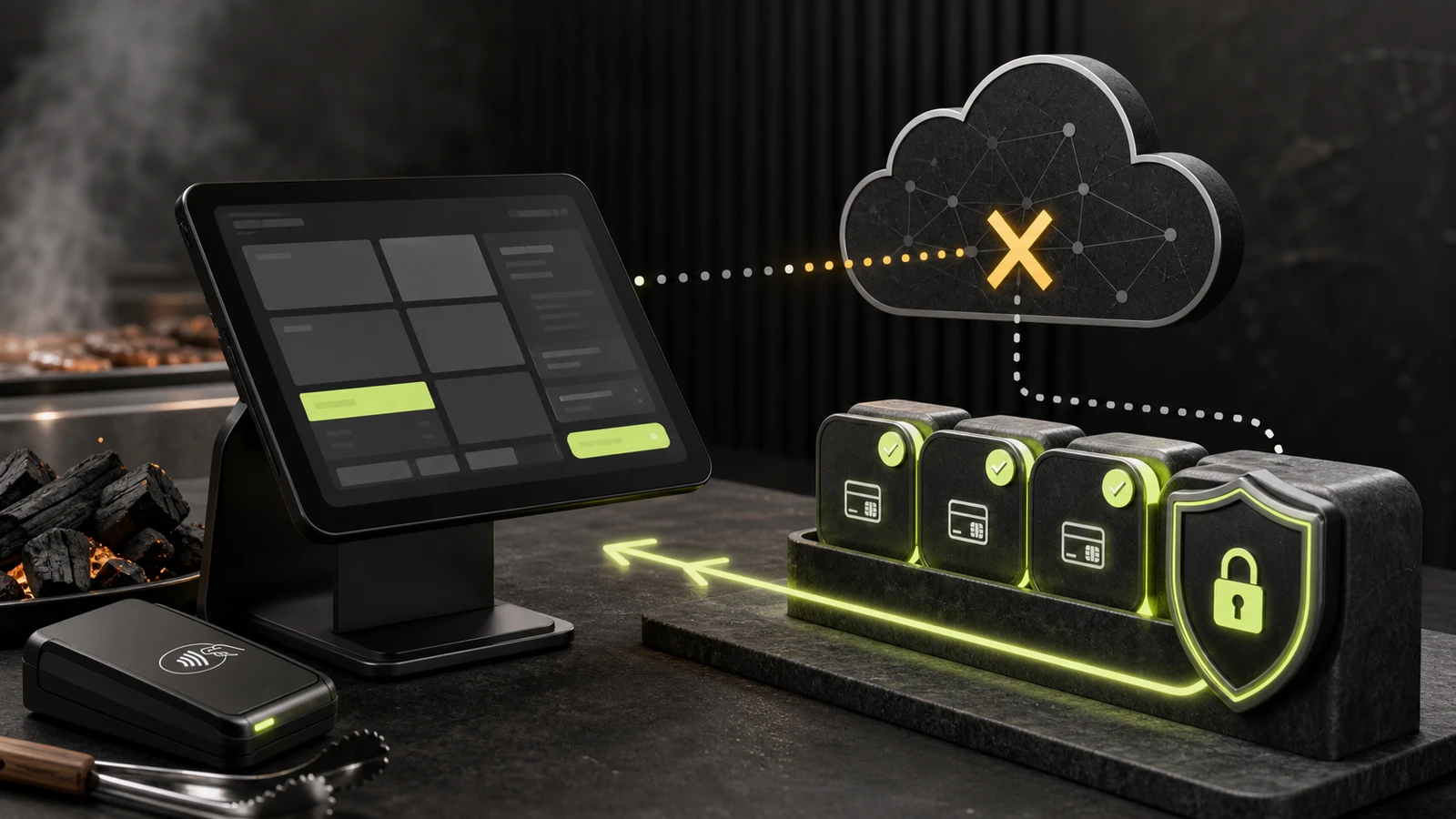
Enable Shopify offline payments only after confirming reader support, assigning staff permissions, setting loss-based limits, and naming a recovery owner; stored cards can still decline after reconnection.
- Best for
- Shopify POS retailers facing short outages that use supported readers and can preserve, reconcile, and absorb the risk of deferred card payments.
- Avoid if
- A later decline is unacceptable, the tender or reader is unsupported, the device cannot stay powered, or staff cannot preserve and reconcile pending orders.
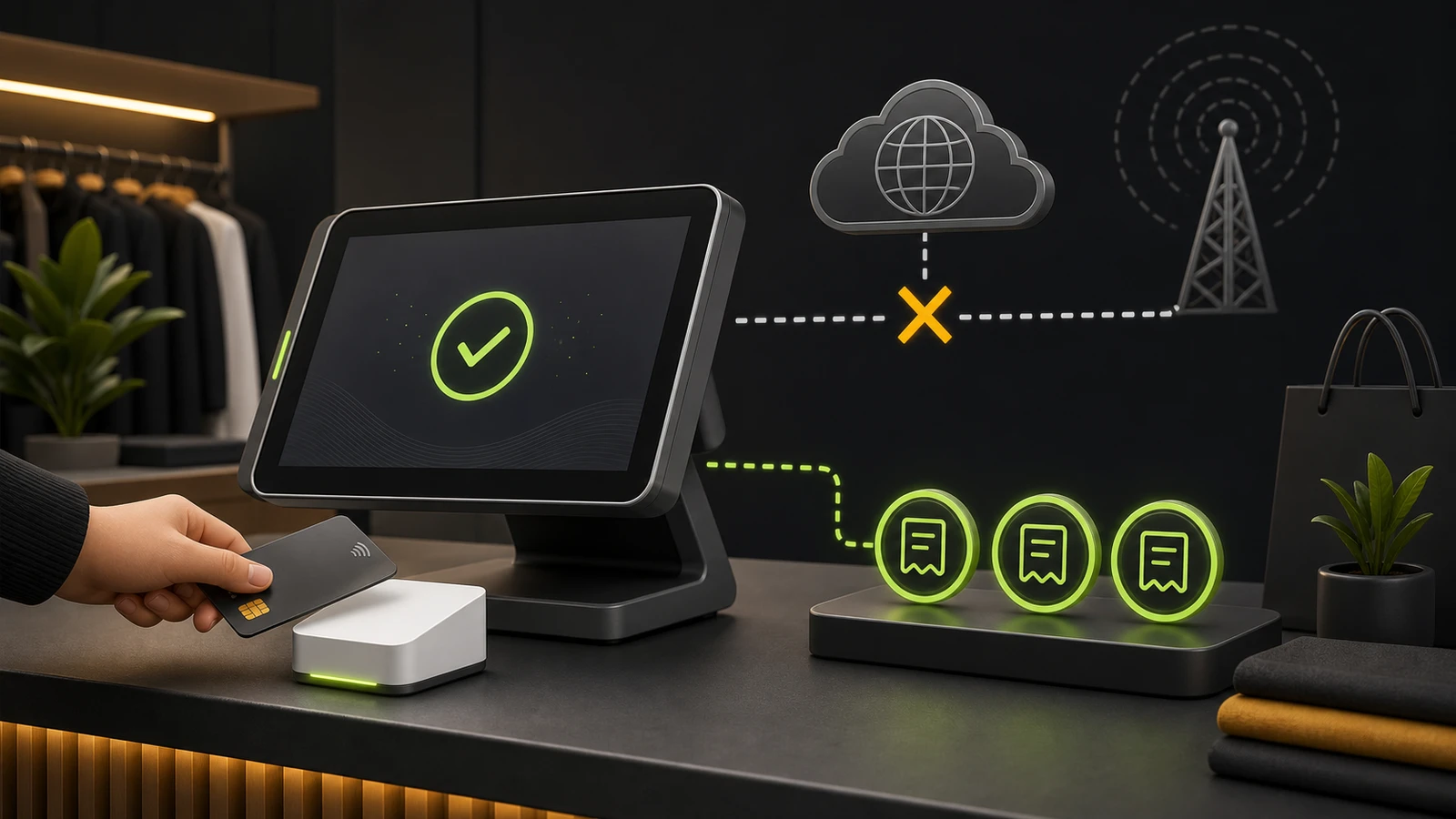
Shopify POS offline mode can keep a sale moving when internet access drops, but the result depends on which offline path you use. Offline checkout supports cash and configured manual payment methods. Offline payments can also store eligible credit and debit card transactions for processing after the device reconnects.
That second path carries real risk: the card isn't routed to the processor during the outage, so a payment can be declined later. A useful setup therefore needs compatible hardware, a current app, staff permissions, sensible transaction limits, and a recovery owner. Turning on the feature without those controls only moves the failure from checkout to reconciliation.
Separate offline checkout from offline payments
Shopify uses two related terms that should not be treated as interchangeable.
Offline checkout lets staff complete a sale with cash or a custom manual method such as a check or an external terminal. It is available without enabling deferred card processing. Staff can switch a device into this mode from the connectivity screen when their role permits it.
Offline payments extends offline checkout so supported readers can accept eligible credit and debit cards. Shopify POS stores those card transactions on the device and sends them for processing after connectivity returns. Until that happens, the order shows a Payment pending badge rather than a final approval.
There is also a narrower POS Terminal case. Shopify says a POS Terminal Reader may still authorize card-present payments in real time when the POS device itself is offline, provided the reader can reach the payment processor. That is Shopify's “Always-on card authorization,” not the same as storing an unprocessed offline payment.
The Shopify offline checkout documentation is the best place to confirm which path the device is actually using.
Check compatibility before an outage
For deferred offline card payments, Shopify currently requires:
- Shopify POS app version 9.14.0 or later
- a compatible reader: POS Go, POS Terminal, Tap & Chip, Chipper 2X BT, WisePad 3, or Chip & Swipe Reader
- the Accept offline credit and debit payments permission for the staff member taking the sale
- offline payments activated in the Shopify admin
The tender also matters. Shopify lists swipe payments, manual card entry, Tap to Pay on iPhone, and Tap to Pay on Android as unsupported offline. Canadian merchants cannot take Interac offline, Australian merchants cannot take eftpos offline, and offline payments are unavailable at retail locations in France.
POS Terminal Reader has an additional infrastructure constraint when it cannot reach the internet: the local Wi-Fi network must remain running, and Shopify says not to restart the router or change networks while using that path. A full power failure is therefore different from an upstream internet outage. The POS UPS sizing guide can help preserve the smallest complete checkout and network path through a brief interruption.
Do not make compatibility a cashier-time judgment. Record the reader model, POS app version, assigned location, and supported tender for every checkout device before the business relies on offline cards.
Set limits around the loss you can absorb
Shopify requires two card-payment controls when offline payments are enabled:
- Transaction limit: the maximum offline card amount allowed for one order
- Device daily limit: the total offline card amount one device can hold in a day
These are merchant risk controls, not sales targets. An offline transaction can later fail for insufficient funds, a lost or stolen card, or another issuer decision. Shopify says the merchant is responsible for declined offline payments and must contact the customer to collect another payment.
Set each limit from actual operating data. Start with normal ticket size, the largest loss the location can absorb, the number of active devices, outage frequency, and whether staff can switch to cash or a verified secondary connection. Because Shopify applies the configured limits across locations, multi-location operators should check that one policy is sensible for every store and currency conversion.
A practical policy might allow routine low-value transactions while requiring manager approval or another payment path above a smaller internal threshold. The interface ceiling should never substitute for a written loss rule.
Configure the feature and staff roles
To activate offline card payments, Shopify's current path is:
- In Shopify admin, open Point of Sale > Settings.
- Under Customization, open the POS app editor.
- Select Checkout and turn on Allow offline payments.
- Enter the device daily limit and per-transaction limit.
- Save and confirm the setting.
Then assign the checkout permission to the right roles:
- Open Settings > Users > Roles.
- Select the POS role.
- Under Checkout, allow or require approval for Accept offline credit and debit payments.
- Save and test the role on a real assigned device before the next outage.
Shopify also exposes separate role controls for managing offline settings and switching a device to offline checkout. Keep configuration rights narrower than transaction rights when cashiers only need to operate the approved procedure. The current POS permissions reference lists the available controls.
Prepare each device before service fails
Offline operation depends on state already present on the device. Use this readiness checklist at each counter:
- Update Shopify POS and confirm it remains signed in.
- Verify the assigned location and reader connection.
- Confirm the offline settings and staff permissions.
- Record the approved transaction and device limits.
- Test the cash drawer and receipt-printer path without changing production settings.
- Define a backup connection and who is allowed to use it.
- Put a short outage and reconciliation procedure at the counter.
Shopify POS needs internet access to import store products when signing in. If the connection fails after login, the app can continue using locally available data, but staff should not sign out. If the receipt path is also failing, diagnose it separately with the Shopify POS receipt-printer troubleshooting guide instead of changing every checkout component at once.
Know what stops working offline
An offline cart is not a fully synchronized store. Shopify's current offline feature matrix says these tasks require connectivity or behave differently:
- orders and inventory do not sync with Shopify admin until reconnection
- new products cannot be saved
- customers cannot be searched, created, or edited
- tips, gift-card sales, and gift-card redemption are unavailable
- returns, exchanges, and voids cannot be processed
- discount codes and automatic discounts do not work, though manual discounts can
- ship-to-customer and buy-online-pickup fulfillment cannot be completed
- apps work only when their POS UI extensions explicitly support offline use
This creates overselling and workflow risk in a busy or multi-location operation. During an outage, reduce discretionary stock adjustments, avoid promising live availability from another location, and log exceptions that will need review after synchronization.
Use a controlled outage sequence
When connectivity drops:
- Confirm whether the failure is local internet, Shopify service, or a single device.
- Preserve the current app session, assigned location, reader connection, and local network.
- Open the connectivity screen and switch to offline checkout only under the approved role and policy.
- Choose cash, a configured manual method, real-time POS Terminal authorization, or deferred offline cards based on the visible device state.
- For deferred cards, stay within both limits and collect the customer's email address or phone number as Shopify requires.
- Tell staff that the payment remains pending until processing completes.
- Record the outage window, affected devices, and pending order count.
Do not treat a printed or emailed receipt as proof that a deferred card has cleared. Shopify sends electronic receipts after reconnection and processing. The operational status to watch is Payment pending, followed by Paid or Card declined.
Protect pending orders and reconnect quickly
Shopify warns not to turn off a device or sign out while it holds offline orders because that can cause data loss. Keep the app installed, powered, and assigned as-is until synchronization is confirmed. Avoid a factory reset or generic reconfiguration while pending transactions remain.
Reconnect as soon as practical. Shopify recommends doing so ideally within 24 hours to reduce decline risk. After internet access returns:
- Let the device process pending card payments automatically.
- Open Orders and verify every pending badge changes to Paid or Card declined.
- Pull down the order list to force a sync if automatic synchronization stalls.
- Compare order counts and totals with the outage log.
- Follow up on declined cards using the contact information collected during checkout.
- Review inventory, receipts, manual discounts, and any fulfillment work deferred during the outage.
- Confirm all devices and readers are back on their intended network and location.
The recovery owner should close the incident only after the pending queue is empty or every exception has an assigned follow-up.
Decide when offline cards are the right backup
Shopify POS offline mode fits a retailer that faces short interruptions, uses supported hardware, can tolerate some later declines, and has staff who can preserve device state and reconcile promptly. It is a continuity layer, not a substitute for working internet, power, or loss controls.
Use cash, a validated secondary connection, or another approved manual method when a delayed decline would be unacceptable, the order is unusually large, the reader or tender is unsupported, the device cannot stay powered, or the outage may outlast the business's recovery window.
The likely total cost goes beyond a software switch: compatible payment hardware, backup power, secondary connectivity, staff training, time spent reconciling, and possible losses from declined transactions. Exact plan pricing, hardware prices, processing rates, and account eligibility were not evaluated here and should be checked in the merchant's live Shopify admin.
For a comparable deferred-payment model with different hardware and operating rules, see the Square offline mode guide.
Research limitations
This is a researched guide based on Shopify's current help center, permissions documentation, and changelog. No Shopify hardware or live offline transaction was tested. Reader support, regional restrictions, app requirements, settings paths, offline limits, and processing behavior can change. Verify the live Shopify offline payments page and the settings shown in your own account before approving an outage procedure.
FAQ
Can Shopify POS take card payments without internet?
Yes, on supported readers when offline payments are activated and the device, app, staff role, region, and tender meet Shopify's requirements. The stored payment is processed only after reconnection and can still be declined.
Does Tap to Pay work in Shopify POS offline mode?
No. Shopify currently lists Tap to Pay on iPhone and Tap to Pay on Android as unsupported for deferred offline payments.
What is the difference between offline checkout and offline payments?
Offline checkout supports cash and configured manual methods. Offline payments is an optional extension that also stores eligible card transactions for processing after internet access returns.
How quickly should Shopify POS reconnect?
Shopify recommends reconnecting as soon as possible, ideally within 24 hours, to reduce the risk of declined deferred card payments and to synchronize orders and inventory.
Can staff turn off the POS device with pending offline orders?
Shopify warns not to turn off the device or sign out while it holds offline orders because doing so might cause data loss. Keep the device and app state intact until all pending transactions synchronize.
Compatibility notes
Systems, accessories, and constraints
Deferred offline card payments require Shopify POS 9.14.0 or later, a currently supported reader, staff permission, admin activation, and an eligible region and tender. Tap to Pay, swipe, and manual card entry are unsupported; POS Terminal has separate local-network and real-time authorization behavior.
Testing methodology
How this article was evaluated
Reviewed current Shopify help, permissions, changelog, affiliate, and search-result documentation; reconciled the payment states into a compatibility, loss-control, outage, and recovery procedure.
Known limitations
What this guide could not verify
Documentation-based; no Shopify hardware or live offline transaction was tested. Reader eligibility, regional restrictions, app versions, settings paths, limits, processing behavior, prices, and account terms can change.
Sources
Documentation and references
- Using Shopify POS offline - Supports the distinction between offline checkout and optional offline card payments.
- Accepting card payments offline using Shopify POS - Supports app, reader, permission, regional, tender, limit, merchant-risk, and reconnection requirements.
- Offline checkout on Shopify POS - Supports cash/manual checkout, device activation, synchronization, and Always-on card authorization behavior.
- Shopify POS offline features - Supports feature and hardware behavior while offline, including the warning about device power and sign-out.
- Point of Sale permissions - Supports separate permissions for accepting, managing, and switching to offline payment workflows.
- Enable Offline Checkout from POS Device Setting - Supports the February 2026 per-device offline checkout control and activity-log change.
- Offline payments for multi entity - Supports current offline-payment availability for multi-entity Shopify Payments setups.
- Shopify Affiliate Program - Verifies a current affiliate program administered through Impact; no relationship or tracked link was created.
Devicefield checklist
Make the next hardware decision with fewer surprises.
Get practical buying notes, compatibility checks, and new troubleshooting guides.
Frequently asked questions
Can Shopify POS take card payments without internet?
Yes, on supported readers when offline payments are activated and the device, app, staff role, region, and tender meet Shopify's requirements. The stored payment is processed only after reconnection and can still be declined.
Does Tap to Pay work in Shopify POS offline mode?
No. Shopify currently lists Tap to Pay on iPhone and Tap to Pay on Android as unsupported for deferred offline payments.
What is the difference between offline checkout and offline payments?
Offline checkout supports cash and configured manual methods. Offline payments is an optional extension that also stores eligible card transactions for processing after internet access returns.
How quickly should Shopify POS reconnect?
Shopify recommends reconnecting as soon as possible, ideally within 24 hours, to reduce the risk of declined deferred card payments and to synchronize orders and inventory.
Can staff turn off the POS device with pending offline orders?
Shopify warns not to turn off the device or sign out while it holds offline orders because doing so might cause data loss. Keep the device and app state intact until all pending transactions synchronize.