
Shipping Label Printing Too Small? Fix the Size Chain
Trace a too-small shipping label through its PDF, app format, printer queue, and scale settings before resetting or recalibrating hardware.
- Written by
- Clayton Wingfield
- Reviewed by
- Clayton Wingfield
- Originally published
- Aug 6, 2026
- Last reviewed
- Aug 6, 2026
Quick verdict
Inspect the PDF page, shipping-app format, printer queue, and print scaling in that order; recalibrate only when media position or sensing is also wrong.
- Best for
- Small-business shipping stations where a thermal label prints as a tiny image, leaves large unused margins, or changes size between computers.
- Avoid if
- The label is blank, the printer will not feed, hardware is damaged, or the carrier requires a model- or shipment-specific recovery process.
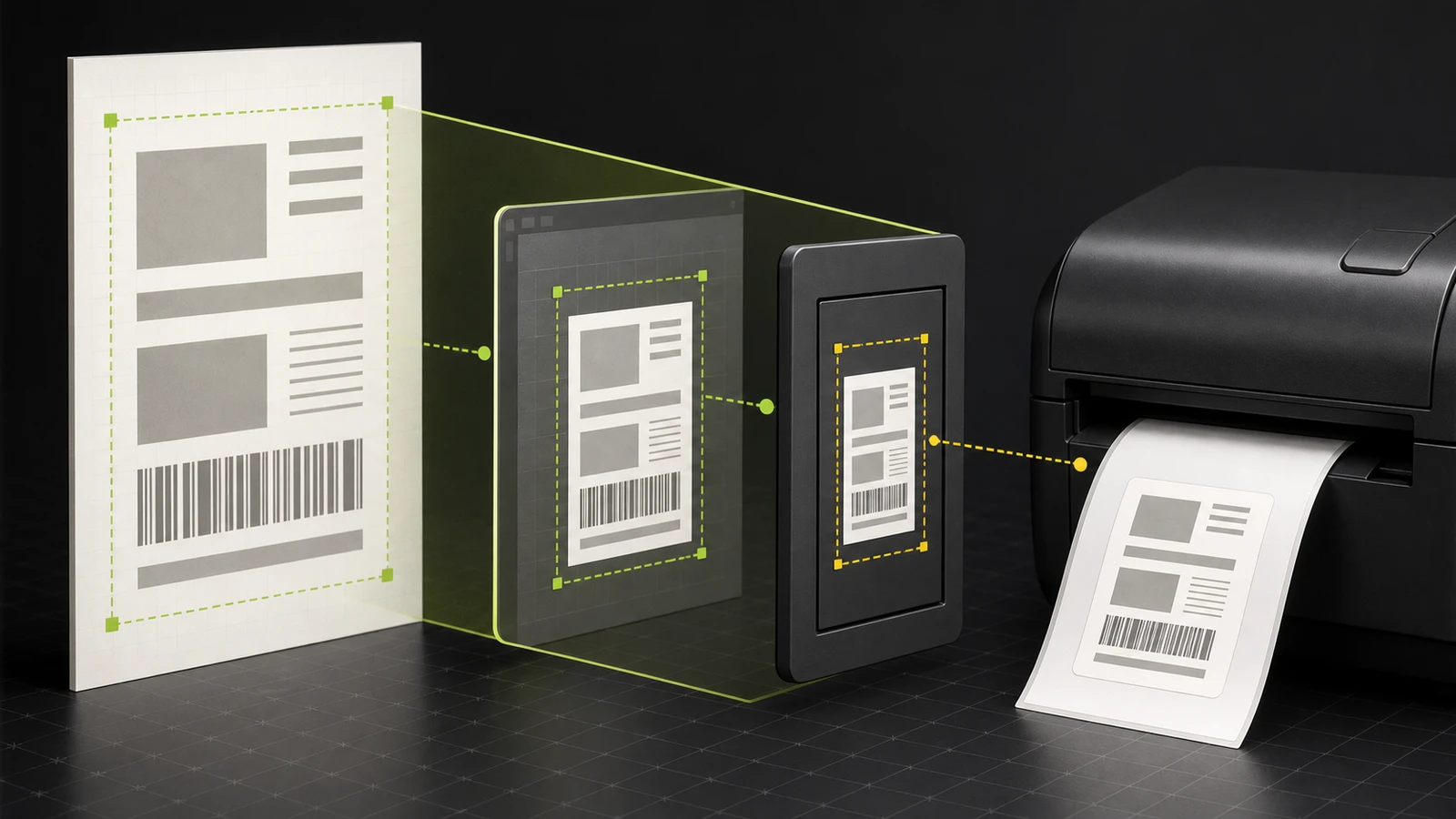
When a shipping label prints too small on a 4-by-6 thermal label, do not start by recalibrating the printer. Check the label file, shipping-app format, computer paper setting, and print dialog. A mismatch can shrink a correct label into a small rectangle surrounded by unused paper.
Save one affected label as a PDF. Print one copy only after the source format, media size, and scale agree.
Diagnose the shipping label size chain
A label job passes through five size controls:
- Source document: The carrier or shipping app creates a PDF or raster label on a particular page canvas.
- Shipping-app format: The app may offer thermal-label, Letter, or A4 output.
- Printer queue: Windows or macOS supplies a paper size and driver to the selected printer.
- Print dialog: The browser or PDF reader may apply Fit, Shrink, Actual size, or a custom percentage.
- Physical printer: The printer uses loaded media, sensing, and model-specific width or length settings.
Use the visible symptom to choose the first test.
| Printed symptom | First layer to check | | --- | --- | | Tiny content centered on one full label | Source page and shipping-app format | | PDF preview fills the page, but paper output is small | Printer queue, paper size, and print scaling | | Correct size from one computer, small from another | Local driver, queue, or viewer settings | | Correct width but clipped edge | Document orientation, printer width, or wrong media size | | First label is close, then output drifts or skips labels | Media loading, sensing, or calibration |
If the content is shifted rather than uniformly reduced, use the Zebra label-alignment diagnostic. If it is rotated or clipped after rotation, follow the sideways-label workflow. A completely white label is a different failure covered in the blank-label guide.
Run one non-destructive size test
Stop the batch and keep the affected PDF. A screenshot removes page-size information and may add another scaling step.
Check the source page before the printer
Open the PDF and compare the page's aspect ratio with the loaded label. A 4-by-6 label has the same 2:3 shape whether it is shown vertically or horizontally. A Letter or A4 page with a small label positioned inside it is a larger page document, even if the visible label artwork looks correct.
Use the shipping platform's thermal-label export when that option exists. Shopify, for example, documents separate Thermal (4 x 6 inch / 100 x 150 mm / A6), Letter, and A4 formats for shipping documents. It also notes that combined documents may be resized to the selected paper format. Choose the format for the printer and document set you are actually using; customs forms or combined paperwork may require a different path than a domestic label alone. See Shopify's current shipping-document formats.
If a downloaded 4-by-6 page fills the preview, leave the source alone and check the computer settings.
Match the printer queue to the source format
Select the exact printer queue used at the packing station. Confirm that its media size matches the loaded stock and the shipping app's label format. ShipStation's current troubleshooting instructions explicitly separate its label-layout setting from the workstation's printer preferences and require the paper size and resolution settings to agree. Review the ShipStation size-mismatch checklist for its supported workflow.
A shared PDF can still print differently when each workstation has a different queue, driver, default paper size, or viewer. Record those settings before changing them.
Apply scaling only after the first two layers agree
In Adobe Acrobat, Actual size prints without scaling. Fit can reduce or enlarge the page to fit the printable area, while Shrink oversized pages reduces only pages larger than the selected paper. Adobe documents those differences in its PDF page-size printing guide.
That means “always use 100 percent” is incomplete advice:
- If the PDF page is already the intended label size and the queue uses matching media, Actual size is the clean control.
- If the PDF is a Letter or A4 page containing a small label, Actual size preserves the wrong page relationship; return to the shipping app and export the correct thermal format.
- If Fit makes a correct 4-by-6 PDF unexpectedly smaller, confirm the selected paper and printable area instead of compensating with a guessed custom percentage.
Print one copy. Do not stack a custom scale, driver offset, and application margin to make the same sample look right. Those adjustments are hard to reproduce and can break the next label format.
Fix the layer that failed
The PDF page contains a tiny label
Return to the carrier or shipping app and choose its label-printer or thermal format. Regenerate or re-download the label through the platform's supported reprint path. Pitney Bowes, for example, identifies the wrong paper format as the cause of too-small PitneyShip labels and directs roll-printer users to its 4-by-6 option for supported domestic labels. See the current PitneyShip resolution.
Do not crop or rebuild a purchased label unless the carrier or platform supports it. Preserve the original file and transaction record.
The PDF is correct, but one workstation prints small
Compare the exact queue, driver, media preset, resolution, viewer, scale, and orientation with a working station. Change one setting at a time and print the same saved PDF. If a fresh queue or driver is required, use the printer manufacturer's supported package and preserve the old queue until its replacement passes one controlled label.
Every workstation prints the same small output
The shared source is the stronger suspect. Check the shipping app's label format, document combination option, and generated PDF page before changing each computer. If the platform preview itself shows a small label inside a large page, escalate to that platform with the order or shipment identifier and the original file.
The label is clipped, shifted, or skips after the first copy
That is not a simple uniform-scale failure. Confirm media loading and the sensing method for the exact printer. Zebra's documentation explains that gap, continuous, and black-mark media determine print length differently, and its troubleshooting separates sensing or calibration faults from document sizing. Review the model manual before running calibration; calibration can correct media detection, but it does not enlarge artwork that was already tiny in the source file. See Zebra's media-sensing explanation and distorted-size troubleshooting.
Avoid fixes that hide the cause
- Do not factory-reset first. A reset can erase working network, media, darkness, and application settings without correcting a Letter-versus-thermal source file.
- Do not enlarge a screenshot. Use the original platform-generated file so page size and print quality remain traceable.
- Do not keep raising a custom percentage. A guessed scale can crop addresses, routing marks, or barcodes.
- Do not calibrate for a uniformly tiny image. Calibration controls media detection on supported printers; it is not a document zoom control.
- Do not test a full batch. One saved label and one physical copy are enough to locate the size boundary.
Verify the corrected label before resuming
Compare the corrected label with the source preview and loaded stock. Confirm the complete address, service information, routing marks, and barcode areas are present and clear of the edges. Follow the platform's reprint flow and the carrier's current placement requirements.
If your normal operation includes a scanner, scan the sample through that actual workflow. A successful phone-camera scan is not proof that every carrier system will accept the label. It is only one local check.
Resume after the saved file prints correctly and the station settings are recorded.
Prevent the next size mismatch
Give each packing station a named printer queue for its physical media. Record the approved shipping-app format, paper preset, driver, viewer, orientation, and scale. Keep one non-live sample PDF for a post-update check.
After an operating-system, browser, PDF-reader, driver, or shipping-app update, print that sample before the first live batch. Use a separate documented queue or preset for each label size.
Limitations of this guide
This is researched troubleshooting guidance. Devicefield did not test a carrier label, shipping platform, PDF viewer, operating system, driver, printer, or media roll for this article. Label formats, customs-document requirements, printer controls, calibration procedures, and carrier acceptance rules vary. Verify the current documentation for the exact platform, carrier, printer model, driver, and shipment before making persistent changes.
Frequently asked questions
Why does my 4-by-6 shipping label print in one corner?
The source is often a larger Letter or A4 page with a label positioned inside it, or the printer queue is using a larger paper preset. Check the PDF page, shipping-app export format, and queue media size before changing scale.
Should I use Fit or Actual size for a shipping label?
Use Actual size as the control when the PDF page already matches the physical label and the printer queue uses the same media. If the PDF page is larger, export the correct thermal format instead of relying on Fit to repair it.
Will calibrating a thermal printer make the label content larger?
No. Calibration helps a supported printer detect media boundaries and sensing characteristics. It does not enlarge artwork that is already small inside the source document.
Why does the same label print correctly from another computer?
The shared PDF can be correct while the failing computer uses a different queue, driver, paper preset, resolution, viewer, orientation, or scaling option. Compare those settings one at a time with the working station.
Compatibility notes
Systems, accessories, and constraints
The size-chain method applies to PDF-based shipping-label workflows, but available formats, customs documents, paper presets, DPI controls, drivers, scaling options, sensing methods, and calibration steps vary by platform, operating system, viewer, carrier, and printer model.
Testing methodology
How this article was evaluated
Reviewed every local package and all 34 database inventory records; searched seven materially different discovery queries; reviewed the selected primary query and three close variants; synthesized current Adobe, Shopify, ShipStation, Pitney Bowes, and Zebra documentation into a layer-by-layer diagnostic sequence.
Known limitations
What this guide could not verify
Research-only. No carrier label, shipping platform, PDF viewer, operating system, driver, printer, media roll, scanner, or carrier acceptance system was tested. Current platform, carrier, and printer documentation controls.
Sources
Documentation and references
- Adjust page size for printing PDFs in Acrobat - Defines Fit, Actual size, Shrink oversized pages, Custom Scale, and PDF-page-based paper selection.
- Printing shipping labels and shipping documents - Documents Shopify thermal 4 x 6, Letter, and A4 formats and combined-document resizing behavior.
- Labels Print Too Big or Too Small - Supports checking both shipping-label layout and workstation printer preferences, including media size and resolution.
- Labels print too small in PitneyShip, PitneyShip Pro, or PitneyShip Enterprise - Supports wrong paper format as a PitneyShip cause and the supported roll-printer format choice for domestic labels.
- Setting Media Sensing by Media type - Explains how gap, continuous, and black-mark media determine print-format length.
- Issue: Labels Are Distorted in Size or Print Area Start Position Varies - Supports separating media loading, sensing, calibration, platen, and communication causes for distortion or mis-registration.
Devicefield checklist
Make the next hardware decision with fewer surprises.
Get practical buying notes, compatibility checks, and new troubleshooting guides.
Frequently asked questions
Why does my 4-by-6 shipping label print in one corner?
The source is often a larger Letter or A4 page with a label positioned inside it, or the printer queue is using a larger paper preset. Check the PDF page, shipping-app export format, and queue media size before changing scale.
Should I use Fit or Actual size for a shipping label?
Use Actual size as the control when the PDF page already matches the physical label and the printer queue uses the same media. If the PDF page is larger, export the correct thermal format instead of relying on Fit to repair it.
Will calibrating a thermal printer make the label content larger?
No. Calibration helps a supported printer detect media boundaries and sensing characteristics. It does not enlarge artwork that is already small inside the source document.
Why does the same label print correctly from another computer?
The shared PDF can be correct while the failing computer uses a different queue, driver, paper preset, resolution, viewer, orientation, or scaling option. Compare those settings one at a time with the working station.


