
Zebra Printer Labels Misaligned? Isolate the Layer
Use three controlled prints to separate Zebra label-boundary, printer-position, and application faults before changing persistent settings.
- Written by
- Clayton Wingfield
- Reviewed by
- Clayton Wingfield
- Originally published
- Aug 4, 2026
- Last reviewed
- Aug 4, 2026
Quick verdict
Compare one FEED advance, a printer-generated report, and one saved business label; fix the first layer that fails instead of stacking offsets.
- Best for
- Retail, shipping, warehouse, and office operators whose Zebra output is shifted, clipped, or gradually drifting on the label.
- Avoid if
- The printer has physical damage, unsafe heat or odor, a failed latch, or a model-specific service condition that requires qualified support.
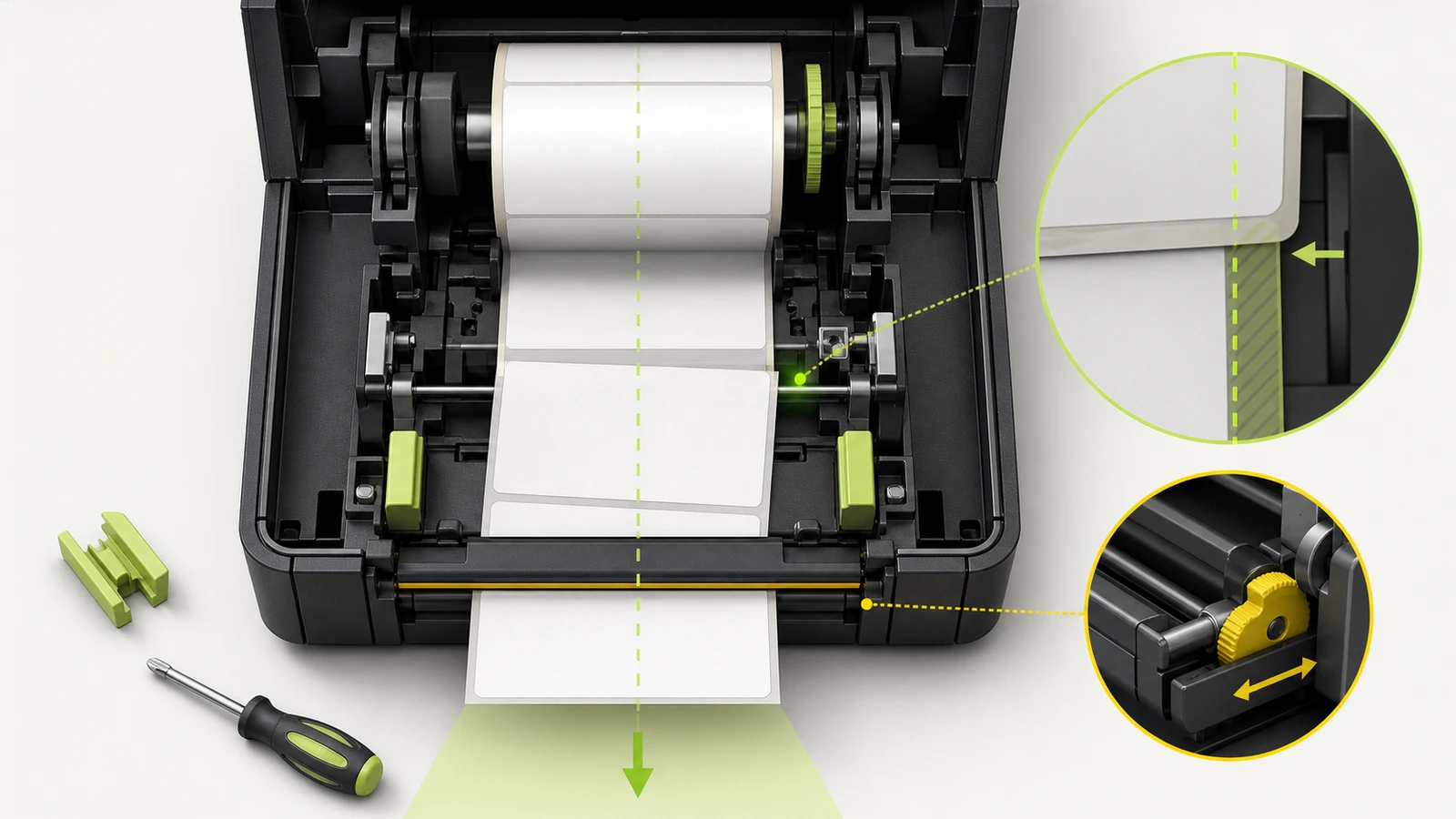
When Zebra printer labels are misaligned, don't begin by adding an offset. First determine whether the printer is losing the label boundary or the print job is placing content in the wrong position. Those faults can look similar, but they need different fixes.
Use three controls with the same roll loaded: press FEED once, print a printer-generated configuration report, then print one saved business label. Together, those results separate media sensing, stored printer behavior, and the application or driver path without erasing working settings.
This guide applies broadly to Zebra desktop and industrial label workflows. Button sequences, menus, sensor locations, supported media, and calibration procedures vary by model. Verify the exact printer's manual before changing persistent settings.
Identify the misalignment pattern
Describe the failure before touching the printer:
| Pattern | Strongest first suspect | Next control | | --- | --- | --- | | FEED stops between labels inconsistently | Media loading, sensing type, sensor position, or calibration | Reload the roll and repeat FEED | | Every job begins too high or too low by the same amount | Label length, top-of-form, template, or vertical offset | Compare a configuration report with the business label | | Output shifts left or right but label boundaries stay stable | Media guides, document width, left position, or horizontal offset | Print a second file through another path | | The first labels look correct, then drift | Media type, calibration, sensor contamination, inconsistent gaps, or platen condition | Run model-supported calibration and inspect the roll | | One application is wrong while printer labels are centered | Application, template, driver, scaling, or raw job data | Send the same file through a second print path | | The design is rotated or its width and height are swapped | Orientation or page-size controls | Correct orientation and page dimensions before alignment |
Do not treat shifted print and skipped labels as identical. A design can be consistently offset while the printer still finds every gap. It can also be centered but advance two labels because the sensor is tracking the wrong media type.
Run three controls before changing settings
1. Press FEED once
Remove queued jobs if your application can do so safely, mark the current leading label, and press FEED once.
- If one label advances and the next label stops at the same position repeatedly, the printer is probably finding the label boundary consistently. Continue to the configuration report.
- If the stop position changes, more than one label advances, or the printer reports media out, keep the diagnosis on the media path first.
- If the roll walks sideways, reload it with the guides snug enough to control the media without pinching it.
Zebra explains that web or gap media, black-mark media, and continuous media use different sensing logic. The printer's setting and movable sensor must match the stock. Zebra's media-sensing guide describes how gaps, marks, and continuous stock define format length.
2. Print a printer-generated configuration report
Use the documented self-test for the exact model. On ZD421 and ZD621 desktop printers, Zebra documents holding **FEED + CANCEL for two seconds** after the printer reaches ready state. Do not assume that sequence applies to another family.
Compare where the printer-generated content lands:
- Report centered; business label shifted: the mechanism can place its own output correctly. Inspect the document, driver, application, and job data.
- Report and business label shifted alike: stored printer position, media loading, calibration, or a mechanical feed issue remains plausible.
- Report crosses label boundaries: solve media sensing and label length before adjusting print position.
A configuration report is evidence, not permission to reset the printer. Save it with the printer model, resolution, firmware, media type, and current settings before making persistent changes.
3. Print one saved job through a second path
Keep the printer and roll unchanged. If the application can export a PDF or image safely, print one copy from another supported viewer at the actual label size and 100% scale. If a known-good label template exists, print that too.
When only one application path is shifted, the printer is not the first place to add compensation. Compare the document size, stock definition, scaling, margins, driver selected by the application, and any integration-generated printer commands.
Fix printer-side boundary errors first
Reload and classify the media
Record the roll's width, label length, gap or mark position, and whether it is direct thermal or thermal transfer stock. Load it squarely, place the guides correctly, and position the movable sensor for the media type described by the model manual.
Inspect the liner for inconsistent gaps, damaged edges, missing labels, adhesive, or preprinting where the sensor reads. If the fault began with a new roll, compare it with a known-good roll from the approved specification instead of forcing the old settings to accept visibly different stock.
Calibrate only after the media path is correct
Calibration teaches the printer the loaded media's sensing characteristics and length. It cannot correct a template that sends the wrong page size.
For ZD421 and ZD621 printers, Zebra's SmartCal procedure measures several labels after the media is loaded and the printer is ready. Zebra directs users to manual calibration when SmartCal cannot recognize the stock. Use the procedure for the exact model; calibration consumes labels and may behave differently on preprinted, black-mark, notched, or continuous media.
If calibration does not hold, a Zebra sensor profile can show whether the sensor sees gaps or marks consistently. Generate it only through the model's documented controls or approved support workflow. It may print across several labels.
Look for progressive mechanical drift
Zebra's industrial-printer troubleshooting documentation lists calibration, media specifications, sensor position, and a dirty platen among causes of misregistration or vertical drift. If a clean, supported roll calibrates but output moves progressively, inspect and clean only the operator-serviceable areas named in the manual. Stop if the platen is damaged, the media slips, the printhead cannot latch evenly, or the printer needs disassembly.
Fix job-side placement without stacking offsets
When FEED and the configuration report are stable, compare the physical label with every software layer:
- Document or template width and height.
- Gap, mark, or continuous stock definition.
- Driver media size and resolution.
- Print-dialog scaling, margins, and orientation.
- Application, browser bridge, print server, or raw printer-language output.
Correct the first layer that disagrees. Print one label, close and reopen the application, then print it again. That second test shows whether the fix persisted or was only a one-job preference.
Use top or left offsets only when label boundaries, physical dimensions, configuration output, and the business template are already correct. Zebra documents horizontal label offset as a persistent movement of the image in dots. An offset can hide the wrong label size on one job while breaking every other format that shares the printer.
Avoid high-cost false fixes
- Factory reset: can remove network, media, darkness, and integration settings without proving the source of the shift.
- Repeated calibration: wastes labels when the application alone is sending the wrong size or position.
- Large offsets: may move content back onto one label while preserving an incorrect boundary or template.
- Driver reinstall: makes sense for a missing or corrupted driver, not as the first response when printer-generated output is correct.
- Printer replacement: is hard to justify until a known-good roll, self-test, and alternate print path reproduce the fault.
If labels are completely blank or extra blank labels feed, start with the Zebra blank-label diagnostic. Those symptoms require print-method, ribbon, sensor, and calibration checks that go beyond placement alone.
Prevent alignment failures across a label fleet
Save one approved record for each label workflow: printer model and resolution, firmware, driver, connection, stock dimensions, sensing type, sensor position, application, template version, scaling, offsets, and a known-good one-label file.
After a roll, template, driver, print-server, browser, or application change, validate one label and then a short batch. Check the first and last label for drift before releasing a large job. Broader deployment guidance belongs in Receipt & Label Printing, while recurring device faults can be triaged through Troubleshooting.
When Zebra or application support should take over
Escalate when a supported known-good roll will not calibrate; the sensor profile does not show consistent boundaries; the configuration report drifts; the platen slips or is damaged; the printhead does not latch normally; or one managed application sends position changes that cannot be inspected safely.
Provide the exact model, resolution, firmware, driver, connection method, media specification, configuration report, sensor profile when requested, one failing label, one known-good label, and the three-control results. That packet shows whether Zebra, the media supplier, or the application vendor owns the next step.
Limitations of this guide
This is researched troubleshooting guidance, not a hands-on repair record. Devicefield did not inspect a Zebra printer, media roll, sensor, platen, driver, template, print server, or job stream for this article. Card, mobile, RFID, kiosk, linerless, legacy, and highly specialized industrial models can use different controls and media paths. Verify the exact manual, supported media, cleaning method, and service boundary before changing persistent settings.
Frequently asked questions
Why do Zebra labels start aligned and then drift?
Progressive drift points first toward media sensing, an incorrect continuous-versus-gap setting, inconsistent stock, contamination, calibration, or feed hardware. Compare FEED stops and a printer-generated report before adding an offset.
Should I calibrate a Zebra printer when every label is shifted equally?
Only after confirming the roll is loaded correctly and the media type matches. If FEED stops consistently and the configuration report is centered, calibration is unlikely to fix an application template or driver offset.
Why is only one application printing off center?
That application may use a different stock definition, driver, scaling rule, print connector, or raw job command. Print the same saved file through a second supported path and compare the results.
Is a factory reset the fastest alignment fix?
Usually not. It can erase working settings while the application sends the same bad dimensions or position again. Preserve a configuration report and isolate the failing layer first.
Compatibility notes
Systems, accessories, and constraints
The three-control diagnostic applies broadly to Zebra desktop and industrial label workflows, but self-test buttons, calibration sequences, sensor locations, media support, offsets, and service boundaries vary by model. Card, mobile, RFID, kiosk, linerless, legacy, and specialized industrial models require their exact manuals.
Testing methodology
How this article was evaluated
Reviewed every local package and the approved database inventory; searched five materially different current candidate queries; directly reviewed the primary phrase and three close variants; synthesized current Zebra documentation into a FEED, configuration-report, and business-job isolation sequence.
Known limitations
What this guide could not verify
Research-only. No Zebra printer, media roll, sensor, platen, driver, template, print server, or raw job stream was tested. Exact controls and supported cleaning or calibration steps must be verified for the model and media.
Sources
Documentation and references
- Issue: Labels Are Distorted in Size or Print Area Start Position Varies - Supports media loading, sensor position, calibration, platen, and communication causes for varying start position and misregistration.
- Printing Issues - Supports the distinction among misregistration, vertical drift, calibration, media type, format, sensor, and platen causes.
- Running a SmartCal Media Calibration - Supports the ZD421/ZD621 SmartCal purpose, prerequisites, controls, and manual-calibration escalation.
- Setting Media Sensing by Media Type - Supports distinct sensing behavior for web/gap, black-mark, and continuous media.
- Test Printing with a Configuration Report - Supports the ZD421/ZD621 configuration-report control and its diagnostic role before computer connection.
- Sensor Profile - Supports using a printed sensor profile to diagnose inaccurate gap sensing or preprinted-media interference.
- Print Label Position Horizontal Label Offset - Supports that horizontal label offset moves the image in dots and is a persistent printer-side position control.
- Manually Calibrating Media - Supports manual calibration and sensor positioning when automatic calibration does not recognize the loaded media.
Devicefield checklist
Make the next hardware decision with fewer surprises.
Get practical buying notes, compatibility checks, and new troubleshooting guides.
Frequently asked questions
Why do Zebra labels start aligned and then drift?
Progressive drift points first toward media sensing, an incorrect continuous-versus-gap setting, inconsistent stock, contamination, calibration, or feed hardware. Compare FEED stops and a printer-generated report before adding an offset.
Should I calibrate a Zebra printer when every label is shifted equally?
Only after confirming the roll is loaded correctly and the media type matches. If FEED stops consistently and the configuration report is centered, calibration is unlikely to fix an application template or driver offset.
Why is only one application printing off center?
That application may use a different stock definition, driver, scaling rule, print connector, or raw job command. Print the same saved file through a second supported path and compare the results.
Is a factory reset the fastest alignment fix?
Usually not. It can erase working settings while the application sends the same bad dimensions or position again. Preserve a configuration report and isolate the failing layer first.


