
Zebra Printer Printing Blank Labels: Diagnose the Cause
Diagnose completely blank output, extra blank feeds, and alternating labels before resetting a Zebra thermal printer or replacing hardware.
- Written by
- Clayton Wingfield
- Reviewed by
- Clayton Wingfield
- Originally published
- Jul 20, 2026
- Last reviewed
- Jul 20, 2026
Quick verdict
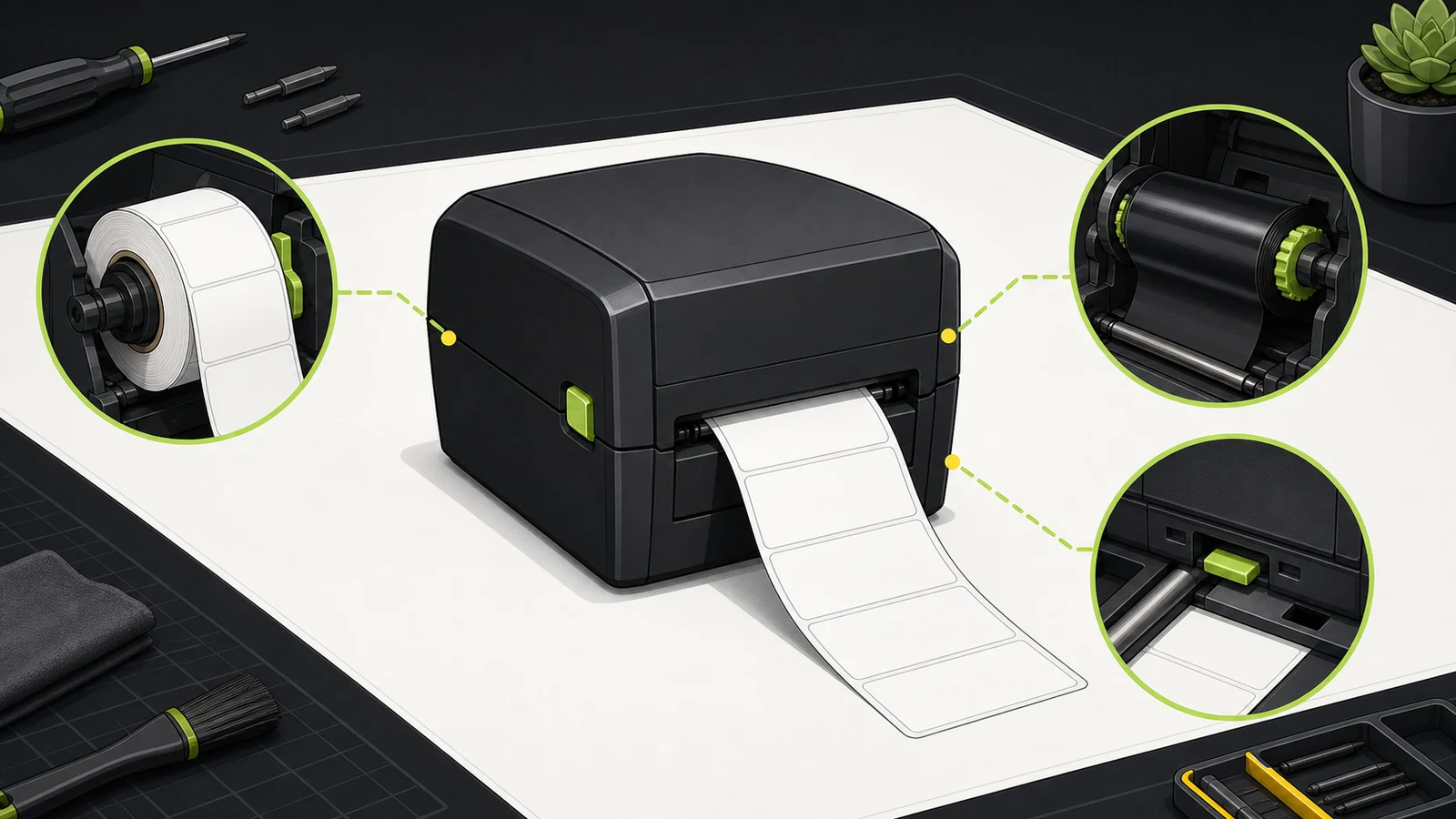
Separate the symptom before changing settings: completely blank labels point first to media, ribbon, print method, or printhead; extra blank feeds point to sensing and calibration; alternating blanks often point to label dimensions or layout.
- Best for
- Retail, warehouse, shipping, and office operators diagnosing Zebra thermal-printer output without immediately erasing working settings.
- Avoid if
- The printer has visible physical damage, unsafe heat, persistent hardware errors, or a model-specific service requirement that needs Zebra support.
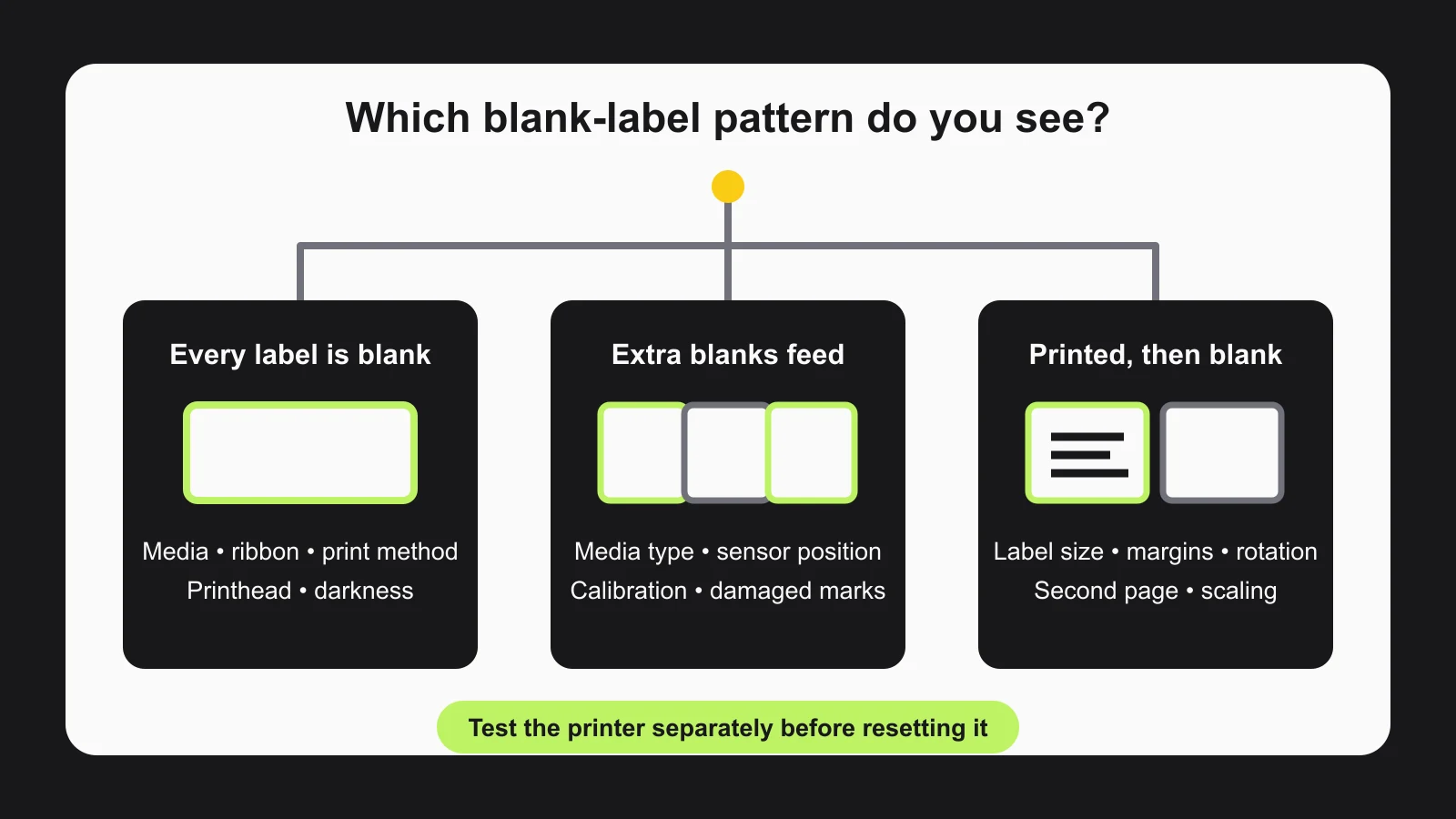
If a Zebra printer is printing blank labels, first identify whether the labels are completely unprinted, blank only between correctly printed labels, or alternating between printed and blank. Those patterns point to different failures. Completely blank output usually involves the media, ribbon, print method, or printhead. Extra blank feeds usually involve media sensing or calibration. A regular printed-blank pattern often starts with the label size or page layout.
Don't begin with a factory reset. A reset can erase working network, media, darkness, and application settings without proving whether the printer itself can print.
This guide applies broadly to Zebra desktop and industrial thermal printers, but button sequences and menus vary by model. The specific SmartCal and configuration-report button combinations below are for ZD421 and ZD621 desktop models. Use the manual for your exact model before running a reset or model-specific calibration.
Identify the blank-label pattern
Run one small test job and watch exactly what happens:
- Every label advances but stays white: check the printable side, direct-thermal versus thermal-transfer media, ribbon, print method, and printhead.
- A correct label prints, then one or more blanks feed: check media type, sensor position, and calibration.
- One correct label alternates with one blank label: check the label dimensions, page size, margins, rotation, and whether the design spills onto a second page.
- The printer feeds unpredictably or reports media out: check how the gaps, notches, or black marks pass the sensor, then calibrate.
- A printer self-test works but the business application prints blanks: focus on the driver, application template, data path, and selected printer rather than the print mechanism.
That last distinction saves time. A successful printer-generated configuration label proves the printer can create an image on the loaded media. It doesn't prove that the computer is sending the right format.
Quick checks before changing settings
Stop the print queue so every test doesn't waste another roll. Keep one failed label and note whether it is blank, faint, offset, or paired with an extra feed.
Then check these basics:
- Confirm the label faces the printhead. Zebra's desktop troubleshooting documentation says the printable surface should face up toward the printhead on the covered ZD models. Other media paths may differ, so follow the loading diagram inside the printer or its manual.
- Match the media to the print method. Direct-thermal labels darken from heat and don't need a ribbon. Thermal-transfer stock needs a compatible ribbon and a thermal-transfer-capable printer.
- Run a scratch test. Rub the intended print surface firmly and quickly with a fingernail or pen cap. Zebra's media test says a black mark indicates direct-thermal media; no mark indicates thermal-transfer media that requires ribbon.
- Confirm the roll's sensing method. Die-cut labels normally use gaps or notches. Some stock uses a black mark on the liner. Continuous media has no label boundary for a gap sensor to find.
- Check the exact label dimensions. Width and height must match in the application and driver. A 4 × 6-inch design sent to smaller media can place the artwork outside the printable area or create a second blank page.
If a change of label size, vendor, batch, or media type happened just before the failure, treat media setup and calibration as the leading suspects.
Print a configuration report without the computer
Disconnecting the application from the diagnosis tells you which side of the system is failing. On a ZD421 or ZD621 with media loaded, the cover closed, and the printer ready, Zebra documents pressing FEED + CANCEL for two seconds to print printer and network configuration reports.
- The report prints normally: the printhead, media, and basic printer settings can produce output. Move to the driver and application checks.
- The report is completely blank: stay with the media, ribbon, print method, loading direction, darkness, or printhead checks.
- The report prints but skips labels: inspect media sensing and calibration.
- The report doesn't run: check the model-specific indicator state, cover, supplies, and manual before assuming the printhead failed.
Zebra uses different self-test sequences across product families. Don't apply the ZD421/ZD621 buttons to an older GK, ZT, ZQ, or ZSB printer without checking its documentation.
Fix completely blank Zebra labels
Work from the supply outward.
Verify media and ribbon
Perform the scratch test on the side facing the printhead. If direct-thermal stock doesn't darken, the roll may be thermal-transfer stock or loaded with the non-printable side facing the heat source.
For thermal transfer, confirm that a ribbon is installed, routed correctly, and compatible with the label material. Also confirm the printer's print method is set to thermal transfer. Zebra's ZD421/ZD621 guide documents separate direct-thermal and thermal-transfer modes; the wrong mode can create ribbon alerts or output problems.
Check darkness only after the media is correct
An extremely low darkness setting can make output look blank or nearly blank, but increasing heat isn't a substitute for correct media. Zebra's print-issue guidance recommends using a print-quality test to choose darkness and speed for the label-and-ribbon combination. Excess heat can widen barcode bars, reduce readability, and increase printhead wear.
Inspect the print path safely
Power down before inspecting the printhead area, and let the printhead cool. Look for an obvious open cover, misrouted media, wrinkled ribbon, adhesive buildup, or a damaged platen roller. Follow the cleaning procedure for the exact model; sensors, printheads, and rollers don't all use the same method.
If known-good media and the printer's own configuration report still produce no image, stop changing software. That result points toward the printer, supplies, or printhead and is appropriate for Zebra support or a qualified service provider.
Fix skipped or extra blank labels
The printer must know where one label ends and the next begins. Zebra's SmartCal process measures gap/web, black-mark/notch, or continuous media and adjusts the sensing level.
Before calibrating:
- Load the roll straight between the guides without squeezing it.
- Place a movable sensor where it can actually see the gap, notch, or black mark.
- Set the configured media type to match the roll.
- Remove torn liner, loose labels, and adhesive debris from the media path using the model's approved procedure.
For ZD421 and ZD621 desktop printers, Zebra's SmartCal instructions say to load media and ribbon when required, close the cover, wait for Ready, then hold PAUSE + CANCEL for two seconds. The printer feeds and measures several labels. A few blank labels during calibration are expected; continued blank feeding after calibration is not.
If SmartCal cannot recognize the stock, use the model's manual calibration procedure rather than repeating resets. Preprinted graphics, translucent liners, unusually small gaps, damaged black marks, or a sensor positioned away from the registration mark can all make automatic sensing harder.
Fix one printed label followed by one blank
A consistent one-for-one pattern is often a layout problem, not a failed sensor. Compare the physical label with every software layer that can change the job:
- Label width and height in the design application.
- Page size, orientation, and margins in the print dialog.
- Media size and rotation in the Zebra driver.
- Scaling options such as Fit, Shrink, or Actual Size.
- The selected printer and its default settings.
Preview a single label. If the preview shows two pages, or the artwork sits outside the first page, correct the template before recalibrating the printer. Shopify gives the same size-first advice for Zebra ZSB blank-label jobs: the label image must match the physical label.
After correcting the size, send one label. If the printer's configuration report is normal but the application still creates a blank page, export a simple test label from another known-good application. That isolates the original template or integration without erasing printer settings.
Prevent the problem from returning
Record the working combination of printer model, firmware, print method, media type, label dimensions, ribbon, darkness, speed, driver version, and application template. For multi-location businesses, attach that configuration to the approved supply SKU rather than relying on the printer name alone.
Calibrate after a meaningful change in media type, size, vendor, or batch—not automatically after every identical roll. Zebra says SmartCal isn't normally required for a new roll from the same media type and batch; one or two FEED presses can synchronize the labels.
Keep one known-good roll and ribbon for diagnosis. They are more useful than a factory reset because they test whether the failure follows the supplies. Broader printer deployment and maintenance coverage is available in Receipt & Label Printing, while recurring device failures belong in the Troubleshooting workflow. See how Devicefield labels researched guidance for the evidence standard used here.
When to use Zebra support or replace a part
Escalate when the configuration report remains blank with correctly loaded, known-good media and ribbon; when the printhead or platen is visibly damaged; when a sensor cannot detect supported stock after manual calibration; or when error indicators return immediately after the documented recovery procedure.
Provide the exact model, serial number, firmware version, configuration report, media and ribbon part numbers, connection type, indicator pattern, and a photo of the failed output. That evidence is more actionable than “it prints blanks” and reduces the chance of replacing a working printer for a supply or template problem.
Limitations of this guide
This is researched troubleshooting guidance, not a hands-on repair record. Devicefield did not inspect a Zebra printer or verify each product family's button sequence. The diagnostic logic is based on current Zebra documentation for ZD desktop models, with a separate ZSB workflow note from Shopify. Industrial, mobile, card, RFID, and cartridge-based ZSB printers can require different media paths, controls, and support procedures.
Frequently asked questions
Why does calibration feed blank labels?
That can be normal. During SmartCal, supported Zebra desktop printers feed and measure several labels to learn the media boundaries and sensor levels. The problem is continued blank feeding after calibration finishes.
Why does my Zebra print a blank label after every good label?
Check label dimensions and page layout first. A design taller than the physical label, nonzero margins, or a second page in the print job can create a regular printed-blank pattern. If the layout is correct, confirm the media type and calibrate.
Do Zebra direct-thermal printers need ribbon?
No. Direct-thermal media reacts to heat and doesn't use ribbon. Thermal-transfer media requires ribbon. Use the scratch test to identify the stock rather than guessing from its appearance.
Should I factory-reset a Zebra printer that prints blanks?
Not first. A factory reset can remove useful network and media settings. Test the printer's own configuration report, verify media and print method, correct dimensions, and calibrate before considering a documented reset.
Compatibility notes
Systems, accessories, and constraints
The diagnostic logic applies broadly to Zebra thermal printers, but the FEED+CANCEL configuration report and PAUSE+CANCEL SmartCal sequences are documented here only for ZD421 and ZD621 desktop printers. ZSB, GK, ZT, ZQ, card, RFID, and other families require their own model documentation.
Testing methodology
How this article was evaluated
Reviewed current Zebra desktop-printer support, SmartCal, print-issue, media-identification, configuration-report, and ZD421/ZD621 user-guide documentation; compared the official failure paths with current search results, a Shopify ZSB support workflow, and recent operator reports about skipped and alternating blank labels.
Known limitations
What this guide could not verify
Research-only guidance. Devicefield did not inspect a Zebra printer or verify each product family's controls. Model-specific media paths, sensor locations, calibration sequences, cleaning instructions, and reset procedures vary.
Sources
Documentation and references
- ZD421 Series Printer Support - Supports media/ribbon setup, SmartCal, manual calibration triggers, and matching printer settings to supplies.
- Running a SmartCal Media Calibration - Supports ZD421/ZD621 SmartCal prerequisites, PAUSE+CANCEL sequence, expected label feeding, sensed media types, and same-batch guidance.
- Resolve Print Issues - Supports no-print causes, printable-surface orientation, media mismatch, calibration, print quality, printhead, platen, and communication checks.
- Determining Thermal Media Types - Supports the media scratch test and the direct-thermal versus thermal-transfer result.
- Printing the Printer and Network Configuration Reports - Supports the ZD421/ZD621 FEED+CANCEL configuration-report procedure and its diagnostic purpose.
- ZD421 and ZD621 Series Desktop Printers User Guide - Supports print-method distinctions, ribbon alerts, heat safety, diagnostics, and model-specific troubleshooting boundaries.
- Zebra ZSB Label Printer Series - Supports matching label-image size to physical ZSB media and the separate ZSB support workflow.
- ZD410 Printing One Label, Then Feeding Blank Labels - Qualitative demand evidence for recent alternating printed/blank output questions; not used as technical authority.
Devicefield checklist
Make the next hardware decision with fewer surprises.
Get practical buying notes, compatibility checks, and new troubleshooting guides.
Frequently asked questions
Why does calibration feed blank labels?
That can be normal. During SmartCal, supported Zebra desktop printers feed and measure several labels to learn the media boundaries and sensor levels. The problem is continued blank feeding after calibration finishes.
Why does my Zebra print a blank label after every good label?
Check label dimensions and page layout first. A design taller than the physical label, nonzero margins, or a second page in the print job can create a regular printed-blank pattern. If the layout is correct, confirm the media type and calibrate.
Do Zebra direct-thermal printers need ribbon?
No. Direct-thermal media reacts to heat and does not use ribbon. Thermal-transfer media requires ribbon. Use the scratch test to identify the stock rather than guessing from its appearance.
Should I factory-reset a Zebra printer that prints blanks?
Not first. A factory reset can remove useful network and media settings. Test the printer’s own configuration report, verify media and print method, correct dimensions, and calibrate before considering a documented reset.


