
Zebra Printer Printing Sideways? Isolate the Override
Use two controlled prints to locate sideways Zebra labels in the document, driver, print path, or job data before changing persistent settings.
- Written by
- Clayton Wingfield
- Reviewed by
- Clayton Wingfield
- Originally published
- Aug 4, 2026
- Last reviewed
- Aug 4, 2026
Quick verdict
Compare a printer-generated label with the same business label through a second print path, then fix the least persistent layer that reproduces the rotation.
- Best for
- Retail, shipping, warehouse, and office operators whose Zebra labels print sideways, upside down, or clipped after rotation.
- Avoid if
- The failure is actually skipped labels, gradual drift, media-out errors, or a safety issue requiring model-specific service guidance.
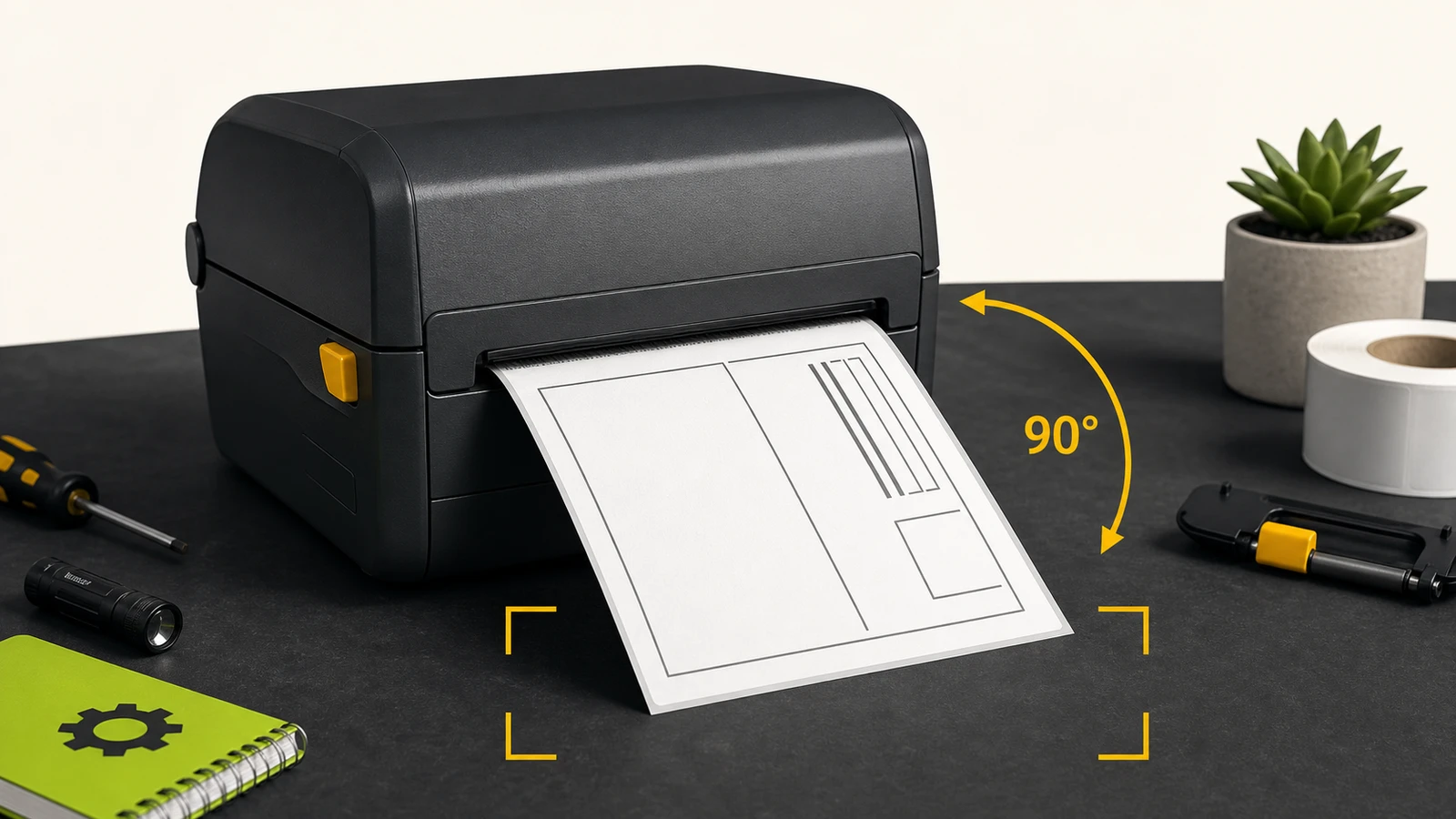
If a Zebra printer is printing sideways, first determine whether the rotation comes from the label document, the print dialog or driver, or a command inside the print job. Changing all three at once can hide the real override and make the next batch fail again.
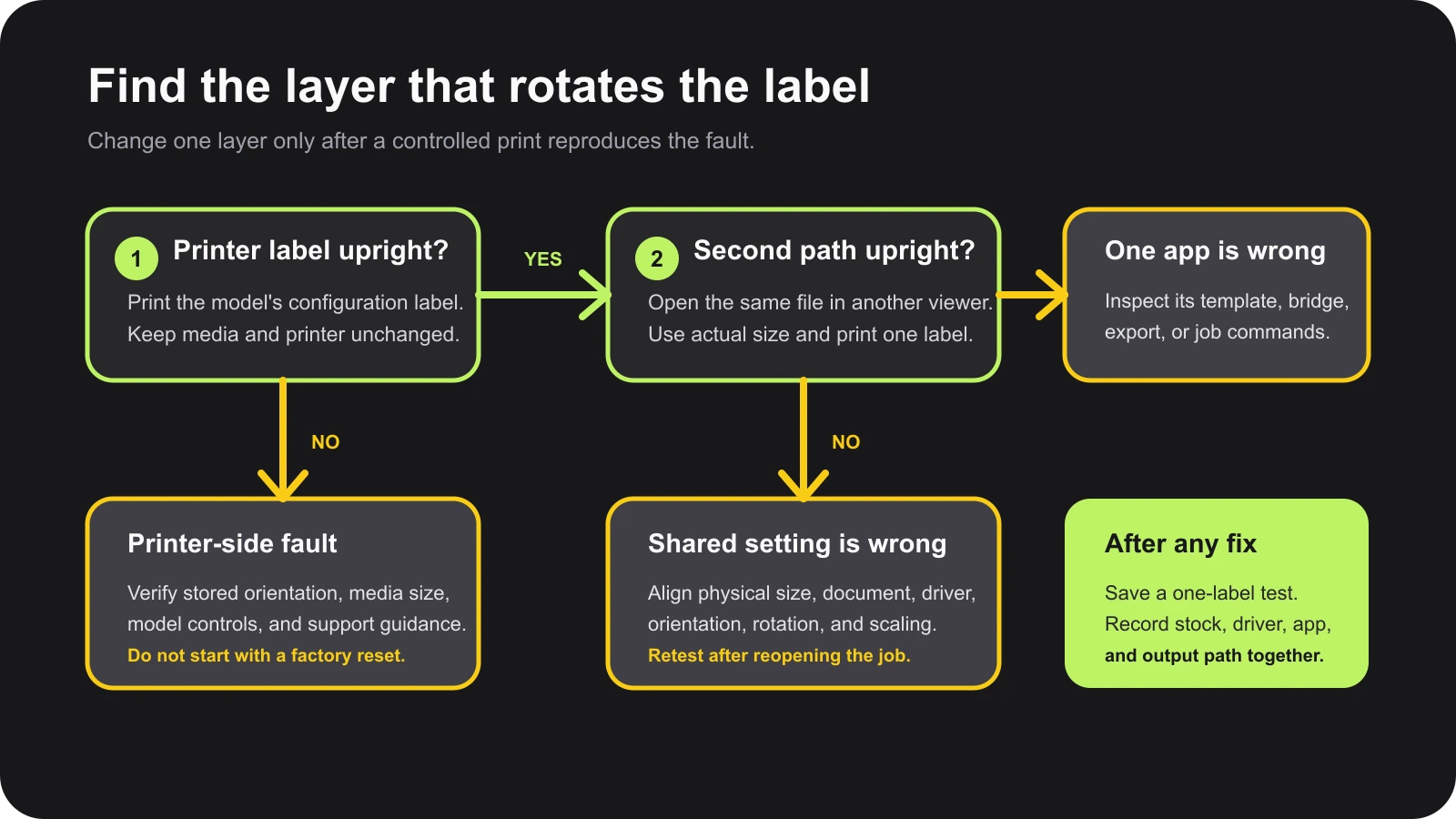
Start with one saved problem label and one printer-generated configuration label. If the printer's own label is oriented normally but the business label is sideways, the mechanism and media path are unlikely to be the cause. Keep the diagnosis on the computer, application, or job-data side.
This guide applies to common Zebra desktop and industrial label workflows. Menu names, self-test buttons, supported print languages, and driver controls vary by model and application, so verify the exact printer's documentation before changing persistent settings.
Identify the rotation pattern
Print only one label while observing the preview and physical output:
- The whole design is rotated 90 degrees but fits: compare portrait/landscape and the label's width and height in the document and driver.
- The design is rotated and clipped: correct dimensions and scaling before adding offsets. A 4 × 6 label described as 6 × 4 can rotate cleanly but no longer fit the printable area.
- The design is upside down by 180 degrees: check a rotated or inverted setting, or a job-level orientation command.
- Only one application or carrier label is wrong: inspect that template, PDF, browser print path, integration, or raw printer-language output.
- Every job is wrong, including a printer-generated label: stop applying application fixes and check the model's stored printer settings and support documentation.
Rotation is different from vertical drift, skipped labels, or a design that moves gradually. Those symptoms usually point toward media size, sensing, calibration, or offsets. If blank or extra labels are part of the failure, use the Zebra blank-label diagnostic first.
Run two controls before changing settings
Print a printer-generated configuration label
Use the documented self-test for the exact model. Zebra documents **FEED + CANCEL for two seconds** to print configuration reports on ZD421 and ZD621 desktop printers when the printer is ready. Other product families use different controls.
- If the configuration label is upright and centered, the printer can place its own content correctly on the loaded media.
- If the configuration label is rotated, confirm that it is actually wrong for the feed direction before changing a saved printer setting.
- If it is clipped or crosses a label boundary, solve media dimensions and calibration first; orientation may be only one symptom.
Do not factory-reset the printer to run this comparison. A reset can erase working network, darkness, media, and application settings without proving which layer supplied the rotation.
Send the same file through a second print path
Keep the printer and roll unchanged. Download the label as a PDF if the application allows it, open it in a different viewer, set the actual label size, disable scaling, confirm the preview, and print one copy.
If the downloaded file prints correctly while the original application prints sideways, the difference is in the application, browser bridge, print connector, or job it generates. If both paths rotate the label identically, compare the document dimensions and driver defaults next.
This controlled comparison is more useful than reinstalling a driver immediately because it shows whether the failure follows the file, the application path, or the printer.
Fix the least persistent layer first
1. Correct the label document
Open the label properties in the design application and record:
- physical label width and height;
- portrait or landscape selection;
- any 180-degree rotated option;
- margins, scaling, and print-area preview;
- the selected printer or stock template.
ZebraDesigner separates **Portrait/Landscape** from a **Rotated** option that turns the printer layout 180 degrees. Its documentation also notes that stock properties can override manually entered label properties. That distinction matters: switching portrait to landscape addresses a quarter-turn, while a rotated option addresses an upside-down result.
Match the document dimensions to the physical label as it travels through the printer. Don't choose orientation by how the roll looks on the desk. Use the preview to confirm that all content stays inside one label before printing.
2. Align the print dialog and driver
Next, open the current job's print dialog and the Zebra driver properties. Confirm the same width, height, orientation, rotation, and scaling values used by the document. Select Actual Size or 100% when a PDF viewer otherwise fits the page automatically.
Zebra's current Zebra Print documentation exposes separate media size, rotation, orientation inversion, and fit-to-page controls. It also warns that 90- or 270-degree rotation combined with Fit to Page can produce incomplete output. Treat a good preview as necessary, not conclusive: an application or driver can still override another layer when the job is sent.
For shared printers, distinguish a one-job preference from a system or print-server default. Make the smallest change, print one label, close the application, reopen the same job, and print again. That second test reveals whether the fix persisted or was only temporary.
3. Inspect application or raw ZPL overrides
If one application remains wrong after the document and driver agree, ask what it actually sends: a PDF, raster image, vendor bridge job, or raw ZPL. Export one failing job when the system supports safe diagnostics and compare it with a working job from the same printer.
In ZPL, `^PO` controls 180-degree print orientation. Zebra's programming guide says `^POI` inverts the label coordinates, the last `^PO` in a format wins, and the setting can remain until another orientation command is received or the printer is powered off. This is not the command for a simple 90-degree document-layout error.
Do not paste printer-language commands from a forum into a production printer. Have the application owner or integration vendor correct the template or job generator, then test against a spare label format or non-production queue when possible.
Avoid the common false fixes
- Calibration: useful for gap, notch, black-mark, top-of-form, and label-boundary problems; it does not normally correct a clean 90-degree document rotation.
- Offsets: can move clipped output but do not fix swapped width and height.
- Factory reset: removes useful state and may appear to help only until the application sends the same override again.
- Driver reinstall: appropriate when the driver is missing or corrupted, but not the first response when one application alone rotates labels.
- Replacing the printer: hard to justify when configuration labels and a second print path are correct.
Prevent orientation failures across workstations
Record one approved configuration per label workflow: printer model, resolution, driver, physical stock size, media sensing type, document orientation, rotation, scaling, application, and output format. Save a known-good one-label test file with it.
For a shared queue, validate the same file from each workstation after a driver, browser, connector, shipping platform, or template change. Treat width and height as a pair; a silent swap is easy to miss when both values are plausible. Broader printer deployment guidance belongs in Receipt & Label Printing, while recurring device faults can be triaged through Troubleshooting.
When vendor support is appropriate
Escalate when the printer-generated configuration label is unexpectedly rotated or clipped with the correct supported media; when orientation changes do not persist without any application connected; or when a production integration sends undocumented printer commands that cannot be inspected safely.
Provide the printer model, firmware, driver version, connection method, label dimensions, resolution, configuration label, application name, failing preview, one failing output, and whether another print path works. Those details let Zebra support or the application vendor identify the controlling layer without repeating destructive resets.
Limitations of this guide
This is researched troubleshooting guidance, not a hands-on repair record. Devicefield did not inspect a Zebra printer, driver, label template, PDF, print server, or ZPL stream for this article. Zebra card, mobile, RFID, kiosk, linerless, and legacy printers can expose different orientation controls. Verify the exact model, driver, print language, and application workflow before changing persistent settings.
Frequently asked questions
Why does my Zebra printer print landscape when portrait is selected?
The document, job-level print dialog, driver default, print server, or application-generated command may be overriding the setting you changed. Use a printer-generated label and a second print path to locate the layer before changing more defaults.
Should I swap the label width and height?
Only if they are reversed relative to the physical stock and document. Swapping correct dimensions can turn a rotation problem into clipping or multi-label output. Record the actual stock measurements, then align the document, print dialog, and driver.
Why is the label upside down instead of sideways?
A 180-degree rotated or inverted option is different from portrait versus landscape. In raw ZPL workflows, an orientation command can also invert the label. Check the document and driver first, then involve the integration owner if one application remains wrong.
Will calibrating a Zebra printer fix sideways labels?
Not usually. Calibration teaches the printer where label boundaries are. Use it for drift, skips, media-out errors, or incorrect top-of-form behavior, not as the first fix for a clean quarter-turn.
Compatibility notes
Systems, accessories, and constraints
The diagnostic applies broadly to Zebra desktop and industrial label workflows, but self-test controls, printer-language support, driver options, stored settings, and application behavior vary by model. Card, mobile, RFID, kiosk, linerless, and legacy models require their own manuals.
Testing methodology
How this article was evaluated
Reviewed all local packages and the approved database inventory; searched current buying, compatibility, setup, comparison, and troubleshooting phrasing across candidate topics; directly reviewed the selected primary phrase and three close variants; synthesized current Zebra documentation and recent workflow-specific support results into a layer-isolation sequence.
Known limitations
What this guide could not verify
Research-only. No Zebra printer, driver, label template, PDF, print server, browser bridge, or ZPL stream was tested. Exact controls and override behavior must be verified for the model and application.
Sources
Documentation and references
- ZebraDesigner Essentials Version 3 User Guide - Supports separate page-size, portrait/landscape, rotated, label-dimension, driver-property, stock, and preview controls.
- Zebra Print Printer Settings - Supports media size, rotation, inverted orientation, Fit to Page, and test-page guidance.
- ZPL Print Orientation Command - Supports the behavior, persistence, and precedence of the 180-degree ZPL print-orientation command.
- Printing the Printer and Network Configuration Reports - Supports the documented ZD421/ZD621 configuration-report control used as a printer-side diagnostic boundary.
Devicefield checklist
Make the next hardware decision with fewer surprises.
Get practical buying notes, compatibility checks, and new troubleshooting guides.
Frequently asked questions
Why does my Zebra printer print landscape when portrait is selected?
The document, job-level print dialog, driver default, print server, or application-generated command may be overriding the setting you changed. Use a printer-generated label and a second print path to locate the layer before changing more defaults.
Should I swap the label width and height?
Only if they are reversed relative to the physical stock and document. Swapping correct dimensions can turn a rotation problem into clipping or multi-label output. Record the actual stock measurements, then align the document, print dialog, and driver.
Why is the label upside down instead of sideways?
A 180-degree rotated or inverted option is different from portrait versus landscape. In raw ZPL workflows, an orientation command can also invert the label. Check the document and driver first, then involve the integration owner if one application remains wrong.
Will calibrating a Zebra printer fix sideways labels?
Not usually. Calibration teaches the printer where label boundaries are. Use it for drift, skips, media-out errors, or incorrect top-of-form behavior, not as the first fix for a clean quarter-turn.


