
Receipt Printer Not Feeding Paper? Diagnose the Path
Use one controlled feed test to separate loading, cover, jam, cutter, roller, and motor faults without forcing paper or resetting settings.
- Written by
- Clayton Wingfield
- Reviewed by
- Clayton Wingfield
- Originally published
- Aug 1, 2026
- Last reviewed
- Aug 1, 2026
Quick verdict
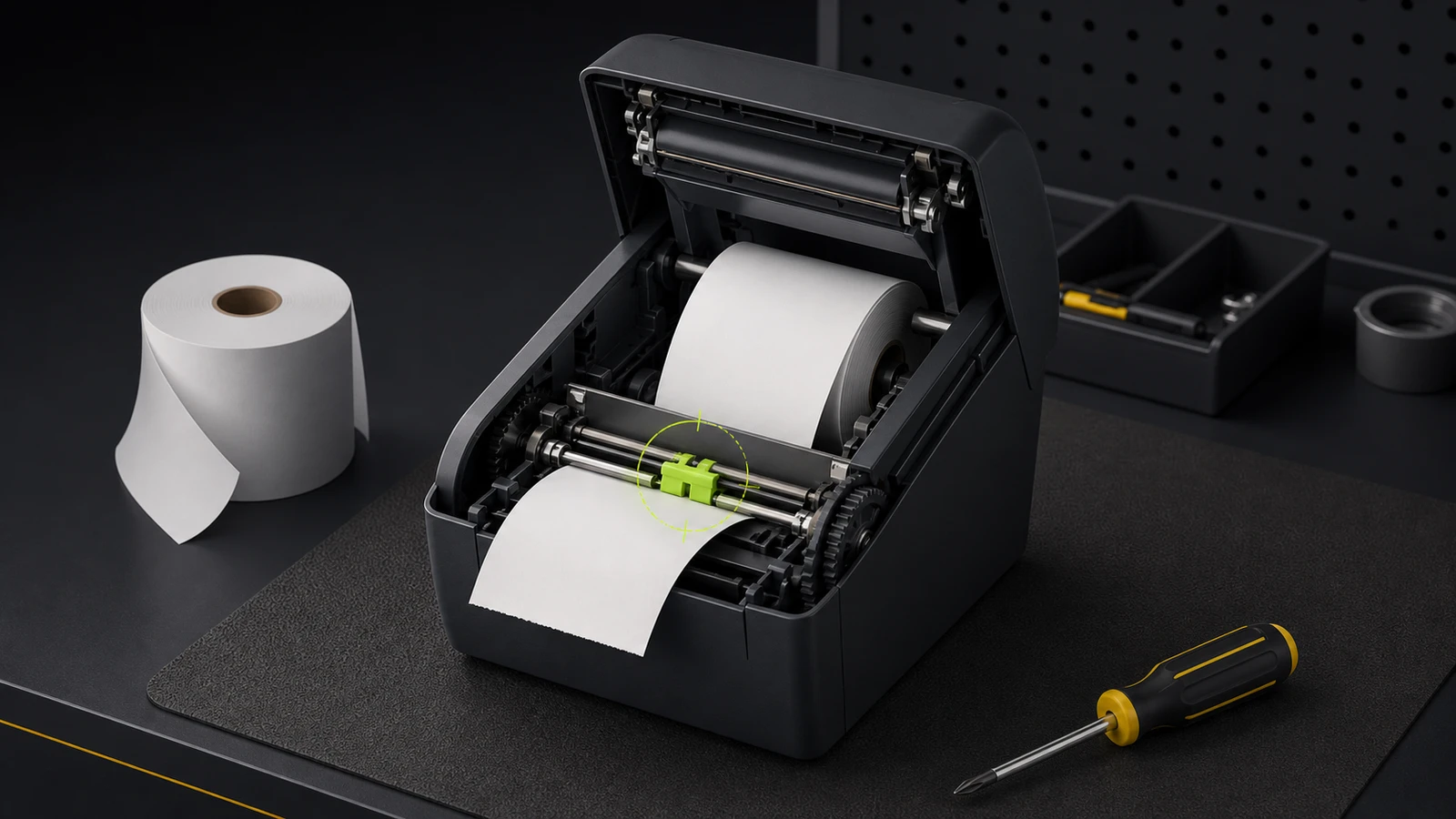
Use the Feed button as the first fault boundary, then check the roll, cover, exit path, cutter, and roller without forcing the mechanism.
- Best for
- Retail and hospitality operators whose roll-paper receipt printer powers on but will not advance paper normally.
- Avoid if
- The printer has unusual heat, smoke, odor, liquid damage, exposed wiring, grinding, or a model-specific service lockout.
When a receipt printer is not feeding paper, start with the printer itself—not the POS app, driver, or network. A controlled Feed-button test tells you whether the fault is in the local paper path or farther upstream in the print workflow.
Do not force the cover or pull paper backward through a closed printer. Identify the exact model first, shut it down before opening the paper path, and let the thermal head cool. Epson's current TM-T88VII reference guide specifically warns against forcibly removing jammed paper and touching the hot thermal-head area.
Quick checks before opening the printer
Record the printer model, power-light state, error-light pattern, and what happened immediately before the failure. Then answer four questions:
- Does the printer power on normally?
- Does pressing Feed move the paper at all?
- Can the roll-paper cover open and latch normally?
- Did the problem begin after a roll change, torn receipt, cutter error, or power loss?
Disconnecting data cables is unnecessary for this first test. If Feed works reliably but a receipt job does not print, the paper path is probably not the primary fault. Continue with the relevant Square receipt-printer diagnostic or Shopify POS receipt-printer diagnostic instead.
Match the symptom to the next check
| Symptom | Likely boundary | Next safe check | | --- | --- | --- | | Feed does nothing and an error light is on | Open cover, empty roll, jam, cutter, heat, or hardware fault | Read the model-specific light code before changing anything | | Feed motor runs but paper does not move | Misloaded roll, blocked path, slipping roller, or mechanical fault | Reload one known-good roll and inspect the exit path | | Paper advances crooked or bunches up | Skewed roll, damaged edge, obstruction, or incorrect paper | Remove the roll and reload it straight | | Cover will not open | Cutter may not be in its home position | Use only the model's documented cutter-release procedure | | Feed works, but POS receipts do not | App, queue, connection, or receipt-routing fault | Run the printer's documented self-test, then troubleshoot the data path | | Paper advances but stays blank | Wrong paper type or thermal-side orientation | Use the faded and blank output checks instead of treating it as a feed fault |
Reload one known-good paper roll
Use the paper width, maximum roll diameter, core, and paper type listed for the exact printer. Receipt printers are not universally compatible with every roll marketed as 58 mm or 80 mm.
Open the cover with the printer powered off. Remove the roll and every loose scrap you can reach without disassembling the mechanism. Check the leading edge; trim a badly torn or folded section only after the roll is outside the printer. Seat the roll in the orientation shown inside the cover or in the manual, pull a short straight edge beyond the exit, and close both sides of the cover until it latches.
Power the printer on and press Feed once. Do not hold the receipt, pull it during ejection, or guide it sideways. Star's official TSP100 hardware manual says touching or pulling paper during ejection can cause a jam, cutting failure, or line-feed failure.
If a known-good roll now advances normally, discard the damaged section and inspect the old roll for crushed edges, moisture, an oversized diameter, or a core that lets the roll sit unevenly. Do not assume the printer needs a reset.
Inspect the cover and paper exit
A roll cover that looks closed can still leave the printer in an error state. Reopen it, confirm that no paper crosses the latch area, then close it using the points specified by the manufacturer. The Star TSP100 manual, for example, directs users to close the cover with the paper straight and press the sides rather than the center.
Look through the accessible paper path and exit for:
- Torn receipt fragments
- A folded leading edge
- Adhesive, labels, or tape that should never be in a receipt-paper path
- Foreign objects near the exit
- Paper wrapped around an accessible roller
- A cutter blade that has not returned home
Remove only loose material that the model's manual says is user-accessible. Do not probe the mechanism with a knife, screwdriver, or metal pick. If the cover is locked, stop trying to pry it open.
Treat a locked cover as a cutter problem
On common auto-cutter printers, a jam or power interruption can leave the cutter outside its home position and lock the roll-paper cover. Epson documents a cutter cover for this condition on the TM-T88VII. Star publishes a separate TSP100 and TSP650 cutter-reset procedure and requires the printer to be powered off before cutter maintenance.
Those procedures are model-specific. Do not copy a knob direction, access point, or blade-reset sequence from a different printer. Find the manual for the exact model and follow its jam or cutter-recovery section. The broader receipt-printer cutter guide explains how to separate a POS cut command from a mechanism failure after the paper path is clear.
Check the roller only after the path is clear
If the motor sounds normal but a correctly loaded roll slips, inspect the accessible platen or feed roller for paper dust, lint, glazing, or damage. Brother's current roll-printer troubleshooting guide lists roller contamination, a blocked ejection path, incorrect roll installation, and an incompletely closed cover as causes of feed failure.
Clean only the surfaces and with the material specified by the printer manufacturer. Let the printer cool, disconnect power, and allow any approved cleaning fluid to dry completely before restoring power. Do not rotate gears by force or spray cleaner into the printer.
A cracked, hardened, glossy, or uneven roller is a service clue rather than a reason to keep increasing pressure. Replacing a roller, motor, gear, sensor, or cutter is model-specific work and may affect the warranty.
Separate heat, power, and hardware faults
An error light does not always mean paper is physically jammed. Depending on the model, it can indicate an open cover, paper out, a cutter error, an overheated head or motor, or another mechanical condition. Read the light pattern in the exact manual.
Allow an overheated printer to cool with its vents clear. Use only the specified power supply; a printer that powers its lights but cannot drive the feed motor may still have a supply or hardware fault. Stop and contact support when you notice unusual heat, odor, smoke, damaged wiring, liquid intrusion, grinding, repeated cutter lockups, or an error that returns with an empty and unobstructed paper path.
Verify the repair before reopening the counter
After each change, repeat the same short sequence:
- Press Feed three separate times and confirm straight, consistent movement.
- Run the model's documented self-test without changing interface settings.
- Send one sample receipt from the POS.
- Confirm the receipt cuts or tears normally and the cover remains latched.
- Record the roll type and the step that restored operation.
If the local self-test succeeds but the POS receipt fails, stop working on the paper path. Move to connection, queue, driver, printer-profile, or receipt-routing checks.
Prevent another feed failure
Store receipt rolls dry and protected from crushed edges. Keep the paper exit clear, never pull a receipt before ejection finishes, and train staff to open the cover rather than tug paper backward. Keep the exact manual and approved paper specification with the counter's maintenance notes.
For a high-use register, schedule inspection and manufacturer-approved cleaning based on the manual and operating environment. Repeated jams are evidence to investigate the roll batch, loading practice, cutter, roller, or printer condition—not a cue to normalize forceful clearing.
What this guide cannot verify
This is a researched troubleshooting guide. No receipt printer, paper roll, cutter, roller, power supply, POS application, or repair procedure was tested. Controls, error lights, access panels, cleaning methods, and cutter-release steps vary by model. Verify every physical step against the current manual for the exact printer before working on a production device.
Frequently asked questions
Why does the Feed button work but receipts still do not print?
The local paper path and feed motor are functioning. Run the printer's documented self-test, then check the POS printer profile, queue, connection, driver, and receipt-routing settings instead of reopening the mechanism.
Why is my receipt-printer cover stuck closed?
An auto-cutter may be outside its home position after a jam or power interruption. Do not pry the cover. Power down and use the cutter-release instructions for the exact printer model.
Can the wrong receipt paper stop feeding?
Yes. Incorrect width, roll diameter, core, paper type, a crushed edge, or a skewed roll can obstruct movement. Match the complete paper specification in the model manual, not just the advertised width.
Should I factory-reset a receipt printer that will not feed paper?
Not as an early step. A reset does not remove scraps, reseat a roll, close a cover, clean an approved roller surface, or return every jammed cutter safely. Preserve working interface settings and diagnose the physical path first.
Compatibility notes
Systems, accessories, and constraints
The sequence applies to common roll-paper receipt printers, but paper dimensions, cover latches, indicator codes, cutter access, self-tests, cleaning materials, and service boundaries are model-specific. Verify the exact printer and manual before physical recovery.
Testing methodology
How this article was evaluated
Reviewed all local packages and the approved database inventory; searched current buying, comparison, compatibility, setup, and troubleshooting phrasing; directly reviewed the selected primary query and three close variants; synthesized current official Epson, Star Micronics, and Brother guidance into a least-disruptive diagnostic sequence.
Known limitations
What this guide could not verify
Research-only. No receipt printer, paper roll, cutter, roller, power supply, POS application, or repair procedure was tested. Exact controls, error codes, access points, and cleaning procedures vary by model.
Sources
Documentation and references
- TM-T88VII Technical Reference Guide - Supports Feed-button behavior, cutter-cover purpose, jam-removal warnings, power-off procedure, and thermal-head heat caution.
- TSP100 Hardware Manual - Supports jam prevention, power-off recovery, straight roll positioning, cover closure, and error-light checks.
- Printing Problems — Brother RJ-3230B and RJ-3250WB - Supports checking roller contamination, the ejection path, roll installation, cover closure, cooling, and media settings.
- How to Reset the Auto-Cutter of TSP100 and TSP650 Series Printers - Supports cutter-home failure after a jam or power loss, a stuck cover symptom, and power-off maintenance requirements.
Devicefield checklist
Make the next hardware decision with fewer surprises.
Get practical buying notes, compatibility checks, and new troubleshooting guides.
Frequently asked questions
Why does the Feed button work but receipts still do not print?
The local paper path and feed motor are functioning. Run the printer’s documented self-test, then check the POS printer profile, queue, connection, driver, and receipt-routing settings instead of reopening the mechanism.
Why is my receipt-printer cover stuck closed?
An auto-cutter may be outside its home position after a jam or power interruption. Do not pry the cover. Power down and use the cutter-release instructions for the exact printer model.
Can the wrong receipt paper stop feeding?
Yes. Incorrect width, roll diameter, core, paper type, a crushed edge, or a skewed roll can obstruct movement. Match the complete paper specification in the model manual, not just the advertised width.
Should I factory-reset a receipt printer that will not feed paper?
Not as an early step. A reset does not clear the physical paper path or return every jammed cutter safely. Preserve working interface settings and diagnose the roll, cover, exit, cutter, and roller first.


