
Barcode Scanner Won’t Scan Phone Screens: Safe Fixes
Use a paper control code to separate scanner capability, phone presentation, and POS data-path problems before resetting or replacing hardware.
- Written by
- Clayton Wingfield
- Reviewed by
- Clayton Wingfield
- Originally published
- Jul 28, 2026
- Last reviewed
- Jul 28, 2026
Quick verdict
Prove the same code on paper, confirm a 2D area imager and enabled symbology, then isolate brightness, glare, code geometry, and the POS data path.
- Best for
- Retail, hospitality, office, and service-counter operators whose scanner reads printed codes but fails on customer phone screens.
- Avoid if
- The scanner cannot read a known-good paper control, the code format is unknown, or the application may contain sensitive reusable credentials.
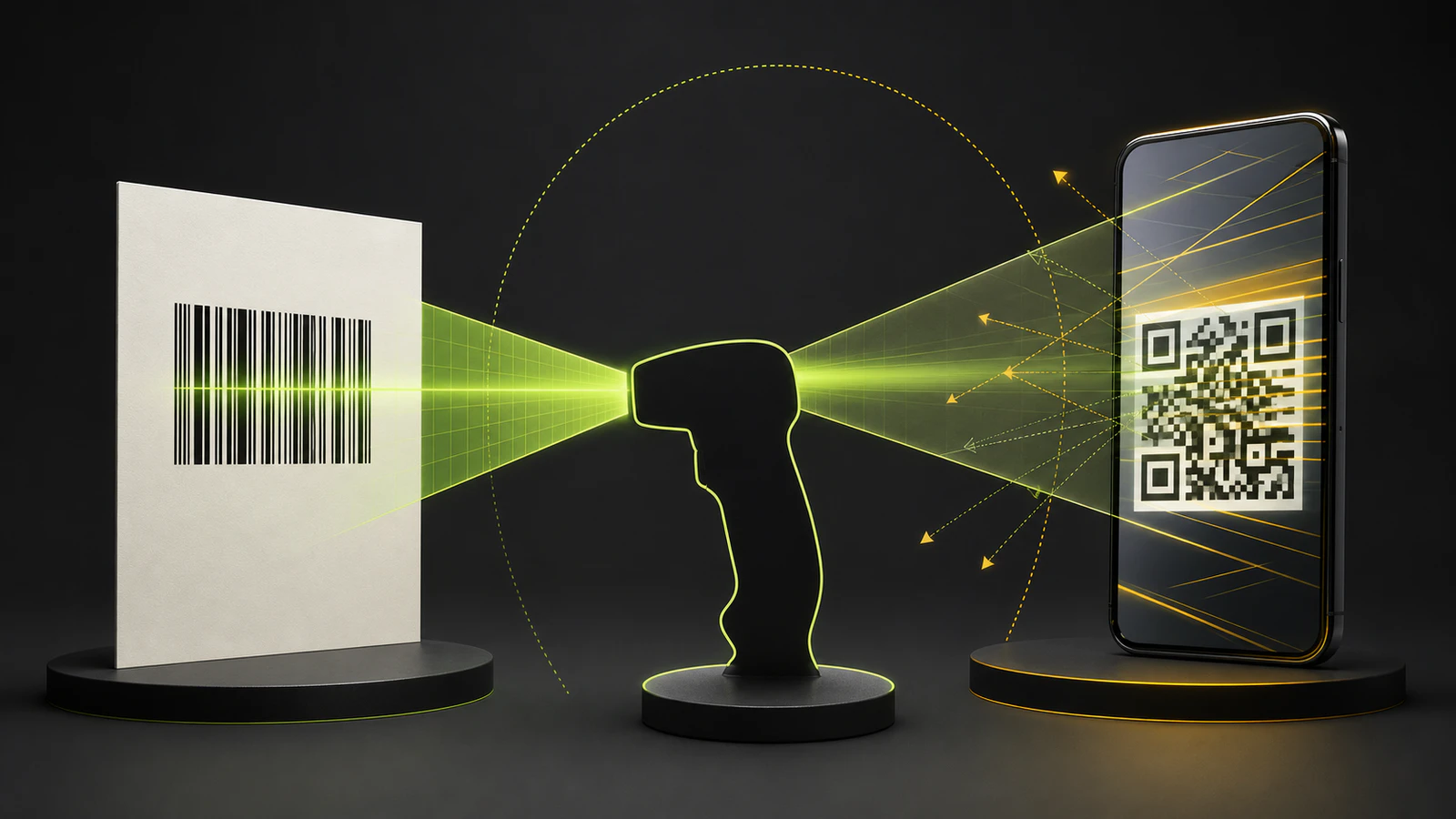
If a barcode scanner reads a printed code but will not read the same type of code from a phone, don’t reset the scanner first. Prove three things in order: the scanner can decode that symbology, the hardware is designed for display scanning, and the phone is presenting a clean code.
The most important distinction is the scan engine. Honeywell’s barcode-scanner guide says a 2D imaging scanner is needed to read codes on phone screens and notes that polarization, brightness, gloss, and reflection can make displays harder to read. A laser or linear-only scanner may work perfectly on printed 1D barcodes and still be the wrong hardware for QR codes or mobile displays.
Use one control code to find the fault
Choose a known-good paper code that uses the same symbology as the code on the phone. If the phone shows a QR code, use a known-good printed QR code; a printed UPC is not an equivalent control.
| Test result | Likely fault boundary | Next move | | --- | --- | --- | | Paper and screen both fail with no good-read signal | Scanner power, lens, mode, disabled symbology, or damaged code | Restore a known-good paper scan before troubleshooting the phone | | Paper reads; screen produces no good-read signal | Scanner capability, screen presentation, glare, code size, or code geometry | Confirm a 2D area imager and work through the screen checks | | Screen produces a good-read signal, but nothing appears | Host connection, active field, POS profile, or application handling | Test output in a plain-text field | | Data appears in text but the POS rejects it | Catalog, coupon, loyalty, parsing, or expected-code mismatch | Compare the decoded value with what the application expects | | Some phones work and others fail | Brightness, privacy filter, damaged protector, display behavior, angle, or code rendering | Test the failing device under the same presentation conditions |
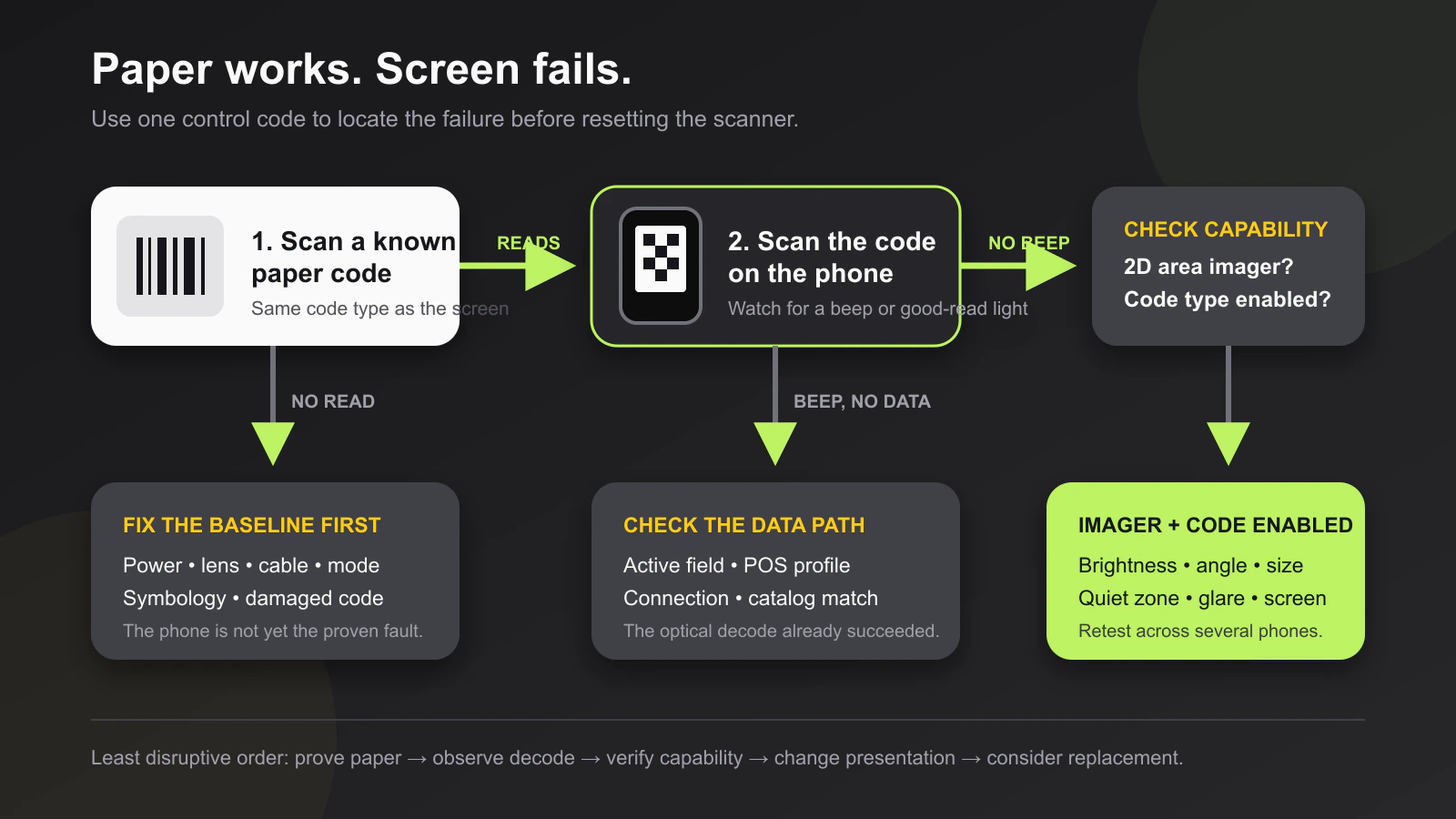
The good-read beep or light is a useful boundary. It means the scanner believes it decoded something; it does not prove the POS accepted the value.
Confirm the scanner and code type
“Barcode scanner” describes several different technologies. Check the exact model and its current manufacturer documentation.
- A laser or linear imager is usually intended for 1D symbols. It may read a paper UPC or Code 128 but cannot be assumed to read QR or Data Matrix.
- A 2D area imager captures an image and can support 1D and 2D symbologies, but supported code types and display performance still vary by model and configuration.
- A QR-capable scanner can still have QR decoding disabled in its stored configuration.
- A scanner that decodes a code may send data in a form the POS does not recognize.
Zebra identifies the DS2208 as a 1D/2D scanner, for example, but its DS2200 support instructions still tell users to verify output in a text document. That separates optical decoding from the application.
Also confirm what the phone is showing. A loyalty app may display a 1D code, QR code, Data Matrix symbol, or a proprietary token. Don’t enable every symbology or buy new hardware until the application owner identifies the expected format.
Fix a barcode scanner not scanning a phone screen
Work from the least disruptive change to the most disruptive. Retest the same code after each step.
1. Start with a clean, bright presentation
Open the code at full screen, raise brightness, and keep the entire symbol visible. Hold the phone steady at the normal scan distance. Move it slightly closer and farther rather than pressing it against the scanner window.
Tilt the phone a few degrees when overhead lighting creates a bright reflection across the code. The goal is not a dramatic angle; it is to move the glare away from the scanner’s view while keeping the code face reasonably square to the imager.
If increasing brightness makes the code bloom or lose its dark edges, back it down slightly. The correct setting is the one that preserves strong contrast on that phone in that lighting, not automatically the maximum.
2. Preserve the code’s shape and quiet zone
Don’t crop the code, place controls over it, or stretch a screenshot unevenly. DENSO WAVE’s QR troubleshooting examples show that distorted modules, nearby graphics, and overlays can make a QR code difficult or impossible to read.
QR codes also need a clear margin around all four sides. DENSO WAVE specifies a quiet zone four modules wide. If the app places a code against a dark panel, near the screen edge, or under navigation controls, the scanner may struggle even when the code looks recognizable to a person.
Use the original app view when possible. If a screenshot is necessary for a controlled test, keep the full code and margin, preserve its aspect ratio, and avoid repeated resizing or compression.
3. Remove presentation barriers for one test
Clean the scanner window according to the manufacturer’s care instructions and wipe the phone screen with an appropriate soft cloth. Fingerprints and scratches can add haze and reflections.
Temporarily test without these variables when practical:
- A privacy screen protector.
- A badly cracked, cloudy, or lifting protector.
- Dark mode that changes the code background or surrounding contrast.
- Automatic brightness that dims the screen at the counter.
- Direct sunlight or a strong ceiling-light reflection across the code.
This is an isolation test, not a recommendation to operate customer phones without protection. If removing one variable makes the scan reliable, the deployment needs a presentation rule or hardware that tolerates the real condition.
4. Verify the symbology is enabled
Use only the programming guide for the exact scanner model and firmware family. Find the entry for QR, Data Matrix, PDF417, or the required 1D symbology and confirm its current state.
Programming codes displayed on a monitor can create the same screen-reading problem. Zebra’s DS2200 support page recommends increasing monitor magnification to at least 125% when scanning a programming barcode from a screen. That instruction is specific to Zebra’s setup guidance, not a universal value for every scanner.
Avoid a factory reset unless you have recorded the current interface, suffix, keyboard, beeper, presentation-mode, and symbology settings. Zebra explicitly warns that its factory-default programming code removes custom configuration.
5. Separate decoding from the POS
Place the cursor in a plain-text field and scan the phone code. Use a safe test code that does not contain a real payment token, personal identifier, or reusable credential.
- No beep and no text: remain focused on optical capability, configuration, and presentation.
- Beep but no text: check the connection, selected host mode, active input field, and scanner profile.
- Correct text outside the POS: inspect the POS field, catalog, loyalty, coupon, or parsing rules.
- Wrong or extra characters: use the dedicated guide for a barcode scanner sending the wrong characters.
For platform-specific connection or catalog failures, see the Square barcode scanner troubleshooting guide or the Shopify POS barcode scanner troubleshooting guide.
Test the real checkout conditions
A single successful scan on one clean phone is not deployment validation. Test the actual scanner, stand, POS host, lighting, and application with a representative mix of phones and screen protectors. Include the code sizes and symbologies the business will accept.
Record:
- Phone and display condition.
- Brightness and automatic-brightness behavior.
- Screen protector or privacy filter.
- Ambient light and scanner angle.
- Code type and application.
- Whether the scanner signaled a decode.
- Whether the POS accepted the decoded value.
Repeat scans at normal transaction pace. A presentation that works only after repeated tilting, zooming, or manual brightness changes will slow the line even if it eventually decodes.
GS1’s 2D barcode guidance for retail POS cautions that not every POS solution can process GS1-compliant 2D barcodes. Optical success and application readiness therefore need separate acceptance checks.
When replacement is the right fix
Replace or redeploy the scanner when its documented scan engine cannot read the required code or display medium. For a new purchase, verify all of these before ordering:
- 2D area-imaging scan engine.
- Explicit support for the required 1D and 2D symbologies.
- Manufacturer-stated mobile-display or screen-reading capability.
- Compatible USB, Bluetooth, serial, or POS connection.
- Supported stand or presentation mode for the counter.
- A return path if the scanner fails the business’s actual phone mix.
Don’t choose solely by a “2D” label. Display tolerance, working range, motion handling, host compatibility, and application processing all affect the result. The barcode scanners for Square POS guide shows how connection and workflow requirements can narrow a scanner shortlist.
Prevent repeat screen-scan failures
Keep the scanner model, configuration export or programming record, enabled symbologies, host mode, and known-good test codes with the counter documentation. Train staff on one short presentation instruction: show the complete code, raise brightness when needed, hold steady, and tilt slightly to remove glare.
When a loyalty, coupon, ticket, or inventory app changes how it renders codes, rerun the acceptance check before the busiest shift. A visually redesigned code can change size, quiet zone, contrast, or format without any scanner hardware change.
What this guide cannot verify
This is a researched troubleshooting sequence. No scanner, phone, screen protector, POS application, code payload, lighting setup, or stored scanner configuration was tested for this article. The correct symbology, programming procedure, cleaning method, host mode, and reset process depend on the exact scanner and application. Confirm them in current manufacturer and POS documentation before changing stored settings or replacing hardware.
Frequently asked questions
Can a laser barcode scanner read a barcode from a phone?
Don’t assume it can. Phone screens are a different optical target from printed paper, and Honeywell recommends a 2D imaging scanner for phone-screen codes. Confirm the exact model’s documented display-reading capability.
Why does the scanner beep but the POS does nothing?
The beep usually means the scanner decoded a value. Test in a plain-text field, then check the host connection, active POS field, printer or scanner profile, catalog, and expected code format.
Why will one phone scan but another will not?
Brightness, polarization, privacy filters, damaged protectors, glare, code size, automatic dimming, and display behavior can differ. Recreate the same angle, distance, lighting, and code presentation before blaming the scanner.
Should I factory-reset the scanner?
Only after reversible checks and after recording the current configuration. A reset can remove working host, keyboard, suffix, beeper, presentation, and symbology settings. Use the exact model’s manufacturer procedure.
Compatibility notes
Systems, accessories, and constraints
Phone-screen scanning depends on the scanner model and scan engine, enabled symbologies, code format, display and protector, ambient light, host interface, and the POS application's ability to accept the decoded value.
Testing methodology
How this article was evaluated
Compared current search results and operator phrasing with Honeywell scanner guidance, Zebra DS2200 support and product documentation, DENSO WAVE QR construction guidance, and GS1 retail 2D implementation guidance; organized the evidence into a paper-control-first fault-boundary sequence.
Known limitations
What this guide could not verify
Research-only. No scanner, phone, protector, POS application, lighting condition, code payload, stored configuration, or replacement device was tested. Model-specific programming, cleaning, and reset procedures were intentionally deferred to current manufacturer documentation.
Sources
Documentation and references
- Complete guide to barcode scanners - Supports the need for a 2D imaging scanner for phone-screen codes and identifies polarization, brightness, gloss, and reflectiveness as screen-reading factors.
- DS2200 Series Scanner Support - Supports plain-text output testing, monitor magnification guidance for programming barcodes, and the warning that factory defaults remove custom configuration.
- DS2208 Digital Scanner Product Reference Guide - Supports model-specific configuration, symbology, and screen-scanning context for a current 1D/2D scanner example.
- Examples of problems encountered in reading a code - Supports warnings about distorted QR modules, nearby graphics, overlays, and code construction that can prevent decoding.
- 2D Barcodes at Retail Point-of-Sale Implementation Guideline - Supports QR quiet-zone, contrast, sheen, processing-readiness, and separate POS application capability considerations.
Devicefield checklist
Make the next hardware decision with fewer surprises.
Get practical buying notes, compatibility checks, and new troubleshooting guides.
Frequently asked questions
Can a laser barcode scanner read a barcode from a phone?
Do not assume it can. Phone screens are a different optical target from printed paper, and Honeywell recommends a 2D imaging scanner for phone-screen codes. Confirm the exact model’s documented display-reading capability.
Why does the scanner beep but the POS does nothing?
The beep usually means the scanner decoded a value. Test in a plain-text field, then check the host connection, active POS field, scanner profile, catalog, and expected code format.
Why will one phone scan but another will not?
Brightness, polarization, privacy filters, damaged protectors, glare, code size, automatic dimming, and display behavior can differ. Recreate the same angle, distance, lighting, and code presentation before blaming the scanner.
Should I factory-reset the scanner?
Only after reversible checks and after recording the current configuration. A reset can remove working host, keyboard, suffix, beeper, presentation, and symbology settings. Use the exact model’s manufacturer procedure.


