
Square Barcode Scanner Not Working: Diagnose the Failure
Separate Square scanner connection, barcode-reading, and item-match failures before resetting hardware or replacing parts.
- Written by
- Clayton Wingfield
- Reviewed by
- Clayton Wingfield
- Originally published
- Jul 22, 2026
- Last reviewed
- Jul 22, 2026
Quick verdict
Identify whether the failure is connection, barcode decoding, or item matching, then use only the recovery steps for that boundary.
- Best for
- Square operators diagnosing external USB or Bluetooth scanners and the built-in Square Handheld scanner.
- Avoid if
- The scanner is physically damaged, the setup is unsupported, or the device may hold pending offline payments that have not been uploaded.
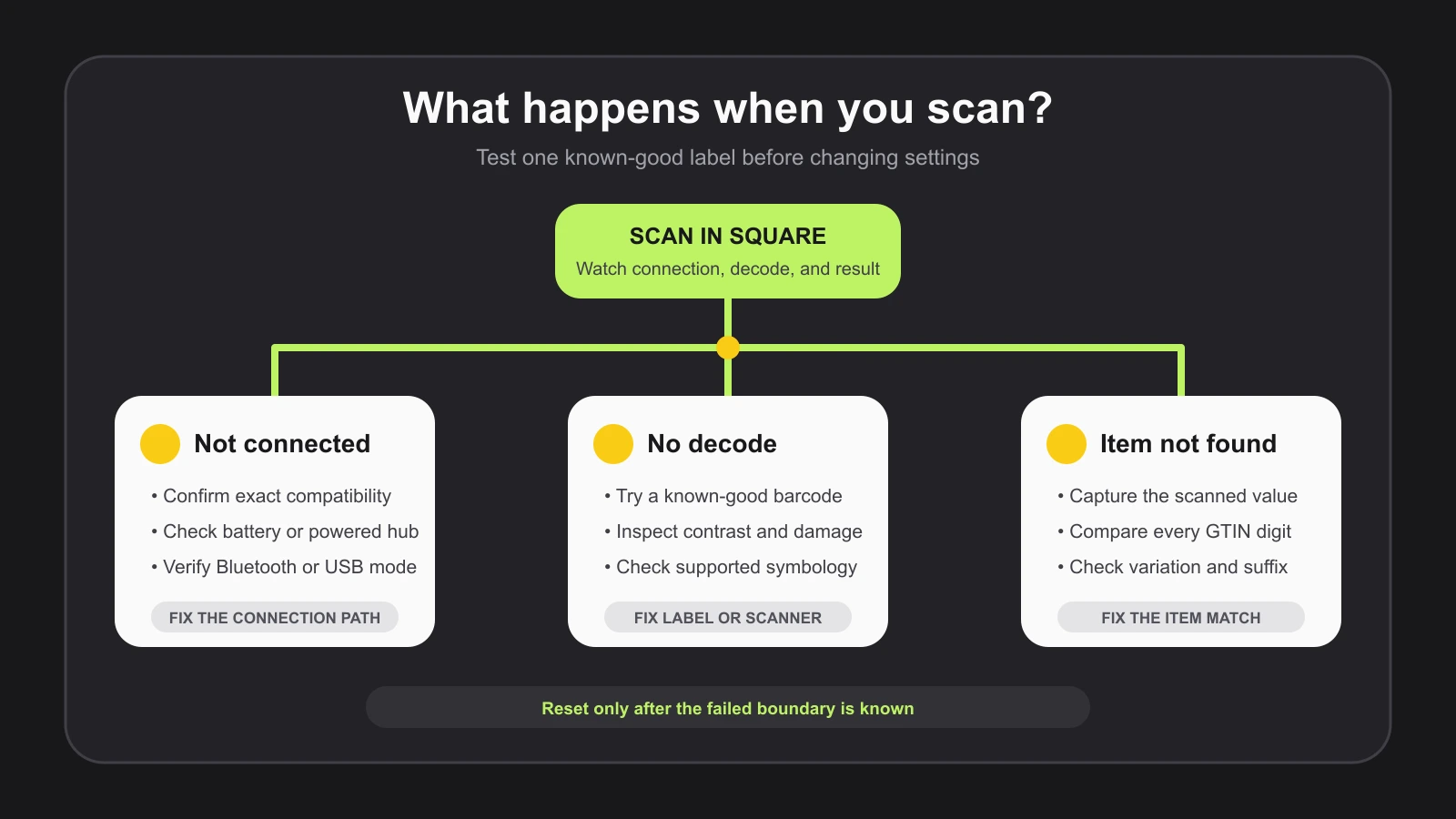
When a Square barcode scanner stops working, do not reset everything at once. First identify which boundary failed: the scanner is not connected, the scanner cannot decode the label, or Square receives a value that does not match an item. Those three symptoms require different fixes.
This guide covers external USB and Bluetooth scanners plus the built-in scanner on Square Handheld. It is based on current Square and Socket Mobile documentation, not hands-on testing.
Start with three observations
Before changing settings, use one known-good product label and record the exact Square hardware, scanner model, connection type, and app mode. Then answer these questions:
- Does Square show the scanner as connected or attached?
- Does the scanner illuminate, beep, or return a barcode value?
- If it returns a value, does Square add the correct item or show an item-not-found message?
Do not treat a beep as proof that the full checkout path works. A scanner can decode a label while its connection mode, app context, or item record is still wrong.
Check compatibility before resetting anything
Compare the exact scanner model and Square device against Square's current compatibility list. Compatibility is specific to the scanner, connection, and host hardware.
- Square documents USB scanners for Square Stand, Square Register, and selected Android devices. An Android connection requires USB OTG or host support and the correct adapter.
- Square currently limits external Bluetooth barcode scanners to iPhone and iPad.
- Square Handheld uses its own built-in scanner and troubleshooting path.
- The Square Kiosk app does not support external accessories over Bluetooth, USB, or Ethernet, even though the Kiosk hardware can use compatible accessories when running other Square POS software.
An unsupported combination is not a pairing problem. Changing settings will not turn an unlisted connection path into a supported one. If the hardware itself is the mismatch, use the Square barcode-scanner buying guide to choose a documented replacement path.
If a Bluetooth scanner will not connect
Start with the least disruptive checks:
- Charge the scanner and keep it near the iPhone or iPad.
- Confirm Bluetooth is on and the scanner is not connected to another device.
- Open Square POS and follow More > Settings > Hardware > Barcode Scanner > Connect Barcode Scanner.
- Complete the Square pairing flow, including the configuration barcode and the iOS Bluetooth prompt.
- Return to Square POS and confirm the app finishes the connection.
Square's scanner connection instructions require both the in-app flow and an iOS Bluetooth step. If a Socket Mobile scanner was paired outside the intended flow and will not connect to Square, Socket Mobile advises forgetting or removing it from iOS, restarting the iPad, and following the supported setup again.
Only factory-reset the scanner after recording its model and consulting the model-specific guide. Reset commands differ, and a generic sequence can erase a working mode without fixing the real problem.
If a USB scanner is not detected
The USB path includes more than the cable. Square hardware, its hub, the hub's power adapter, the USB port, and the scanner's interface mode all have to work together.
Use this sequence:
- Confirm the Square hardware hub is connected and powered.
- Disconnect the scanner, inspect the plug and hub for debris or damage, and reconnect it.
- Try another port on the same powered hub.
- Check whether Square reports an attached accessory or an incompatibility message.
- Verify the scanner is in the interface mode required by Square.
For a scanner that is rejected or not recognized, Square specifically directs supported Zebra USB scanners to USB Keyboard HID mode. Use the quick-start guide for the exact model. Square also warns that some setup barcodes must be printed because the scanner cannot read them from a monitor.
If the scanner powers on but is still absent, test the same hub port with another known-good supported accessory when practical. That comparison separates a hub or power problem from a scanner or cable problem without erasing settings.
If the scanner beeps but does not read the label
A beep can be a connection or error tone rather than a successful decode. Test several labels, including one clean retail UPC that has worked before.
Check the physical label for low contrast, glare, wrinkles, clipping, an undersized code, or missing quiet space around the bars. Clean the scanner window using the manufacturer's instructions. For an external scanner, confirm that the label's symbology is enabled in that exact model's manual.
Square Handheld has a separate scanner test at More > Settings > Hardware > Barcode scanner. Its current documentation lists UPC-A, UPC-E, EAN-8, EAN-13, Code 39, PDF417, and QR among the supported types. It also provides precision aiming, screen-scanning, and illuminator-brightness controls. Those settings apply to Square Handheld; do not assume the same menu or symbology list applies to an external scanner.
If one label fails but a known-good label succeeds, keep the scanner configuration unchanged and fix the label or item data. If every label fails, continue with the hardware-specific restart and support path.
If Square says item not found
An item-not-found result usually means the scanner and connection have already completed their jobs: Square received a value but could not match it to the expected item variation.
Compare the complete scanned value with the GTIN stored on the correct Square item variation. Preserve leading zeroes and the check digit. Square describes the GTIN as the product identifier used in barcodes and recommends a unique GTIN for each variation. Reusing one number across variations can make checkout and inventory behavior ambiguous.
Square lets eligible sellers add or edit a GTIN under the item's inventory details. Its GTIN instructions also explain that a compatible scanner can add an associated item to the cart.
Use a controlled test:
- Capture the exact value returned by the scanner. Square Handheld shows it in Scanner Test even when no item exists.
- Open the intended item and variation in Square.
- Compare every digit with the stored GTIN.
- Correct the item record or replace the bad label, but do not change both at once.
- Save, return to checkout, and scan again.
If the scanner adds digits, drops leading zeroes, or appends characters, consult its programming guide for prefix, suffix, and symbology settings. Do not guess which configuration barcode to scan.
Treat Square Handheld as a separate branch
Square Handheld's built-in scanner is not an external USB or Bluetooth accessory. Confirm the scanner is enabled in quick settings and look at the status icon: Square documents green as available on the current screen, white as enabled but unavailable in that screen, and no icon as disabled.
Run Scanner Test before restarting the device. If the test succeeds, focus on the item match or the screen where staff are scanning. If the test cannot decode a supported, known-good label, check aiming, print quality, and screen-scanning settings, then restart.
Before a factory reset, Square instructs operators to send a diagnostic report and upload any pending offline payments. That makes a reset the final recovery step, not the first. Review the Square offline-mode recovery guide before resetting a device that may hold payment data.
When to contact support or replace hardware
Contact Square or the scanner manufacturer when the exact supported setup still fails after the documented connection sequence, a model-specific reset does not restore normal behavior, Square Handheld fails its scanner test after a restart, or a diagnostic report is required before deeper recovery.
Consider replacement only after isolating the fault. A scanner that cannot power on with a known-good approved power path, cannot decode any known-good supported label after its documented reset, or has visible physical damage may need service or replacement. A scanner that works on another host points instead to the Square device, hub, cable, app, or compatibility path.
Prevent the next checkout interruption
Keep a one-page counter record with the scanner model, connection type, supported Square device, current interface mode, pairing owner, and links to the correct manuals. Store one known-good test label and a printed configuration guide near the register.
After app, operating-system, or hardware changes, verify one sale item and one inventory workflow before opening. Protect the POS, powered hub, and network path according to a documented power plan; the POS UPS sizing guide explains why backing up only the display can leave accessories offline.
This article could not verify a particular store's hardware condition, firmware, label quality, or item library. Exact menus, supported models, and reset sequences can change, so confirm the current Square list and manufacturer guide before changing configuration.
Frequently asked questions
Why does my Square barcode scanner beep but not add an item?
The scanner may have decoded a value that does not match a GTIN in the Square item library. Capture the complete scanned value, compare it with the correct item variation, and check for leading-zero, check-digit, prefix, or suffix differences.
Can a Bluetooth barcode scanner connect to Square on Android?
Square's current U.S. documentation says external Bluetooth barcode scanners are compatible with iPhone and iPad, not Android. Some selected Android devices can use supported USB scanners through USB OTG or host mode.
Why does Square say my USB scanner is incompatible?
The model, host hardware, hub, or scanner interface mode may be unsupported. Confirm the exact model on Square's compatibility list and follow the model-specific instructions for the required USB mode.
Should I factory-reset the scanner first?
No. Verify compatibility, power, connection, and the failed symptom first. A reset can erase the correct interface mode and should follow the exact manufacturer or Square instructions for that model.
Does Square Handheld support every barcode type?
No. Square documents a defined set for the built-in Handheld scanner, including several UPC, EAN, Code 39, PDF417, and QR formats. Check the current Handheld support page for the complete list and scan-quality guidance.
Compatibility notes
Systems, accessories, and constraints
External USB and Bluetooth support depends on the exact scanner and Square host. Square currently limits external Bluetooth scanners to iPhone and iPad; supported USB paths include Square Stand, Register, selected Android devices, and other listed hardware. Square Handheld follows its own built-in-scanner workflow, and Square Kiosk app does not accept external accessories.
Testing methodology
How this article was evaluated
Compared current Square connection, compatibility, external-scanner troubleshooting, Handheld troubleshooting, GTIN, and item-creation documentation with Socket Mobile's current Square setup guidance. Organized the result by observable failure boundary.
Known limitations
What this guide could not verify
Research-only. Devicefield did not inspect the reader, hub, cable, firmware, labels, or Square item library. Model support, menus, app behavior, firmware, and reset sequences can change; verify the current Square compatibility list and exact manufacturer guide.
Sources
Documentation and references
- Troubleshoot your barcode scanner - Supports external Bluetooth and USB troubleshooting, powered hub checks, USB Keyboard HID mode, and printed setup-barcode guidance.
- Connect a barcode scanner to your point of sale - Supports current USB and Bluetooth host requirements, connection steps, and scanner transfer behavior.
- Barcode Scanner Compatibility - Supports current model-specific compatibility and Square Kiosk app accessory limitations.
- Troubleshoot barcode scanner on Square Handheld - Supports Handheld status icons, Scanner Test, supported barcode types, scan-quality controls, diagnostics, and factory-reset prerequisites.
- Use GTINs - Supports GTIN storage on items and variations, cart scanning, and Square's advice to use unique GTINs for variations.
- Create items by scanning barcodes - Supports compatible-scanner requirements and current item-creation workflow using UPC or GTIN values.
- Square Barcode Scanner Support - Supports the current Socket Mobile setup path and recovery when an iOS pairing does not connect to Square.
Devicefield checklist
Make the next hardware decision with fewer surprises.
Get practical buying notes, compatibility checks, and new troubleshooting guides.
Frequently asked questions
Why does my Square barcode scanner beep but not add an item?
The scanner may have decoded a value that does not match a GTIN in the Square item library. Capture the complete scanned value, compare it with the correct item variation, and check for leading-zero, check-digit, prefix, or suffix differences.
Can a Bluetooth barcode scanner connect to Square on Android?
Square's current U.S. documentation says external Bluetooth barcode scanners are compatible with iPhone and iPad, not Android. Some selected Android devices can use supported USB scanners through USB OTG or host mode.
Why does Square say my USB scanner is incompatible?
The model, host hardware, hub, or scanner interface mode may be unsupported. Confirm the exact model on Square's compatibility list and follow the model-specific instructions for the required USB mode.
Should I factory-reset the scanner first?
No. Verify compatibility, power, connection, and the failed symptom first. A reset can erase the correct interface mode and should follow the exact manufacturer or Square instructions for that model.
Does Square Handheld support every barcode type?
No. Square documents a defined set for the built-in Handheld scanner, including several UPC, EAN, Code 39, PDF417, and QR formats. Check the current Handheld support page for the complete list and scan-quality guidance.


