
Shopify POS Barcode Scanner Not Working: Safe Fixes
Use three controlled checks to find whether a Shopify POS scanning failure is the scanner, connection, label, or product catalog.
- Written by
- Clayton Wingfield
- Reviewed by
- Clayton Wingfield
- Originally published
- Jul 24, 2026
- Last reviewed
- Jul 24, 2026
Quick verdict
Use one control scan to decide whether the failure is scanner output, the Shopify connection, or catalog matching before resetting hardware.
- Best for
- Shopify POS operators diagnosing supported Socket Mobile, Zebra, HID, or camera scanning at checkout.
- Avoid if
- The scanner is physically damaged, unsupported, or part of a specialized inventory workflow that requires a different mode and model-specific support.
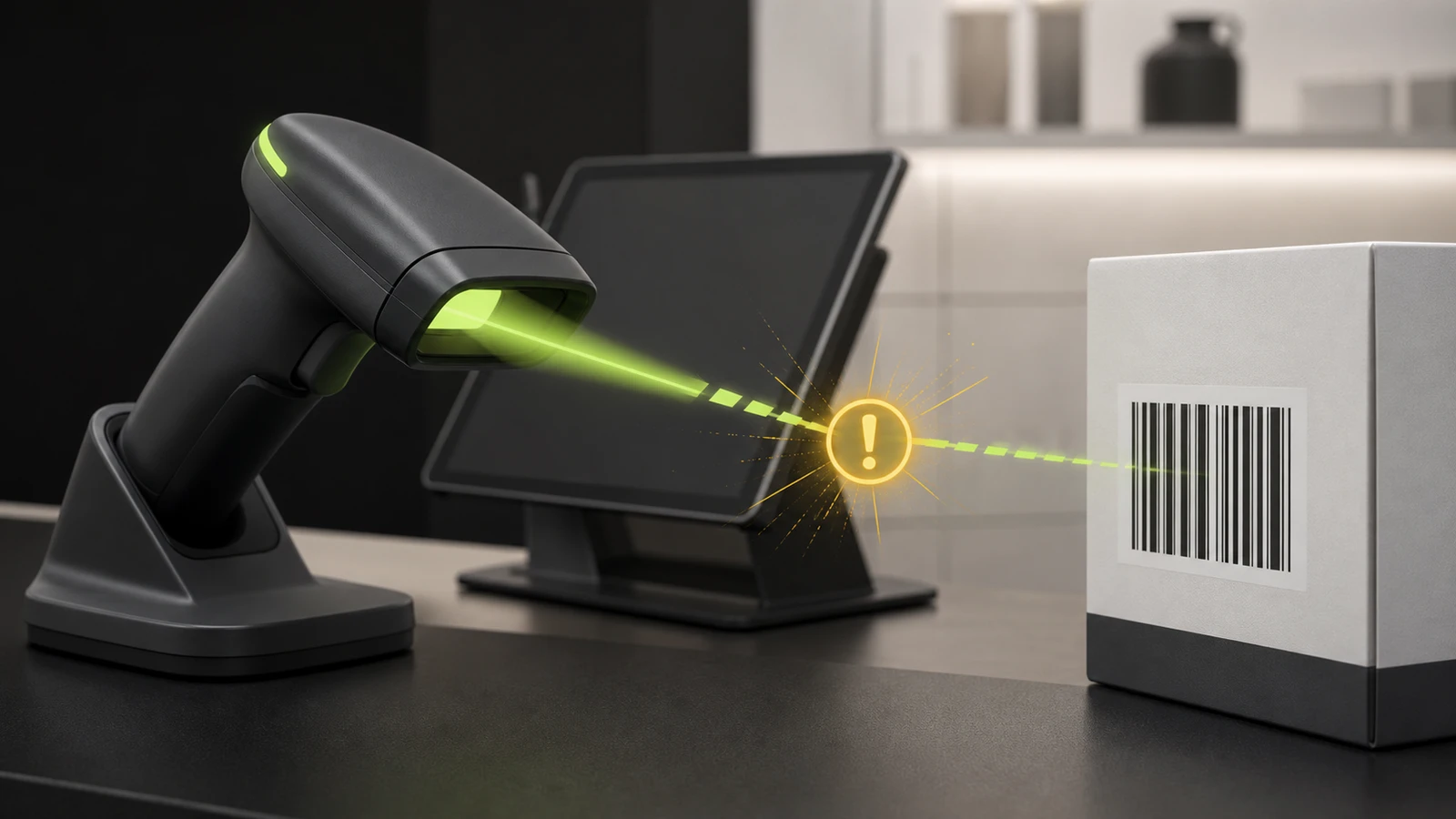
When a Shopify POS barcode scanner stops working, first determine whether the failure is the scanner, its connection, or Shopify’s product match. Don’t reset everything at once. A scan that produces an “Unrecognized barcode” message proves more than a silent scanner: it means Shopify received data, so the remaining fault is probably the barcode value, product record, or catalog sync.
Use manual product search to keep the line moving while you work through the checks below. This guide covers supported Socket Mobile and Zebra scanners, generic HID scanners, and the device camera. The exact reset sequence still depends on the scanner model.
Protect checkout data before resetting anything
Finish or preserve any active checkout before changing hardware state. Shopify advises against deleting and reinstalling the POS app as a routine troubleshooting step because doing so removes diagnostic logs and can also remove saved data such as register shifts and saved carts. If the POS device has recent offline orders or offline card payments, let it reconnect and sync before powering it off or considering a device reset.
If the register is busy, move sales to manual product search or a second prepared device. The goal is to isolate the scanner without turning a peripheral problem into a checkout-data problem. Devicefield’s Shopify POS offline-mode guide explains the separate continuity plan for payment outages.
Identify which scanner boundary failed
Start in the Shopify POS cart, not in a text-search field. Scan a clean barcode from an ordinary packaged item, even if that item isn’t in your catalog.
- Nothing happens: The scanner may lack power, be disconnected, be in the wrong mode, or be unable to decode that barcode.
- Shopify shows “Unrecognized barcode”: The scanner and connection delivered data. Move to the catalog checks.
- A different product appears: The scanned number is assigned to the wrong product or duplicated.
- The product appears only in search: The scanner mode or the screen receiving the scan may be changing the expected behavior.
- Some codes work and others don’t: Focus on barcode type, print quality, size, damage, and the product’s stored barcode value.
That single control scan prevents unnecessary Bluetooth resets when the real problem is a missing product barcode.
Fix a scanner that sends no data
Socket Mobile Bluetooth scanners
Confirm the battery is charged and check Shopify POS’s Connectivity view. For Shopify’s supported Socket Mobile workflow, pair through the model-specific Shopify instructions and use the mode required for POS checkout. Shopify distinguishes Application mode from HID, or keyboard, mode. A scanner configured for a different app or inventory workflow can appear connected while behaving incorrectly in the cart.
If Shopify discovers the scanner but remains stuck while connecting, use the least disruptive sequence:
- Cancel the connection attempt.
- Remove the scanner from the mobile device’s Bluetooth settings.
- Turn Bluetooth off and back on.
- Reconnect using Shopify’s instructions for the exact Socket model.
Only use a scanner factory reset after the model’s ordinary pairing steps fail. Configuration barcodes aren’t interchangeable between models.
USB, Zebra, and HID scanners
Check whether the scanner powers on and reacts to a known-good barcode. Reseat the scanner cable, then reseat the Shopify POS Hub’s tablet and power connections. Try another hub USB port or a known-good cable if available.
Shopify recommends the POS Hub for the most reliable supported USB path. A generic HID scanner behaves like a keyboard, so you can test it outside Shopify POS by scanning into a harmless text field. If the complete barcode number appears there, the scanner, cable, and basic HID output work. Return to Shopify POS and check whether the hub classified the device as a keyboard instead of a barcode scanner.
For a Zebra DS2208, use the connection mode and permissions documented for that deployment. The Devicefield DS2208 compatibility guide maps the supported Shopify connection paths without treating direct USB, POS Hub, and HID as equivalent.
Device camera
If the built-in camera scanner doesn’t open, verify that Shopify POS has camera permission in iOS or Android settings. Hold the code at a readable distance, keep it flat, and avoid glare. The camera is also a useful control: if it reads the same label that an external scanner rejects, the external scanner’s mode, supported symbology, optics, or connection deserves attention.
Fix an “Unrecognized barcode” result
An unrecognized message is useful evidence. It means the scan reached Shopify POS, but the data didn’t resolve to a sellable catalog record.
Check the affected product or variant in Shopify admin:
- Compare the digits printed below the barcode with the value in Shopify’s Barcode field.
- Don’t put the scannable value only in the SKU field. SKU and barcode are separate fields.
- Give each variant its own barcode. Reusing one code can produce the wrong match or ambiguous results.
- Confirm the product is active and available to the Point of Sale sales channel.
- On the POS device, open Connectivity, review Data synchronization, and refresh Products & Inventory.
- Return to the cart and scan again.
New devices and large catalogs can take time to complete their first synchronization. If manual product search also can’t find the item, treat the catalog publication or sync state as the primary fault rather than resetting the scanner.
When only certain labels fail
Test three controls: a clean manufacturer UPC, another label from the same print batch, and the failing label with the device camera. The pattern narrows the cause.
- If no scanner reads the label, inspect the printed symbol for clipping, low contrast, wrinkles, glare, or damage.
- If a 1D scanner reads UPC labels but not a 2D code, verify that the scanner model supports that barcode type.
- If the external scanner fails but the camera works, confirm the scanner’s enabled symbologies and mode in its manufacturer documentation.
- If both readers decode the number but Shopify rejects it, return to the Barcode field and catalog sync.
Shopify’s barcode guidance recommends printing a single test sheet before a large batch and keeping each variant’s barcode unique. Don’t solve a bad label by repeatedly resetting working checkout hardware.
Decide when to reset, call support, or replace hardware
Reset the scanner only when power, connection, mode, catalog, and label checks have failed and the current manufacturer procedure is available. Record the model and its current mode first; a factory reset can remove a configuration that another workflow, such as Stocky, depends on.
Contact Shopify Support when the scanner is listed as supported, the device and app meet current requirements, the model-specific setup completes, and Shopify still won’t accept data. Send a POS bug report before reinstalling so the app logs remain available.
Contact the scanner manufacturer when the device won’t power on with a known-good power source, can’t read a clean supported code outside Shopify POS, has a damaged cable or scan window, or repeatedly drops its configuration after a correct setup. Replace hardware only after proving the fault follows the scanner to another compatible device.
For a wider counter check, a scanner outage can share a hub, tablet, or software cause with printing. The Shopify POS receipt-printer troubleshooting guide uses the same boundary-first approach.
Prevent the next scanner outage
Keep a short register record with the scanner model, connection type, operating mode, charging location, and approved reset guide. Test one known-good barcode at opening, especially after app, operating-system, or hardware changes.
For multi-register stores, keep the pairing ownership clear. Don’t move a Bluetooth scanner between tablets without formally disconnecting it, and don’t change Application or HID mode without noting which workflow requires the change. Before printing a large label batch, scan one sample into the Shopify POS cart and compare the resolved variant with the physical item.
FAQ
Why does my Shopify scanner beep but not add a product?
The beep can mean the scanner decoded a symbol, not that Shopify found a matching product. Scan in the cart and watch for an “Unrecognized barcode” message, then verify the value is stored in the product variant’s Barcode field and refresh Products & Inventory.
Why is the scanner connected but stuck on “Connecting scanner”?
The mobile operating system may hold an old Bluetooth pairing while Shopify POS is trying to establish its own supported connection. Remove the scanner from system Bluetooth settings, cycle Bluetooth, and reconnect with the exact model’s Shopify instructions.
Can any Bluetooth barcode scanner work with Shopify POS?
Shopify supports named Socket Mobile and Zebra models plus many HID scanners, but behavior depends on model, mode, device, operating system, and connection path. Check Shopify’s current scanner list before buying or resetting a scanner.
Why does scanning type numbers into a search box?
The scanner is probably operating as an HID keyboard. That can be intentional for search or other apps, but Shopify’s standard checkout workflow for supported scanners may require Application mode. Verify the required mode for your scanner and workflow.
Should I reinstall Shopify POS to fix a scanner?
Not as an early step. Shopify warns that deleting the app removes support logs and can remove saved register data. Preserve and sync checkout data, report the problem, and exhaust model-specific scanner checks first.
Compatibility notes
Systems, accessories, and constraints
Covers current Shopify POS scanner categories: supported Socket Mobile and Zebra models, HID scanners, and the mobile-device camera. Exact support depends on region, scanner model, POS device, operating system, app version, connection path, and scanner mode.
Testing methodology
How this article was evaluated
Reviewed current Shopify scanner, hardware, model-specific troubleshooting, POS Hub, product barcode, synchronization, and app-recovery documentation; compared current exact-match and close-variant search results.
Known limitations
What this guide could not verify
Research-only. Devicefield did not reproduce failures across every scanner revision, mobile device, operating system, POS Hub version, barcode symbology, label stock, catalog size, or Shopify POS release.
Sources
Documentation and references
- Barcode scanners - Supports Shopify scanner categories, checkout behavior, Application and HID modes, camera scanning, and inventory limitations.
- Troubleshooting the Socket Mobile 2D scanner - Supports connection recovery, control scanning, unrecognized-barcode interpretation, model mode, and Barcode-field checks.
- Requirements for using barcode scanners with Shopify POS - Supports current POS device, operating-system, and app-source requirements.
- Zebra DS2208 USB barcode scanner - Supports Zebra connection paths, permissions, troubleshooting order, scanner modes, and model-specific reset guidance.
- HID barcode scanners - Supports HID keyboard behavior, text-field testing, direct USB, and POS Hub connections.
- Shopify POS Hub - Supports hub compatibility, keyboard-versus-scanner classification, port, cable, and power troubleshooting.
- Troubleshooting the Shopify POS app - Supports app updates, product synchronization, force-close recovery, bug reporting, and the warning against early app reinstallation.
- Troubleshooting Shopify POS setup - Supports POS-channel availability, location, catalog synchronization, and hardware setup checks.
- Replacing a Shopify POS device - Supports preserving offline orders and payments, staged fallback devices, synchronization, and replacement verification.
- Product details page - Supports the separate SKU and Barcode fields and product barcode identifiers.
- Using SKUs to manage your inventory - Supports the distinction between a SKU and the Barcode field read by scanners.
- Understanding barcodes - Supports unique variant barcodes and practical barcode printing and placement checks.
Devicefield checklist
Make the next hardware decision with fewer surprises.
Get practical buying notes, compatibility checks, and new troubleshooting guides.
Frequently asked questions
Why does my Shopify scanner beep but not add a product?
The beep can mean the scanner decoded a symbol, not that Shopify found a matching product. Scan in the cart, check for an Unrecognized barcode message, verify the variant's Barcode field, and refresh Products & Inventory.
Why is the scanner connected but stuck on Connecting scanner?
The operating system may hold an old Bluetooth pairing while Shopify POS tries to establish its supported connection. Remove the scanner from system Bluetooth settings, cycle Bluetooth, and reconnect using the exact model's Shopify instructions.
Can any Bluetooth barcode scanner work with Shopify POS?
No. Shopify supports named Socket Mobile and Zebra models plus many HID scanners, but behavior depends on the model, mode, POS device, operating system, and connection path.
Why does scanning type numbers into a search box?
The scanner is probably operating as an HID keyboard. That can be intentional for search or other apps, while the standard checkout workflow for supported scanners may require Application mode.
Should I reinstall Shopify POS to fix a scanner?
Not as an early step. Shopify warns that deleting the app removes support logs and can remove saved register data. Preserve and sync checkout data, report the problem, and exhaust scanner-specific checks first.


