
Barcode Scanner Scanning Wrong Characters: Safe Fixes
Use one controlled scan to isolate keyboard layout, prefixes, interface mode, timing, and catalog formatting before resetting the scanner.
- Written by
- Clayton Wingfield
- Reviewed by
- Clayton Wingfield
- Originally published
- Jul 26, 2026
- Last reviewed
- Jul 26, 2026
Quick verdict
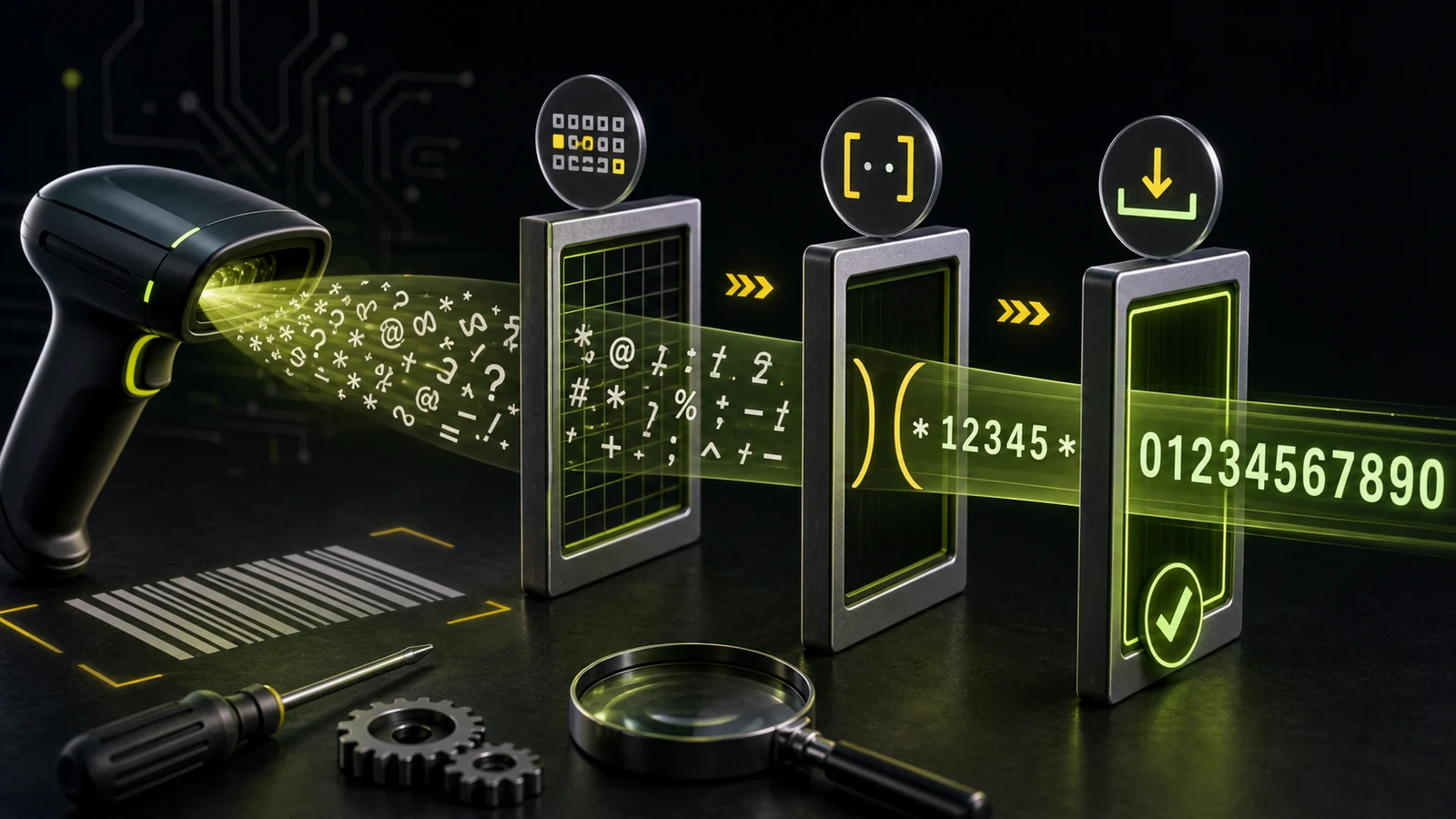
Capture one known barcode in plain text, then fix only the boundary that changed it: keyboard layout, formatting rule, application mode, timing, or catalog storage.
- Best for
- Retail, warehouse, and office operators whose scanner decodes a barcode but sends wrong, extra, missing, or mismatched characters.
- Avoid if
- The scanner has physical damage, inconsistent raw output across supported hosts, or a model-specific recovery that requires vendor service.
A barcode scanner scanning wrong characters usually has an input-path problem, not a damaged barcode. The most common boundaries are a keyboard-layout mismatch, an old prefix or suffix, a scanner interface mode the application does not expect, or a catalog field that changed the scanned value after import.
Do not factory-reset the scanner first. Capture one controlled scan in plain text, compare it with the printed human-readable value, and then change only the boundary that failed.
Protect production data before changing the scanner
Pause stock counts, receiving, label creation, or checkout imports that could save incorrect values. A scanner acting as a keyboard can type into whichever field currently has focus, so an accidental scan may alter the wrong record.
Before changing configuration:
- Record the scanner make, model, cable or cradle, connection type, and current host device.
- Photograph or export the current scanner profile when the manufacturer utility supports it.
- Choose a known barcode whose printed value is easy to compare.
- Create a temporary test item or use a nonproduction field.
- Write down the exact expected value and the exact output, including spaces, punctuation, leading zeroes, and what happens after the last character.
Use the current product reference guide for the exact scanner. Configuration barcodes from another model can be ignored, rejected, or change an unrelated setting.
Match the symptom to the failed boundary
| Controlled-scan result | Likely boundary | Check next | | --- | --- | --- | | Letters or punctuation differ, but the length is similar | Scanner and host keyboard layouts do not match | Compare the host input language with the scanner country keyboard | | The correct value has an extra character before or after it | Prefix, suffix, code identifier, or data-formatting rule | Review the scanner's prefix, suffix, and identifier settings | | The value is correct in plain text but wrong in the POS or inventory app | Application field, scanner mode, catalog value, or import formatting | Compare the plain-text result with the stored item value | | Leading zeroes disappear only after import | Spreadsheet or database treated the barcode as a number | Store and import barcode values as text | | Characters are missing or arrive in bursts | Receiver timing, interface mode, wireless link, or application handling | Test a second text field, then inspect mode and supported delays | | The scanner beeps but sends nothing | Focus, connection, or interface mode rather than wrong decoding | Use a platform-specific connection guide |
This separation matters. A perfect decode followed by the wrong keyboard mapping can look like a bad barcode. A perfect text result followed by “item not found” points downstream, not back at the scanner window.
Capture one scan outside the POS
For a scanner in keyboard-emulation mode, open a plain text field, click once so the cursor is visible, and scan the known code. Microsoft explains that a keyboard-wedge scanner inserts decoded data at the cursor as if it were typed. Zebra likewise uses a Word or Notepad scan as a basic output check in its current scanner support guidance.
Compare four things:
- Value: Does every visible digit and character match?
- Length: Is anything missing or duplicated?
- Framing: Is there an extra character before or after the value?
- Termination: Does the cursor stay put, move down, submit the field, or jump to another field?
If one text editor produces a strange result, repeat the check in a second simple field before reprogramming the scanner. The goal is to prove what the host receives, not to make one particular editor the final authority.
When no characters appear, switch to the relevant connection article. Devicefield has separate diagnostic paths for a Square barcode scanner that is not working and a Shopify POS barcode scanner that is not working.
Fix wrong symbols by matching the keyboard layout
Many USB and Bluetooth scanners can present themselves as keyboards. In that mode, the host interprets scan data as keystrokes. If the scanner is configured for one country keyboard and the computer, tablet, or active application uses another, punctuation and some letters can arrive incorrectly.
Zebra's country-keyboard documentation says its country selection applies to USB Keyboard HID and keyboard-wedge hosts. The setting can reset the scanner, so finish or suspend active work before changing it.
Use this order:
- Check the active input language on the host, not just the physical key labels.
- Confirm whether the scanner is actually using USB Keyboard HID, Bluetooth HID, or another interface.
- In the exact scanner guide, find the supported country keyboard for that interface.
- Change only that setting.
- Repeat the same controlled scan in plain text and in the application.
Do not change the whole interface just to correct punctuation. Windows also supports HID POS scanners, which are handled differently from keyboard-wedge input. Microsoft's configuration guide distinguishes keyboard wedge from HID POS Scanner mode. The application or POS vendor must support the mode you select.
Unicode, code pages, and non-Latin input add another layer. If the barcode contains accented, CJK, or other non-ASCII characters, verify both the barcode's encoding and the model's documented code-page or Unicode method. A country-keyboard change alone may not solve an encoding mismatch.
Remove unexpected prefixes or suffixes carefully
An otherwise correct scan with an extra leading or trailing character often points to data formatting. Scanners can add a prefix before the decoded value or a suffix after it. A carriage return or Tab suffix may be intentional because it submits a lookup or moves to the next field.
Honeywell's current integration guide documents per-symbology prefixes and suffixes, code identifiers, and control characters. Lightspeed Retail also notes that scanners inherited from another POS can retain spaces, tildes, or other special characters.
Before removing anything:
- Test whether pressing Enter manually after a clean value completes the workflow.
- Check whether the extra mark appears visibly or acts as Enter, Tab, or another control key.
- Confirm whether the rule affects every barcode type or one symbology.
- Preserve an intentional terminator required by the POS.
- Use the model's clear-prefix or clear-suffix procedure instead of a full reset.
If one barcode type adds a character and another does not, inspect symbology-specific rules and transmitted code identifiers. That pattern is more specific than a general keyboard-layout fault.
Protect leading zeroes and catalog identity
If plain-text output is correct but the POS reports the wrong item or no item, compare the received string with the stored catalog value character for character. A barcode is an identifier, not a quantity. Leading zeroes are meaningful.
inFlow Inventory's troubleshooting guidance shows the practical failure: a barcode such as `001145679` can become `1145679` when a spreadsheet import treats it as a number. Format barcode columns as text before import, then verify the stored result after import.
Also check for:
- Spaces trimmed from either end.
- A copied prefix stored as part of the item record.
- UPC-E or UPC-A conversion that changes the displayed form.
- A check digit included on one side but omitted on the other.
- Duplicate barcodes assigned to multiple variants.
- The correct scan landing in a field that expects an internal SKU instead.
Do not reprogram a scanner to reproduce a bad catalog value. Correct the data boundary, preserve a canonical identifier, and retest the actual lookup.
Use transmission delays only when evidence points there
Missing or reordered characters can occur when a receiving terminal or application cannot keep up with keyboard-style input. Honeywell documents intercharacter delays specifically for terminals that drop data when it arrives too quickly.
Treat a delay as a targeted compatibility setting:
- Confirm the same characters are missing across repeated scans.
- Test a second simple text field.
- Verify that the scanner model and current interface support a delay.
- Add the smallest documented delay.
- Measure whether the complete value now arrives without making checkout unacceptably slow.
A delay will not fix a wrong keyboard language, unwanted suffix, damaged catalog record, or unsupported interface. It can also hide an application defect, so record the reason and value.
Recover from least to most disruptive
Use this order:
- Capture expected and actual output.
- Confirm focus and repeat the scan in two plain-text fields.
- Match the host and scanner keyboard layouts.
- Review prefix, suffix, code-identifier, and data-formatting rules.
- Compare the received string with the stored catalog value.
- Verify the application-required scanner interface.
- Add a documented transmission delay only for proven dropped characters.
- Restore a known-good saved profile.
- Factory-reset only with the exact model guide and a plan to reapply the correct interface and POS settings.
For a Zebra DS2208 used with Shopify, the Devicefield compatibility guide covers the separate choice between Application and HID modes. For Square purchasing decisions, the Square POS scanner buying guide explains supported connection paths before deployment.
When vendor support or replacement is appropriate
Escalate when the same known-good barcode produces inconsistent raw output across supported hosts, the scanner cannot retain documented settings, firmware recovery fails, the cable or cradle is damaged, or the model is no longer supported for the required application.
Replacement is not the first fix for consistent wrong symbols. A new keyboard-emulation scanner can reproduce the same mismatch if the host layout, application mode, and catalog field remain wrong. Before buying, verify the required interface, operating-system support, cable or cradle, symbologies, international-character needs, configuration utility, and whether the POS expects Enter or Tab after each scan.
Prevent the problem from returning
- Save a known-good scanner profile by model and workstation role.
- Record the host input language and scanner country keyboard.
- Keep configuration barcodes under change control.
- Store barcode columns as text in spreadsheets and imports.
- Validate one known item after catalog migrations or POS updates.
- Test prefixes and suffixes in the real workflow before rolling out a scanner fleet.
- Label scanners assigned to specialized applications so they are not moved casually.
FAQ
Why does my barcode scanner type symbols instead of numbers?
If the scan length is right but punctuation or symbols differ, compare the scanner's country-keyboard setting with the host's active input language. This is especially relevant in USB or Bluetooth keyboard-emulation mode.
Why does the scanner add Enter after every barcode?
Enter is usually a carriage-return suffix programmed into the scanner. Many POS systems use it to submit the lookup. Remove it only if the application does not require it.
Why does the barcode scan correctly in Notepad but not in the POS?
The scanner and basic input path are probably working. Check the POS field, required scanner mode, stored catalog value, prefixes or suffixes, and whether the application expects an internal SKU rather than the barcode.
Can a barcode scanner remove leading zeroes?
The scanner may be configured to transform data, but leading zeroes often disappear later when a spreadsheet or database treats the identifier as a number. Compare the plain-text scan with the stored value and use text fields for imports.
Should I factory-reset a scanner with wrong output?
Not first. A reset can erase the correct interface, pairing, suffix, and POS-specific settings. Capture the current profile, isolate the failed boundary, and change the narrowest documented setting.
Compatibility notes
Systems, accessories, and constraints
Applies at a diagnostic-framework level to scanners using USB or Bluetooth keyboard emulation and to applications that accept scanner data. Country keyboards, interface names, prefixes, suffixes, delays, Unicode handling, and reset procedures must be verified in the exact model and application documentation.
Testing methodology
How this article was evaluated
Compared current operating-system, scanner-manufacturer, POS, and inventory-software documentation; reviewed exact and close-variant search results; mapped visible symptoms to scanner, host, application, and catalog boundaries.
Known limitations
What this guide could not verify
Researched from current Microsoft, Zebra, Honeywell, Lightspeed, and inFlow documentation without hands-on access. The article cannot verify the reader's scanner profile, host input language, encoded data, POS integration, catalog import, firmware, wireless link, or cable condition.
Sources
Documentation and references
- Configure a barcode scanner - Microsoft's distinction between keyboard-wedge input, USB HID POS Scanner mode, and Bluetooth scanner modes in Windows.
- DS4600 Series Scanners Support - Zebra's plain-text output test and country-keyboard guidance when transferred scan characters are inaccurate.
- USB and Keyboard Wedge Country Keyboard Types (Country Codes) - Zebra's supported country-keyboard selection, applicable interfaces, scanner reset behavior, and international-keyboard note.
- HF52X/HF52XT Series User Guide - Honeywell's prefix, suffix, code-identifier, control-character, data-formatting, and intercharacter-delay behavior.
- How do I add or remove prefix or suffix characters from my barcode scanner? - Lightspeed's explanation of intentional carriage-return suffixes and stale special characters from prior POS configurations.
- Troubleshooting problems with barcodes and barcode scanning - inFlow's plain-text comparison, leading-zero loss during spreadsheet imports, and Enter-suffix diagnostic.
Devicefield checklist
Make the next hardware decision with fewer surprises.
Get practical buying notes, compatibility checks, and new troubleshooting guides.
Frequently asked questions
Why does my barcode scanner type symbols instead of numbers?
If the scan length is right but punctuation or symbols differ, compare the scanner's country-keyboard setting with the host's active input language. This is especially relevant in USB or Bluetooth keyboard-emulation mode.
Why does the scanner add Enter after every barcode?
Enter is usually a carriage-return suffix programmed into the scanner. Many POS systems use it to submit the lookup. Remove it only if the application does not require it.
Why does the barcode scan correctly in Notepad but not in the POS?
The scanner and basic input path are probably working. Check the POS field, required scanner mode, stored catalog value, prefixes or suffixes, and whether the application expects an internal SKU rather than the barcode.
Can a barcode scanner remove leading zeroes?
The scanner may be configured to transform data, but leading zeroes often disappear later when a spreadsheet or database treats the identifier as a number. Compare the plain-text scan with the stored value and use text fields for imports.
Should I factory-reset a scanner with wrong output?
Not first. A reset can erase the correct interface, pairing, suffix, and POS-specific settings. Capture the current profile, isolate the failed boundary, and change the narrowest documented setting.


