
Barcode Scanner Reads Some Barcodes? Isolate the Cause
Use controlled label and scanner comparisons to separate disabled barcode types, print-quality faults, and hardware limits before resetting anything.
- Written by
- Clayton Wingfield
- Reviewed by
- Clayton Wingfield
- Originally published
- Aug 5, 2026
- Last reviewed
- Aug 5, 2026
Quick verdict
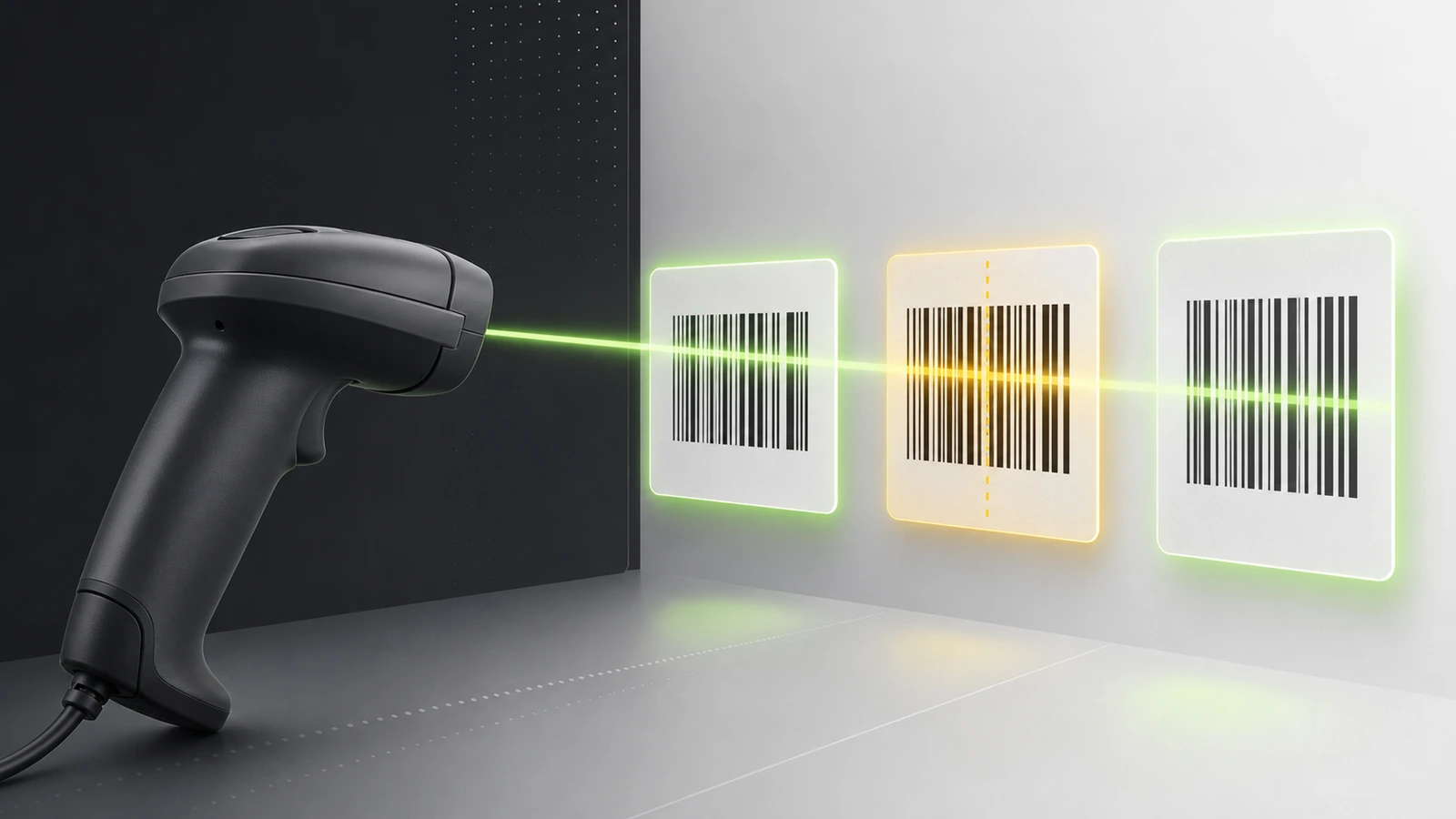
Compare one working and one failing symbol across the current scanner, a second scanner, and an official same-type test symbol before changing persistent settings.
- Best for
- Retail, warehouse, office, and inventory operators whose scanner acknowledges common labels but rejects a specific barcode or supplier label.
- Avoid if
- The scanner has physical damage, abnormal illumination, or a service condition that requires qualified vendor support.
When a barcode scanner reads some barcodes but not others, the scanner usually is not “randomly failing.” The rejected symbol differs in a way that matters: its barcode type may be disabled or unsupported, its printed geometry may be outside the scanner’s range, or a formatting rule may reject that data.
Do not reset the scanner first. Preserve its configuration, choose one barcode that reads and one that does not, then run the same two symbols through controlled comparisons. That sequence separates a bad label from a scanner setting without disrupting every checkout or inventory station.
Confirm this is a decode failure
Watch and listen while scanning the problem label.
- No normal decode beep or success light: keep the diagnosis on the symbol, presentation, scan engine, and enabled symbologies.
- Normal decode feedback but nothing reaches the application: use the barcode scanner beeps but sends no data guide. The scanner decoded something; the host or application path is now the stronger suspect.
- Data arrives but the characters are wrong: use the wrong-characters diagnostic before changing barcode settings.
- The same value appears twice: check the duplicate-scan workflow.
This guide covers the first pattern: a scanner that can decode a control barcode but will not acknowledge a specific label or barcode family.
Run a two-symbol, two-scanner test
Label the samples control and problem. Keep the lighting and presentation as consistent as possible.
| Test | Result | Strongest next suspect | | --- | --- | --- | | Current scanner reads control but not problem | Selective failure confirmed | Problem label, symbology, or scanner configuration | | Second known-good scanner also rejects problem | Failure follows the symbol | Print quality, encoding, size, quiet zone, or unsupported type | | Second scanner reads problem immediately | Failure stays with first scanner | Disabled symbology, length rule, firmware, optics, or hardware capability | | Current scanner reads an official test symbol of the same type | Printed business label differs | Label design, data, printer, stock, damage, or surface | | Current scanner rejects an official test symbol of the same type | Type is disabled or unsupported | Configuration and model capability |
Use an official test symbol from the exact scanner manual or configuration utility when available. Do not use an unknown online barcode generator as the only control; it introduces another encoding variable.
If you have only one scanner, print or display a documented test symbol of the suspected type and compare it with the business label. Record the scanner model, connection, firmware when available, and every configuration change.
Identify the barcode type before enabling anything
“Barcode” is not one universal format. UPC-A, EAN-13, Code 39, Code 128, GS1-128, Data Matrix, QR Code, PDF417, and GS1 DataBar are different symbologies. A 1D-only scanner cannot gain 2D imaging capability through a setting change.
Start with the label source: the product data record, label template, supplier specification, or barcode-verification report. Human-readable digits alone do not prove the encoded type. If the source cannot identify it, use a trusted configuration or verification tool and treat its result as a clue until the label owner confirms it.
Scanner defaults also vary. Zebra’s supported-symbology documentation shows that barcode types can be individually enabled or disabled on a supported model. Check the programming guide for the exact model and firmware rather than copying a setup barcode from a different scanner family.
Check scanner configuration without erasing it
Export, clone, or photograph the current settings before making a change. On supported Zebra scanners, 123Scan can enable or disable symbologies and save a configuration. Other manufacturers provide their own manuals and configuration tools.
Inspect these controls in order:
- Symbology enabled: confirm the exact type, not merely “1D” or “2D.”
- Length limits: Code 39, Code 128, Interleaved 2 of 5, and other formats may have minimum, maximum, or discrete-length rules.
- Check-digit rules: a scanner may require or validate a check digit differently from the label generator.
- Supplemental handling: UPC/EAN add-ons can be ignored, optional, or required depending on configuration.
- Formatting and parsing rules: advanced data formatting can match a barcode type or length. A restrictive rule may make one family appear unsupported.
Change one control, retest both samples, and save the result. Enabling every symbology is a poor shortcut: it widens what the scanner will accept, complicates diagnosis, and may change behavior around mixed labels.
Inspect the printed symbol
If two scanners reject the same label, or an official test symbol works while the business label fails, inspect the symbol before replacing hardware.
Protect contrast and quiet zones
Dark bars or modules need a suitable light background. The clear margin around a symbol helps a reader find its boundaries. GS1’s current barcode creation and printing guidance identifies insufficient quiet zones as a common cause of 2D scan failure and warns against allowing text, graphics, package edges, or finishing processes to intrude.
Look for artwork, borders, tape, a package seam, a label edge, or preprinting crowding the symbol. Transparent stock and glossy laminate can also change contrast or add reflections even when the digital artwork looks correct.
Compare size, shape, and damage
Test the original label and a known-good label at the same angle. Look for:
- bars or square modules that are too small for the scanner’s specified working range;
- a wide 1D symbol that does not fit fully inside the scan field;
- clipped start, stop, finder, or alignment patterns;
- thermal spread that closes narrow white spaces;
- fading, scratches, wrinkles, curvature, glare, or a dirty protective window;
- resizing that changed only one axis and distorted the symbol.
Do not “improve” a barcode by stretching it in a document editor. Regenerate it from the approved data using the correct symbology and dimensions, then validate the finished print.
Separate design from production
Print the same label from the approved template on a second known-good printer, or print a known-good label on the current printer without changing both variables at once.
- If the failure follows the file, inspect encoding, dimensions, and export or scaling.
- If it follows the printer, inspect resolution, darkness, speed, stock, ribbon where applicable, and printhead condition.
- If the digital file works but the finished package fails, inspect coating, curvature, seams, and artwork added after barcode generation.
For a production or supplier dispute, visual inspection is not the same as verification. A barcode verifier evaluates the printed symbol against the applicable standard; a phone camera or a second scanner is only a comparison tool.
Use the correct presentation
Aim so the complete symbol enters the scanner’s field. Change one factor at a time: distance, angle, orientation, and ambient glare. A larger barcode may require more distance; a very small or dense symbol may require a closer or higher-density-capable scan engine.
Clean only the operator-serviceable scan window using the manufacturer’s method. Stop if the window is deeply scratched, the aimer or illumination is abnormal, the housing is damaged, or service would require opening the scanner.
Phone-screen failures deserve a separate path because display brightness, reflections, pixel density, and 1D-versus-2D hardware matter. Use the phone-screen scanning guide for that case.
Avoid high-cost false fixes
- Factory reset: can erase host, suffix, parsing, and application-specific settings before you capture the fault.
- Enable all types: hides which capability was missing and can introduce unintended decodes.
- Reprint at a random scale: may make one sample work while violating the approved label specification.
- Replace the scanner immediately: is not justified when a second scanner rejects the same printed label.
- Blame the application after no decode feedback: the application cannot receive data the scanner never decoded.
Prevent selective scan failures
Maintain a small acceptance set for each workflow: one known-good symbol for every required symbology, plus a representative label at the smallest approved size and most difficult approved surface. Save the scanner model, firmware, configuration file, enabled types, length rules, host mode, and label specification.
After changing a label template, printer, stock, ribbon, scanner profile, or firmware, test the acceptance set at one station before deploying it broadly. For vendor-supplied labels, require the supplier to identify the symbology and provide verification evidence when scan reliability is operationally critical.
When replacement or vendor support makes sense
Escalate to the scanner vendor when the exact model should support the confirmed symbology, a documented test symbol fails after the configuration is verified, the same sample works on an equivalent scanner, and the optics or decode behavior remains abnormal.
Replace or upgrade when the required barcode family is outside the hardware capability, the needed symbol size or working distance is outside its documented range, the scan window or engine is damaged, or repair and downtime exceed the value of a supported replacement.
Provide support with the scanner model, serial number where appropriate, firmware, configuration export, connection mode, confirmed symbology, sample label or verifier report, control-test results, and the last known change. Do not send live customer, payment, patient, or proprietary inventory data unless the vendor’s approved support process requires and protects it.
Limitations of this guide
This is researched troubleshooting guidance. Devicefield did not test a scanner, label, verifier, printer, laminate, application, or configuration for this article. Supported symbologies, default settings, length rules, utilities, optical ranges, and cleaning procedures vary by model and firmware. Verify the exact manual and preserve the current configuration before changing persistent settings.
Frequently asked questions
Why does my scanner read UPC codes but not Code 128?
Code 128 may be disabled, restricted by a length or formatting rule, printed outside the scanner’s usable size range, or malformed. Confirm the type from the label source, then compare an official Code 128 test symbol with the failing label.
Can a 1D barcode scanner read QR codes?
A 1D-only scan engine cannot become a QR reader through configuration. You need a scanner whose documentation lists QR or the required 2D symbology.
Should I factory-reset a scanner that rejects one barcode type?
Not first. Export the configuration, test a documented symbol of that type, and inspect enabled symbologies and length rules. A reset can remove working host and formatting settings without fixing a bad label.
Why will a phone scan a barcode that my handheld scanner rejects?
The phone may support a different symbology or use camera-based processing that handles the sample differently. That comparison proves the symbol contains decodable data, but it does not prove the handheld supports the type, size, surface, or presentation.
Compatibility notes
Systems, accessories, and constraints
The isolation sequence is product-neutral, but supported symbologies, default states, length rules, configuration tools, optical ranges, and cleaning methods vary by scanner model and firmware. A 1D-only scan engine cannot be configured to read 2D symbols.
Testing methodology
How this article was evaluated
Reviewed all local packages and the approved database inventory; searched current troubleshooting, buyer, comparison, setup, and compatibility phrasing; directly reviewed the primary query and close variants; synthesized current Zebra, GS1, Microsoft, and Honeywell guidance into a controlled isolation sequence.
Known limitations
What this guide could not verify
Research-only. No scanner, printed label, verifier, printer, surface, application, or configuration was tested. Exact capabilities and safe configuration or cleaning procedures must be verified for the scanner model and firmware.
Sources
Documentation and references
- My Zebra Scanner Cannot Read Certain Barcodes - Supports the selective barcode-reading problem and vendor troubleshooting context.
- Troubleshooting - Supports checking whether the scanner is programmed for the correct barcode type and using a test symbol.
- Supported Symbologies - Supports that individual barcode types can be enabled or disabled on a supported scanner model.
- 123Scan - Supports configuration backup and enabling or disabling scanner symbologies through Zebra's tool.
- GS1 2D Barcode Playbook for Creation and Printing Guide - Supports quiet-zone, contrast, artwork, finishing, and finished-print factors that affect 2D decoding.
- Working with barcode scanner symbologies - Supports querying a scanner's supported symbologies rather than assuming universal format support.
- What 2D barcodes can be read at Point-of-Sale scanners today? - Supports that 2D decoding depends on scanning equipment, host systems, model generation, and enabled functionality.
Devicefield checklist
Make the next hardware decision with fewer surprises.
Get practical buying notes, compatibility checks, and new troubleshooting guides.
Frequently asked questions
Why does my scanner read UPC codes but not Code 128?
Code 128 may be disabled, restricted by a length or formatting rule, printed outside the scanner’s usable size range, or malformed. Confirm the type from the label source, then compare an official Code 128 test symbol with the failing label.
Can a 1D barcode scanner read QR codes?
A 1D-only scan engine cannot become a QR reader through configuration. You need a scanner whose documentation lists QR or the required 2D symbology.
Should I factory-reset a scanner that rejects one barcode type?
Not first. Export the configuration, test a documented symbol of that type, and inspect enabled symbologies and length rules. A reset can remove working host and formatting settings without fixing a bad label.
Why will a phone scan a barcode that my handheld scanner rejects?
The phone may support a different symbology or use camera-based processing that handles the sample differently. That comparison proves the symbol contains decodable data, but it does not prove the handheld supports the type, size, surface, or presentation.


