
Barcode Scanner Scanning Twice? Diagnose Duplicate Reads
Isolate scanner rereads, duplicate host events, and POS handling before resetting a barcode scanner that enters the same item twice.
- Written by
- Clayton Wingfield
- Reviewed by
- Clayton Wingfield
- Originally published
- Jul 29, 2026
- Last reviewed
- Jul 29, 2026
Quick verdict
Run one safe control scan outside the POS. Two raw values point to the scanner or host path; one raw value and two POS entries point to the application.
- Best for
- Retail, warehouse, kiosk, and service-counter operators troubleshooting one physical scan that creates two records.
- Avoid if
- The scanner cannot decode a known-good control barcode or is part of a managed workflow that requires model-specific vendor diagnostics.
If a barcode scanner is scanning twice, first determine whether the scanner sends two decodes or the POS creates two entries from one decode. They look identical but require different fixes.
Use one known, non-sensitive barcode in a plain-text field, watch the scanner’s light and listen for its good-read signal, then scan once. Two identical values in the text field point toward scanner mode, reread timing, or the host input path. One value in text but two items in the POS points toward the application, integration, or catalog.
Do not factory-reset the scanner first. A reset can erase the host interface, keyboard country, suffix, symbology, pairing, and formatting rules that other workflows depend on.
Quick checks before changing a setting
Start with reversible checks:
- Remove the barcode completely from the scan field after the read.
- Test one clean paper barcode, away from other codes.
- Press and release the trigger once, if the scanner uses a trigger.
- Note whether the scanner signals one read or two.
- Test outside the POS using the same connection and host device.
- Record the scanner model, connection, scan mode, and current configuration.
A presentation scanner can read again while the label remains visible. Elo’s duplicate-scan support note describes this behavior for supported Elo/Zebra scanners operating without a same-symbol lockout. Removing the label promptly is therefore a useful control, but it is not a permanent configuration fix.
If the scanner signals only one read, do not assume the scanner is innocent. Some host or application paths can process one input twice. The plain-text test below separates those layers.
Isolate the duplicate scan in two minutes
For a scanner configured as a USB or Bluetooth keyboard, open a plain-text editor and place the cursor in an empty document. Scan a known barcode once. Do not use a live ticket, payment code, or inventory adjustment.
| Test result | Likely fault boundary | Next step | | --- | --- | --- | | Two values appear and the scanner signals twice | Scanner reread, continuous mode, presentation dwell, or trigger behavior | Check scan mode and same-symbol delay | | Two values appear but the scanner signals once | Host input, driver, wireless replay, or duplicate listener | Test another field, port, and host | | One value appears, but the POS adds two items | POS event handling, browser integration, or application profile | Stop changing scanner settings and isolate the app | | One scan opens a choice between two products | Duplicate catalog assignment, not a duplicate read | Correct the product records | | Output includes extra characters rather than a repeated value | Prefix, suffix, keyboard layout, or formatting rule | Use the wrong-character guide |
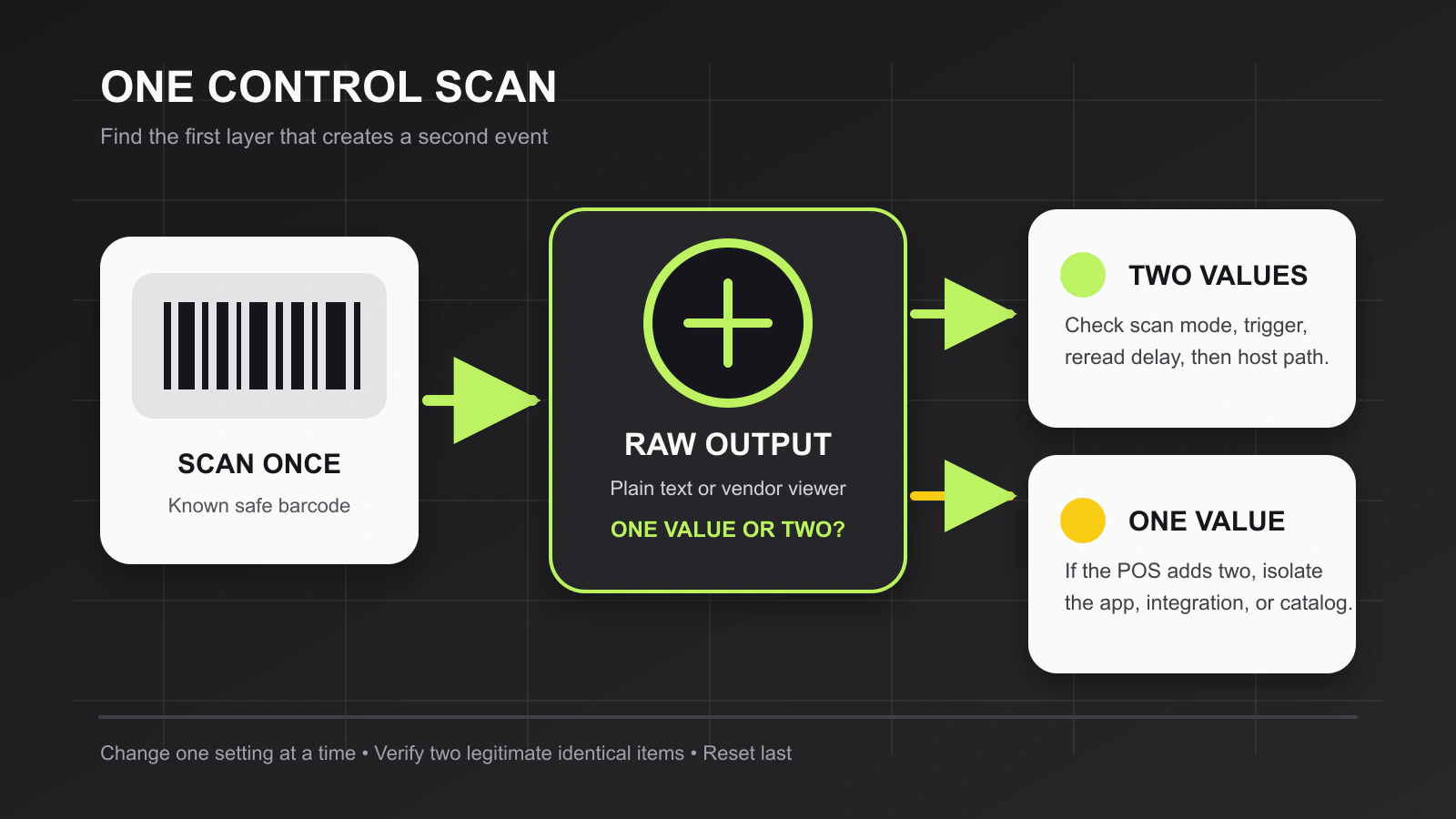
This text-field control applies only when the scanner is intended to behave like a keyboard. A serial, OPOS/JPOS, HID POS, or vendor-API scanner may need its manufacturer utility or the receiving application’s diagnostic view instead.
Zebra’s 123Scan documentation says its Data Viewer can display scanned barcode data, including non-printable characters. That makes it useful for determining whether a supported Zebra scanner actually emitted two records before the POS handled them.
Fix scanner-side duplicate reads
When the controlled test proves that the scanner produces two decodes, change one setting at a time and retest the same barcode.
Confirm the scan mode
Presentation and continuous-read modes are designed to watch the scan field without a new trigger pull for every item. They need a way to distinguish a barcode that is still present from another unit carrying the same code.
If a handheld scanner should read only after a trigger pull, confirm that it is in the manufacturer’s documented triggered mode. Also check for a sticking trigger or a stand that automatically changes modes. Do not scan a generic programming barcode found online; use the manual or configuration utility for the exact model and firmware.
Adjust the same-symbol delay carefully
Manufacturers use names such as:
- Timeout between decodes, same symbol
- Same symbol timeout
- Reread delay
- Double read timeout
Zebra documents a same-symbol timeout for continuous and presentation modes. Datalogic likewise documents a double read timeout to prevent unwanted multiple reads in supported stand-mode scanners.
Use the shortest delay that blocks an accidental reread without slowing the real workflow. A long delay can reject a legitimate second unit when a cashier scans two identical products quickly. Test both cases:
- Hold one label in the scan field long enough to reproduce the original duplicate.
- Remove it, then scan a second item with the same barcode at normal checkout speed.
The correct value is operational, not universal. Copying another store’s timeout can trade duplicate charges for missed quantities.
Check multicode and formatting features
Some scanners can read several codes in one trigger session or apply data-formatting rules before sending output. Confirm that multicode, batch, or advanced formatting is intentionally enabled. Export the current configuration before disabling a rule, and compare the raw output before and after the change.
Fix duplicates created after the scanner
If the scanner utility or plain-text field receives one value while the POS creates two entries, the scanner timeout is not the primary fix.
Work outward from the application:
- Test the same value in a second ordinary field.
- Close duplicate browser tabs or POS windows that may both listen for scanner input.
- Disable only the recently added scanner extension, integration, or keyboard listener.
- Confirm that one physical scanner is registered once in the application.
- Test a different supported host profile or device without changing the scanner.
- Capture the time, barcode, screen, and expected result for vendor support.
For a web-based or custom POS, duplicate key, input, or scan handlers can submit the same value twice. A developer should verify that one scanner record produces one application event and that reconnect logic does not replay an accepted event.
Catalog duplication is a separate issue. Toast’s duplicate barcode documentation shows how one barcode assigned to multiple menu items can open a product-choice workflow. Correcting the item records may be necessary, but a catalog conflict usually does not explain two identical line items appearing from one event.
For platform-specific connection and catalog checks, use the Square scanner troubleshooting guide or Shopify POS scanner troubleshooting guide.
Fixes from least to most disruptive
Use this order to avoid turning one symptom into several:
- Change operator motion so the barcode leaves the scan field.
- Reproduce with one safe control code outside the POS.
- Save the current scanner and application configuration.
- Correct the documented scan mode.
- Adjust only the same-symbol or reread delay.
- Remove a duplicate application listener or device profile.
- Update supported scanner firmware or software after reviewing release notes.
- Reset only when the exact configuration can be restored.
After every change, verify a single item, two identical items in sequence, two different items, and the normal POS transaction path. A fix that blocks legitimate quantities is not complete.
Prevent duplicate scans from returning
Keep a deployment record for every scanner model: connection, host mode, scan mode, reread setting, suffix, configuration export, firmware, control barcode, and expected output. Use one approved configuration per role rather than programming scanners ad hoc at the counter.
For high-risk workflows, the application should also detect implausibly fast repeated events and require confirmation where a duplicate would create a charge, inventory movement, or serialized record. Application protection should complement a correct scanner configuration, not conceal a scanner that is emitting unintended data.
When support or replacement is appropriate
Contact the scanner or POS vendor when raw output remains duplicated after a documented mode and timeout check, when the behavior follows the scanner to another supported host, or when a trigger, cable, radio, or cradle is physically unstable.
Replacement is reasonable only after the fault follows the scanner and a known-good compatible setup reproduces it. Verify the replacement’s POS support, connection, scan modes, configuration utility, supported symbologies, stand behavior, cable or cradle, and return policy.
What this guide cannot verify
This is a researched troubleshooting framework. No scanner, stand, trigger, cable, cradle, radio, host, driver, POS, browser integration, or barcode payload was tested for this article. Parameter names, allowed timeout values, defaults, scan modes, reset procedures, and configuration tools vary by model and firmware. Confirm changes in current documentation for the exact hardware and application.
Frequently asked questions
Why does my barcode scanner scan the same item twice?
In presentation or continuous mode, the scanner may decode a barcode again while it remains in view. The host or POS can also duplicate one scanner event. A raw-output or plain-text test separates those causes.
What setting prevents double scans?
Look in the exact scanner documentation for a same-symbol timeout, reread delay, or double read timeout. Change it only after proving the scanner emits two decodes, then test two legitimate identical items at normal speed.
Should I factory-reset a barcode scanner that scans twice?
Not first. Save the configuration and test scan mode, raw output, reread timing, and the receiving application. A reset can erase required interface, pairing, suffix, symbology, and formatting settings.
Why does the POS add two items when a text editor shows one scan?
The duplication is likely after the scanner: an application handler, browser extension, integration, device profile, or reconnect path may process one value twice. Stop adjusting scanner timing and isolate the POS layer.
Compatibility notes
Systems, accessories, and constraints
The correct diagnosis depends on the exact scanner, trigger or presentation mode, stand, cable or radio, host interface, driver, configuration utility, POS application, integration, and catalog. Same-symbol and reread parameters vary by model and firmware.
Testing methodology
How this article was evaluated
Compared current exact and close query results with Zebra same-symbol and 123Scan documentation, Elo duplicate-scan support, Datalogic double-read guidance, and Toast catalog behavior; organized the evidence into scanner, host, application, and catalog fault boundaries.
Known limitations
What this guide could not verify
Research-only. No scanner, stand, trigger, cable, cradle, radio, host, driver, POS, browser integration, or barcode payload was tested. Parameter names, timeout values, defaults, scan modes, and reset procedures vary by model and firmware.
Sources
Documentation and references
- Timeout Between Decodes, Same Symbol - Supports the purpose of a same-symbol timeout in continuous and presentation scanning modes.
- 123Scan Configuration Utility - Supports configuration export and Data Viewer inspection of scanned output, including non-printable characters.
- Preventing Duplicate Barcode Scans in Elo/Zebra Scanners - Supports repeated decoding when a symbol remains in view in presentation or continuous-read operation without a same-symbol lockout.
- Datalogic Scanner Configuration Manual - Supports the use of a model-specific double read timeout to suppress unintended multiple reads in stand mode.
- Manage Duplicate Barcodes - Supports the distinction between repeated scan events and one barcode assigned to multiple POS items.
Devicefield checklist
Make the next hardware decision with fewer surprises.
Get practical buying notes, compatibility checks, and new troubleshooting guides.
Frequently asked questions
Why does my barcode scanner scan the same item twice?
In presentation or continuous mode, the scanner may decode a barcode again while it remains in view. The host or POS can also duplicate one scanner event. A raw-output or plain-text test separates those causes.
What setting prevents double scans?
Look in the exact scanner documentation for a same-symbol timeout, reread delay, or double read timeout. Change it only after proving the scanner emits two decodes, then test two legitimate identical items at normal speed.
Should I factory-reset a barcode scanner that scans twice?
Not first. Save the configuration and test scan mode, raw output, reread timing, and the receiving application. A reset can erase required interface, pairing, suffix, symbology, and formatting settings.
Why does the POS add two items when a text editor shows one scan?
The duplication is likely after the scanner: an application handler, browser extension, integration, device profile, or reconnect path may process one value twice. Stop adjusting scanner timing and isolate the POS layer.


