
Barcode Scanner Beeps but Sends No Data: Safe Fixes
Use one safe control scan to isolate connection, host-interface, and application failures before resetting or replacing a barcode scanner.
- Written by
- Clayton Wingfield
- Reviewed by
- Clayton Wingfield
- Originally published
- Jul 29, 2026
- Last reviewed
- Jul 29, 2026
Quick verdict
Treat the good-read signal as a decode checkpoint, then test the connection, expected host interface, and receiving application before resetting the scanner.
- Best for
- Retail, warehouse, office, and service-counter operators whose scanner signals a successful read but enters no data.
- Avoid if
- The scanner cannot decode a known-good paper code, has physical damage, or requires a model-specific managed-device workflow.
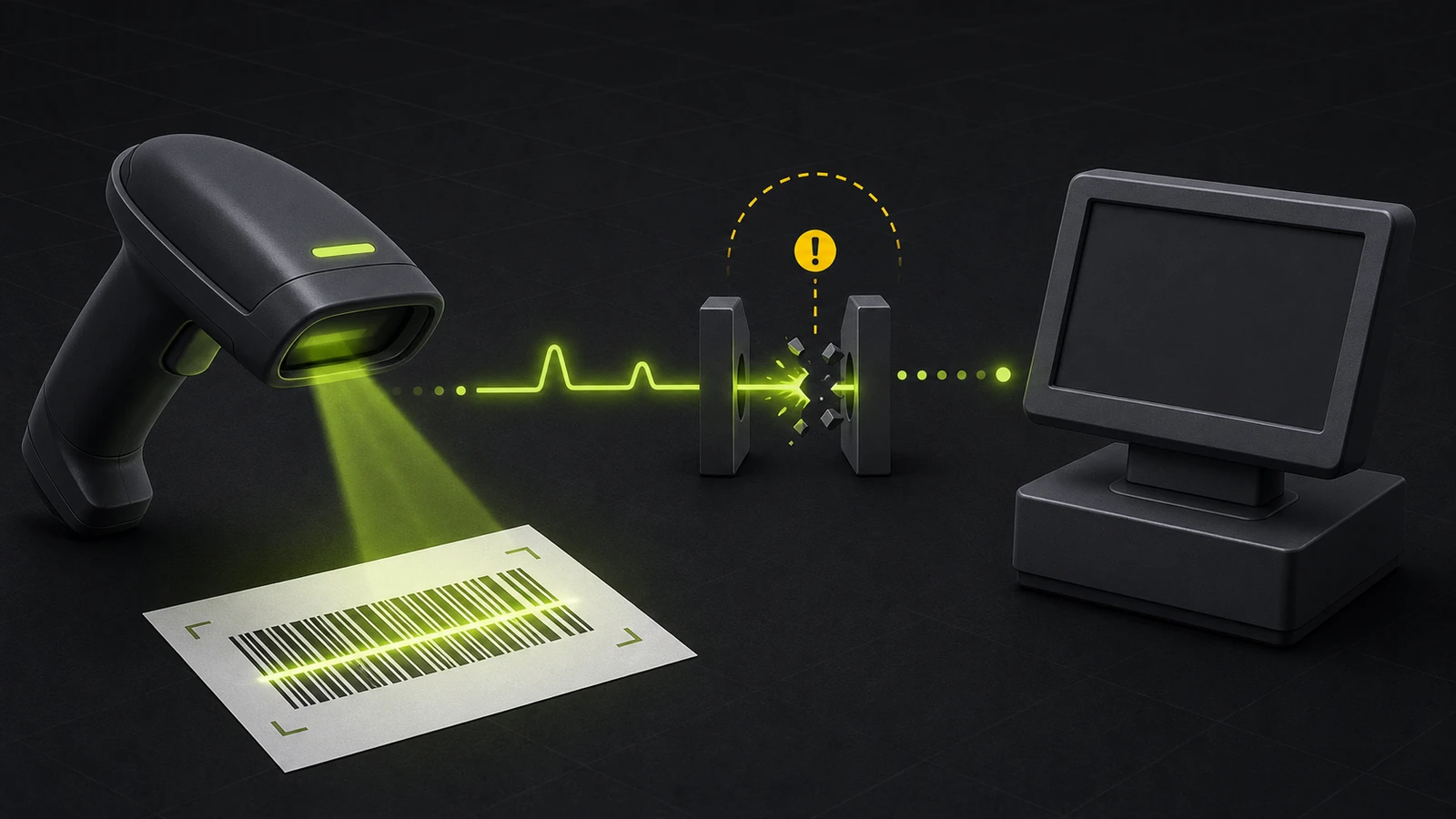
If a barcode scanner beeps but sends no data to the computer or POS, the scan engine may be working. The failure is usually farther downstream: the connection, host interface, active application field, or software path that receives the decoded value.
Do not factory-reset the scanner first. A reset can erase a working host mode, keyboard layout, suffix, pairing record, or application-specific format. Instead, identify the exact beep pattern and use one controlled scan to locate the first boundary that fails.
What the beep does and does not prove
A normal good-read beep generally means the scanner decoded the symbol. It does not prove that the data reached the host or that the POS accepted it.
The sound pattern matters. Zebra's scanner beeper documentation distinguishes a normal decode tone from transmission and programming errors. Other brands and models use different patterns, so compare the sound and status light with the exact scanner manual before changing a setting.
This distinction saves time:
- No good-read signal points back toward the barcode, scan engine, enabled symbology, lens, or aiming distance.
- A normal decode signal with no output points toward the host connection, interface mode, wireless link, or receiving application.
- An error sequence after the decode can identify a transmission, pairing, conversion, or formatting problem.
If the scanner cannot decode a known-good paper code, this guide starts too far downstream. Restore a reliable paper scan before troubleshooting data delivery.
Use one control scan to find the fault boundary
Choose a known-good, non-sensitive barcode. Open the input method the workstation is expected to use, place the cursor where data should appear, and scan once.
| Control result | Likely boundary | Next move | | --- | --- | --- | | No normal decode signal | Barcode, optics, disabled symbology, or scanner hardware | Test a clean code supported by the exact scanner | | Decode signal, but no text in a plain-text field | Cable, pairing, host mode, driver, or serial/application-managed path | Confirm how the scanner is supposed to communicate | | Correct text appears outside the POS | POS focus, scanner profile, catalog, or parsing | Inspect the application without resetting the scanner | | Text appears, but characters are wrong | Keyboard country, formatting, prefix, suffix, or catalog data | Follow the wrong-character diagnostic guide | | Wireless scanner gives a second error sequence | Lost link, failed reconnect, rejected pairing, or unacknowledged transmission | Verify the model's wireless indication and current host |
A plain-text test is useful only when the scanner is meant to act like a keyboard. Microsoft explains that keyboard-wedge mode inserts decoded data at the active cursor. A scanner intentionally configured for a virtual COM port, OPOS/JPOS, a vendor API, or another application-managed interface may produce nothing in a text editor even when it is operating correctly.
Fix a barcode scanner that beeps but sends no data
Work from the least disruptive check to the most disruptive. Retest the same control barcode after each change.
1. Record the working context
Before unplugging or reprogramming anything, record:
- The scanner, cradle or receiver, host device, and operating system.
- The wired or wireless connection and receiving application.
- The exact beep and light sequence.
- Whether every barcode fails and what changed recently.
Save the current scanner configuration when the manufacturer's utility supports an export.
2. Check the physical or wireless link
For a wired scanner, reseat both cable ends while the workstation is in a safe state. Inspect the latch, strain relief, connector, and any hub. Use only an approved cable; identical-looking scanner cables can be wired for different host interfaces.
For a cordless scanner, confirm that it is connected to the intended cradle, receiver, tablet, or workstation rather than merely powered on. A remembered pairing is not the same as a live data link. Zebra's wireless beeper definitions show that a scanner can decode a barcode, then signal a disconnect or transmission error because the remote device did not receive or acknowledge the data.
Do not repeatedly rescan a real inventory, ticket, or payment code during reconnect attempts. Some cordless scanners can buffer data and send it after the link returns. Use the safe control code instead.
3. Confirm the expected host interface
The scanner and receiving software must agree on the communication method.
- USB keyboard or keyboard wedge: sends keystrokes to the active cursor.
- HID POS scanner: uses a point-of-sale HID device rather than ordinary keyboard input.
- Virtual COM or USB serial: requires the application to open the correct port and parameters.
- Bluetooth keyboard: sends keystrokes through the connected Bluetooth input device.
- Bluetooth serial or vendor protocol: requires both pairing and a listening application or service.
- OPOS, JPOS, or vendor API: may require a service object, driver, profile, or enabled POS device.
Do not scan a generic “USB HID” or factory-default programming code found online. Use the current programming guide for the exact scanner and verify the interface the POS requires. Elo's model-specific support example illustrates why: its scanner ships in virtual COM mode, so changing to keyboard emulation is appropriate only when output into ordinary fields is actually required.
Zebra's general troubleshooting table likewise identifies the wrong host type, a loose interface cable, mismatched communication parameters, and invalid formatting rules as distinct reasons a decoded barcode may not reach the host.
4. Separate host output from POS handling
If the expected keyboard-mode output appears in a text editor, stop changing scanner hardware. The remaining fault is in the application path.
Return to the POS and verify:
- The correct sale, item-search, receiving, or count screen is open.
- The cursor is in a field that accepts scanner input.
- No dialog, browser address bar, remote-support window, or hidden overlay has focus.
- The correct scanner profile or device is enabled.
- The decoded value exists in the catalog and uses the expected field.
- The application expects any required Enter, Tab, prefix, suffix, or code identifier.
Missing Enter or Tab is not the same as missing data. If the characters appear but the POS waits for manual confirmation, verify the application requirement before adding a suffix. A suffix that helps one screen can trigger the wrong action elsewhere.
For platform-specific checks, use the dedicated Square barcode scanner troubleshooting sequence or Shopify POS scanner troubleshooting sequence. Those guides cover supported hardware, connection paths, and catalog boundaries that a generic scanner procedure cannot verify.
5. Treat serial and managed scanners as application systems
When the scanner uses a COM port, OPOS/JPOS, managed scanning service, browser integration, or vendor SDK, test that service rather than expecting keyboard output. Confirm the operating system sees the scanner and the application selects the correct device or port. Match documented serial parameters, and make sure a managed profile targets the active application.
6. Reset only after reversible checks
Use a reset only when the exact manufacturer procedure applies and the business can restore the host interface, pairing, keyboard country, symbologies, formatting rules, and application-specific settings.
After a reset, configure the host mode first and retest the control barcode before restoring optional rules. If a known-good supported host still receives nothing, stop cycling settings and contact support.
When repair or replacement is appropriate
Replacement is reasonable when a known-good compatible cable, port, host, and documented interface still produce repeatable transmission errors, or when the scanner has physical damage, unstable power, a failing radio, or a damaged connector.
Do not replace the scanner simply because text does not appear in Notepad. A serial, OPOS/JPOS, or application-managed scanner may be designed not to type into ordinary fields. Conversely, a scanner that works in a text editor but fails only in the POS usually needs application or catalog correction, not new hardware.
For a replacement, verify the connection, operating system, POS support, cradle or cable, symbologies, configuration utility, and return policy. Include reprogramming, mounting, spare cables, training, and deployment time in the decision.
Prevent repeat no-data failures
Keep a recovery record for each model: approved cable, host mode, pairing method, configuration export, control barcode, expected output, and support link. After POS or workstation changes, scan into the intended application and confirm the resulting item or workflow action.
What this guide cannot verify
This is a researched diagnostic sequence. No scanner, cable, cradle, radio link, host, driver, service object, POS application, serial configuration, or barcode payload was tested for this article. Beep meanings, reset procedures, host modes, cables, and application requirements vary by exact model. Confirm every programming change in current manufacturer and POS documentation.
Frequently asked questions
Why does my barcode scanner beep but nothing appears?
The scanner may have decoded the barcode but failed at the connection, host-interface, focus, or application boundary. Identify the beep pattern, confirm the expected communication mode, and run one safe control scan.
Should a barcode scanner type into Notepad?
Only when it is configured to act like a keyboard. Serial, HID POS, OPOS/JPOS, vendor-API, and other application-managed modes may not type into ordinary text fields.
Can a missing Enter suffix make it look like the scanner failed?
Yes. The data may already be in the field while the POS waits for Enter, Tab, or another terminator. Confirm the application requirement before changing the suffix.
Should I factory-reset a scanner that still beeps?
Not first. Record the existing interface, pairing, keyboard, symbology, and formatting settings, then complete reversible connection and application checks. Use only the reset procedure for the exact model.
Compatibility notes
Systems, accessories, and constraints
The correct data path depends on the exact scanner, cable or radio, host device, operating system, keyboard or serial interface, driver or service object, POS application, and required formatting rules.
Testing methodology
How this article was evaluated
Compared current query results and recent operator phrasing with Microsoft scanner-interface documentation, Zebra troubleshooting and wireless-beeper documentation, and Elo model-specific support; organized the evidence into a decode-to-application fault-boundary sequence.
Known limitations
What this guide could not verify
Research-only. No scanner, cable, cradle, radio link, host, driver, service object, POS application, serial configuration, or barcode payload was tested. Beep meanings, reset procedures, host modes, cables, and application requirements vary by exact model.
Sources
Documentation and references
- Configure a barcode scanner - Supports distinctions among keyboard-wedge, USB HID POS Scanner, and Bluetooth serial paths in Windows.
- Zebra Scanner Troubleshooting - Supports wrong host type, loose cable, mismatched communication parameters, and formatting rules as separate decoded-but-not-transmitted causes.
- Zebra Beeper Indications - Supports the distinction between a decode beep and transmission or programming error sequences for the documented scanner family.
- Zebra Wireless Beeper Definitions - Supports disconnect, pairing, reconnect, transmission-error, and host-acknowledgment distinctions for the documented wireless scanner family.
- Elo 2D Barcode Scanner Not Scanning Into Notepad - Provides a model-specific example where virtual COM is the factory mode and keyboard emulation is required for ordinary text-field output.
Devicefield checklist
Make the next hardware decision with fewer surprises.
Get practical buying notes, compatibility checks, and new troubleshooting guides.
Frequently asked questions
Why does my barcode scanner beep but nothing appears?
The scanner may have decoded the barcode but failed at the connection, host-interface, focus, or application boundary. Identify the beep pattern, confirm the expected communication mode, and run one safe control scan.
Should a barcode scanner type into Notepad?
Only when it is configured to act like a keyboard. Serial, HID POS, OPOS/JPOS, vendor-API, and other application-managed modes may not type into ordinary text fields.
Can a missing Enter suffix make it look like the scanner failed?
Yes. The data may already be in the field while the POS waits for Enter, Tab, or another terminator. Confirm the application requirement before changing the suffix.
Should I factory-reset a scanner that still beeps?
Not first. Record the existing interface, pairing, keyboard, symbology, and formatting settings, then complete reversible connection and application checks. Use only the reset procedure for the exact model.


