
Square Reader Not Connecting: Fix Pairing Safely
Use a safe diagnostic order to reconnect a Square Reader without erasing pending offline payments or resetting working hardware.
- Written by
- Clayton Wingfield
- Reviewed by
- Clayton Wingfield
- Originally published
- Jul 23, 2026
- Last reviewed
- Jul 23, 2026
Quick verdict
Protect pending offline payments first, then isolate internet, power, Bluetooth permission, reader identity, and pairing state before using a factory reset.
- Best for
- Square sellers troubleshooting first- or second-generation contactless and chip readers paired to a compatible phone or tablet.
- Avoid if
- The failure is on Square Register, Terminal, Stand, or another reader type with a different connection and reset process.
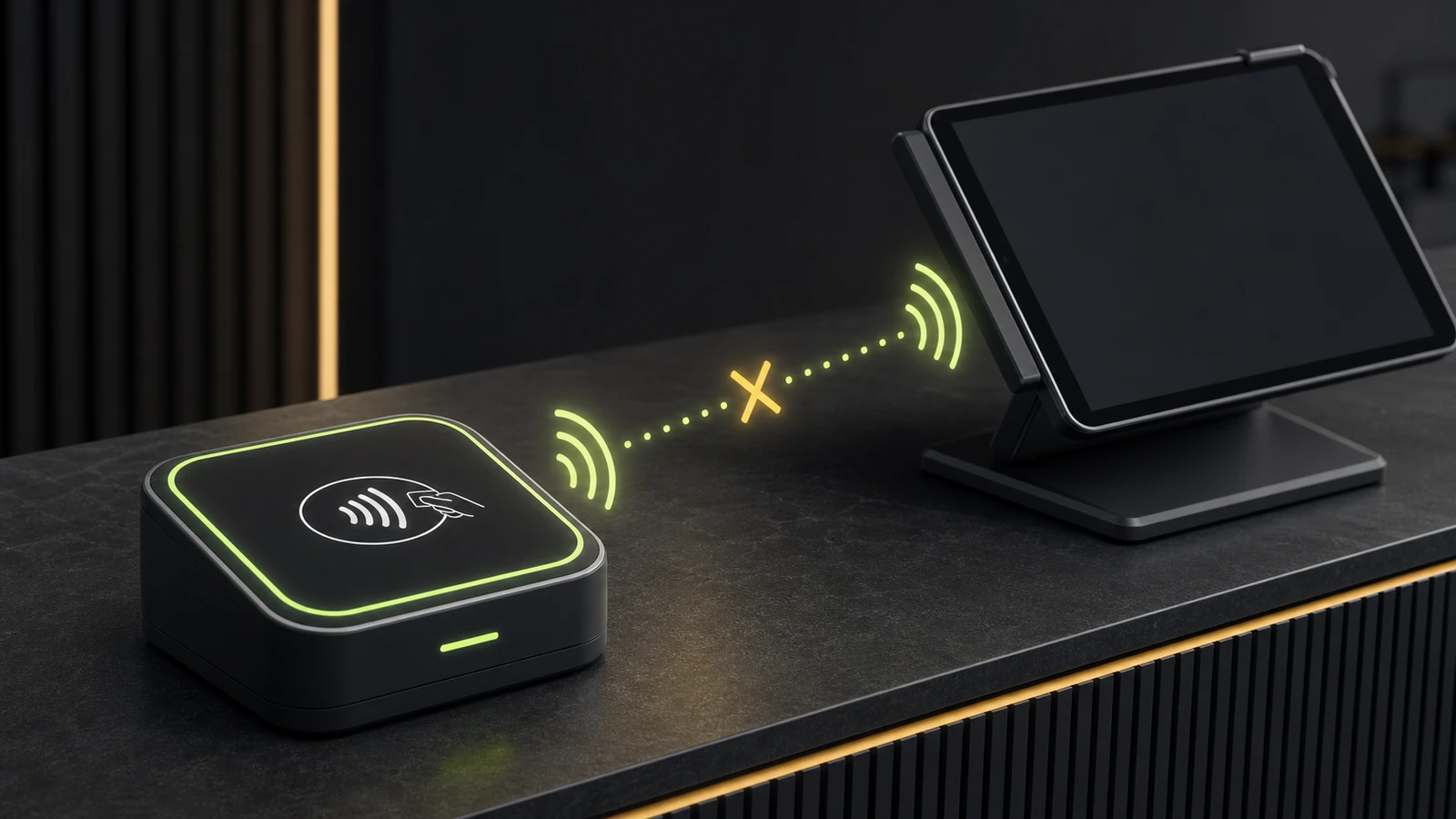
If a Square Reader won’t connect, first determine whether the failure is power, internet authentication, Bluetooth permission, the wrong paired reader, or a damaged pairing record. Don’t jump straight to a factory reset.
The safest order is to protect any pending offline payments, confirm the reader and mobile device meet Square’s current requirements, then move from simple connection checks to re-pairing and reset steps. That order reduces checkout disruption and avoids erasing payments that have not uploaded.
Before you reset anything, protect pending offline payments
Open the Square POS app and check Transactions for pending offline payments. Square warns that signing out, deleting the POS app, switching modes or locations, or factory-resetting Square hardware can permanently remove pending offline payments before they are captured. Reconnect the POS device to the internet and let those payments upload before doing any destructive troubleshooting.
If the outage itself is the problem, use the continuity steps in Devicefield’s Square offline mode guide. Square’s current offline-payment documentation explains how pending, completed, and declined transactions appear.
This check matters even when the reader seems like the obvious fault. A Bluetooth repair that is harmless on an idle register can be expensive on a device holding unsettled transactions.
Identify where the connection fails
Use the symptom to choose the next check instead of repeating the entire setup process.
The reader shows no lights
Charge it for at least 20 minutes with a known-good power source. A reader that still shows no battery indication after charging has a power, cable, battery, or hardware problem rather than a Bluetooth problem.
The mobile device sees the reader, but Square does not
This usually points to app permission, an outdated POS app, a stale pairing record, or pairing through the operating system instead of completing the connection inside Square POS. Confirm that Square POS has Bluetooth permission and that both the app and mobile operating system are current.
Square says “Connecting” but never reaches “Ready”
Check internet access before changing Bluetooth settings. Square requires a secure internet connection during setup so the app can authenticate the reader and check for updates. A strong Wi-Fi icon does not prove that the device can reach the internet.
The reader reaches “Ready” and then disconnects
Look for distance, metal barriers, another mobile device trying to claim the reader, or a mismatched reader in a multi-register store. Square recommends keeping the reader within 10 feet of the POS device and checking the serial-number suffix shown in Settings > Hardware > Square Readers.
Fix a Square Reader that won’t connect
Work through these steps in order. Stop when the reader appears as Ready and completes a controlled test payment.
- Check Square’s service status and the device’s internet connection. Open Square’s status page from the same mobile device. If payment acceptance is disrupted, local resets are unlikely to help.
- Confirm compatibility and reader generation. Square currently lists mobile-device requirements on its compatibility page. The first-generation reader uses Micro-USB and the second generation uses USB-C; supported wired and offline behaviors differ by version.
- Charge the reader and reduce interference. Keep the reader close to the tablet or phone, remove it from behind metal counter panels, and temporarily separate other Bluetooth payment readers.
- Verify the intended reader. In Square POS, open More > Settings > Hardware > Square Readers. If a reader is listed, compare the last four serial-number digits with the label on the device.
- Check Bluetooth permission and updates. Confirm Bluetooth is enabled, Square POS is allowed to use it, and the POS app and device operating system are current. Then fully close and reopen Square POS.
- Rebuild the pairing only after pending payments are safe. Forget the reader inside Square POS and remove its stale entry from the mobile device’s Bluetooth settings. Start a new connection from Square POS > Settings > Hardware > Square Readers > Connect a Reader, then accept the operating-system pairing prompt.
- Restart the reader if re-pairing fails. Follow Square’s current Bluetooth pairing procedure, including its LED timing. The light sequence matters, so use the vendor instructions rather than guessing how long to hold the button.
- Clear Android Bluetooth state when appropriate. Square documents additional cache or data-clearing steps for supported Samsung and Google Pixel devices. This can remove other saved Bluetooth connections, so record what must be reconnected first.
- Use a factory reset only as the last local step. Square limits factory reset support to specific reader versions and requires a precise restart sequence. Confirm there are no pending offline payments, then follow the current official procedure exactly.
After any successful repair, run a small controlled transaction and confirm that the reader remains Ready after the app is backgrounded and reopened. A pairing screen alone does not prove the checkout path is stable.
Separate reader faults from other POS failures
A connected reader does not explain every failed checkout. If the reader is Ready but payments decline, check Square’s service status, internet access, the payment method, and the transaction in Square history. Don’t keep resetting Bluetooth for a processing or account problem.
The same boundary-first approach applies to peripherals. Devicefield’s Square barcode scanner troubleshooting guide separates connection, decoding, and item-match faults. If several devices drop at once, inspect power and network continuity instead; the UPS sizing guide for POS systems explains which parts of the checkout path need backup power.
When to contact Square or replace the reader
Contact Square Support when the reader never powers on after verified charging, repeatedly fails the official pairing sequence on more than one compatible mobile device, reports a hardware or security error, or disconnects immediately after a successful update and clean pairing.
Have the reader generation, serial number, mobile-device model, operating-system version, Square POS version, exact error, and failure time ready. Those details let support distinguish a reader fault from a service, account, or device-compatibility issue.
If the hardware is eligible, Square provides a warranty claim process. Don’t assume an older first-generation reader must be replaced solely because it is no longer sold; Square’s setup documentation says it continues to receive updates and troubleshooting support. Replace it when compatibility, battery condition, physical damage, or repeated verified failures justify the change.
Reduce repeat disconnects
- Assign each reader to a specific register and label the pairing.
- Keep the reader charged and within the documented range.
- Avoid mounting it behind metal counter structures.
- Update Square POS and the mobile operating system during a planned maintenance window.
- Test the reader before opening and after major app, OS, or network changes.
- Record the reader generation, serial suffix, charger, and assigned POS device.
- Train staff to check pending offline payments before signing out, deleting the app, or resetting hardware.
This is a researched troubleshooting guide based on current Square documentation and public support records. Devicefield did not reproduce the failure on every reader generation, phone, tablet, operating-system version, or Square POS mode. Menu names and reset eligibility can change, so use Square’s linked instructions for the final model-specific sequence.
Compatibility notes
Systems, accessories, and constraints
Covers Square Reader for contactless and chip paired to compatible iOS or Android devices. Reader generation, mobile-device support, wired options, and offline-payment support differ; verify the current Square compatibility page.
Testing methodology
How this article was evaluated
Reviewed current Square setup, compatibility, Bluetooth troubleshooting, offline-payment, service-status, and warranty documentation; compared current result formats and recent public support discussions.
Known limitations
What this guide could not verify
Research-only. Devicefield did not reproduce the issue across every reader version, mobile device, operating system, POS mode, firmware state, or pending-payment condition.
Sources
Documentation and references
- Troubleshoot Bluetooth pairing on Square Reader for contactless and chip - Supports reader identification, internet, charging, distance, serial verification, permissions, re-pairing, Android Bluetooth state, and reset order.
- Set up Square Reader for contactless and chip - Supports generation differences, setup requirements, wired constraints, and continued support for first-generation readers.
- Square device compatibility - Supports current mobile operating-system and Square hardware compatibility checks.
- View offline payments - Supports pending-payment status and actions that can permanently remove pending offline payments.
- Process offline payments - Supports offline-payment device constraints, upload requirements, and current operational cautions.
- Warranty or return your Square hardware - Supports the official hardware warranty claim and replacement process.
Devicefield checklist
Make the next hardware decision with fewer surprises.
Get practical buying notes, compatibility checks, and new troubleshooting guides.
Frequently asked questions
Why is my Square Reader stuck on Connecting?
The reader may be discovered over Bluetooth but unable to complete Square authentication, an update, or a clean app-level pairing. Check internet access, app permissions, reader identity, and pending offline payments before rebuilding the pairing.
Should I pair Square Reader in my phone Bluetooth settings?
Start the connection from Square POS under Settings, Hardware, Square Readers, and Connect a Reader. Use the operating-system prompt when Square requests it; a stale Bluetooth entry may need to be forgotten first.
Can I factory-reset a Square Reader with pending offline payments?
No. Square warns that factory-resetting hardware before pending offline payments upload can permanently remove those payments. Reconnect and confirm they have uploaded before any factory reset.
When should a Square Reader be replaced?
Consider support or replacement when it will not power on after verified charging, fails the official pairing sequence on more than one compatible device, reports a hardware or security error, or repeatedly disconnects after a clean update and pairing.


