
Square POS Inventory Not Updating? Diagnose the Cause
Trace Square inventory mismatches through tracking, location, history, counts, devices, and connected apps before correcting stock.
- Written by
- Clayton Wingfield
- Reviewed by
- Clayton Wingfield
- Originally published
- Aug 1, 2026
- Last reviewed
- Aug 1, 2026
Quick verdict
Use one variation and location as a control, then trace the expected event in stock history before correcting Square inventory.
- Best for
- Square sellers diagnosing missing sale deductions, unsaved receipts, unfinished counts, wrong-location stock, stale devices, or repeated external writes.
- Avoid if
- A live full count, bulk import, migration, or integration recovery already has an assigned owner and documented rollback procedure.
When Square POS inventory is not updating, do not start by forcing the count to the number you expect. First identify whether Square recorded the inventory event, whether you are viewing the right variation and location, and whether only one POS device is stale.
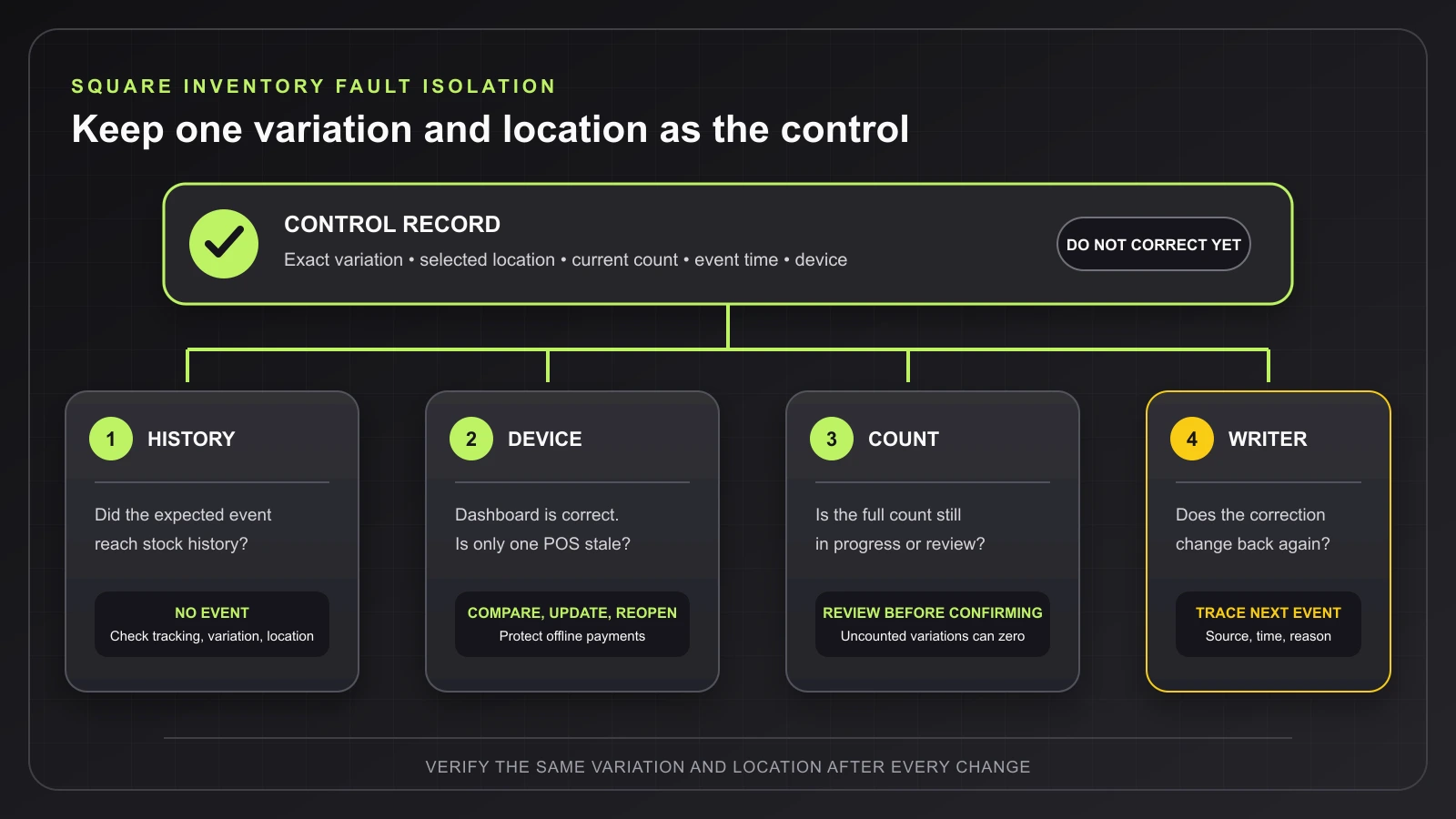
Use one affected item variation as a control. A clean record of that variation, location, timestamp, and recent activity makes the difference between correcting the cause and hiding it with another adjustment.
Quick checks before changing the count
Record these details while the mismatch is visible:
- Item and variation name
- SKU and GTIN or barcode, when used
- Location selected on the POS device
- Stock on hand in Square Dashboard and the POS app
- Time and device for the last sale, return, receipt, transfer, or count
- Whether one item or many items are affected
- Whether one POS device or every device shows the same number
- Whether a stock count is still in progress or review
Check Square Status before troubleshooting several devices. Then compare the same variation at the same location in Square Dashboard and on a second POS device, if one is available.
Protect pending offline payments before signing out, switching locations or modes, deleting the app, or resetting hardware. Square's POS app troubleshooting instructions warn that those actions can permanently lose pending offline payments. The Square offline-mode guide explains the recovery risk in more detail.
Match the symptom to the next check
| Symptom | Likely boundary | Best next check | | --- | --- | --- | | One POS is stale but Dashboard is correct | Local app state, software, or connectivity | Compare a second device, update the app, and force-quit only the affected app | | A sale completed but no inventory deduction appears | Tracking, item variation, sale location, or the recorded event | Open the exact variation's stock history for that location | | Received stock is missing | Unsaved receiving work, wrong variation, or wrong location | Check history for a received-stock addition and confirm the save step | | A full count has not changed stock | Count is still in progress or review | Open Stock counts and confirm its status before making another adjustment | | One store is wrong while another is correct | Location assignment or transfer path | Filter stock and history to the exact location | | A correction keeps changing back | Another order, app, import, or staff action is writing inventory | Trace the next adjustment's source, reason, time, and location |
Start with the stock adjustment history
Square's stock adjustment history is the most useful boundary check. In Square Dashboard, filter Inventory management > History to the affected item, date range, location, and adjustment type. You can also open an individual item's variation and choose View stock history.
Look for the event that should explain the number:
- A completed sale should appear as a sold deduction for an inventory-tracked variation.
- Received or restocked inventory should appear as an addition.
- A recount can add or deduct stock.
- Damage, loss, theft, internal use, waste, samples, and vendor returns are deductions.
- A transfer should identify the locations involved.
If the expected event exists and the Dashboard count is correct, the stored inventory is less likely to be the problem; investigate the display on the affected POS device. If the event is absent, stay with the item, variation, location, tracking, and transaction path. If an unexpected event exists, record who or what made it before reversing anything.
If sales do not reduce inventory
Square says tracked stock updates from sales in its POS app, Square Invoices, and shipped Square Online orders. Verify the exact item variation in Square's inventory-tracking settings:
- Confirm Track stock is enabled for the item.
- For items with variations, verify the variation sold has the expected stock tracking configuration.
- Confirm the sale and the inventory view use the same business location.
- Match the sold variation by name, SKU, and barcode rather than relying on the parent item name.
- Find the sale-time adjustment in stock history.
The distinction between item and variation matters. Square's Inventory API documentation describes counts as quantities for an item variation at a specific location and inventory state. A correct count on one size or color does not prove the sold variation is configured correctly.
If the cashier scanned an item but Square opened the wrong catalog entry, treat that as a lookup problem before changing inventory. The Square barcode-scanner troubleshooting guide separates scanner output from item matching.
If received stock or a manual adjustment is missing
Square's current receive and adjust inventory guide requires a save step and notes that leaving the receiving screen without saving does not preserve the scanned inventory. Check history before repeating the receipt.
For an item with variations, confirm you adjusted the intended variation and location. A second receipt entered against another variation can make the catalog total look plausible while leaving the sellable item wrong.
If no addition exists in history, repeat the supported receive or adjustment workflow once for the control variation and verify the saved event. If the event exists but the number still seems wrong, list every later deduction, recount, and transfer before adding more stock.
If a stock count has not updated inventory
A full inventory count is not complete when scanning ends. Square's inventory-count workflow includes review and confirmation. Check whether the count is In progress, In review, or Completed.
Do not create a second count just because the first has not changed the on-hand value. Resume or review the existing session. For a multi-device full count, every contributing device must use the same count and location.
Review full counts carefully: Square warns that uncounted variations are set to zero when a reviewed full count is approved. A cycle count is safer when you intend to verify only selected variations, because items outside that cycle count are unaffected.
If the wrong location has the stock
Square shows stock by location, and its stock overview can be filtered to one or several locations. Compare the location in four places:
- The POS device handling the sale
- The variation's stock overview
- The adjustment-history event
- The source and destination of any transfer
Do not reconcile a store-level mismatch against an all-location total. If stock physically moved between stores, use Square's stock transfer workflow so the history preserves both locations. Avoid offsetting manual adjustments at each store unless your documented process specifically requires them.
If only one Square POS device is stale
When Dashboard and another device agree, preserve the correct count and work on the affected app. Follow the least disruptive steps:
- Verify the affected device is signed into the expected Square account and location.
- Confirm its network connection and compare another part of the item library.
- Update the mobile operating system and Square POS app.
- Force-quit and reopen the app.
- Send a Support Ledger if the problem persists.
Do not sign out, switch locations, delete the app, or factory-reset hardware until pending offline payments are cleared. If several apps or terminals also lose live data, use the POS network diagnostic guide before treating every stale screen as an inventory fault.
If the count changes back after correction
A value that changes back is usually evidence of another inventory event, not proof that the correction failed to save. Return to history and capture the first event after your correction.
Square's inventory model recalculates a variation's quantity from adjustments after the last physical count. Its developer documentation also identifies a source application on inventory changes. That makes the next event's time, location, reason, and source more useful than repeated screenshots of the final number.
Pause only the affected integration when its documented procedure and your change authority allow it. Test one variation, watch for the next write, and retain a rollback plan. Do not disconnect a live catalog or bulk-import a replacement count during business hours merely to see whether the mismatch stops.
Fixes from least to most disruptive
- Preserve one variation, location, device, count, and timestamp as the control.
- Check Square Status and pending offline payments.
- Compare Dashboard with a second POS device.
- Filter stock history to the exact variation and location.
- Verify tracking, variation identity, and the sale or receiving event.
- Finish the existing count review instead of starting another count.
- Reconcile location assignments and transfers.
- Update and force-quit only the stale POS app.
- Trace the next external, order, import, or staff adjustment.
- Send a Support Ledger and contact Square Support with the evidence.
After every change, repeat the same control check. The test is not finished until the intended event appears in history and the same variation and location agree across Dashboard and POS.
Prevent recurring Square inventory mismatches
Assign clear inventory-adjustment permissions, require meaningful adjustment reasons, and review unexplained deductions or recounts. Use cycle counts for targeted checks and full counts only when the team can account for every variation at the location.
Name an owner for every connected inventory application and define which system is allowed to establish the physical count. Document location transfers instead of correcting both ends independently. During opening checks, confirm each POS device's account, location, software status, and pending-offline-payment state.
When to contact Square Support
Contact Square when the expected adjustment is absent despite verified tracking and location settings, multiple devices show unexplained stale data, the history source cannot be identified, or the POS app remains wrong after supported updates and a force-quit.
Provide the item and variation IDs, location, transaction or count ID, timestamps, app and operating-system versions, screenshots of Dashboard and POS, relevant history events, and the Support Ledger. Contact an integration vendor when its application is the identified source of the unwanted write.
What this guide cannot verify
This is a researched troubleshooting guide. No Square account, POS device, catalog, sale, stock count, transfer, integration, or Support workflow was tested. Menus, plan access, permissions, app behavior, and inventory features can vary by mode, device, region, and software version. Verify the exact account state before changing production inventory.
Frequently asked questions
Why is Square inventory not updating after a sale?
Check whether stock tracking is enabled for the exact variation, then filter stock history to the sale's location and time. If the sold deduction exists and Dashboard is correct, compare another POS device before changing the count.
Why did my Square inventory count not change stock?
Open Stock counts and check its status. A full count must move through review and confirmation. Do not start a duplicate count; resume the existing session and remember that uncounted variations can be set to zero when a full count is approved.
Why is Square stock correct at one location but wrong at another?
Counts and adjustments belong to a specific variation and location. Compare the POS location, stock overview filter, history event, and any transfer. An all-location total can hide inventory assigned to the wrong store.
Should I reinstall Square POS to fix stale inventory?
Not as an early step. Update and force-quit the affected app first, compare a second device, and send a Support Ledger. Clear pending offline payments before signing out, switching location or mode, deleting the app, or resetting hardware.
Compatibility notes
Systems, accessories, and constraints
The diagnosis depends on the Square account and country, POS mode and app version, device operating system, selected business location, exact catalog item variation, stock-tracking configuration, staff permissions, pending offline payments, count status, transfers, and connected inventory applications.
Testing methodology
How this article was evaluated
Reviewed the complete Devicefield local and approved database inventory; searched five materially different current topic queries plus the selected primary phrase and three close variants; reviewed current Square Support, Square Developer, status, and community demand evidence; organized the answer around one controlled variation and its adjustment trail.
Known limitations
What this guide could not verify
Research-only. No Square account, POS device, catalog, sale, stock count, transfer, integration, or Support workflow was tested. Menus, plan access, permissions, app behavior, and inventory features can vary by mode, device, region, and software version.
Sources
Documentation and references
- View stock adjustment history - Supports the adjustment categories, location and item filters, event details, and variation-level stock-history workflow.
- Adjust inventory levels - Supports track-stock setup, variation-level advanced tracking, location-specific management, and stock updates from Square sales channels.
- View, receive, and adjust inventory - Supports location-filtered stock views, receiving and adjustment steps, variation handling, and the need to save receiving work.
- Conduct, review, and approve inventory counts - Supports full- and cycle-count workflows, review and confirmation, multi-device location rules, and the effect of uncounted variations.
- Transfer stock between locations - Supports location availability, source and destination transfers, and transfer history.
- Square Inventory API - Supports Square's variation-and-location inventory model, physical versus calculated counts, adjustments, and source applications.
- Troubleshoot the Square POS apps - Supports software updates, force-quitting, Support Ledger submission, and warnings about pending offline payments before destructive app actions.
- Square Status - Supports checking current Square service status before local troubleshooting.
Devicefield checklist
Make the next hardware decision with fewer surprises.
Get practical buying notes, compatibility checks, and new troubleshooting guides.
Frequently asked questions
Why is Square inventory not updating after a sale?
Check whether stock tracking is enabled for the exact variation, then filter stock history to the sale location and time. If the sold deduction exists and Dashboard is correct, compare another POS device before changing the count.
Why did my Square inventory count not change stock?
Open Stock counts and check its status. A full count must move through review and confirmation. Resume the existing session instead of starting a duplicate count, and review uncounted variations before approval.
Why is Square stock correct at one location but wrong at another?
Square counts and adjustments belong to a specific variation and location. Compare the POS location, stock overview filter, history event, and any transfer; an all-location total can hide stock assigned to the wrong store.
Should I reinstall Square POS to fix stale inventory?
Not as an early step. Update and force-quit the affected app first, compare a second device, and send a Support Ledger. Clear pending offline payments before signing out, switching location or mode, deleting the app, or resetting hardware.


