
Square Cash Drawer Not Opening: Diagnose the Fault
Separate mechanical, USB, printer-driven, and profile failures before resetting Square hardware or replacing a working cash drawer.
- Written by
- Clayton Wingfield
- Reviewed by
- Clayton Wingfield
- Originally published
- Jul 27, 2026
- Last reviewed
- Jul 27, 2026
Quick verdict
Protect pending offline payments, identify USB versus printer-driven hardware, then compare the key test, Square drawer test, and printer test before changing settings.
- Best for
- Square operators diagnosing USB, printer-driven, or mPOP cash drawers at a live retail or service counter.
- Avoid if
- The drawer is physically damaged, unusually hot, jammed with secured cash, or requires a model-specific repair procedure.
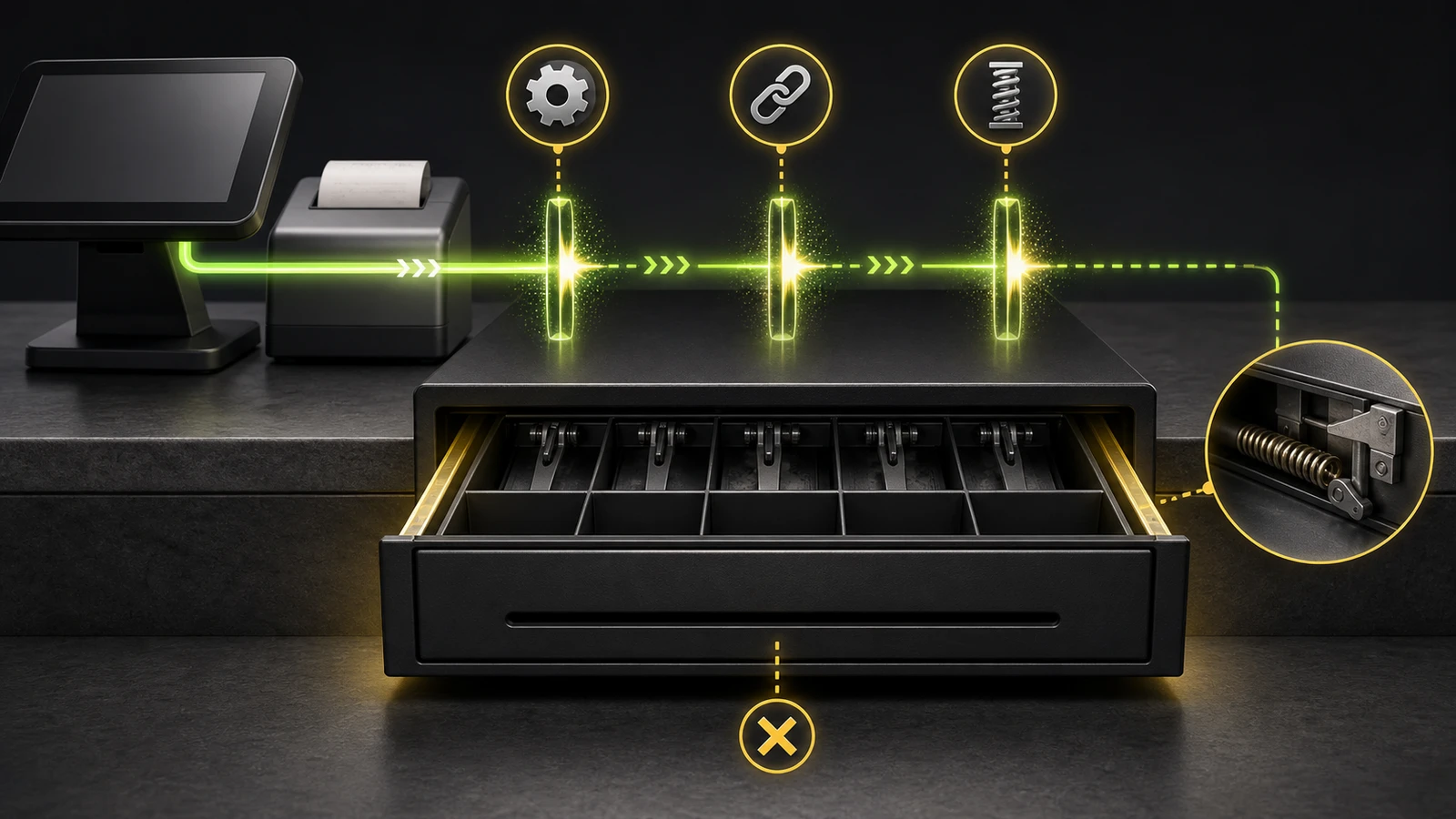
A Square cash drawer that will not open usually fails at one of three boundaries: the drawer is mechanically locked or blocked, Square cannot reach the USB drawer, or a printer-driven drawer is not receiving its open signal through the receipt printer.
Do not reset the POS first. Protect any pending offline payments, identify the connection path, and run Square's built-in cash-drawer test. Those checks narrow the fault without erasing working settings.
Protect pending payments before troubleshooting
If the device has pending offline card payments, pause before signing out, deleting the app, switching modes or locations, or factory-resetting Square hardware. Square says those actions can permanently lose pending offline payments.
Restarting or powering off is allowed by Square, but the same device must come back online in time to upload its pending payments. Review the pending transaction list first and assign one person to confirm the upload after recovery. Devicefield's Square offline mode guide explains that separate payment-risk boundary.
For the drawer itself, record:
- Square device and app mode
- Drawer make and model
- USB, printer-driven, or mPOP connection
- Receipt-printer make, model, and connection
- Whether the drawer opens with its key
- Whether receipts still print
- Whether Square's Test Cash Drawer command works
Identify the cash-drawer connection path
Square documents three connection types: USB drawers, printer-driven drawers, and the Star Micronics mPOP printer-and-drawer unit.
| Connection | What Square should show | Required path | First useful test | | --- | --- | --- | --- | | USB drawer | The drawer appears under Available Cash Drawers | Drawer to supported Square hardware or hub | Test Cash Drawer | | Printer-driven drawer | It may not appear as an available USB drawer | Square to receipt printer to drawer cable | Print a test receipt, then Test Cash Drawer | | mPOP | It is configured through the printer profile | Powered mPOP to the supported hub or device | Test Printer, then drawer test |
Do not assume a phone-style connector means the drawer can plug directly into Square hardware. A printer-driven drawer requires a compatible receipt printer in the command path.
Run the key test and the Square test
First, use the supplied key in the documented manual-open position. Do not force the key or pry the drawer.
- The key does not open it: The fault is mechanical: wrong key position, an obstruction, a damaged latch, or a model-specific mechanism. Secure the cash and follow the drawer manufacturer's service guidance.
- The key opens it: The basic mechanism can release. Continue with the electrical and software path.
- The drawer opens only partway: Remove cash and loose objects only when the drawer is safely open. A partially opening drawer needs model-specific inspection rather than repeated electronic triggering.
Next, in Square POS go to More > Settings > Hardware > Cash Drawers, select Test Cash Drawer, and note the result. Square's current setup guide uses this test even though a printer-driven drawer may not appear in the available-drawer list.
The combination of results is more useful than either test alone:
| Key test | Square test | Likely boundary | | --- | --- | --- | | Fails | Fails | Mechanical lock, obstruction, or drawer hardware | | Passes | Fails | Cable, printer profile, USB hub, compatibility, or drawer electronics | | Passes | Passes, but cash sales do not open it | Receipt routing, printer profile, or checkout behavior | | Opens intermittently | Intermittent | Loose cable, hub power, printer connection, or failing mechanism |
Fix a USB cash drawer
For a USB drawer, confirm that it appears under Available Cash Drawers. If it does not, inspect the whole powered path before changing software:
- Reseat the USB cable at the drawer and supported hub or Square device.
- Confirm the hub has its original power connection and the power indicator is normal.
- Remove obvious cable strain and inspect connectors for damage.
- Update the Square app through the normal supported process.
- Restart the POS device, reconnect it, and repeat Test Cash Drawer.
Square's cash-drawer troubleshooting page specifically calls for checking both ends of the USB connection and the Square Stand hub's power before restarting.
Do not substitute an ordinary telephone cable, passive adapter, or unverified USB converter. Confirm the exact drawer and connection in Square's current accessory compatibility tool.
If the USB drawer appears in Square but the test still fails, the useful next step is the drawer manufacturer's supported diagnostic or a known-good compatible cable—not a factory reset of the POS.
Fix a printer-driven cash drawer
A printer-driven drawer depends on the receipt printer. Prove that middle link first.
- Print the printer's model-supported self-test.
- Print a Square test receipt.
- Confirm the active Square printer profile has Receipts enabled.
- Reseat the drawer cable at both the printer's drawer-kick port and the drawer.
- If the supplied cable is directional, confirm its labeled ends.
- Repeat Test Cash Drawer.
If the printer cannot self-test, the problem is below Square. If it self-tests but Square cannot print, follow the Square receipt-printer troubleshooting sequence before blaming the drawer.
If receipts print and the drawer test fails, focus on the drawer cable, the correct printer port, compatibility, and drawer hardware. Star Micronics' current cash-drawer guide separates USB and printer-driven models, recommends inspecting and reseating the supplied cable, and uses a manufacturer drawer test to distinguish POS software from hardware.
Do not guess drawer-kick voltage, cable pinout, or repair procedures. Connectors that look alike can be wired differently. Use the exact printer and drawer documentation.
Check mPOP and receipt routing
Square treats the Star Micronics mPOP as a printer-and-drawer configuration. The current Square setup sequence requires power, the supported USB path, a printer profile, and a successful printer test. Square also notes that Receipts must be enabled in the printer profile for a USB-connected mPOP drawer to open.
If an mPOP prints but does not open:
- Confirm the correct mPOP printer profile is active on that POS.
- Verify Receipts is enabled for that profile.
- Run Square's printer test.
- Run the model-supported Star drawer test.
- Escalate to Star if the manufacturer's test fails.
This avoids deleting a working network or payment configuration to solve a local printer-profile problem.
Recover from least to most disruptive
Use this order:
- Protect pending offline payments.
- Identify USB, printer-driven, or mPOP.
- Test the key without forcing the mechanism.
- Run Test Cash Drawer.
- For printer-driven models, prove the printer self-test and Square test receipt.
- Reseat only the cables in the verified connection path.
- Confirm the Square printer profile and receipt routing.
- Restart the app or device using Square's supported procedure.
- Use the drawer or printer manufacturer's diagnostic.
- Contact support before factory reset, disassembly, or unverified cable substitution.
If connectivity failures affect more than the drawer, inspect the wider counter path. Devicefield's internet failover guide for POS systems explains how to separate local-device faults from upstream outages.
When repair or replacement is appropriate
Stop troubleshooting and contact the drawer or printer manufacturer when the key cannot release the drawer, the drawer opens only partially after visible obstructions are cleared, cables or ports show damage, there is unusual heat or odor, or the manufacturer's own drawer test fails.
Replacement may be reasonable when the mechanism binds repeatedly, the supported cable or interface is no longer available, or the drawer is not listed for the required Square hardware. Verify the exact Square device, drawer model, connection type, required printer or hub, and included cable before buying.
This article is documentation-based, not hands-on testing. It cannot verify the reader's drawer mechanism, cable pinout, printer port, Square mode, hub power, pending-payment state, or current hardware condition.
Prevent the drawer from failing during checkout
- Label directional drawer cables and their printer ends.
- Keep coins and notes below the tray's fill limit.
- Add the key test, Square test, and receipt test to opening procedures.
- Record the supported drawer, printer, cable, hub, and Square device as one configuration.
- Keep spare approved cables only when the manufacturer identifies the exact part.
- Test after app, operating-system, printer, or counter-cabling changes.
- Train staff to protect pending offline payments before destructive recovery.
FAQ
Why does my Square cash drawer print receipts but stay closed?
The printer path is partly working, but the drawer signal may still fail at the Square printer profile, receipt-routing setting, drawer cable, drawer-kick port, or drawer mechanism. Confirm Receipts is enabled, then run Square's drawer test and the manufacturer's drawer test.
Why does my printer-driven drawer not appear in Square?
Square says printer-driven drawers do not appear under Available Cash Drawers. They are controlled through the connected receipt-printer path and can still be checked with Test Cash Drawer.
Can I plug a printer-driven cash drawer directly into Square Register or Terminal?
Not unless Square lists that exact connection as supported. Square's setup documentation says a printer-driven drawer needs a compatible receipt printer; Square Terminal also requires an external printer for this connection type.
Should I factory-reset Square hardware when the drawer will not open?
No. First protect pending offline payments and test the key, drawer command, printer, cables, and profile. A reset is disruptive and cannot repair a jammed latch, damaged cable, or incompatible drawer.
Who should I contact if the Square test still fails?
Square's support page directs setup and missing-parts questions to the appropriate provider and drawer-function failures to the drawer manufacturer, such as APG or Star Micronics. Have the exact Square device, drawer, printer, cable, test results, and purchase details ready.
Compatibility notes
Systems, accessories, and constraints
Applies to Square-supported USB cash drawers, printer-driven drawers connected through a compatible receipt printer, and Star Micronics mPOP configurations. Exact compatibility depends on the Square device, drawer model, printer, hub, cable, app mode, and region.
Testing methodology
How this article was evaluated
Reviewed current Square setup, troubleshooting, compatibility, and offline-payment documentation; reviewed Star Micronics drawer diagnostics; searched the primary query and close variants; mapped outcomes across mechanical, USB, printer, and software boundaries.
Known limitations
What this guide could not verify
Researched from current Square and Star Micronics documentation without hands-on access. The article cannot verify the reader's drawer mechanism, cable pinout, printer port, Square mode, hub power, pending-payment state, or hardware condition.
Sources
Documentation and references
- Troubleshoot your cash drawer - Square's current USB and printer-driven troubleshooting, restart guidance, receipt-profile requirement, and support ownership.
- Connect a cash drawer to your point of sale - Square's USB, printer-driven, and mPOP connection paths and Test Cash Drawer procedure.
- View offline payments - Actions that can permanently lose pending offline payments and allowed restart behavior.
- Accessory Compatibility - Square's current device-specific accessory compatibility tool.
- How to Troubleshoot a Star Micronics Cash Drawer - Manufacturer diagnostic separation for USB and printer-driven drawers, supplied-cable checks, manual release, and manufacturer tests.
Devicefield checklist
Make the next hardware decision with fewer surprises.
Get practical buying notes, compatibility checks, and new troubleshooting guides.
Frequently asked questions
Why does my Square cash drawer print receipts but stay closed?
The printer path is partly working, but the drawer signal may still fail at the Square printer profile, receipt-routing setting, drawer cable, drawer-kick port, or drawer mechanism. Confirm Receipts is enabled, then run Square’s drawer test and the manufacturer’s drawer test.
Why does my printer-driven drawer not appear in Square?
Square says printer-driven drawers do not appear under Available Cash Drawers. They are controlled through the connected receipt-printer path and can still be checked with Test Cash Drawer.
Can I plug a printer-driven cash drawer directly into Square Register or Terminal?
Not unless Square lists that exact connection as supported. Square’s setup documentation says a printer-driven drawer needs a compatible receipt printer; Square Terminal also requires an external printer for this connection type.
Should I factory-reset Square hardware when the drawer will not open?
No. First protect pending offline payments and test the key, drawer command, printer, cables, and profile. A reset is disruptive and cannot repair a jammed latch, damaged cable, or incompatible drawer.
Who should I contact if the Square test still fails?
Square directs setup and missing-parts questions to the appropriate provider and drawer-function failures to the drawer manufacturer, such as APG or Star Micronics. Have the exact device, drawer, printer, cable, test results, and purchase details ready.


