
Shopify Tap & Chip Reader Not Connecting: Safe Fixes
Use a safe diagnostic order to reconnect a Shopify Tap & Chip reader without erasing support logs or resetting working hardware blindly.
- Written by
- Clayton Wingfield
- Reviewed by
- Clayton Wingfield
- Originally published
- Jul 24, 2026
- Last reviewed
- Jul 24, 2026
Quick verdict
Confirm eligibility, service status, charge, permissions, and prior-device pairing before clearing state or resetting the reader.
- Best for
- U.S. Shopify POS operators troubleshooting the S1801 Tap & Chip reader over Bluetooth, Android USB-C, or Shopify POS Hub.
- Avoid if
- The hardware is WisePad 3, Chipper 2X BT, POS Terminal, or another reader with model-specific requirements and recovery steps.
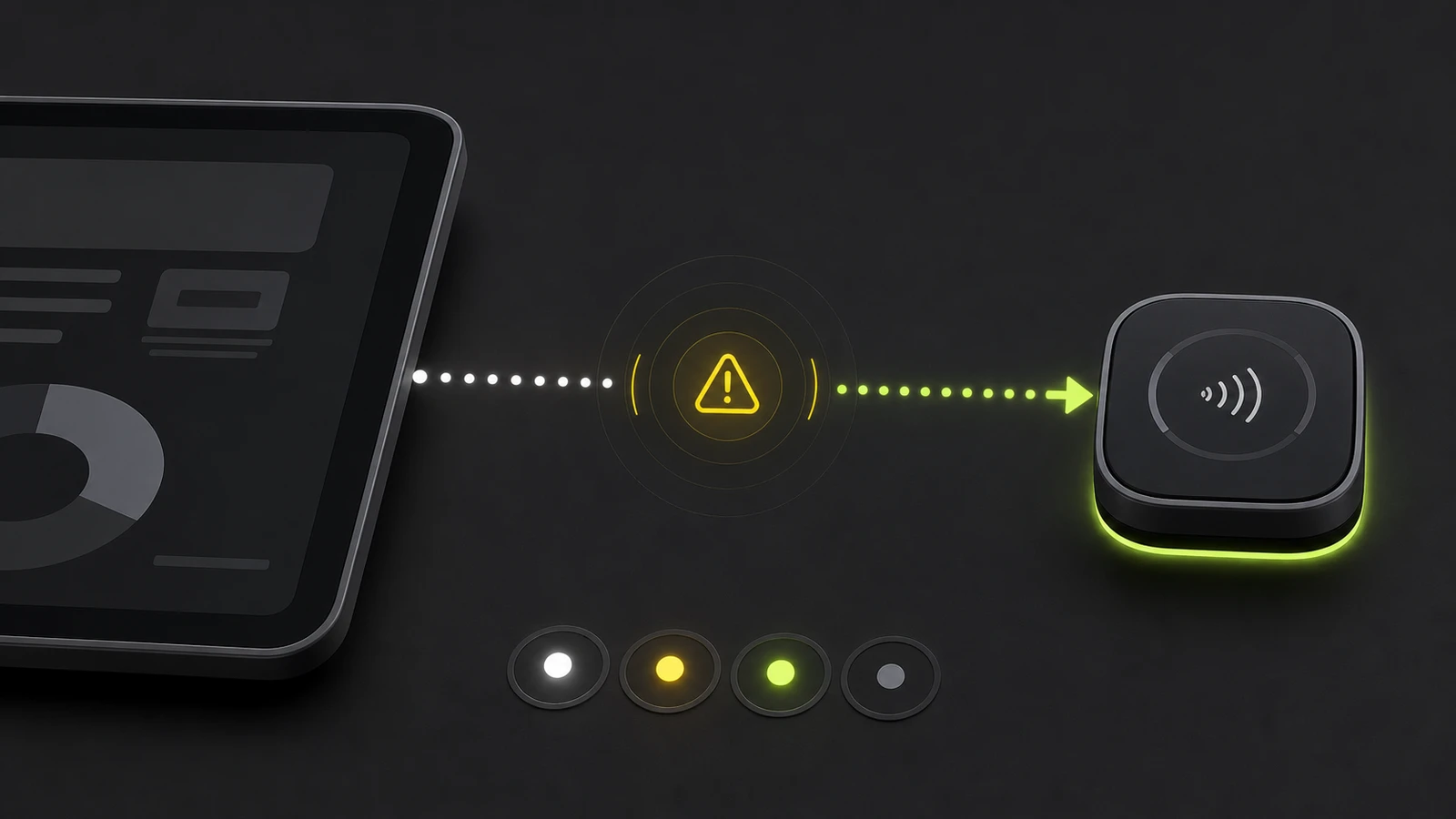
If your Shopify Tap & Chip reader is not connecting, first decide whether the failure is eligibility, reader power, the connection path, or payment acceptance. Do not jump straight to deleting Shopify POS or repeatedly resetting the reader. A short, ordered check preserves useful diagnostics and usually identifies the failed boundary.
This researched guide covers the U.S.-only Shopify Tap & Chip Card Reader, model S1801. Other Shopify readers, including WisePad 3, Chipper 2X BT, and POS Terminal, have different requirements and recovery steps.
Protect diagnostic state before you reset
Write down the exact message, the reader-light pattern, the POS device model, and whether the reader uses Bluetooth, direct USB-C, or Shopify POS Hub. Then open the Shopify POS Connectivity menu and note whether Internet, Shopify, and Hardware show ready.
Avoid deleting and reinstalling Shopify POS as an early fix. Shopify warns that reinstalling the POS app removes support logs and may remove saved data, including register shifts and saved carts. If the store uses offline checkout, confirm that all pending orders and payments have synchronized first; the related Shopify POS offline mode guide explains that recovery boundary.
Check Shopify's system status before changing local hardware. A service incident can look like a reader or network fault, especially when several registers fail at once.
Quick checks for a Shopify reader that will not connect
Use one observation to choose the next test:
| What you see | Likely boundary | Next check | | --- | --- | --- | | Reader never appears in Shopify POS | power, pairing mode, permissions, or another paired device | Charge above 50%, verify permissions, and check the previous POS device | | Reader appears but disconnects | stale pairing, Bluetooth state, or connection-path problem | Forget it in Shopify POS and device settings, then pair inside Shopify POS | | Reader connects but a payment fails | Shopify Payments, test mode, account status, network, or card acceptance | Check payment settings and run one controlled transaction | | Update freezes or fails | battery, internet, or restricted network | Keep the reader powered, verify charge, and retry on another approved network | | First and fourth lights flash | tamper state | Stop resetting and request replacement |
Compatibility and required setup
The Tap & Chip reader works only when the store and physical retail location are in the United States, the store sells in U.S. dollars, Shopify Payments is active, and test mode is off. Location services must be enabled. Shopify's current requirements list supported iPhones and iPads on iOS or iPadOS 15.1 or later, and official Android 10 or later with Google Play Services and Google Mobile Services.
The connection path also matters:
- Bluetooth: supported on compatible iPhone, iPad, and Android devices.
- Direct USB-C: supported on compatible Android devices.
- Shopify POS Hub: a wired option for compatible iPad and Android devices; Shopify recommends it for the most reliable fixed-counter setup.
Confirm the exact path in Shopify's connection guide. A cable that charges the reader does not prove that the current POS device supports that USB connection.
Diagnose the connection from least to most disruptive
1. Prove internet and Shopify readiness
Open Connectivity in Shopify POS. Confirm the POS device has a working internet connection and Shopify services are available. If the app loads but payments fail on a managed network, test briefly on an approved cellular hotspot or unrestricted network. A successful hotspot test points to a firewall or filtering problem, not a defective reader.
Give a successful hotspot result to the network administrator and use Shopify's current allow-list guidance.
2. Confirm reader power and update headroom
Charge the reader above 50% before pairing or firmware recovery. Shopify states that a required reader update will not connect when the battery is below that threshold, even if the reader is plugged in.
Keep the reader on power during an update. If the update stalls, update Shopify POS and the mobile operating system, force-close and reopen the app, then retry. Shopify's documented fallback is to pair the reader to another compatible device and attempt the update there.
3. Verify permissions
For iOS and Android, allow Shopify POS to use Location and Camera. For iOS, also check Local Network, Bluetooth, Background App Refresh, and Allow Cross-Website Tracking where Shopify requires them.
Permissions can change after an operating-system update or device-management policy change.
4. Check for a previous device
The Tap & Chip reader pairs with only one device at a time. If it was moved between counters, unpair it from the previous POS device before trying the new one.
Start pairing inside Shopify POS, not only in the phone or tablet's Bluetooth settings. In Shopify POS, open Connectivity, choose Add hardware, select Card reader, and select Tap & Chip. Hold the reader power button for four seconds and release it when all four LEDs move back and forth in blue. Continuing to hold the button turns the reader off.
5. Test the alternate supported path
On Android, switch between Bluetooth and direct USB-C when both are supported. At a fixed iPad or Android counter, test through a powered Shopify POS Hub if one is available. If one path works consistently and the other does not, inspect the failing path's cable, hub power, permissions, or Bluetooth environment before replacing the reader.
This is the same boundary-first principle used in the Shopify POS barcode scanner troubleshooting guide and the Shopify receipt printer guide: prove the device, connection, and app behavior separately.
6. Clear stale pairing only after the checks pass
For repeated disconnections, follow Shopify's full sequence:
- Forget the reader in the Shopify POS Connectivity menu.
- Forget it in the phone or tablet's Bluetooth settings.
- Turn Bluetooth off.
- Power the POS device off completely for at least three minutes.
- Use the reader's pinhole reset and wait for its status lights to blink four times.
- Restart the POS device and turn Bluetooth back on.
- Do not pair from the operating system's Bluetooth screen.
- Open Shopify POS and complete pairing there.
Changing the order can leave an old operating-system pairing record in place. Treat the pinhole reset as a recovery step, not the first response to every checkout delay.
If the reader connects but will not take payment
A connected reader is not proof that payment processing is ready. Confirm Shopify Payments is active, test mode is off, and the admin shows no notice that charges are deactivated. Verify location services and internet again, then try a different supported card and the correct tap or chip orientation.
If payments work on an approved hotspot but not the store network, inspect the firewall. If the reader connects on another compatible POS device but not the original one, focus on the original device's permissions, app version, operating system, and policy controls.
Do not label a bank decline or account restriction as a reader failure. Record the exact payment message and escalate it through the payment-support path.
When to stop resetting and contact Shopify
Contact Shopify Support when:
- the first and fourth reader lights flash, which Shopify identifies as a permanent tamper state;
- firmware update recovery fails on a second compatible device and known-good network;
- the reader repeatedly disconnects across multiple compatible devices and supported connection paths;
- Shopify Payments or charges show an account restriction;
- the reader is physically damaged, will not charge, or never enters pairing mode.
Send the report from Shopify POS and preserve the app logs. Include the reader model, light pattern, connection path, POS device and operating-system versions, app version, network test result, and every completed recovery step. That evidence gives support a much cleaner replacement or account-escalation decision.
Prevent the next connection failure
- Use a powered POS Hub for a fixed supported counter when wiring is practical.
- Assign each reader to one named POS device and location.
- Keep readers above 50% before planned app or firmware updates.
- Turn on approved operating-system and Shopify POS update routines.
- Document required mobile permissions in the store's device checklist.
- Keep an alternate tender and outage procedure available.
- Test one complete transaction after any reader, network, or device change.
Frequently asked questions
Why does my Shopify Tap & Chip reader appear in Bluetooth but not Shopify POS?
The reader may have been paired at the operating-system level or may still belong to another POS device. Forget it in both places, then start pairing from the Shopify POS Connectivity menu.
Does the Shopify Tap & Chip reader need more than 50% battery?
Shopify says to charge it above 50% before pairing recovery. A required firmware update will not connect below that threshold, even when the reader is plugged in.
Can I connect the Tap & Chip reader by cable?
Yes, through a compatible Shopify POS Hub on supported iPad or Android devices, or by direct USB-C on supported Android devices. Direct USB-C is not a documented iPhone or iPad path.
Should I reinstall Shopify POS to fix the reader?
Not as an early step. Reinstallation removes diagnostic logs and may remove saved app data. Preserve the error details and use the connection sequence before considering an app reinstall with Shopify Support.
When should the reader be replaced?
Replace or escalate it when Shopify identifies a tamper state, it is physically damaged, it cannot charge or enter pairing mode, or the same hardware failure follows it across compatible devices and supported connection paths.
Compatibility notes
Systems, accessories, and constraints
Covers the U.S.-only Shopify Tap & Chip Card Reader model S1801. Shopify Payments, matching U.S. store and location details, USD, location services, a supported iOS or Android POS device, and an approved Bluetooth or USB path are required.
Testing methodology
How this article was evaluated
Reviewed current Shopify reader troubleshooting, setup, eligibility, POS app, network, product, and support documentation; compared current results for pairing, disconnect, and payment-failure queries; mapped each symptom to the least disruptive diagnostic boundary.
Known limitations
What this guide could not verify
Research-only. Devicefield did not reproduce the fault across every phone, tablet, operating system, firmware version, network policy, account state, or reader unit. Shopify menu labels and support requirements can change.
Sources
Documentation and references
- Troubleshooting the Shopify Tap & Chip card reader - Supports general checks, permissions, battery threshold, pairing and disconnect recovery, firmware recovery, payment checks, reset behavior, and tamper-state escalation.
- Connecting and managing the Shopify Tap & Chip Card Reader - Supports Bluetooth, direct Android USB-C, POS Hub paths, pairing inside Shopify POS, one-device limit, and connection switching.
- Requirements and setup for using the Shopify Tap & Chip Card Reader - Supports U.S. store and location scope, USD, Shopify Payments, test-mode, location-service, device, and operating-system requirements.
- Troubleshooting the Shopify POS app - Supports preserving app logs and saved data, software updates, Connectivity checks, network readiness, force-close recovery, and support reporting.
- Troubleshooting Shopify POS setup - Supports payment-provider, reader-pairing, controlled-transaction, and managed-network isolation checks.
- Shopify Tap & Chip Card Reader - Supports current S1801 model identification, Bluetooth and USB connectivity, supported operating systems, and POS Hub compatibility.
- Shopify Status - Provides the current service-status check used before changing local hardware.
Devicefield checklist
Make the next hardware decision with fewer surprises.
Get practical buying notes, compatibility checks, and new troubleshooting guides.
Frequently asked questions
Why does my Shopify Tap & Chip reader appear in Bluetooth but not Shopify POS?
The reader may have been paired at the operating-system level or may still belong to another POS device. Forget it in both places, then start pairing from the Shopify POS Connectivity menu.
Does the Shopify Tap & Chip reader need more than 50% battery?
Shopify says to charge it above 50% before pairing recovery. A required firmware update will not connect below that threshold, even when the reader is plugged in.
Can I connect the Tap & Chip reader by cable?
Yes, through a compatible Shopify POS Hub on supported iPad or Android devices, or by direct USB-C on supported Android devices. Direct USB-C is not a documented iPhone or iPad path.
Should I reinstall Shopify POS to fix the reader?
Not as an early step. Reinstallation removes diagnostic logs and may remove saved app data. Preserve the error details and use the connection sequence before considering an app reinstall with Shopify Support.
When should the reader be replaced?
Replace or escalate it when Shopify identifies a tamper state, it is physically damaged, it cannot charge or enter pairing mode, or the same hardware failure follows it across compatible devices and supported connection paths.


