
Shopify POS Cash Drawer Not Opening: Diagnose the Fault
Use a safe test sequence to separate a jammed drawer, failed printer path, cable fault, permission issue, or Shopify POS setting.
- Written by
- Clayton Wingfield
- Reviewed by
- Clayton Wingfield
- Originally published
- Jul 21, 2026
- Last reviewed
- Jul 21, 2026
Quick verdict
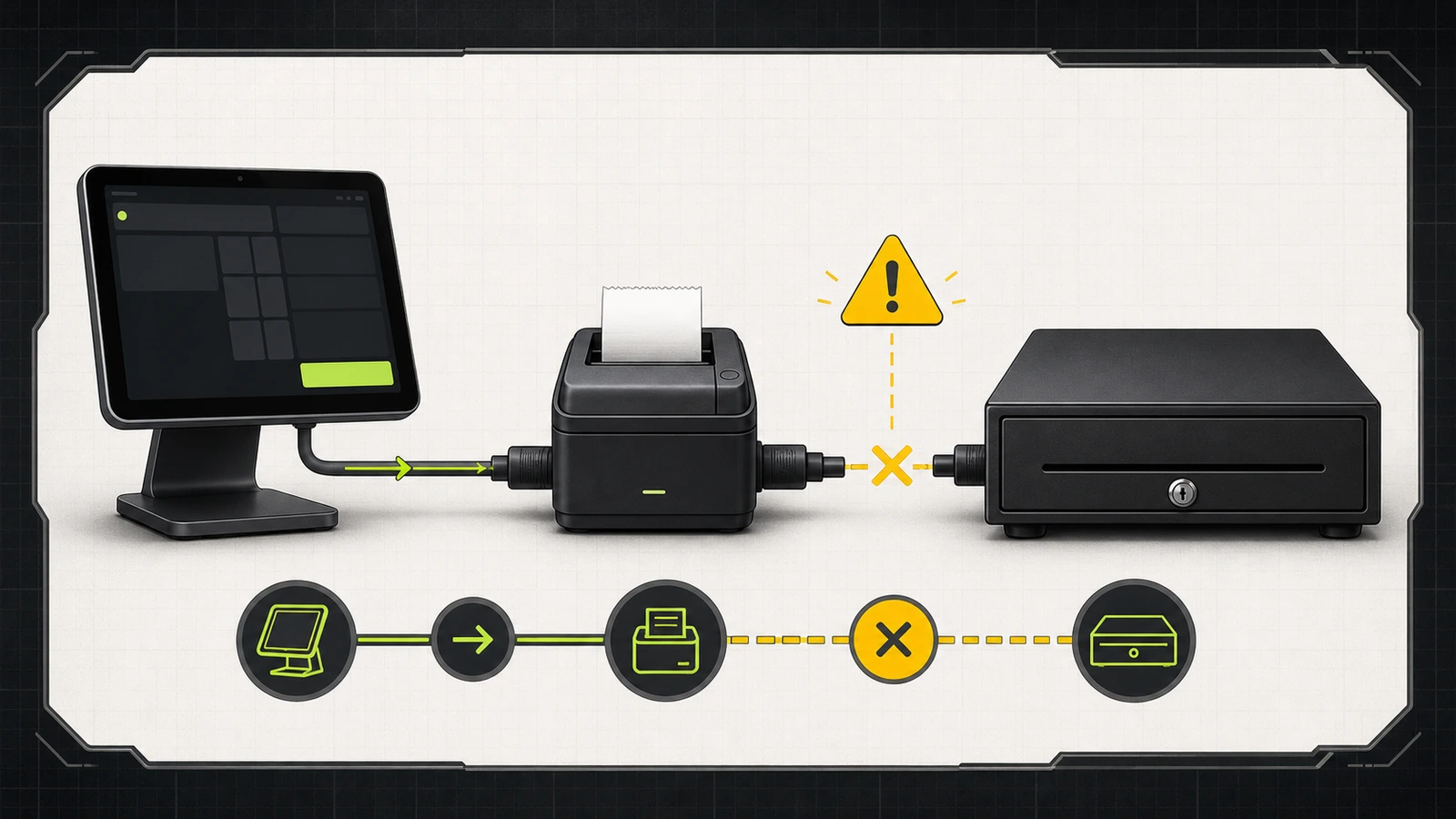
Test the key, receipt printer, and Shopify cash-drawer command in that order; the first failed boundary identifies whether the fault is mechanical, hardware-path, or configuration-related.
- Best for
- Shopify POS operators diagnosing a printer-driven cash drawer without erasing working settings or replacing parts blindly.
- Avoid if
- The drawer is physically damaged, jammed with cash inside, or requires a model-specific service procedure; secure it and contact the manufacturer.
If a Shopify POS cash drawer won’t open, don’t start by resetting the tablet or replacing the drawer. First determine whether the failure is mechanical, between the drawer and receipt printer, or inside the Shopify POS configuration. The fastest safe sequence is: try the key, print a test receipt, run Shopify’s Test cash drawer command, then check the default printer, auto-open setting, staff permission, and drawer cable.
That order preserves working settings and tells you which component actually failed.
Read the symptom before changing anything
The way the drawer fails narrows the problem:
- The key won’t open it: treat this as a lock, jam, or internal mechanism problem. Software changes won’t help.
- The key works, but Shopify’s drawer test fails: the likely fault is the cable, receipt printer’s drawer connection, or drawer electronics.
- The Shopify drawer test works, but cash sales don’t open it: check Drawer auto-open, the default printer, the payment type, and the staff member’s Open drawer permission.
- A receipt prints, but a different drawer stays closed: confirm that the printer attached to that drawer is the device’s default printer. Shopify documents a one-to-one drawer-to-POS-device assignment and won’t automatically open a drawer attached to a secondary printer.
- The drawer opens only partway: stop repeating electronic tests. Look for coins, paper, or a misaligned till obstructing the mechanism.
This guide applies to printer-driven cash drawers used with Shopify POS. Integrated units such as mPOP and model-specific USB drawers can have different connection and recovery steps.
Before you troubleshoot during business hours
Secure the cash first. Move the till or its contents according to your store’s cash-handling policy, keep the drawer key controlled, and avoid leaving an unlocked drawer unattended.
Don’t force the drawer, probe the lock, substitute an unverified telephone-style cable, or repeatedly power-cycle the full checkout station. A drawer-kick cable may use a familiar modular connector while having model-specific wiring. Use the cable supplied with the drawer or one explicitly approved for the drawer-and-printer combination.
If the receipt printer is also failing, follow the Shopify POS receipt-printer diagnostic sequence first. The printer is part of the drawer’s electronic opening path.
Diagnose the failure from least to most disruptive
1. Test the mechanical path with the key
Use the drawer’s supplied key in the normal manual-open position. Don’t force it.
If the key cannot open the drawer, or the drawer moves only slightly, the problem is mechanical rather than a Shopify setting. Check for a visible obstruction only after the till is secured and the drawer is safely accessible. Model-specific release levers and service procedures vary, so use the manufacturer’s documentation instead of improvising.
If the key opens the drawer normally, close it and continue. You’ve shown that the latch and slide mechanism can release.
2. Verify the receipt printer can operate independently
Confirm that the printer is powered, has paper, and appears connected in Shopify POS. Then print a test receipt from the printer entry under the Connectivity menu. Shopify’s default-printer instructions describe the current test path.
If the printer can’t print its own test receipt, the drawer test is premature. Restore the printer’s power, paper, pairing, USB, Ethernet, Wi-Fi, or Bluetooth path for the exact model. For a replacement or redesign, the Epson TM-m30III and Star mC-Print3 comparison explains why printer variant and interface matter.
3. Run Shopify’s cash-drawer test
In Shopify POS, open the Connectivity menu, select the receipt printer connected to the drawer, and tap Test cash drawer. Shopify’s cash-drawer management guide documents this control.
- The test opens the drawer: the printer, drawer cable, and release mechanism can complete a command. Continue to transaction settings.
- The test doesn’t open the drawer: reseat the drawer cable at both ends, confirm it is in the printer’s drawer-kick or DK port rather than an Ethernet port, and verify that it is the approved cable for this hardware pair.
If the printer has its own manufacturer utility, a successful manufacturer drawer test with a failed Shopify test points toward the POS app or configuration. A failed manufacturer test keeps the fault in the printer, cable, or drawer path. Star Micronics uses this same isolation logic in its cash-drawer troubleshooting procedure.
4. Confirm the correct default printer
This check matters most in stores with multiple printers or counters. The receipt may route to an available backup printer, but Shopify says automatic drawer opening works only for the drawer attached to the POS device’s default printer.
Open Connectivity, select the printer physically cabled to the intended drawer, and set it as the default receipt printer. Then run the drawer test again before completing another sale.
5. Check auto-open, payment type, and permission
For automatic opening after a cash transaction, go to Settings > Payments > Payment Options and confirm Drawer auto-open is enabled.
Then verify the transaction was completed as cash. A card or other non-cash payment should not be used as proof that auto-open is broken.
For manual opening from Register > Open drawer, Shopify requires the staff member to have the Open drawer permission. If one staff login can open the drawer and another can’t, compare permissions before changing hardware.
6. Inspect and reseat the drawer cable
Power down the receipt printer using its normal procedure before moving cables. Inspect both ends for a broken latch, bent contacts, crushed cable, or a loose connection. Reconnect the supplied cable in its documented direction and port, then power the printer back on and repeat the Shopify drawer test.
Don’t assume any cable with the same plug is equivalent. Star notes that its printer-driven cables are labeled for the printer and drawer ends. Cable direction and pinout are hardware details, not cosmetic differences.
If a known-good, manufacturer-approved replacement cable fixes the fault, label and remove the failed cable. If it doesn’t, stop swapping parts without a controlled test.
7. Restart only the failed path
After settings and physical connections are verified, restart the receipt printer and Shopify POS app. Restart the tablet only if the app or hardware connection remains stale.
For counters where power quality or brief outages repeatedly disrupt the printer, review the POS backup-power sizing guide. A UPS won’t repair a bad cable or setting, but it can reduce avoidable printer restarts during short power interruptions.
Match the result to the responsible component
Use the smallest confirmed boundary:
- Key fails: drawer mechanism, lock, obstruction, or manufacturer service issue.
- Key works; manufacturer test fails: drawer, cable, or printer DK output.
- Manufacturer test works; Shopify test fails: Shopify connection or app configuration.
- Shopify test works; manual open fails for one employee: staff permission.
- Shopify test works; cash sale doesn’t open: auto-open setting, payment type, or default-printer assignment.
- Drawer works intermittently when the cable moves: cable, connector, strain relief, or port damage.
Write down which test passed and which failed before contacting support. That evidence prevents the case from restarting at generic power checks.
Prevent the next cash-drawer outage
Label both ends of the drawer cable and the printer it belongs to. Record the exact drawer, printer, cable, POS device, and connection method for each counter. Keep the key accessible only to authorized staff, and train supervisors to run the Shopify drawer test without changing unrelated settings.
After moving a counter or replacing a printer, verify four things before opening:
- The printer produces a test receipt.
- The intended printer is the POS device’s default.
- Shopify’s cash-drawer test opens the correct drawer.
- A low-value training cash transaction triggers the expected drawer under store policy.
When to contact support or replace hardware
Contact the drawer manufacturer when the key won’t release the mechanism, the drawer opens only partially after obstructions are cleared, or a manufacturer test fails with the approved cable and supported printer. Contact Shopify when the hardware passes its manufacturer test but Shopify’s drawer test still fails, or when the No Sale/open-drawer command fails after permissions and the default printer are confirmed.
Don’t buy a replacement drawer until you have verified the exact supported model, receipt printer, cable, region, and Shopify POS device. Shopify maintains a current supported cash-drawer list, and automatic opening requires a compatible receipt printer.
Research limitations
This is a documentation-based diagnostic sequence, not a hands-on test of every Shopify-supported drawer. Menu labels and supported hardware can change. Manufacturer release mechanisms, cable pinouts, USB behavior, and service procedures vary by model, so the exact hardware manual remains authoritative for physical repair steps.
FAQ
Why does the receipt print but the Shopify cash drawer stay closed?
The sale may have printed through a secondary or backup printer. Shopify automatically opens only the drawer connected to the POS device’s default printer. Also check that Drawer auto-open is enabled and the payment was recorded as cash.
Can Shopify POS open a cash drawer without a receipt printer?
Shopify’s standard automatic-opening path requires a compatible receipt printer. Some integrated or specialized hardware can use a different supported path, but don’t assume a generic USB drawer will work directly with the tablet.
Why does Test cash drawer work, but No Sale doesn’t?
Check the signed-in staff member’s Open drawer permission. If the permission is correct, confirm the intended printer is still the default and the app is current before contacting Shopify Support.
Can I use a phone cable as a replacement cash-drawer cable?
Not safely by appearance alone. Modular plugs can look alike while their pinout, direction, and electrical function differ. Use the supplied cable or a replacement explicitly approved for the exact drawer and printer.
What if the cash drawer opens only partway?
Secure the till, stop electronic testing, and inspect for coins, paper, or a displaced insert. If the key and the manufacturer’s documented release procedure don’t restore full travel, contact the drawer manufacturer rather than forcing it.
Compatibility notes
Systems, accessories, and constraints
Applies to printer-driven cash drawers used with supported Shopify POS devices and compatible receipt printers. Integrated mPOP units, specialized USB drawers, cable pinouts, and release mechanisms require model-specific instructions.
Testing methodology
How this article was evaluated
Researched current Shopify Help Center and Star Micronics support documentation; organized the supported tests into a least-disruptive fault-isolation sequence.
Known limitations
What this guide could not verify
Documentation-based; no drawer, printer, cable, or Shopify POS device was tested directly. Menu labels, supported models, permissions, and manufacturer procedures can change.
Sources
Documentation and references
- Managing your Shopify POS cash drawer - Supports staff permission, default-printer behavior, auto-open setting, drawer testing, and cable checks.
- Cash drawers for Shopify POS - Supports current device requirements, supported cash drawers, and the compatible-receipt-printer requirement for automatic opening.
- Default receipt printer - Supports selecting the default printer and printing a test receipt.
- Overview of setting up a receipt printer - Supports the printer-to-drawer path and independent receipt-printer test sequence.
- How to Troubleshoot a Star Micronics Cash Drawer - Supports printer-driven cable checks, manufacturer test isolation, manual key checks, and escalation boundaries.
Devicefield checklist
Make the next hardware decision with fewer surprises.
Get practical buying notes, compatibility checks, and new troubleshooting guides.
Frequently asked questions
Why does the receipt print but the Shopify cash drawer stay closed?
The sale may have printed through a secondary or backup printer. Shopify automatically opens only the drawer connected to the POS device's default printer. Also check Drawer auto-open and confirm the payment was recorded as cash.
Can Shopify POS open a cash drawer without a receipt printer?
Shopify's standard automatic-opening path requires a compatible receipt printer. Integrated or specialized hardware may have a different supported path, but a generic USB drawer should not be assumed compatible.
Why does Test cash drawer work, but No Sale doesn't?
Check the signed-in staff member's Open drawer permission. If it is correct, confirm the intended printer is still the default and the app is current before contacting Shopify Support.
Can I use a phone cable as a replacement cash-drawer cable?
Not safely by appearance alone. Modular plugs can look alike while their pinout, direction, and electrical function differ. Use the supplied cable or an approved replacement for the exact drawer and printer.
What if the cash drawer opens only partway?
Secure the till, stop electronic testing, and inspect for an obstruction. If the key and the manufacturer's documented release procedure do not restore full travel, contact the drawer manufacturer rather than forcing it.


