
Cash Drawer Opens by Itself? Isolate the Trigger
Match unexpected drawer openings to payment, print, startup, and idle events before changing POS, driver, cable, or latch settings.
- Written by
- Clayton Wingfield
- Reviewed by
- Clayton Wingfield
- Originally published
- Aug 6, 2026
- Last reviewed
- Aug 6, 2026
Quick verdict
Secure the till, timestamp each opening, and compare cash, card, reprint, startup, and idle events before changing settings or hardware.
- Best for
- Retail and restaurant operators whose cash drawer opens on unwanted transactions, print jobs, restarts, or apparently idle periods.
- Avoid if
- The drawer has liquid or electrical damage, will not stay latched while disconnected, or troubleshooting requires undocumented wiring, pin, voltage, or chassis work.
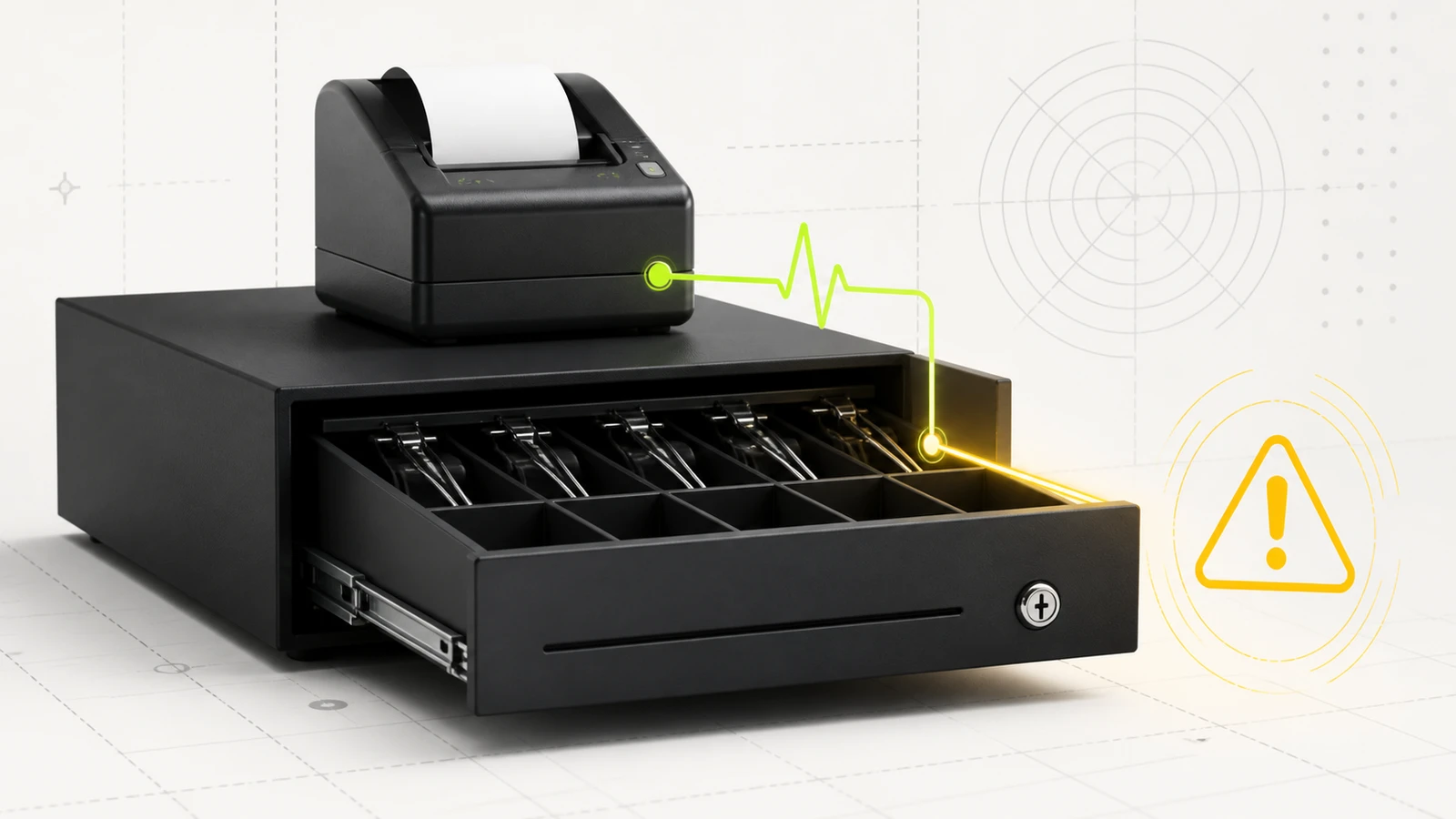
When a cash drawer opens by itself, first determine whether it is following a repeatable event. A drawer that opens after every printed receipt has a different fault boundary from one that opens when the printer powers on or while the register is idle.
Do not begin by replacing the drawer or changing cable pinouts. Record the event, protect the till, then isolate the POS setting, print-driver trigger, queued job, cable, and latch in that order. Most printer-driven drawers open only because the receipt printer receives a drawer-kick command.
Secure the till before troubleshooting
Remove or count the cash according to your store's procedure, restrict access to the register, and tell staff that the station is under test. An unexpected opening is both a hardware problem and a cash-control event.
Do not leave the drawer unlocked for convenience. Do not probe the connector, substitute a phone or Ethernet cable, or change pulse voltage or pin settings without the exact printer and drawer documentation. Connector shapes can look similar while wiring differs.
If the drawer will not stay latched even with its interface cable disconnected, stop electronic troubleshooting. The lock, latch, insert, or chassis needs inspection under the manufacturer's service guidance.
Match the opening to an event
Write down the time of each unexpected opening and what happened immediately beforehand. Then run controlled tests with no cash in the drawer.
| Drawer-opening pattern | Most useful first check | | --- | --- | | Only after cash sales | May be normal configured behavior | | After card and cash sales | POS payment-type or receipt-trigger setting | | Whenever any receipt or report prints | Printer driver or print-job drawer trigger | | When the printer starts or recovers from an error | Delayed or retained job, startup command, or driver behavior | | While fully idle, with no print or POS event | Cable, electrical, latch, or hardware service boundary | | Opens when bumped; will not remain closed | Mechanical latch or lock problem |
This event matrix is the central diagnostic. It prevents a normal but unwanted setting from being treated as a random hardware failure.
Check the POS cash-drawer setting
Start in the POS application. Look for a cash-drawer, payment, hardware, receipt, or printer-profile setting. Preserve the current value before changing it.
Platforms do not all use the same policy. Shopify POS documents automatic opening after cash transactions, while Lightspeed Retail R-Series can be configured for all payment types, cash only, or never. Square states that a printer-driven drawer opens automatically when receipts are enabled in the printer profile.
Use a three-transaction test:
- Complete a cash sale using the normal receipt choice.
- Complete a card sale using the same receipt choice.
- Reprint a past receipt or print a non-sale report.
Record whether the drawer opens after each event. If only the behavior selected in the POS occurs, the drawer is following configuration rather than opening randomly. Change the setting only if the business wants a different policy and the platform supports it.
For platform-specific connection failures, use the existing Shopify POS cash-drawer guide or Square cash-drawer guide. Those articles cover the opposite symptom: a drawer that should open but does not.
Separate a POS trigger from a printer-driver trigger
A printer-driven cash drawer can receive its opening pulse through more than one layer. The POS may explicitly request the drawer to open, or the printer driver may be configured to open it whenever a document prints. If both layers are active, the drawer may open on events the POS administrator did not expect.
Official printer documentation shows why this matters. Epson's TM-T88V software manual exposes peripheral and opening-timing controls in the driver. Star's CUPS driver manual includes options to drive a drawer immediately after printing or not drive it at all. The names and locations vary by model, driver family, and operating system.
Check the exact printer's documented settings for:
- cash drawer or peripheral selection;
- opening before or after a document;
- drawer 1 versus drawer 2;
- POS-controlled versus driver-controlled opening;
- any duplicate printer queues that target the same physical device.
Change one setting at a time, then repeat the cash, card, and reprint tests. Do not copy pulse-width, pin, or peripheral values from another model.
Clear delayed print events without erasing evidence
If the drawer opens when the printer powers on, wakes, reconnects, or recovers from a paper error, inspect the print path before blaming the latch. A retained print job may resume when the printer becomes available, and a job-level drawer command can fire with it.
- Photograph or record the queue and printer status.
- Identify the job owner, document name, time, and source terminal.
- Cancel only known duplicate or stale test jobs using the supported operating-system or POS controls.
- Restart the application or print service only after recording the evidence.
- Retest with one controlled receipt.
If the same station also prints corrupted output, the receipt-printer data-path guide can help distinguish a driver or printer-language problem from a drawer-only trigger.
Do not factory-reset the receipt printer during this step. A reset can remove network, interface, paper, cutter, and drawer configuration that will be useful to support.
Isolate the cable and mechanical drawer
When no POS, print, report, startup, or recovery event matches the opening, move to the physical boundary. Close the register, remove cash, power the receipt printer down, and follow the manufacturer's shutdown procedure.
Inspect only user-serviceable parts. Confirm the drawer is connected to the printer's documented drawer port with the correct supplied or approved cable. Look for a loose plug, crushed insulation, liquid exposure, or a cable routed tightly against power equipment. Do not open the printer or drawer chassis.
With the system safely powered down, disconnect the drawer interface cable at the documented point and check whether the empty drawer remains mechanically latched. This test does not prove the cable or electronics are healthy, but it separates a latch that releases without an electrical trigger from a symptom that occurs only while connected.
- If the drawer opens when bumped or will not latch while disconnected, escalate the mechanical drawer.
- If it stays latched disconnected but opens unexpectedly after reconnection, preserve the event log and escalate the printer, cable, driver, or POS path.
- If the symptom started after a cable, printer, drawer, driver, or POS change, restore only the known compatible configuration under vendor guidance.
Avoid unsafe or misleading fixes
- Do not replace an RJ-style drawer cable with a network or telephone cable because it fits.
- Do not change voltage, pulse width, or pin selection by trial and error.
- Do not lubricate the latch unless the drawer manufacturer specifies the product and location.
- Do not disable cash-management logs to hide unwanted openings.
- Do not keep a loaded drawer in service while it opens without a documented event.
- Do not assume every opening is malicious; first correlate it with payment, print, startup, and manual-open records.
Prevent repeat openings
Document the approved drawer policy for cash sales, card sales, receipt reprints, reports, and manual no-sale openings. Keep one authoritative printer queue per station when the workflow permits, and name queues by register and location.
After POS, driver, or hardware changes, run the same cash, card, and reprint test. Review cash-drawer or no-sale records where the platform provides them. Shopify, for example, supports reason codes for manual drawer openings; other platforms use different audit controls.
Keep the correct cable part number, printer model, drawer model, connection path, driver family, and normal settings in the location's hardware notes. That record is more useful than a generic “cash drawer fixed” ticket.
When replacement or vendor support is appropriate
Contact the POS vendor when the opening follows an undocumented application event or the audit record disagrees with the physical event. Contact the printer vendor when the driver or printer issues drawer commands outside the documented configuration. Contact the drawer manufacturer when the latch releases while disconnected, the key or lock behaves abnormally, or the chassis is damaged.
Provide the exact models, cable part number, connection diagram, driver version, POS version, timestamped event matrix, printer queue evidence, and the result of the disconnected-latch check. Replace hardware only after the symptom has been isolated to that hardware or repair is no longer economical.
Limitations of this guide
This is researched troubleshooting guidance. Devicefield did not test a cash drawer, receipt printer, interface cable, driver, POS application, print queue, latch, or drawer-kick command for this article. Opening policies, audit logs, wiring, pulse settings, ports, and service boundaries vary. The exact POS, printer, and drawer documentation controls.
Frequently asked questions
Why does my cash drawer open after every receipt?
The POS or printer driver may be configured to trigger the drawer for every printed document rather than cash sales only. Compare cash, card, and reprinted receipts, then check both the POS policy and the exact printer-driver drawer setting.
Can a queued print job open a cash drawer later?
It can when that job or printer configuration includes a drawer-opening command. If the printer was offline or in error, record the queue before clearing a known stale job and retest with one controlled receipt.
Why does the cash drawer open when the printer turns on?
A retained job, startup behavior, application reconnect, or driver command may be involved. Correlate the opening with queue and application events. If it also happens with the drawer disconnected from the electrical path, the problem is mechanical instead.
Should a cash drawer open for card payments?
That depends on the POS policy. Some platforms can open for all payment types, cash only, or never; others enforce a narrower behavior. Choose the store's intended policy using the platform's documented setting.
When should I stop using a cash drawer that opens randomly?
Remove cash and stop unattended use when openings have no documented payment, print, startup, or manual event, when the latch will not hold, or when there is cable, liquid, electrical, or chassis damage.
Compatibility notes
Systems, accessories, and constraints
The event-correlation method applies broadly to printer-driven and POS-controlled cash drawers, but payment policies, audit logs, ports, cables, pin assignments, pulse settings, drivers, and service procedures vary by POS, printer, drawer, region, and model.
Testing methodology
How this article was evaluated
Reviewed every local package and all 33 database inventory records; searched five materially different candidate queries; reviewed the selected primary query and three close variants; synthesized current POS support and printer-driver documentation into an event-first diagnostic sequence.
Known limitations
What this guide could not verify
Research-only. No cash drawer, receipt printer, cable, driver, POS application, queue, latch, or drawer-kick command was tested. The exact POS, printer, and drawer documentation controls.
Sources
Documentation and references
- Troubleshoot your cash drawer - Supports Square printer-profile behavior, receipt assignment, cable checks, and support boundaries.
- Managing your Shopify POS cash drawer - Supports automatic cash-transaction opening, default-printer behavior, testing, reason codes, and cable requirements.
- Setting up a cash drawer – Lightspeed Retail R-Series - Supports all-payment, cash-only, and never opening policies and controlled receipt tests.
- TM-T88V Software User's Manual - Supports model-specific printer-driver peripheral and drawer-opening timing controls.
- Star CUPS Driver Software Manual for Linux - Supports driver options that do not drive a drawer or drive a selected drawer after printing.
Devicefield checklist
Make the next hardware decision with fewer surprises.
Get practical buying notes, compatibility checks, and new troubleshooting guides.
Frequently asked questions
Why does my cash drawer open after every receipt?
The POS or printer driver may be configured to trigger the drawer for every printed document rather than cash sales only. Compare cash, card, and reprinted receipts, then check both the POS policy and the exact printer-driver drawer setting.
Can a queued print job open a cash drawer later?
It can when that job or printer configuration includes a drawer-opening command. If the printer was offline or in error, record the queue before clearing a known stale job and retest with one controlled receipt.
Why does the cash drawer open when the printer turns on?
A retained job, startup behavior, application reconnect, or driver command may be involved. Correlate the opening with queue and application events. If it also happens with the drawer disconnected from the electrical path, the problem is mechanical instead.
Should a cash drawer open for card payments?
That depends on the POS policy. Some platforms can open for all payment types, cash only, or never; others enforce a narrower behavior. Choose the store’s intended policy using the platform’s documented setting.
When should I stop using a cash drawer that opens randomly?
Remove cash and stop unattended use when openings have no documented payment, print, startup, or manual event, when the latch will not hold, or when there is cable, liquid, electrical, or chassis damage.


