
Shopify POS Inventory Not Syncing? Diagnose the Cause
Separate stale POS data from product, location, inventory-state, and integration faults before changing Shopify stock counts.
- Written by
- Clayton Wingfield
- Reviewed by
- Clayton Wingfield
- Originally published
- Jul 30, 2026
- Last reviewed
- Jul 30, 2026

Quick verdict
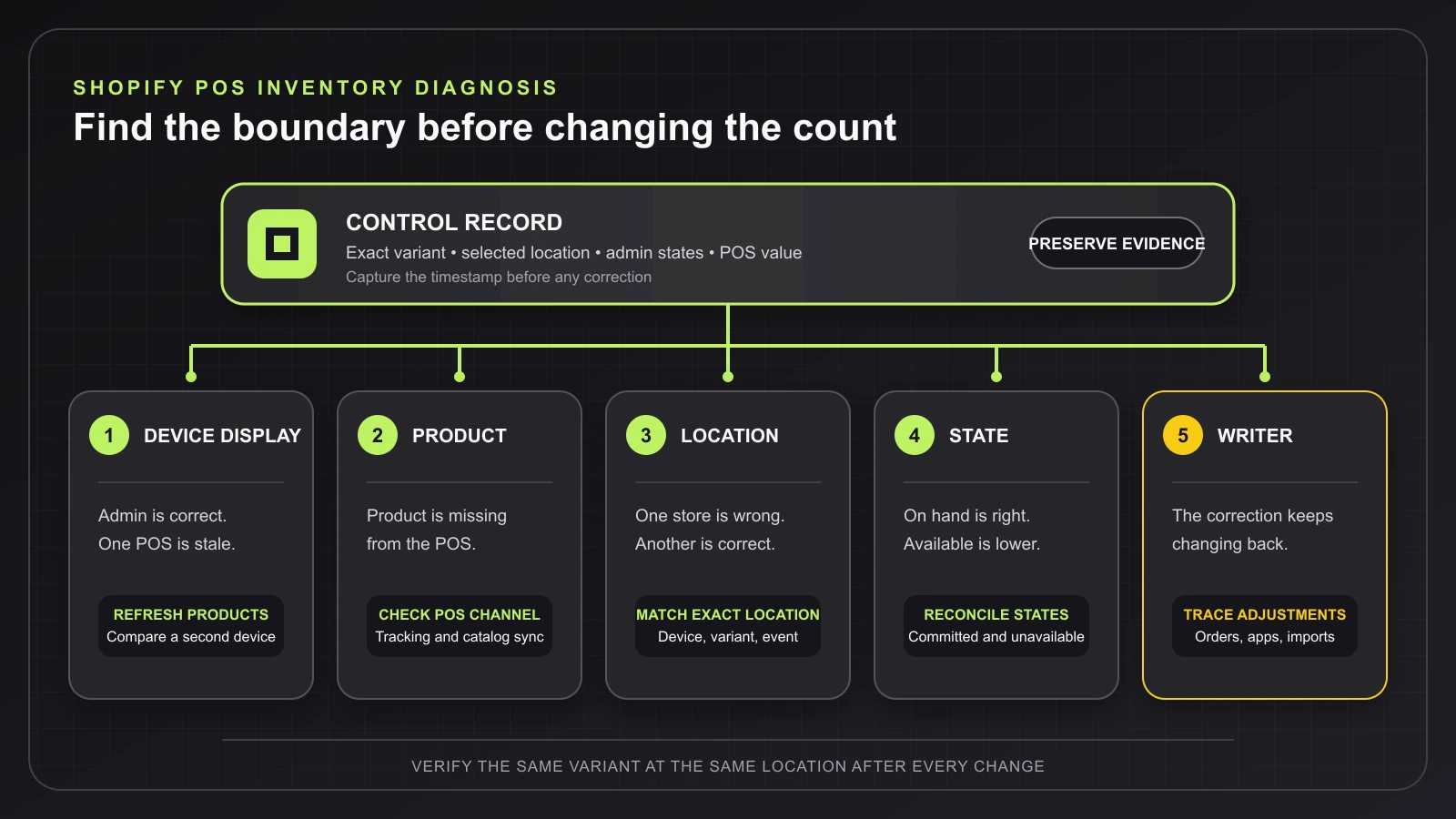
Compare one variant and location across Shopify admin and two POS devices, then isolate refresh, product visibility, location, inventory-state, or external-writer faults before adjusting stock.
- Best for
- Shopify retailers diagnosing missing products, stale POS quantities, location mismatches, or corrections that keep reverting.
- Avoid if
- A live count, transfer, migration, or integration cutover already has an assigned recovery owner and a documented rollback procedure.
When Shopify POS inventory is not syncing, first determine whether the problem is stale data on one POS device, a product that is not available to the POS channel, inventory assigned to the wrong location, or a quantity that is sitting in a different inventory state.
Do not “fix” the number before you record the affected variant, POS location, Shopify admin quantities, and POS quantities. An early manual adjustment can hide the boundary that failed and create a second discrepancy.
Quick checks before changing inventory
Use one affected product variant as a control. Record:
- Product and variant name
- SKU and barcode
- Location selected on the POS device
- Available and On hand quantities in Shopify admin
- Quantity shown in Shopify POS
- Whether the product is missing or only the count is wrong
- Whether one POS device or every device shows the problem
- Time of the last known sale, return, transfer, count, or app update
Check Shopify Status while the problem is active. A service incident can affect multiple devices or stores, while one stale device usually points to local app data or connectivity.
Then open the Connectivity menu in Shopify POS. Shopify’s current POS troubleshooting instructions place the manual refresh under Connectivity > Shopify > Store data. Refresh Products and inventory, then compare the same variant and location again.
Do not reinstall the app as an early troubleshooting step. Shopify warns that reinstalling can remove logs used by Support and may remove saved register shifts or carts.
Identify the symptom before applying a fix
| Symptom | Most likely boundary | Best next check | | --- | --- | --- | | Admin is correct, but one POS device is stale | Local POS data, app version, or device connectivity | Refresh Products and inventory, then force-close and reopen the current app | | Product is present in admin but missing from POS | POS sales-channel availability, location allocation, tracking, or unfinished catalog sync | Check the product’s channel, tracking, and selected location | | Count is correct at one store but wrong at another | POS device location or inventory assigned to the wrong location | Compare the exact location in admin and on the device | | On hand looks correct but sellable quantity is lower | Committed or Unavailable inventory | Compare inventory states, not only the total | | Several systems keep overwriting the number | Inventory app, integration, transfer, order, or staff adjustment | Review adjustment history and the system that wrote the change | | Every product is stale on every device | Shopify service, network path, app version, or broad catalog sync | Check service status, connectivity, software versions, and Support diagnostics |
If one POS device shows old inventory
Shopify says the POS app should automatically display changes made in Shopify admin when the app opens. When it does not, manually refresh Products and inventory from the Connectivity menu.
If the refresh completes but the number remains stale:
- Confirm that the device is signed into the intended store and location.
- Compare the same variant on a second POS device at that location.
- Make sure Shopify POS and the device operating system are current and supported.
- Force-close and reopen Shopify POS.
- Run the in-app diagnostics and send a report if the problem persists.
A second device is the important control. If it shows the correct number, avoid changing inventory in admin; the stored quantity is less likely to be the fault. If every device shows the same wrong number, move to the product, location, state, and adjustment checks below.
If the POS device is also dropping offline or other store data will not refresh, use the Shopify POS offline-mode guide to protect unsynced orders, then diagnose the network before signing out or clearing app state.
If the product is missing from Shopify POS
A missing product is not always a quantity-sync failure. Shopify’s POS setup troubleshooting lists four common causes:
- The product is not available to the Point of Sale sales channel.
- Inventory has not been allocated to the new location.
- Inventory tracking is not active for the product.
- The catalog has not finished syncing.
Check those boundaries in that order. For a large catalog or a newly signed-in device, allow the initial catalog sync to finish before making bulk changes. Shopify’s current launch checklist estimates that a first sync can range from a few minutes for a small catalog to an hour or more for a catalog with at least 20,000 products; actual time depends on the network and catalog complexity.
If the product appears when searched manually but not when scanned, the inventory sync may be healthy. Compare the stored variant barcode with the scanner output and use the Shopify POS barcode-scanner troubleshooting guide to isolate catalog matching from scanner connectivity.
If the count is wrong at one location
Shopify inventory is location-specific. Its POS inventory documentation says the device’s selected location controls which products are available to add to the cart, and sales or restocks update inventory for that location.
Compare the location in three places:
- The location selected on the POS device
- The location row for the variant in Shopify admin
- The location associated with the sale, return, transfer, or count that changed the stock
Do not compare a store’s POS number with an all-location total. A correct total can still conceal stock assigned to the wrong store or warehouse.
For a new location, verify that inventory was allocated there before launch. If a quantity belongs at another location, use Shopify’s supported transfer or adjustment workflow and record the reason rather than entering offsetting numbers on both sides.
If Available and On hand do not match
Shopify’s inventory-state definitions separate physical stock from stock that can be sold:
- On hand includes Available, Committed, and Unavailable units at a location.
- Available is stock that can be sold.
- Committed belongs to placed orders that have not been fulfilled.
- Unavailable can include draft-order reservations, app holds, damaged goods, quality control, or safety stock.
- Incoming is not sellable until it is received and moved to an available state.
That distinction explains many apparent mismatches. If On hand is correct but Available is lower, inspect the Committed and Unavailable quantities before changing the total. If stock is Incoming, complete the appropriate receiving workflow instead of adding a duplicate Available quantity.
If the number changes back after correction
A number that returns to the wrong value is evidence of another writer, not merely a stale screen. Review inventory adjustment history for the affected variant and location. Correlate each change with sales, returns, transfers, counts, imports, and connected inventory apps.
Use one source of truth for the correction. Pause only the affected integration when its vendor’s documented procedure permits it, then make a controlled change to one test variant and confirm which system writes next. Do not disconnect a live inventory integration across the whole catalog during store hours without a rollback plan.
If an app places stock in an Unavailable state or owns synchronization with another system, use that app’s logs and support documentation. A Shopify refresh can update what the POS displays, but it cannot correct bad data continually written by an external source.
Fixes from least to most disruptive
- Record one affected variant, location, inventory states, devices, and timestamps.
- Check Shopify Status.
- Confirm the POS device’s selected location.
- Refresh Products and inventory in the POS Connectivity menu.
- Compare a second POS device at the same location.
- Update supported software, then force-close and reopen the app.
- Correct POS channel availability, inventory tracking, or location allocation.
- Reconcile Available, Committed, Unavailable, On hand, and Incoming states.
- Review adjustment history, transfers, orders, imports, and app activity.
- Run diagnostics and contact Shopify Support with the evidence.
After each change, test the same variant at the same location. Verify search, POS display, a supported scan lookup when relevant, and the next legitimate inventory event. Shopify recommends performing broad inventory updates when retail outlets are closed and online sales are not busy, which reduces the chance of transactions changing the number during reconciliation.
Prevent the mismatch from returning
Give each retail device a named location and include that check in opening procedures. Limit inventory-adjustment permissions to staff who need them, require adjustment reasons, and review unexplained changes by variant and location.
For counts, freeze one area or product group at a time, record the count window, and reconcile pending orders, returns, transfers, and app writes before accepting a new baseline. Staff should compare Available when deciding what can be sold and On hand when counting physical units.
Document which system owns inventory for every connected channel or app. If two systems can both overwrite Shopify without clear precedence, recurring mismatches are a process design problem rather than a refresh problem.
When to contact support
Contact Shopify Support when Products and inventory will not refresh, every device shows stale data despite correct admin values, diagnostics report a failure, or the adjustment history does not explain the change. Include the store, POS location, device and app versions, product and variant IDs, timestamps, screenshots of the relevant inventory states, and the troubleshooting sequence already completed.
Contact an integration vendor when its app appears in the adjustment trail, a third-party catalog has a different quantity, or the same correction is repeatedly overwritten. Contact the person responsible for inventory operations when the data is technically synchronized but physical counts, transfers, or location assignments are wrong.
What this guide cannot verify
This is a researched troubleshooting guide. No Shopify store, POS device, inventory app, live catalog, transfer, stock count, or adjustment workflow was tested. Menus, permissions, app behavior, plan features, and support procedures can change by region, device, account, and software version. Verify the exact store and integration state before changing production inventory.
Frequently asked questions
Why is Shopify POS inventory not updating after a sale?
Confirm that the sale belongs to the expected POS location, then compare the exact variant and inventory state in admin. Refresh Products and inventory on the POS device. If the admin quantity is also wrong, review the order and inventory adjustment history rather than repeatedly refreshing the app.
How long should Shopify POS inventory take to sync?
Normal changes should appear automatically when the app opens. A first catalog download can take longer: Shopify currently estimates from a few minutes for a small catalog to an hour or more for at least 20,000 products. If an established device remains stale, inspect the sync status and refresh Products and inventory.
Why is a product in Shopify admin but not in POS?
Check whether it is available to the Point of Sale sales channel, has inventory tracking enabled when needed, has inventory assigned to the selected location, and has completed catalog synchronization.
Should I reinstall Shopify POS to fix inventory syncing?
Not as an early step. Shopify warns that reinstalling can remove diagnostic logs and saved data such as register shifts or carts. Refresh, update, force-close, run diagnostics, and contact Support before reinstalling.
Compatibility notes
Systems, accessories, and constraints
The diagnosis depends on the Shopify store, POS app and device versions, selected retail location, product and variant configuration, POS sales-channel availability, inventory tracking, inventory states, orders, transfers, staff permissions, network state, and connected inventory apps.
Testing methodology
How this article was evaluated
Reviewed current exact and close search results, Shopify Help Center documentation, Shopify Status, recent community demand signals, and the complete Devicefield local and database inventory; organized the evidence into device, product, location, state, and external-writer boundaries.
Known limitations
What this guide could not verify
Research-only. No Shopify store, POS device, inventory app, live catalog, transfer, stock count, or adjustment workflow was tested. Menus, permissions, app behavior, plan features, and support procedures can vary by region, device, account, and software version.
Sources
Documentation and references
- Troubleshooting the Shopify POS app - Supports the current Products and inventory refresh path, app update and force-close steps, diagnostics, and the warning against early reinstallation.
- Troubleshooting Shopify POS setup - Supports missing-product checks for POS sales-channel availability, location allocation, inventory tracking, and catalog sync.
- Tracking and adjusting Shopify POS inventory - Supports location-specific inventory behavior, tracking requirements, and safer timing for inventory updates.
- Understanding inventory states - Supports definitions of Available, Committed, Unavailable, On hand, and Incoming inventory.
- Shopify POS launch checklist - Supports POS sales-channel availability and current first-catalog-sync time estimates by catalog size.
- Shopify Status - Supports checking current Point of Sale and Shopify service status before local changes.
- About the Shopify Affiliate Program - Verifies the current Impact-hosted referral program; excluded from the article because existing Shopify merchants troubleshooting inventory are not a relevant acquisition audience.
Devicefield checklist
Make the next hardware decision with fewer surprises.
Get practical buying notes, compatibility checks, and new troubleshooting guides.
Frequently asked questions
Why is Shopify POS inventory not updating after a sale?
Confirm that the sale belongs to the expected POS location, then compare the exact variant and inventory state in admin. Refresh Products and inventory on the POS device. If the admin quantity is also wrong, review the order and inventory adjustment history rather than repeatedly refreshing the app.
How long should Shopify POS inventory take to sync?
Normal changes should appear automatically when the app opens. A first catalog download can take longer: Shopify currently estimates from a few minutes for a small catalog to an hour or more for at least 20,000 products. If an established device remains stale, inspect the sync status and refresh Products and inventory.
Why is a product in Shopify admin but not in POS?
Check whether it is available to the Point of Sale sales channel, has inventory tracking enabled when needed, has inventory assigned to the selected location, and has completed catalog synchronization.
Should I reinstall Shopify POS to fix inventory syncing?
Not as an early step. Shopify warns that reinstalling can remove diagnostic logs and saved data such as register shifts or carts. Refresh, update, force-close, run diagnostics, and contact Support before reinstalling.


