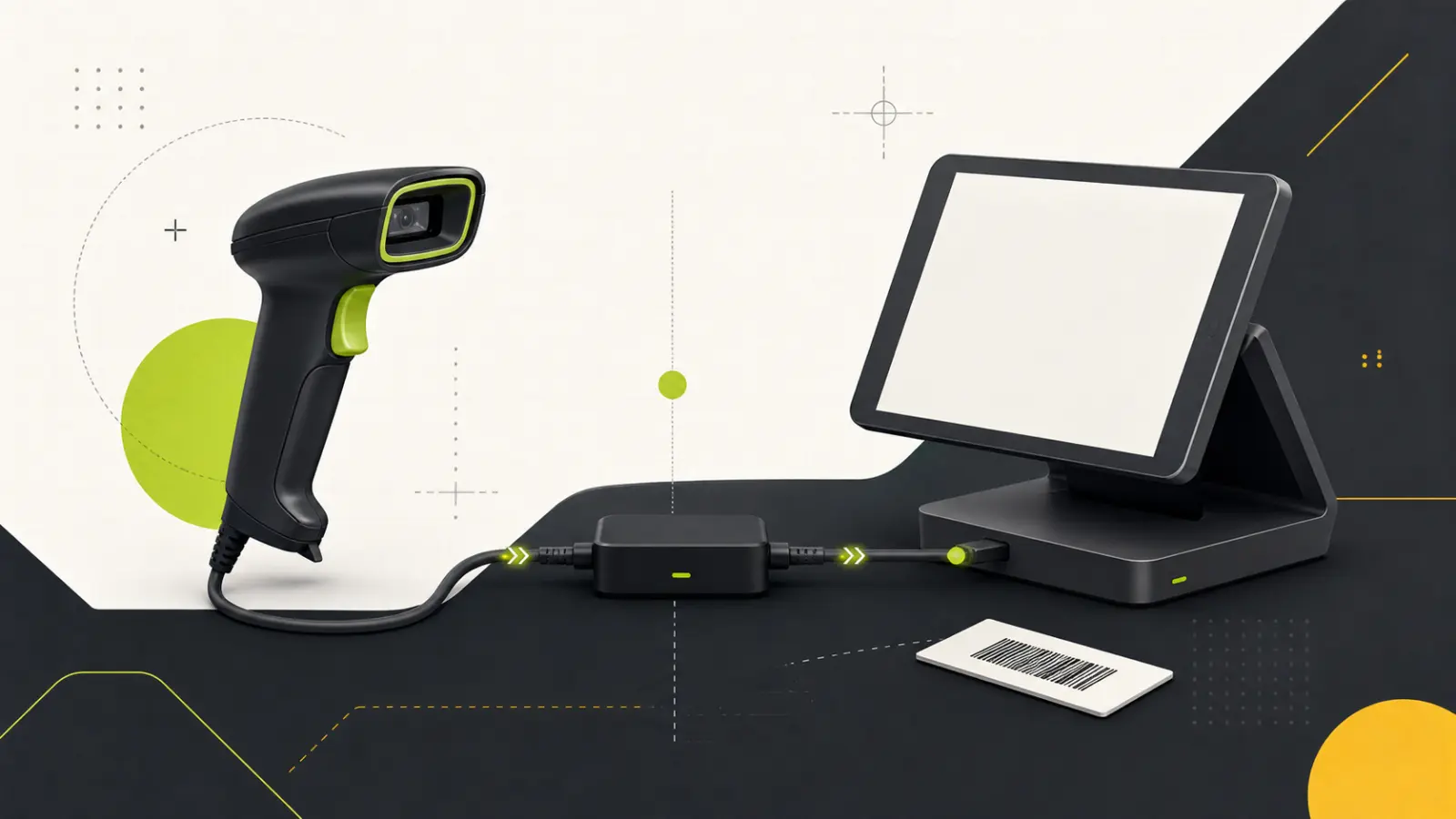
Zebra DS2208 Add Enter After Scan: Safe Setup
Configure a DS2208 Enter suffix, verify it safely, stage multiple scanners, and remove it without erasing unrelated settings.
- Written by
- Clayton Wingfield
- Reviewed by
- Clayton Wingfield
- Originally published
- Jul 31, 2026
- Last reviewed
- Jul 31, 2026
Quick verdict
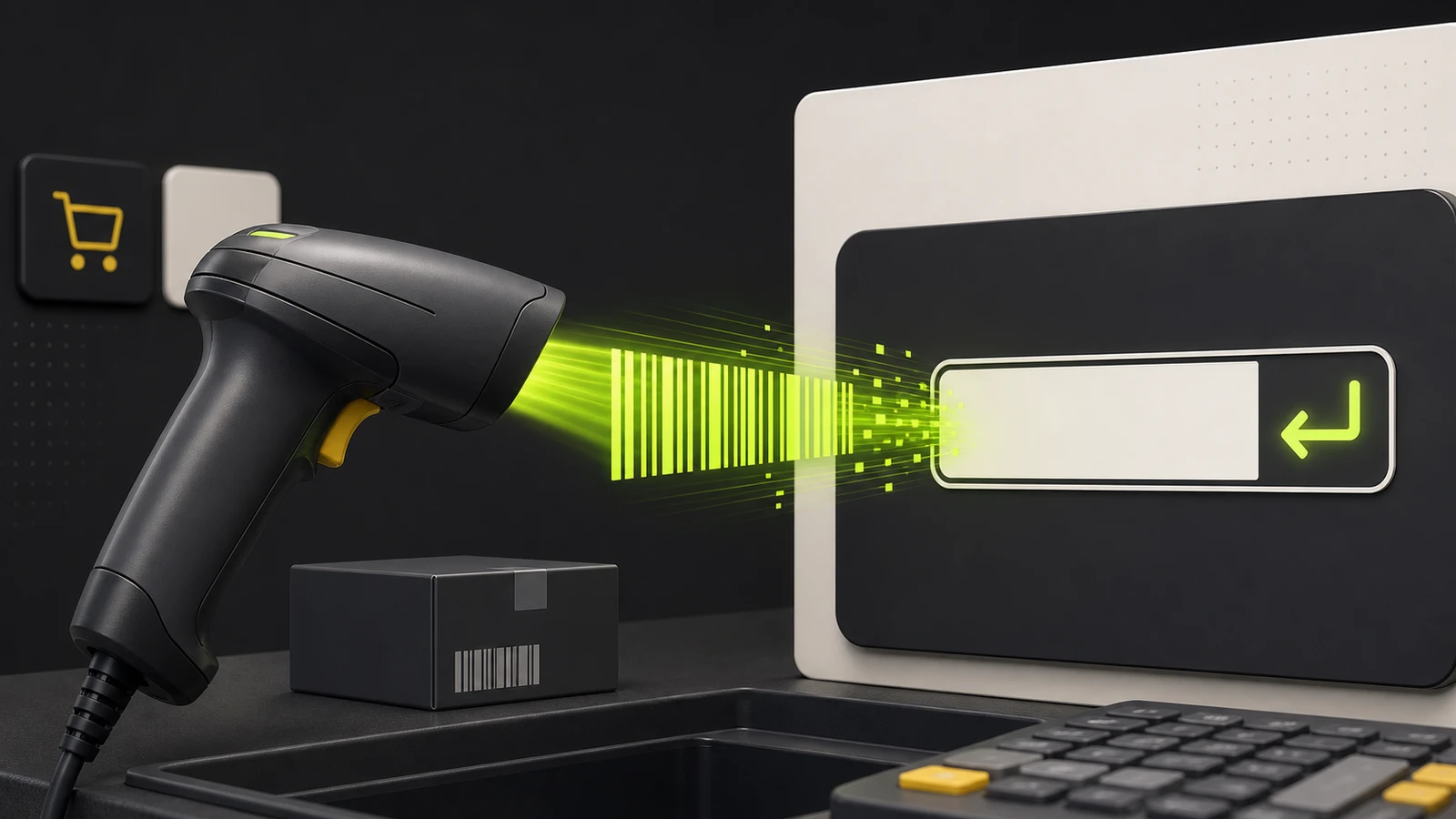
Use Zebra's model-specific Add Enter Key programming barcode on one DS2208, verify the output in plain text and the target application, then stage additional scanners from a saved configuration.
- Best for
- Retail and inventory workflows that explicitly use Enter to submit a lookup or finish a scanned item entry.
- Avoid if
- The application already advances automatically, needs staff to verify another field, or uses a non-keyboard scanner integration that ignores keyboard suffixes.
To make a Zebra DS2208 add Enter after each scan, use the Add Enter Key (Carriage Return/Line Feed) programming barcode in Zebra's current DS2208 Product Reference Guide. Test the change in a plain-text field before using it in a POS or inventory application.
That last step matters. An Enter suffix can submit a lookup, accept a quantity, or move to another record depending on where the cursor is. Configure one scanner first, prove the workflow, and only then copy the setting to other scanners.
Before changing the scanner
Confirm that the label on the device says DS2208. The cordless DS2278 belongs to the same product family, but connection and staging details can differ. Do not use a programming barcode from an unrelated Zebra, Symbol, or third-party scanner manual simply because the command has a similar name.
Next, identify what the business application should do after receiving the barcode:
- Enter: submit a search, finish an item lookup, or move to the next line.
- Tab: move focus to the next field without submitting the form.
- No suffix: leave the scanned value in the current field for staff to review.
If the software already submits a scan automatically, adding Enter at the scanner can create a double action. Record the working baseline before changing anything: scanner model, cable or host connection, target application, current behavior, and one known test barcode.
For a USB scanner acting like a keyboard, open a blank text document and scan once. If the cursor remains after the value, no visible Enter action is being sent. If it moves to a new line, the scanner or application layer is already sending an end-of-line action.
Add Enter with the official programming barcode
Zebra's current DS2208 Product Reference Guide contains the model-specific programming barcode. In the guide, open User Preferences & Miscellaneous Options, then Miscellaneous Scanner Parameters, and find Enter Key. In revision MN-002874-14EN, the printed page is 5-29.
Use this controlled sequence:
- Stop active sales, counts, or receiving work on the test station.
- Open the official guide on a clear screen or print only the relevant page at full scale.
- Aim the DS2208 at Add Enter Key (Carriage Return/Line Feed) and scan it once.
- Wait for the scanner's normal successful-programming indication.
- Return to a blank text document and scan the known test barcode once.
- Confirm that the decoded value is correct and the cursor moves to a new line.
- Test the exact POS or inventory workflow with a non-production record or another safe test path.
The guide describes this quick command as adding a carriage return/line feed after the decoded data. That is broader than a label that merely says “auto Enter.” Some applications treat the pair as one line ending; others can react differently. Validate the destination software instead of assuming every input field interprets the suffix the same way.
Do not scan a factory-default barcode as part of this change. A reset can remove working interface, country-keyboard, symbology, beeper, and formatting settings that have nothing to do with Enter.
Use 123Scan for a repeatable deployment
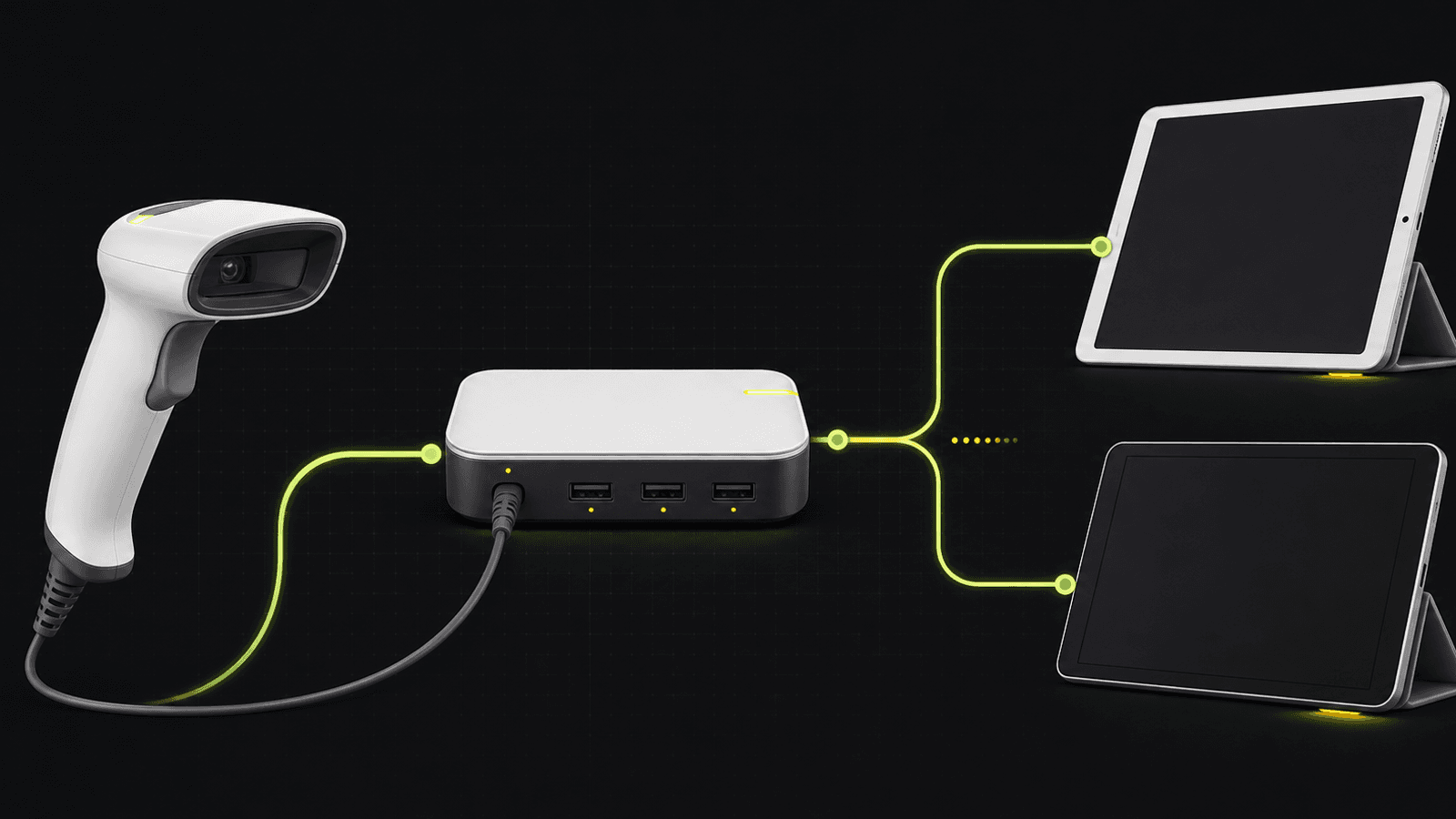
The manual barcode is appropriate for one scanner. For several scanners or multiple locations, Zebra's 123Scan Configuration Utility provides a more auditable process. Zebra documents it as a Windows-based setup tool that can save a configuration, generate programming barcodes, show non-printable characters in scanned data, and produce parameter and activity reports.
A safer fleet workflow is:
- Connect one known-good DS2208 to a supported Windows computer.
- Capture or document its current parameters before editing.
- Add the required suffix in the configuration workflow.
- Use Data View to confirm the decoded value and non-printable ending.
- Save the configuration with the store, application, and revision date in the name.
- Apply it to one pilot scanner.
- Run the plain-text and application tests below.
- Stage the remaining scanners only after the pilot passes.
Zebra's current 123Scan documentation says the utility can distribute a saved configuration through USB or a generated programming barcode. Keep the configuration and report with the deployment record. A random programming sheet with no model, owner, or date is difficult to audit later.
Use the current 123Scan download instructions and match the configuration to the scanner's actual model and firmware. Do not assume that a sheet generated years earlier represents the current scanner state.
Verify Enter in the real workflow
A newline in a text editor proves that the scanner transmitted an ending character in keyboard mode. It does not prove the POS workflow is safe.
Run these checks on the pilot:
- Single scan: one trigger pull enters one complete barcode and performs exactly one intended action.
- Quantity field: Enter does not accept a default quantity or advance before staff can correct it.
- Unknown barcode: the application shows its normal not-found state rather than closing the prompt.
- Rapid scans: two different products remain separate and in the correct order.
- Repeated barcode: the application follows the store's intended duplicate-item behavior.
- Wrong field: a scan with focus in notes, price, or customer search does not create an unsafe update.
- Reconnect: the behavior remains the same after the scanner or station restarts.
This distinction is especially important in a retail system. The scanner usually sends data to whichever field has focus. Enter can then activate the focused form's default action. Staff training and screen focus are part of the deployment, not just scanner configuration.
If the scanner is being added to Shopify POS, first verify the supported connection and operating mode in Devicefield's DS2208 Shopify POS compatibility guide. A suffix cannot repair an unsupported host path.
Choose Tab instead when the form should not submit
The same DS2208 manual places a Tab Key programming barcode beside the Enter option. Tab is often the better choice for a receiving form that expects a barcode in one field and a quantity in the next.
Choose the action from the form behavior:
- Use Enter when the application explicitly expects Enter to finish the lookup.
- Use Tab when staff must enter or verify another field before submission.
- Use no suffix when the application handles scan completion itself.
Do not combine Enter, Tab, and an application-side auto-submit rule without a documented reason. One workflow owner should decide which layer advances the form.
If the setting does not work
The scanner beeps, but nothing changes
Test in a plain-text field. If the barcode value appears but the cursor does not move, confirm that you scanned the DS2208 Enter programming barcode from the official guide. Parameter-barcode scanning can also be locked by a managed configuration.
If no data appears at all, the issue is not the suffix. Use the barcode scanner beeps but sends no data guide to check focus, host mode, and the connection path.
Enter happens twice
First test outside the business application. If a text editor shows only one line move, check whether the application already submits or advances after a successful scan. If the text editor also shows unexpected extra movement, review the scanner's transmission format and any existing Advanced Data Formatting rules in 123Scan.
Keep the action in one layer whenever possible: scanner suffix or application automation, not both.
The barcode contains wrong characters
An Enter suffix does not correct a keyboard-country or data-format mismatch. If letters, punctuation, or digits are wrong, follow the barcode scanner wrong-characters guide before changing the suffix again.
Enter works in a text editor but not in the POS
That result usually means the application or interface handles scanner data differently from a basic keyboard field. Confirm the supported scanner mode with the POS vendor. Do not keep stacking prefixes, suffixes, and formatting rules in an attempt to force an unsupported integration.
Remove the Enter suffix without a full reset
To return to unmodified scan data, use the Data As Is programming barcode in the DS2208 guide under Scan Data Transmission Format; in revision MN-002874-14EN, it appears on printed page 5-32. Then repeat the plain-text and application tests.
For a managed deployment, reapply the saved baseline in 123Scan and retain the activity report. Avoid factory defaults unless Zebra's model-specific troubleshooting or your deployment procedure explicitly requires them.
Limitations
This is researched setup guidance. Devicefield did not configure a physical DS2208 or validate a specific POS, inventory platform, cable, firmware version, or managed scanner policy. The referenced control names and printed pages are from Zebra's current DS2208 guide, revision MN-002874-14EN. Verify the exact scanner and destination application before changing production devices.
Frequently asked questions
What barcode makes a Zebra DS2208 press Enter?
Use Add Enter Key (Carriage Return/Line Feed) in the official DS2208 Product Reference Guide under Miscellaneous Scanner Parameters. Use the guide for the exact model rather than copying an image from an unknown support page.
Can a DS2208 press Tab instead of Enter?
Yes. The same Zebra guide includes a Tab Key programming barcode. Tab is useful when the workflow should move to the next field without submitting the form.
Why does the DS2208 press Enter twice?
The scanner suffix and the application may both be advancing the workflow, or an existing formatting rule may add another ending. Compare behavior in a plain-text field, then inspect the application rule and scanner configuration separately.
Do I need to factory-reset the scanner to remove Enter?
No. Use the Data As Is transmission-format barcode in the official guide or reapply the saved baseline with 123Scan. A full reset can remove unrelated working settings.
Compatibility notes
Systems, accessories, and constraints
The quick programming barcode is for Zebra DS2208 scanners. Behavior depends on scanner model, host interface, cable, firmware, keyboard country, existing data-formatting rules, focused field, and the destination application's treatment of carriage return and line feed. 123Scan requires a supported Windows environment.
Testing methodology
How this article was evaluated
Reviewed the current DS2208 Product Reference Guide, Zebra's Enter Key documentation, current 123Scan documentation and release history, selected-query search results, and the complete Devicefield local and database inventory; designed a pilot, validation, and rollback sequence around the official controls.
Known limitations
What this guide could not verify
Research-only. No physical DS2208, POS application, inventory platform, cable, firmware, or managed scanner policy was tested. Validate the exact scanner and application before changing production devices.
Sources
Documentation and references
- DS2208 Digital Scanner Product Reference Guide - Supports the DS2208 Enter Key, Tab Key, prefix and suffix, transmission-format, Data As Is, 123Scan, and model-specific configuration guidance.
- Enter Key - Confirms that Zebra's Enter Key parameter adds a carriage return or line feed after scanned data.
- 123Scan Configuration Utility - About - Supports configuration files, programming barcodes, USB staging, reports, Data View, supported Windows requirements, and current release history.
- 123Scan Configuration Utility - Download - Supports using Zebra's current official 123Scan release and download workflow.
Devicefield checklist
Make the next hardware decision with fewer surprises.
Get practical buying notes, compatibility checks, and new troubleshooting guides.
Frequently asked questions
What barcode makes a Zebra DS2208 press Enter?
Use Add Enter Key (Carriage Return/Line Feed) in the official DS2208 Product Reference Guide under Miscellaneous Scanner Parameters. Use the guide for the exact model rather than copying an image from an unknown support page.
Can a DS2208 press Tab instead of Enter?
Yes. The same Zebra guide includes a Tab Key programming barcode. Tab is useful when the workflow should move to the next field without submitting the form.
Why does the DS2208 press Enter twice?
The scanner suffix and the application may both be advancing the workflow, or an existing formatting rule may add another ending. Compare behavior in a plain-text field, then inspect the application rule and scanner configuration separately.
Do I need to factory-reset the scanner to remove Enter?
No. Use the Data As Is transmission-format barcode in the official guide or reapply the saved baseline with 123Scan. A full reset can remove unrelated working settings.